
Need a printable version of this article? Download the Article (PDF Version).
Need a reminder? Use the Quick Reference Guide.
Need more details? Check out the Standard Guide.
Quick Reference Guide
There are 3 steps to complete this task:
Standard Guide
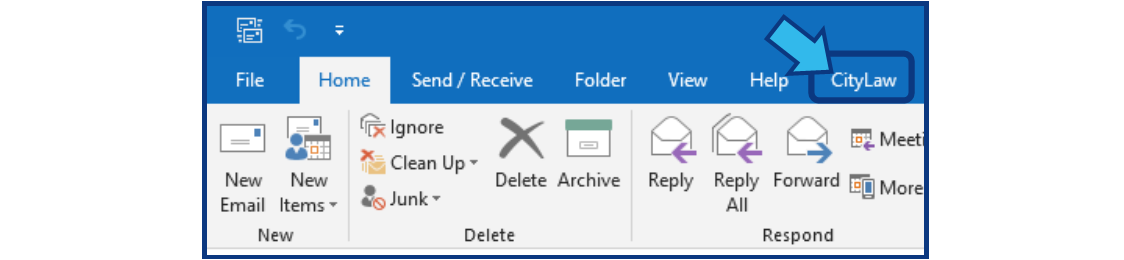
Step 1. In Outlook, select the CLW Tab.
The CLW Tab is located in the Menu Bar at the top of the Outlook window. It may show as CityLaw, CountyLaw, or Cycom.
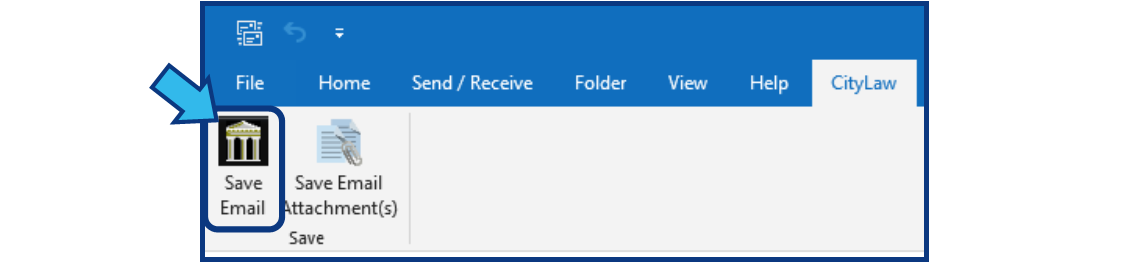
Step 2. Right-click the desired icon.
This example shows how to add the Save Email icon. While hovering your mouse over the Save Email icon, right-click to see icon display options.
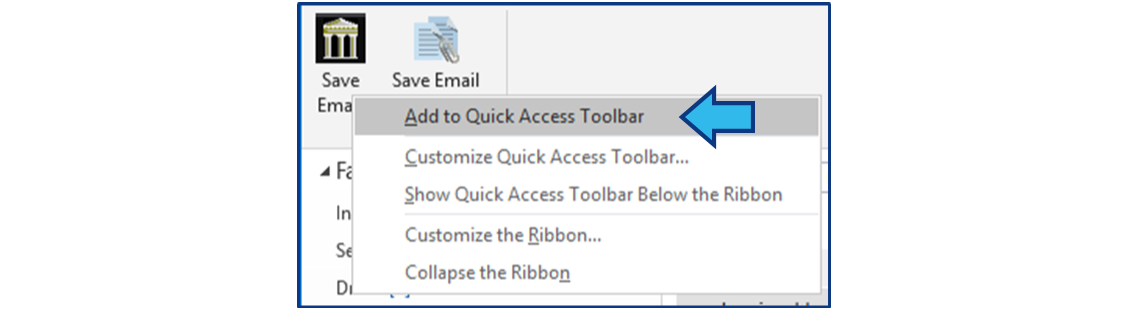
Step 3. Select 'Add to Quick Access Toolbar'.
Select 'Add to Quick Access Toolbar'.
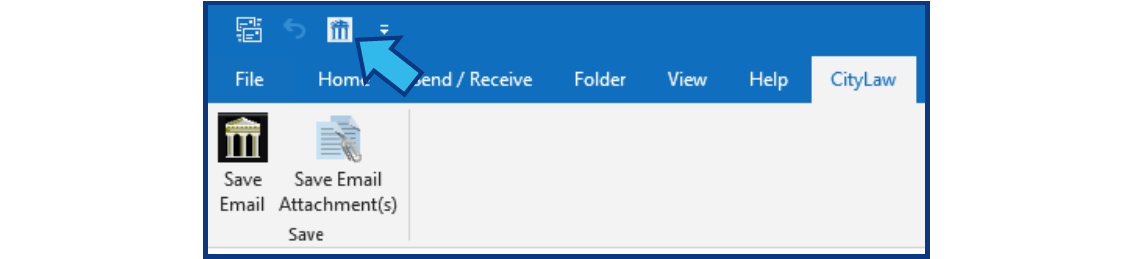
The Save Email icon will appear in the Quick Access Toolbar at the top-left of the Outlook window.
Repeat these steps, using the Save Email Attachment(s) icon, to add it to the Quick Access Toolbar.
Comments
0 comments
Please sign in to leave a comment.