
Need a printable version of this article? Download the Article (PDF Version).
Need a reminder? Use the Quick Reference Guide.
Need more details? Check out the Standard Guide.
Quick Reference Guide
There are 4 steps to complete this task:
-
In Outlook, select the email(s) to attach.
-
Press the Save Email icon.
-
In the Select Matter window, select the relevant matter(s).
-
Press Select.
Standard Guide
Step 1. Select the email(s).
To select a single email, left-click the email. It will be highlighted by a blue box when it is selected.
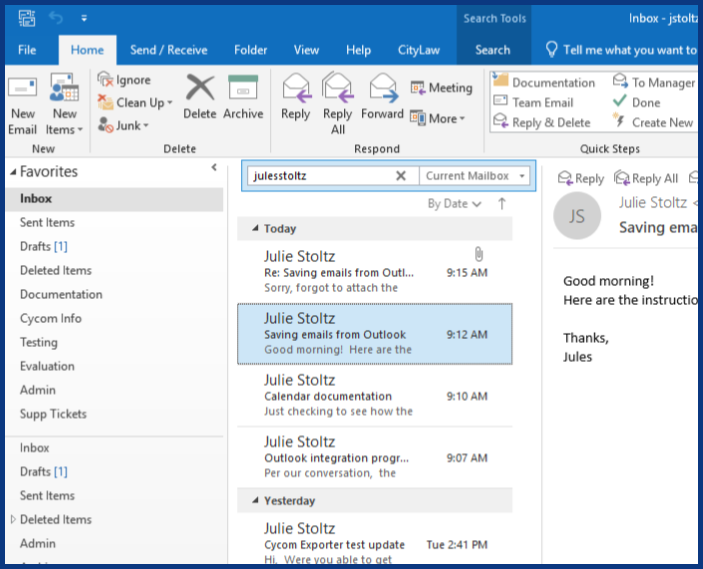
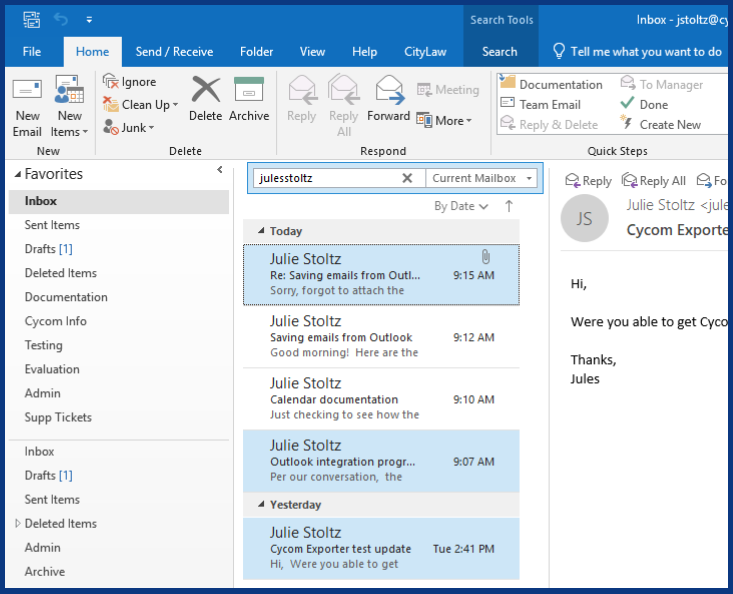
To select multiple emails, do the following:
- Hold down the Control (CTRL) button on the keyboard.
- Left-click the emails you wish to attach.
- Release the Control (CTRL) button.
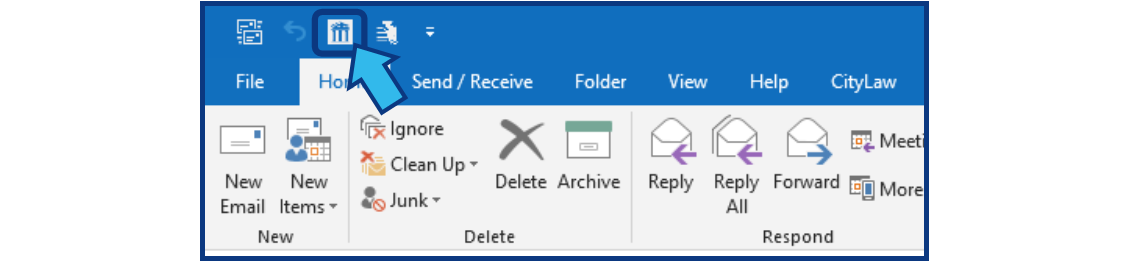
Step 2. Press the CityLaw Save Email icon.
There are two ways to complete this step.
1-Step Option:
Press the Save Email icon located on the Quick Access Toolbar. If you do not see it use the 2-Step Option below.
Want to add the icon?
Check out Add Icon to Quick Access Toolbar.
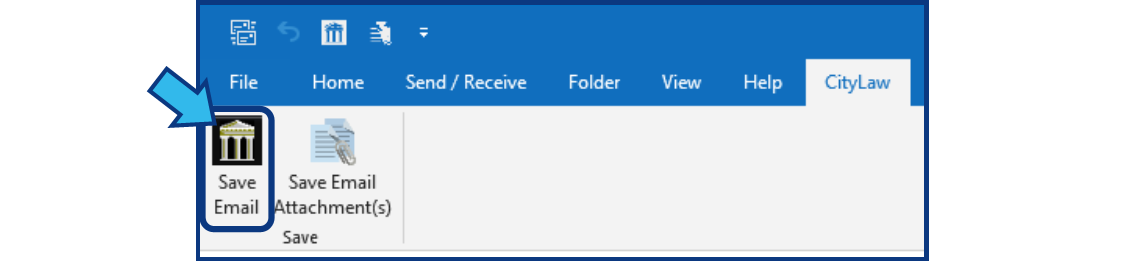
2-Step Option:
1. The CLW tab is located in the Menu Bar at the top of the Outlook window.

2. The Save Email icon is located in the Toolbar of the CLW tab near the top of the Outlook window.
Step 3. Select the matter(s) in the Select Matter window.
A Select Matter window opens so that you can search for and select the relevant matter(s).
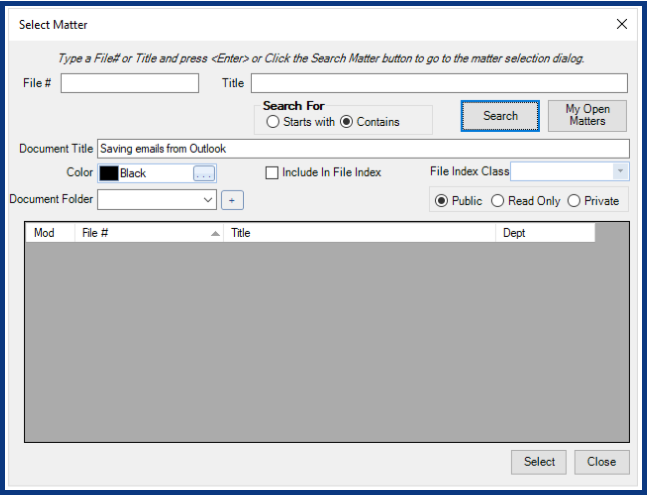
There are several search options available. If you know the file number or part of the file number, you can enter the information in the File # field.
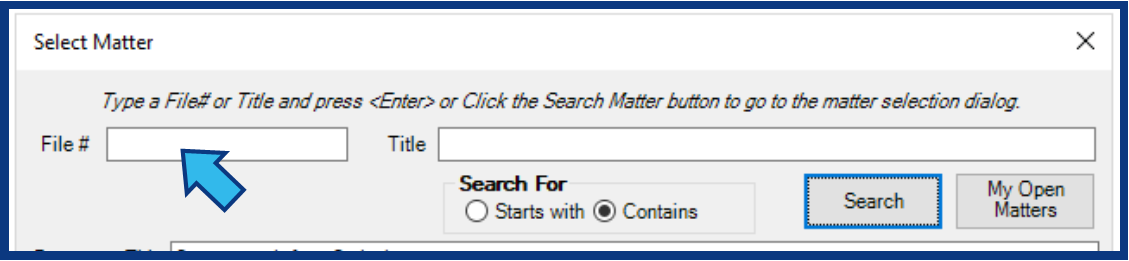
You can also search by the Title.
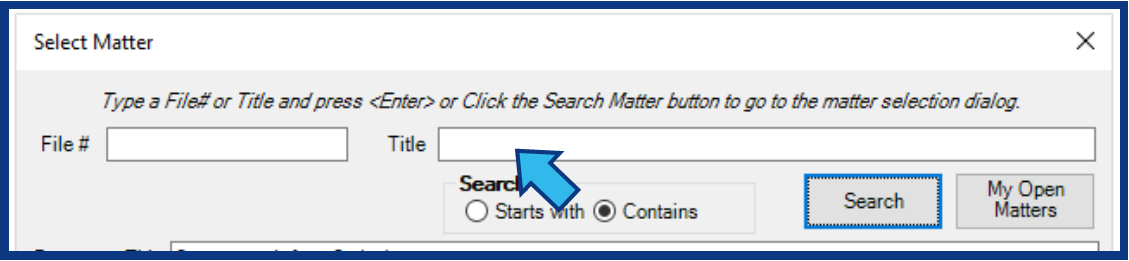
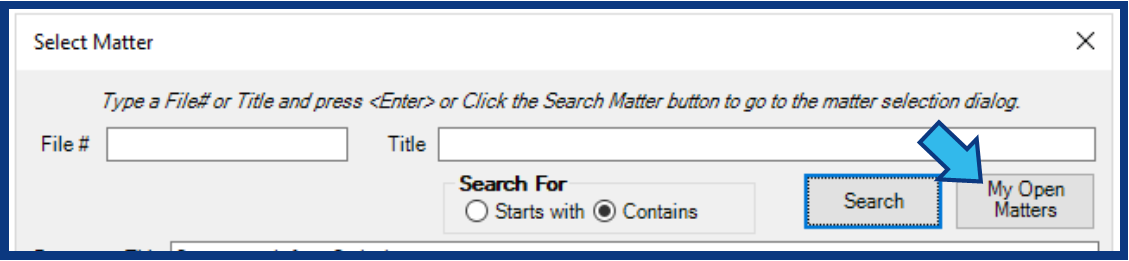
Pressing Search will search through all matters to which you have access. You must enter a value in the File # or Title field to use the Search button. If you do not, an Information window will open telling you to do so.
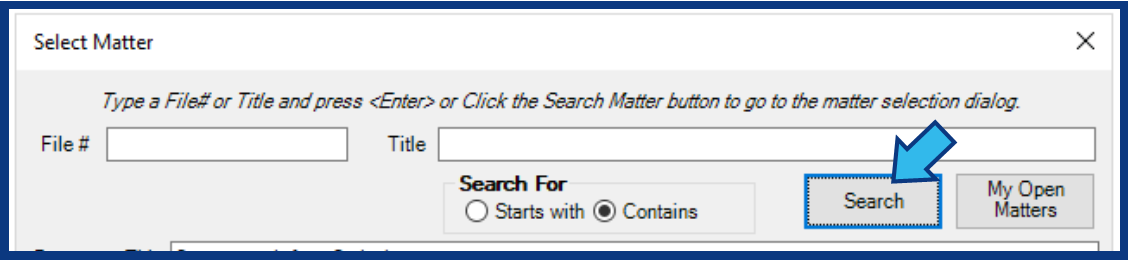
Pressing My Open Matters will search through your open matters. If you leave the File # and the Title field blank and press My Open Matters, you will see a listing of all your open matters.
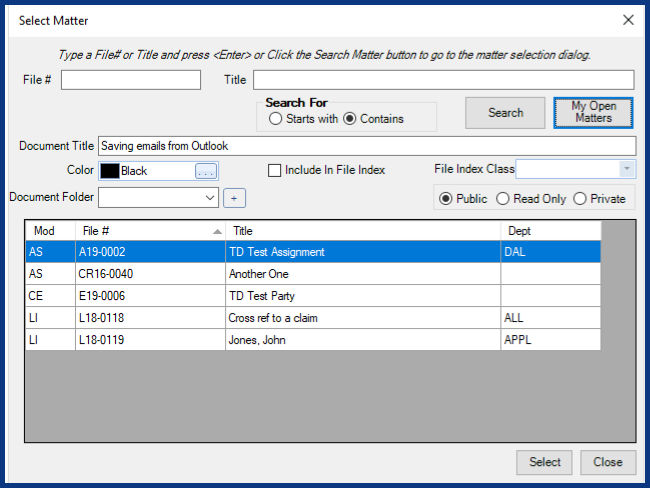
Once you have located the matter, left-click to select. A selected matter will be highlighted in blue.
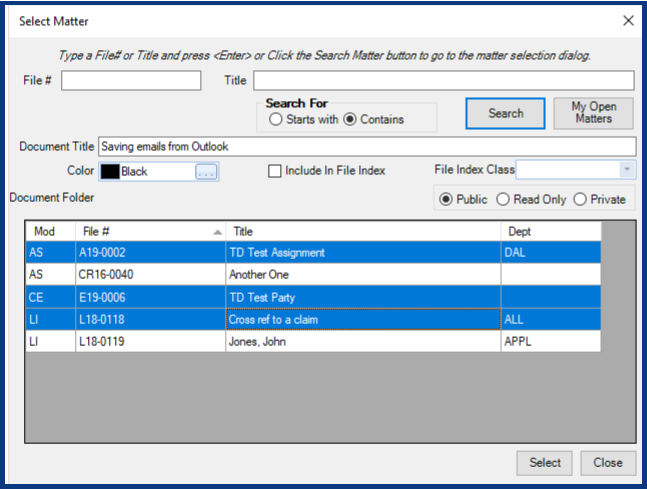
If you want to save the email(s) to multiple matters, hold down the Control (CTRL) button while left-clicking the relevant matters. Once all the relevant matters have been selected, release the Control (CTRL) button.
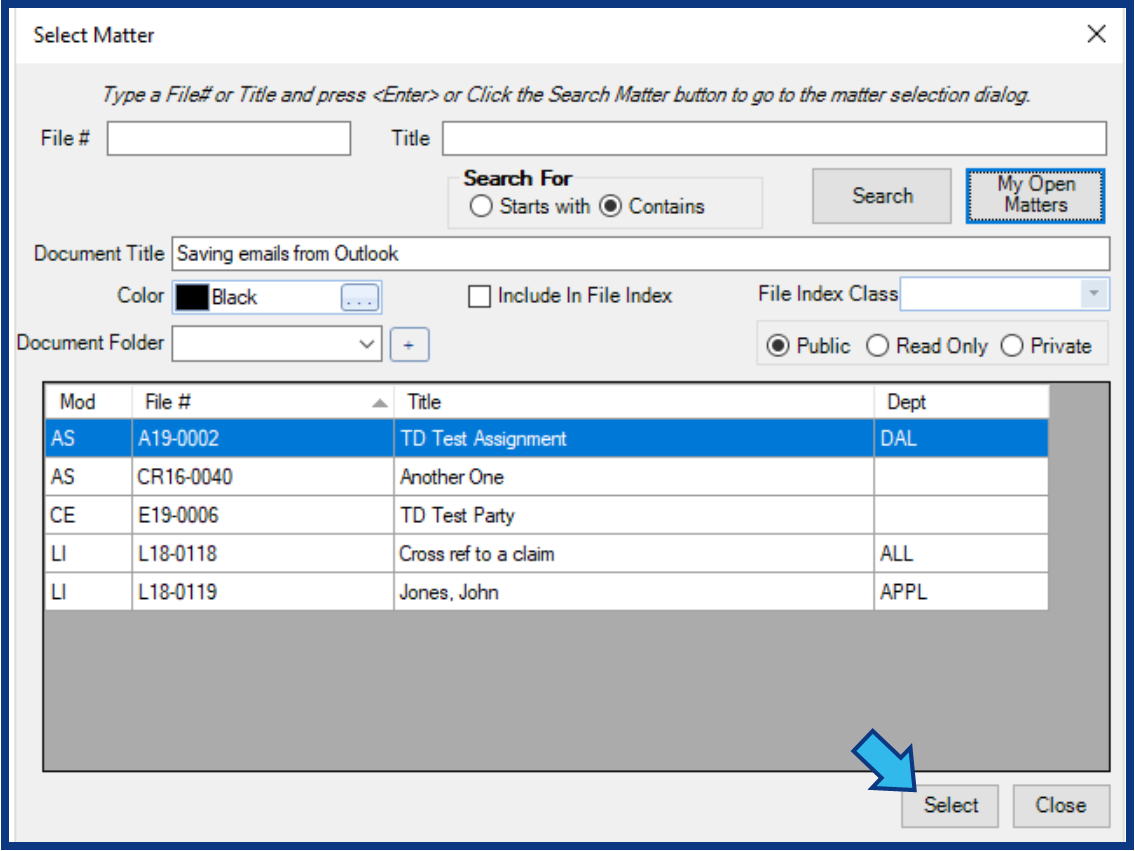
Step 4. Press Select.
The Select button is located in the bottom right corner of the Select Matter window.
Comments
0 comments
Please sign in to leave a comment.