
Need a printable version of this article? Download the Article (PDF Version).
Need a reminder? Use the Quick Reference Guide.
Need more details? Check out the Standard Guide.
Quick Reference Guide
There are 7 steps to complete this task:
-
In Outlook, press File.
-
Press Options.
-
Press Add-ins.
-
Select Cycom Email Exporter Plus.
-
Press Go...
-
Check the Cycom Email Exporter Plus box.
-
Press OK.
Standard Guide
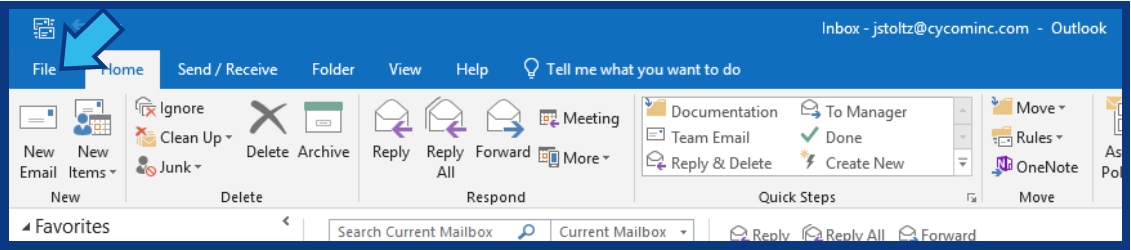
Step 1. Press File in Outlook.
The File tab is at the top of the Outlook window in the Menu Bar.
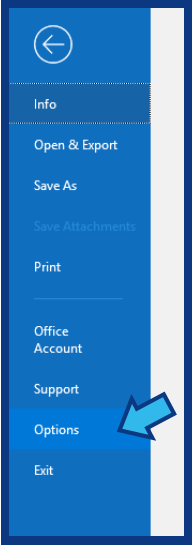
Step 2. Press Options.
Options is located on the left side panel of the window, near the bottom of the list of selections.
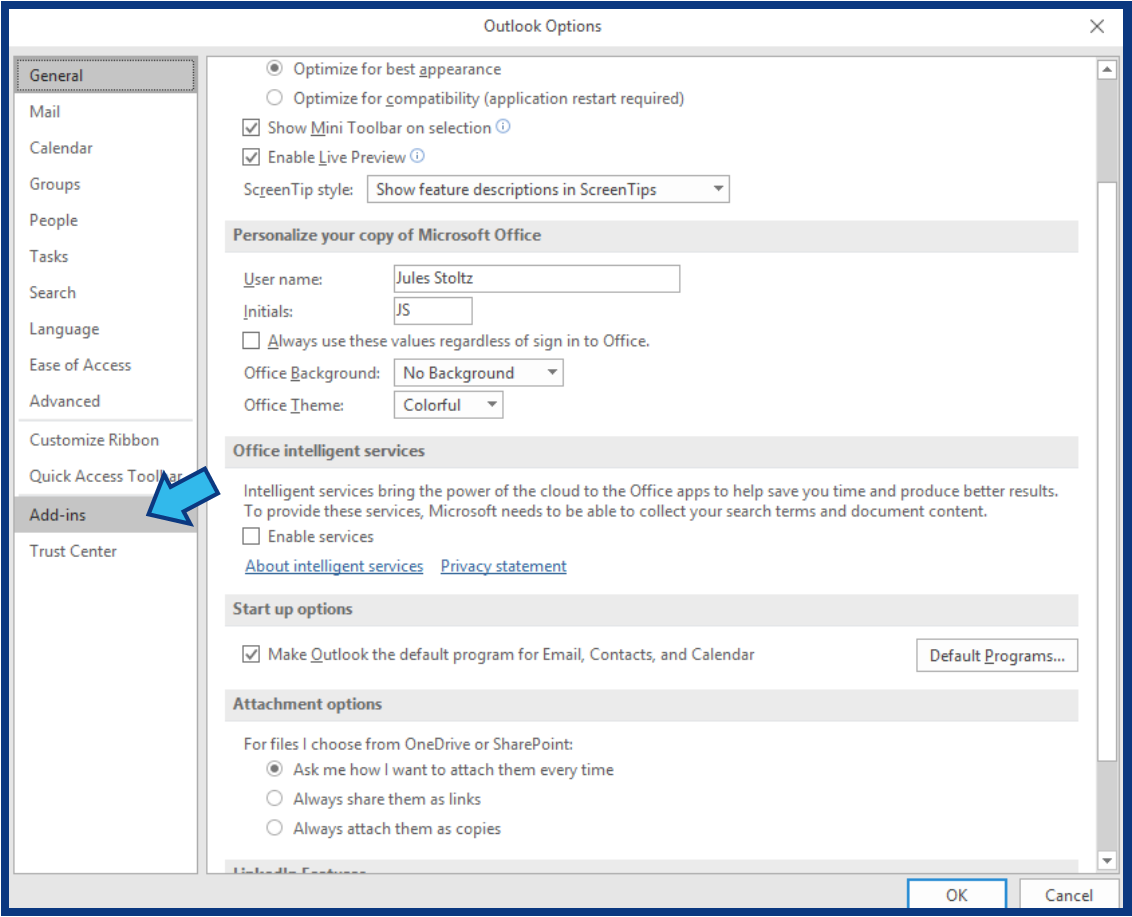
Step 3. Press Add-ins.
Add-ins is located on the left side panel of the Outlook Options window, near the bottom of the list of selections.
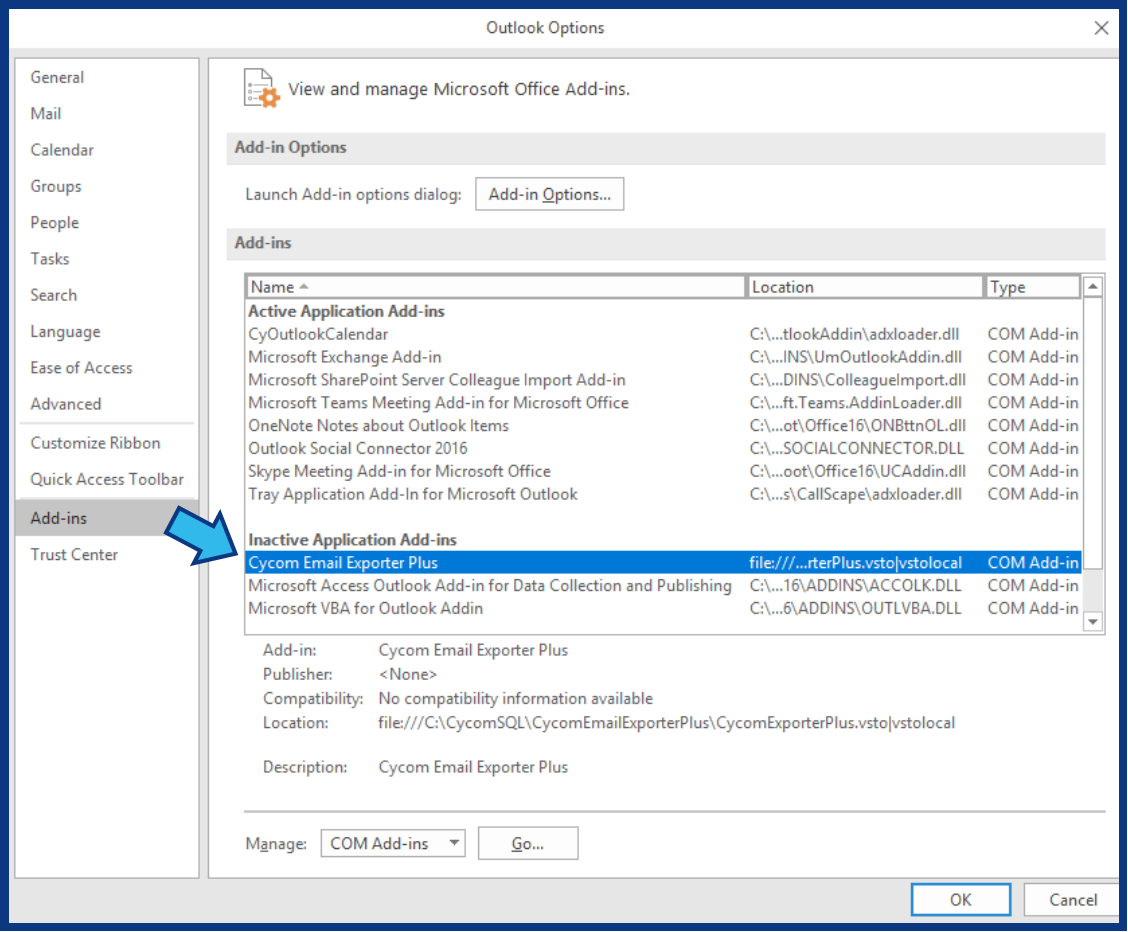
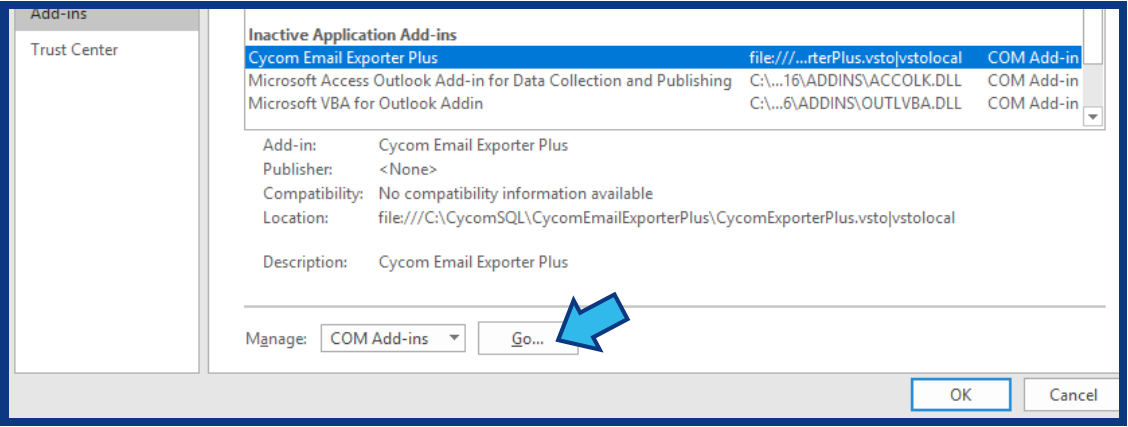
Step 4. Select Cycom Email Exporter Plus.
The Cycom Email Exporter Plus will be located under the Inactive Application Add-ins section.
Step 5. Press Go...
The Go... button is located near the bottom of the Outlook Options window.
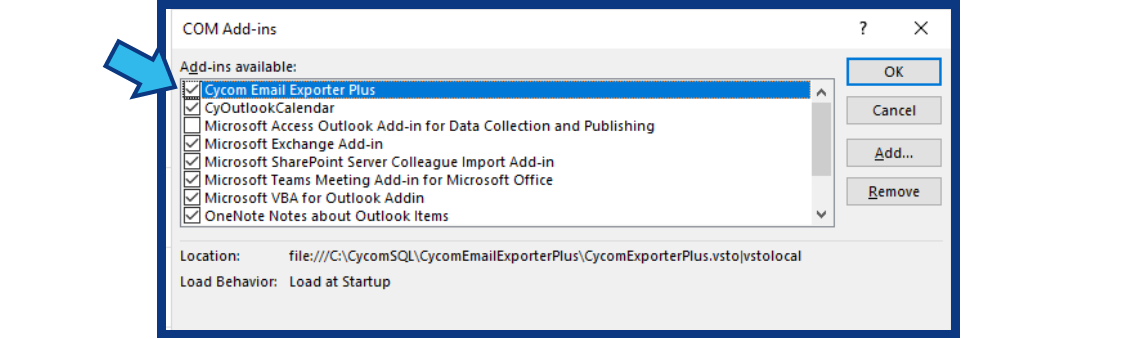
Step 6. Check the Cycom Email Exporter Plus box.
The Cycom Email Exporter Plus box is located in the list of available add-ins in the COM Add-ins window.
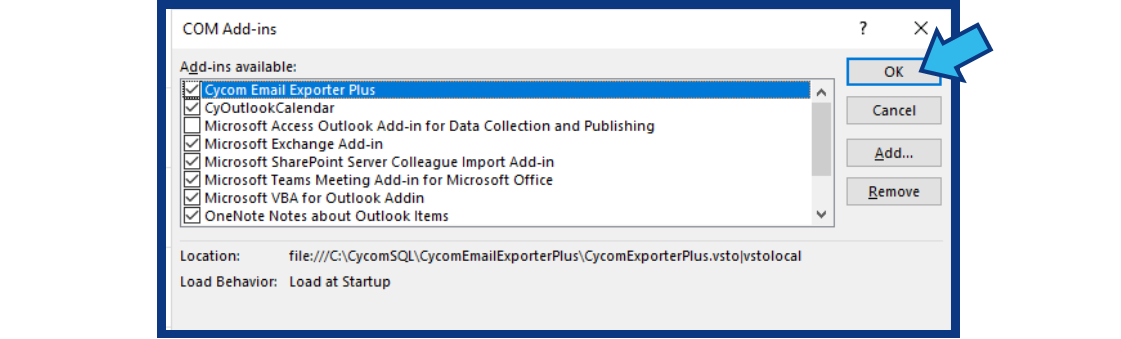
Step 7. Press OK.
The OK button is located in the top-right corner of the COM Add-ins window.
Comments
0 comments
Please sign in to leave a comment.