
Need a printable version of this article? Download the Article (PDF Version).
Need a reminder? Use the Quick Reference Guide.
Need more details? Check out the Standard Guide.
Quick Reference Guide
There are 8 steps to complete this task:
-
Select Import Folder.
-
Expand My Computer list.
-
Select Local Disk (C:).
-
Open Users folder.
-
Open folder with user's name.
-
Open Desktop folder.
-
Select Folder.
-
Save Folder to matter.
Standard Guide
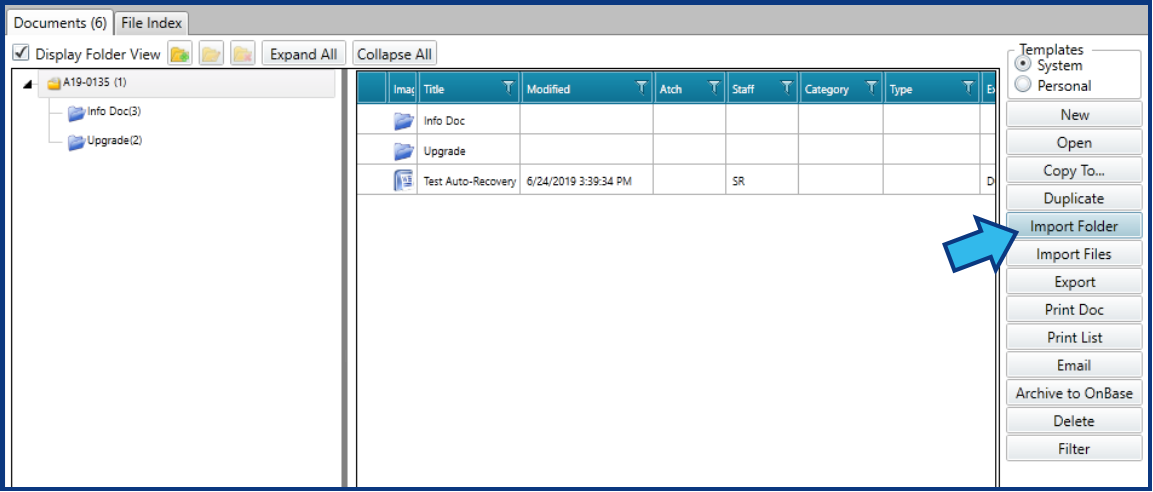
Step 1. Select Import Folder.
From the Attachments section of any matter, on the Documents tab, select Import Folder.
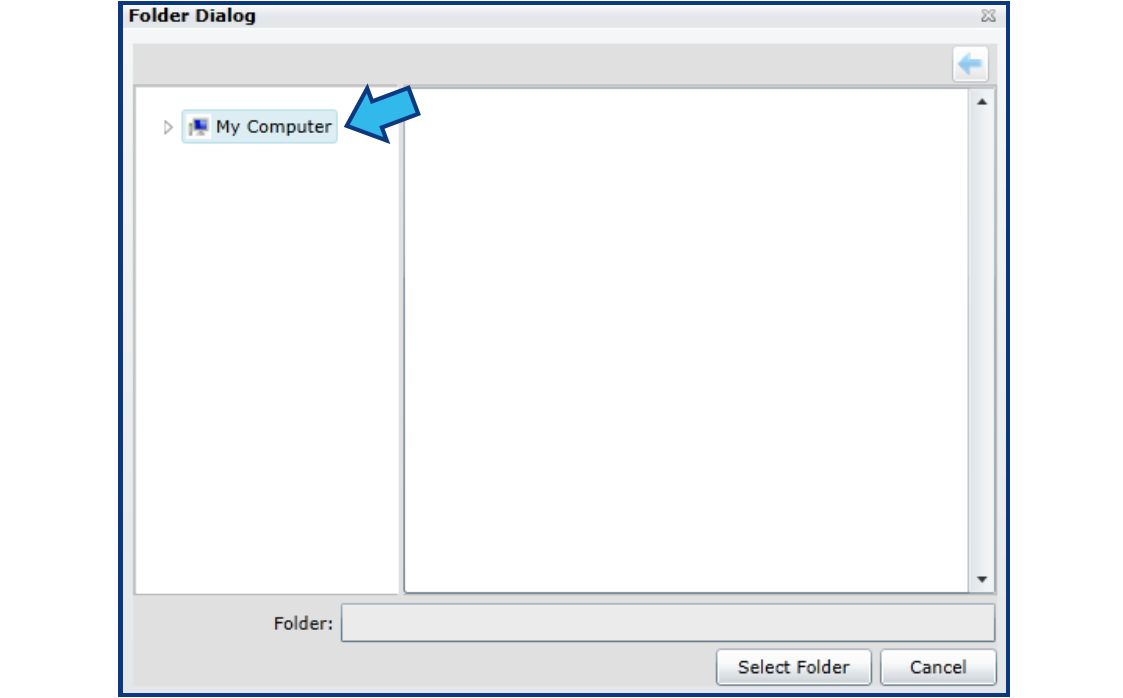
Step 2. Expand My Computer list.
Expand the list by double-clicking on My Computer.
Step 3. Select Local Disk (C:).
Double-click Local Disk (C:) to open the C: drive.

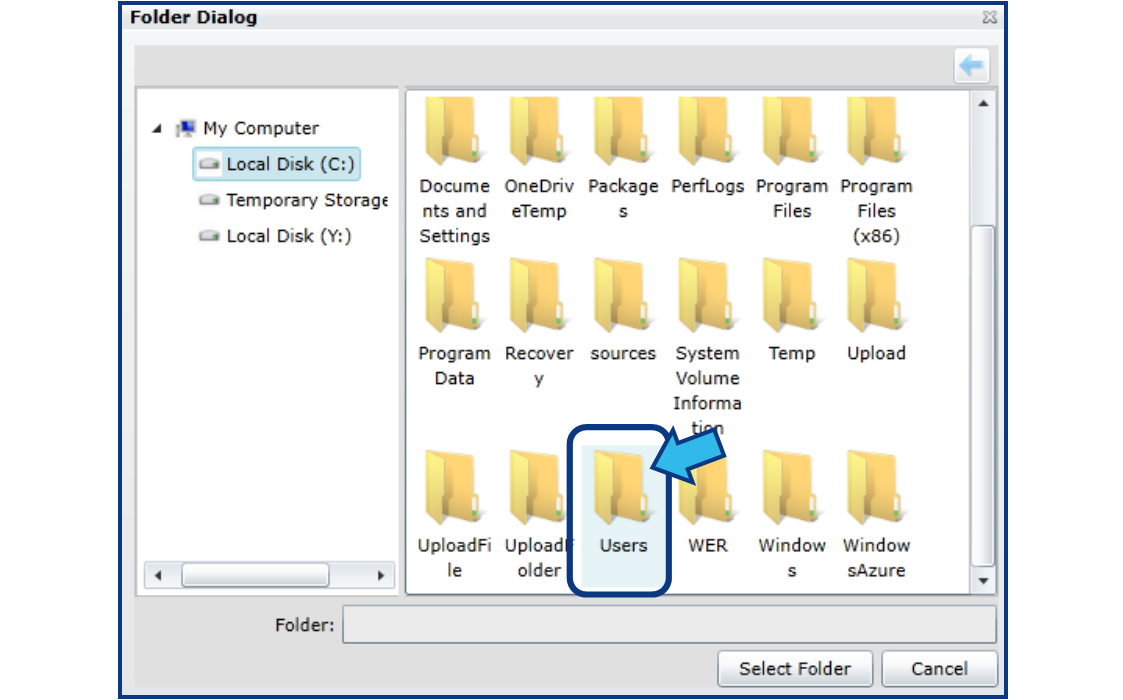
Step 4. Open Users folder.
Double-click the folder titled Users.
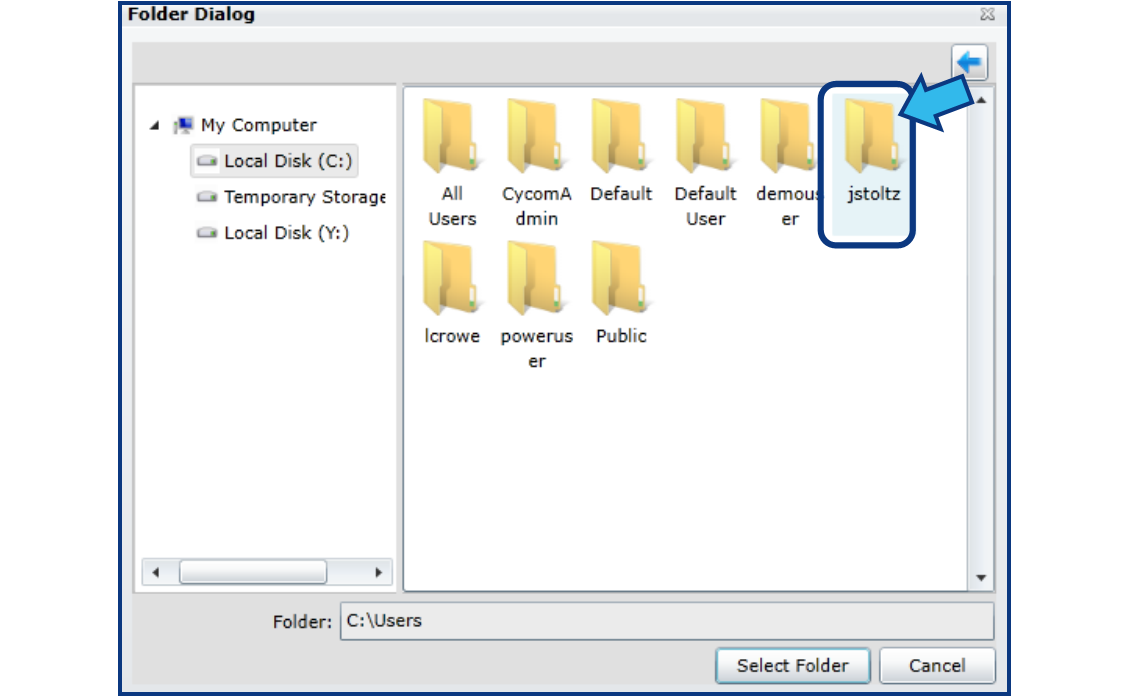
Step 5. Open folder with user's name.
Double-click the folder with the same name as the net user. (NOTE: If you do not know the name of the user or if you don't see a folder with the correct name, contact your IT department to find out the naming convention they have chosen.)
Step 6. Open Desktop folder.
Double-click the folder titled Desktop.
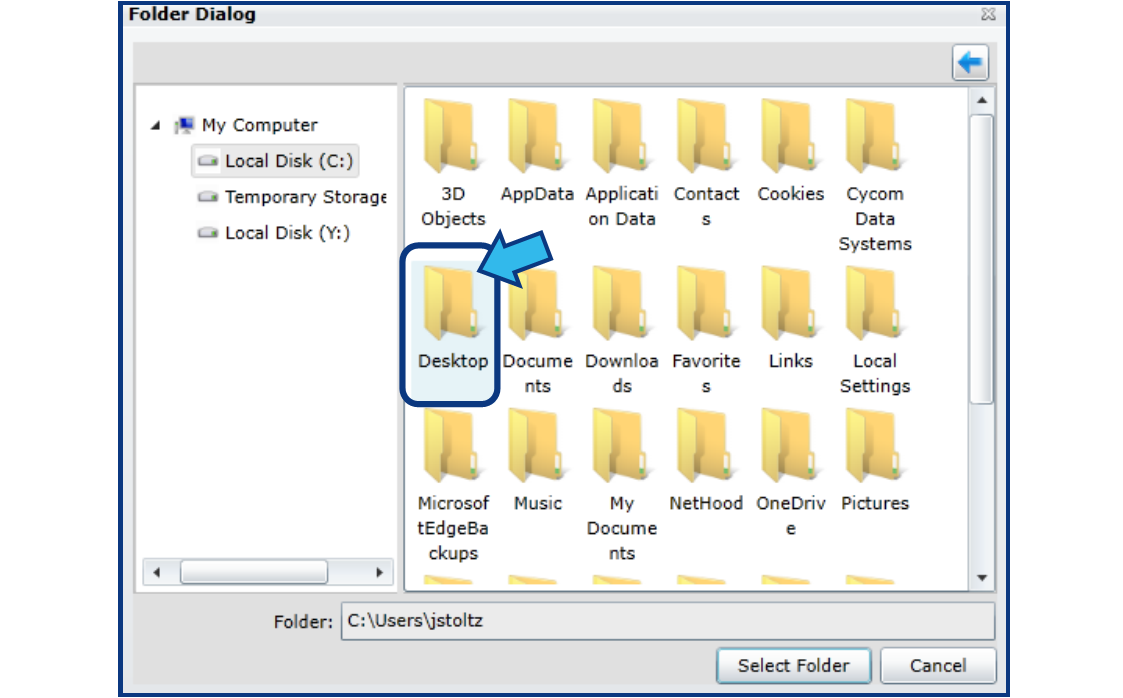
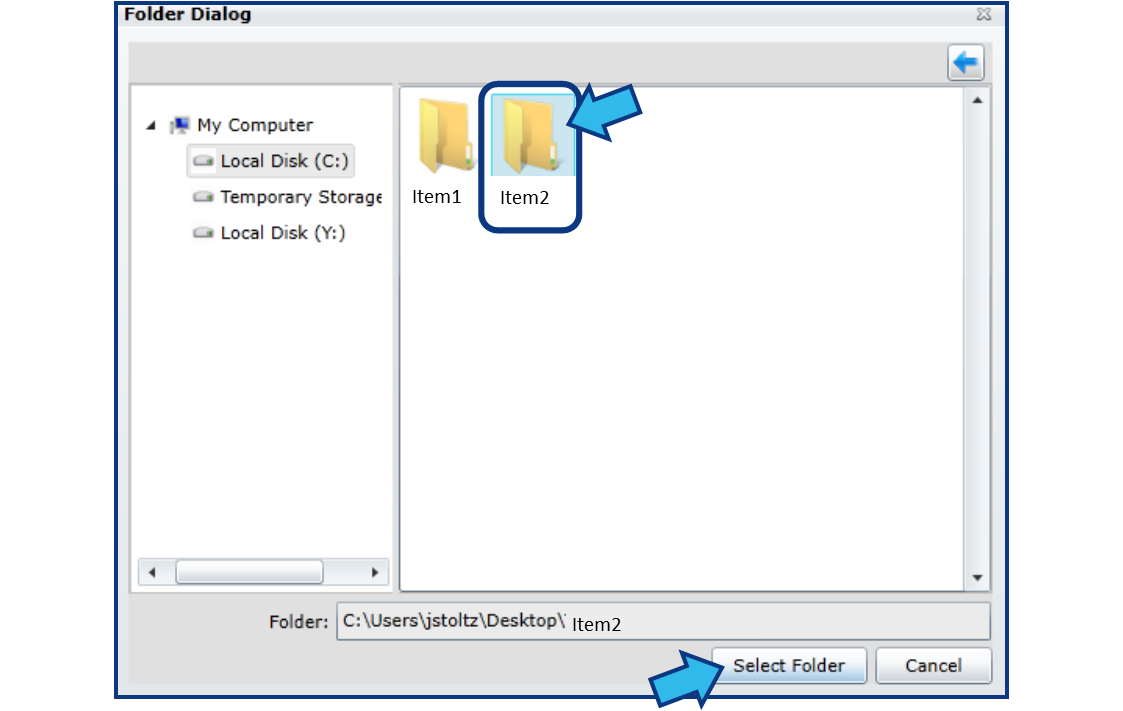
Step 7. Select Folder.
Any folders available on the desktop will be displayed. Select the desired folder and then press Select Folder.
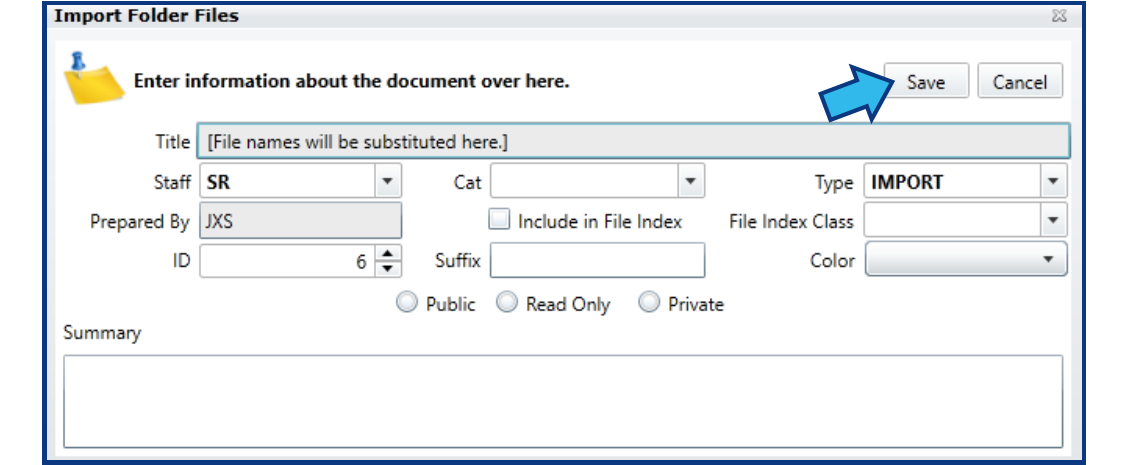
Step 8. Save Folder to matter.
Edit or add any of the available options on the Import Folder Files dialog box and then press Save to save the folder and all of its contents to the matter.
Comments
0 comments
Please sign in to leave a comment.