
Dashboard Customization
After logging in, either the Skyline or Main Street dashboard are visible. Skyline is the default dashboard, but this can be changed to Main Street from User Preferences.
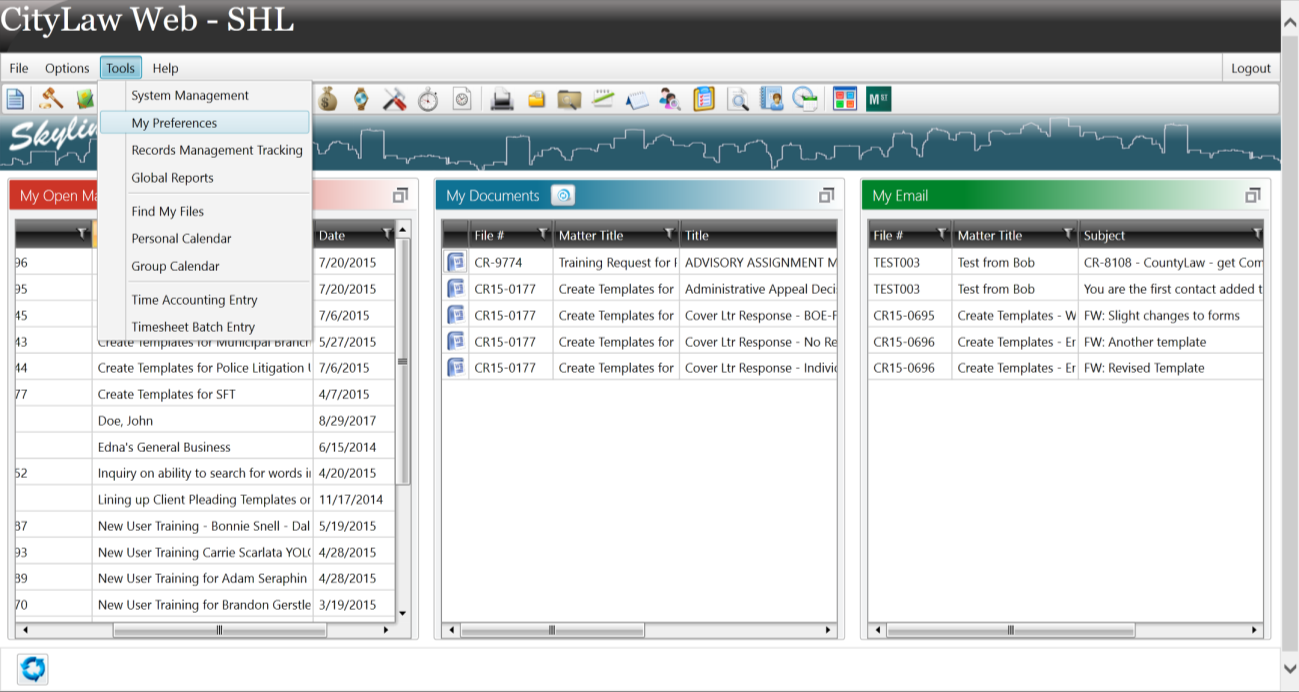
In the Tools menu, select My Preferences to open the My Preferences window.
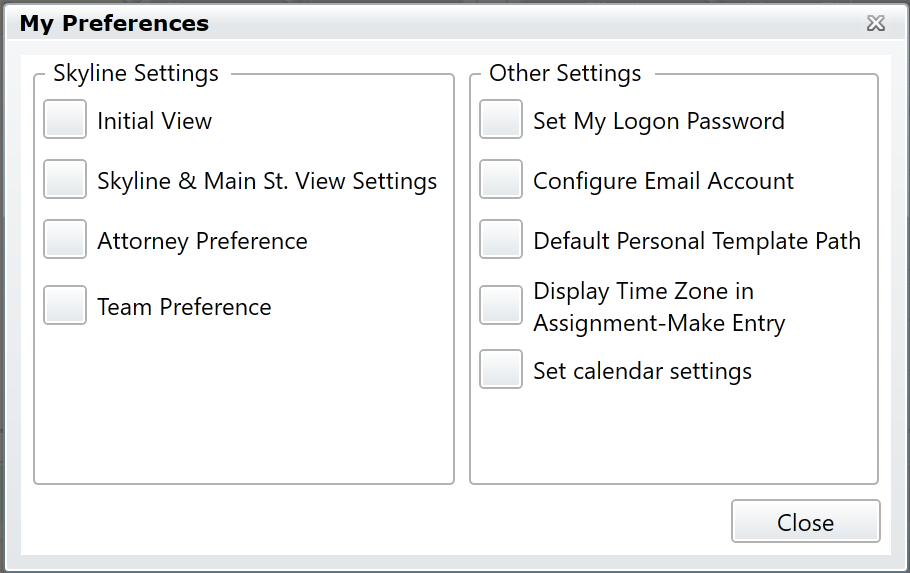
Initial View
Press the Initial View button to open the Initial View window.
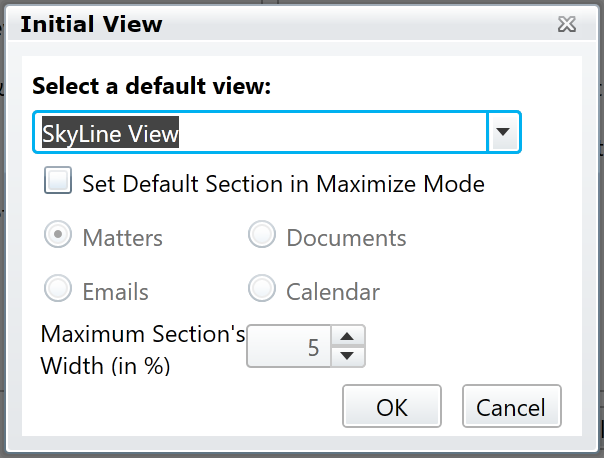
Use the drop-down box below "Select a default view" to specify the dashboard which will display upon login. The options are:
- Skyline: This is the default dashboard. It displays lists of your current and recent data in a grid view.
- Main Street: This dashboard separates your current and recent data into tabs, and features a large Document Preview panel.
- None: Select this option to display only the Global Toolbar upon login.
If Skyline is selected as the default view in the drop-down box, additional options are visible in the window. You can specify whether one section is maximized by default after login, and which section it should be. You can also specify how large the maximized section should be as a percentage of your screen width.
Skyline
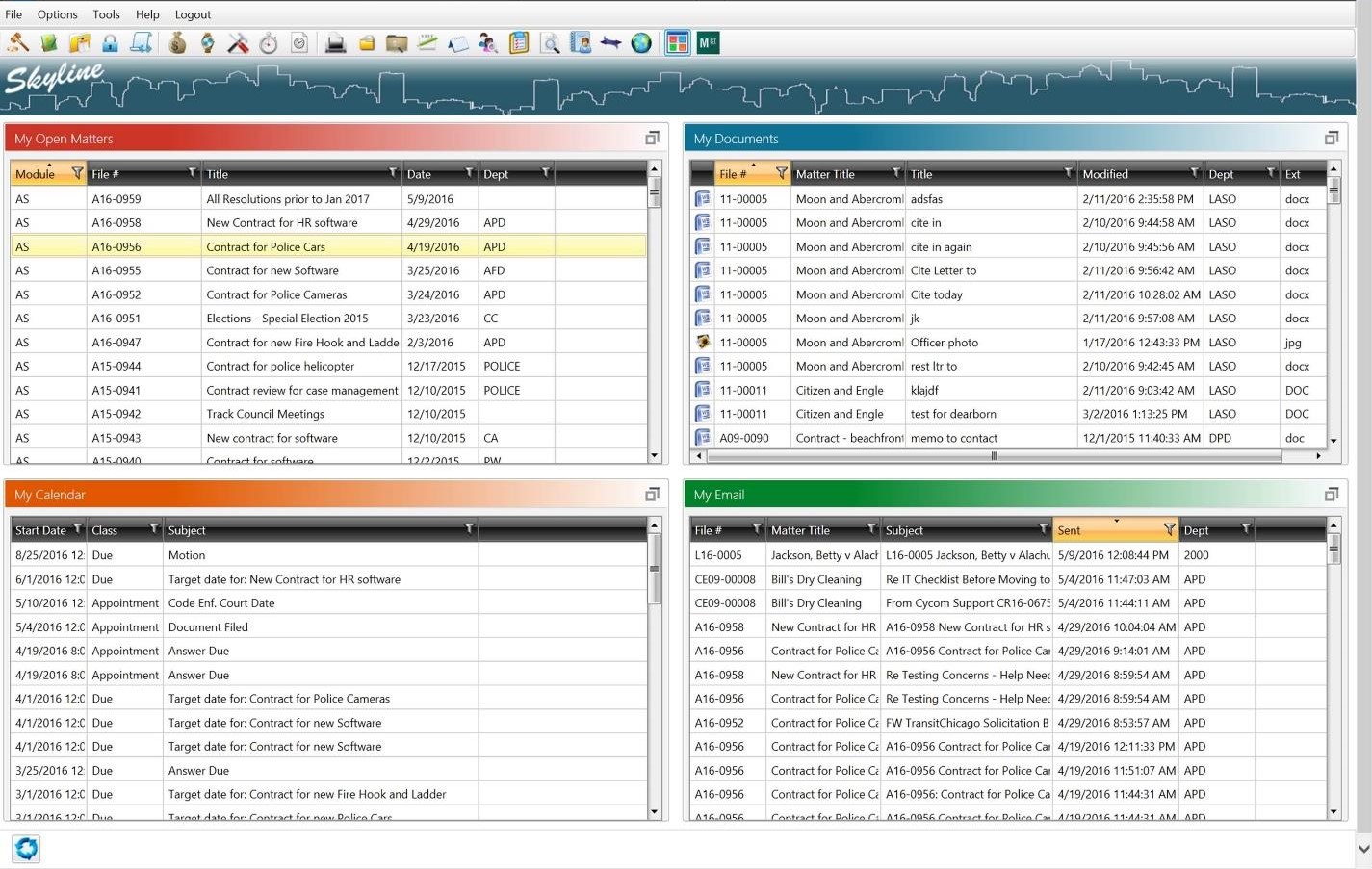
Skyline can display four different types of data:
My Open Matters
These are the open matters of the currently logged in user. Administrators or team leaders also have the option of viewing the open matters of specific attorneys or an entire team from this section in Skyline.
My Documents
This section displays a list of recently created or edited documents.
My Email
This section displays a list of email messages which have been sent from CityLaw/CountyLaw within the timeframe specified in User Preferences.
My Calendar
This section displays upcoming calendar events for which the logged in user is an attendee or staff.
Main Street
Main Street can display the same data sections as Skyline:
- Open Matters
- Documents
- Calendar
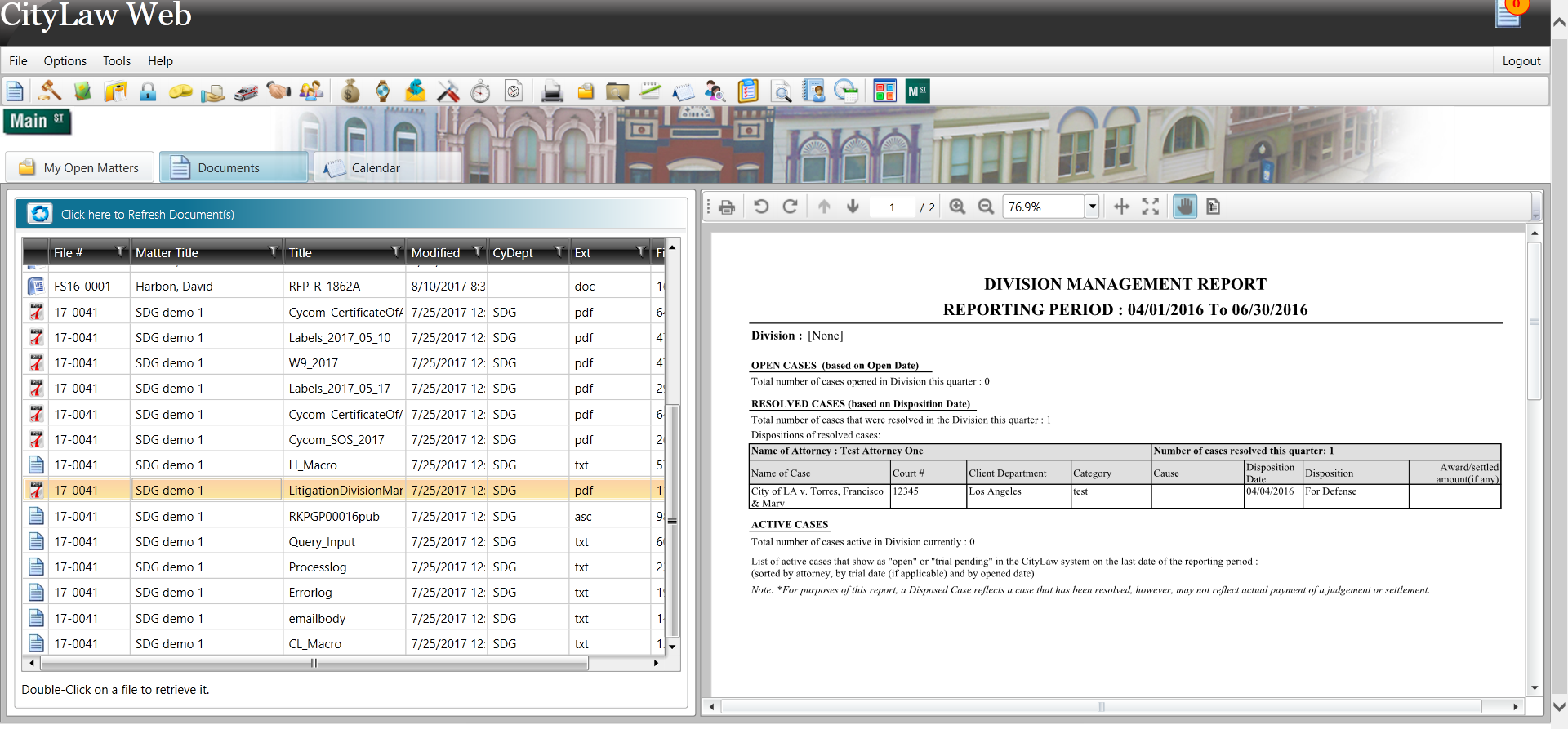
Main Street organizes your data into four tabbed sections. Select a tab to view a list of that data next to a document preview panel. Select an item in the list to preview it.
View Settings
From the My Preferences window (Tools > My Preferences), select the Skyline & Main St. View Settings button.
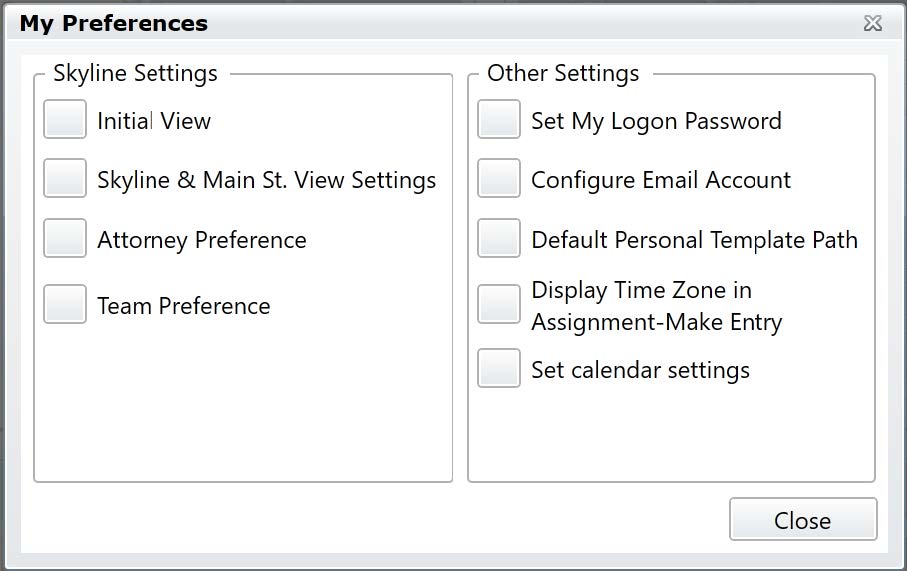
The View Settings window opens.

From this window, you can specify which sections are visible in the dashboards. You can also specify how many items to display in each section. In addition to the item count, the Calendar section allows you to specify how many days into the past and future to look for calendar events when populating the list.
Attorney Preference
From the My Preferences window (Tools > My Preferences), select the Skyline & Main St. Attorney Preference button.

The Attorney Preference window opens.
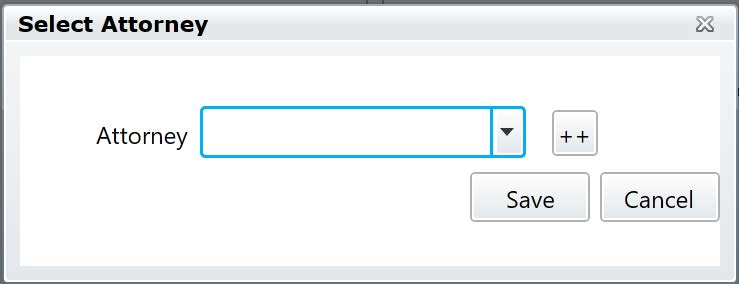
To view the open matters of a particular Attorney in the Open Matters section, select that Attorney’s name from the drop-down box.
To view the Open Matters of multiple Attorneys, select the Multi-Select button (“++”).
The Attorney Multi-Select window appears.
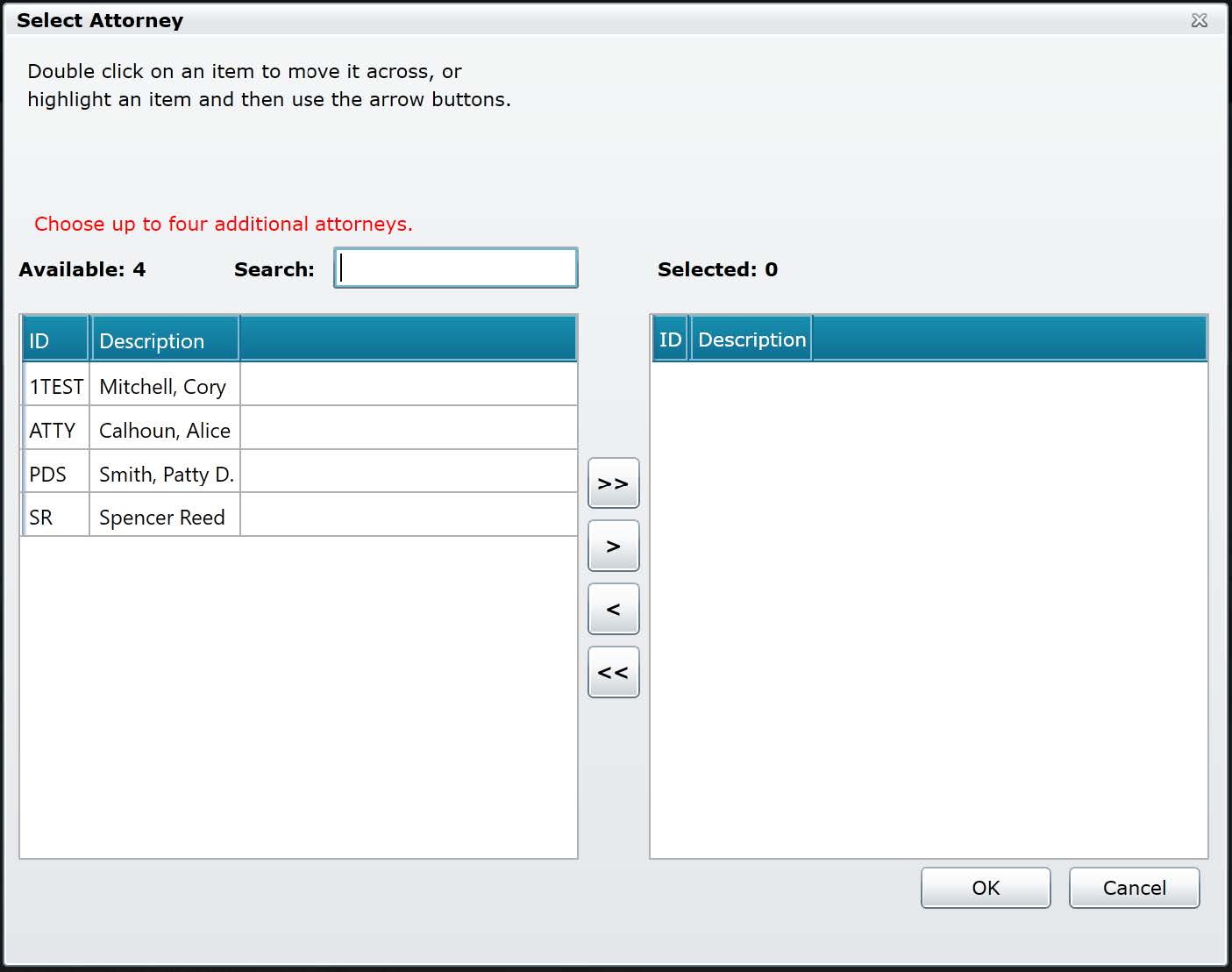
Use the arrow buttons (“>>”, “>”, “<<”, “<”) to move Attorneys from one list to the other. When all the Attorneys you wish to select are in the right-hand list, select OK to save and close the window.
Team Preference
From the My Preferences window (Tools > My Preferences), select the Skyline & Main St. Team Preference button.
The Team Preference window opens.
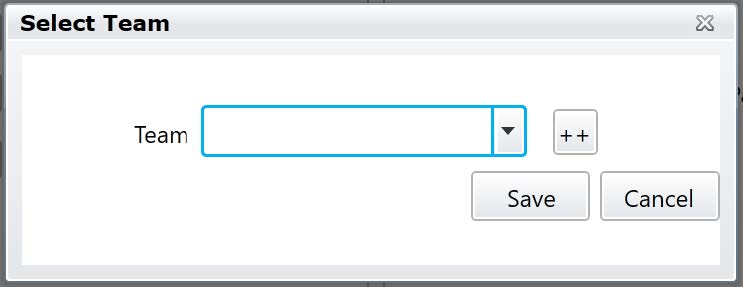
To view the open matters of a particular Team in the Open Matters section, select that Team’s name from the drop-down box.
To view the Open Matters of multiple Teams, select the Multi-Select button (“++”).
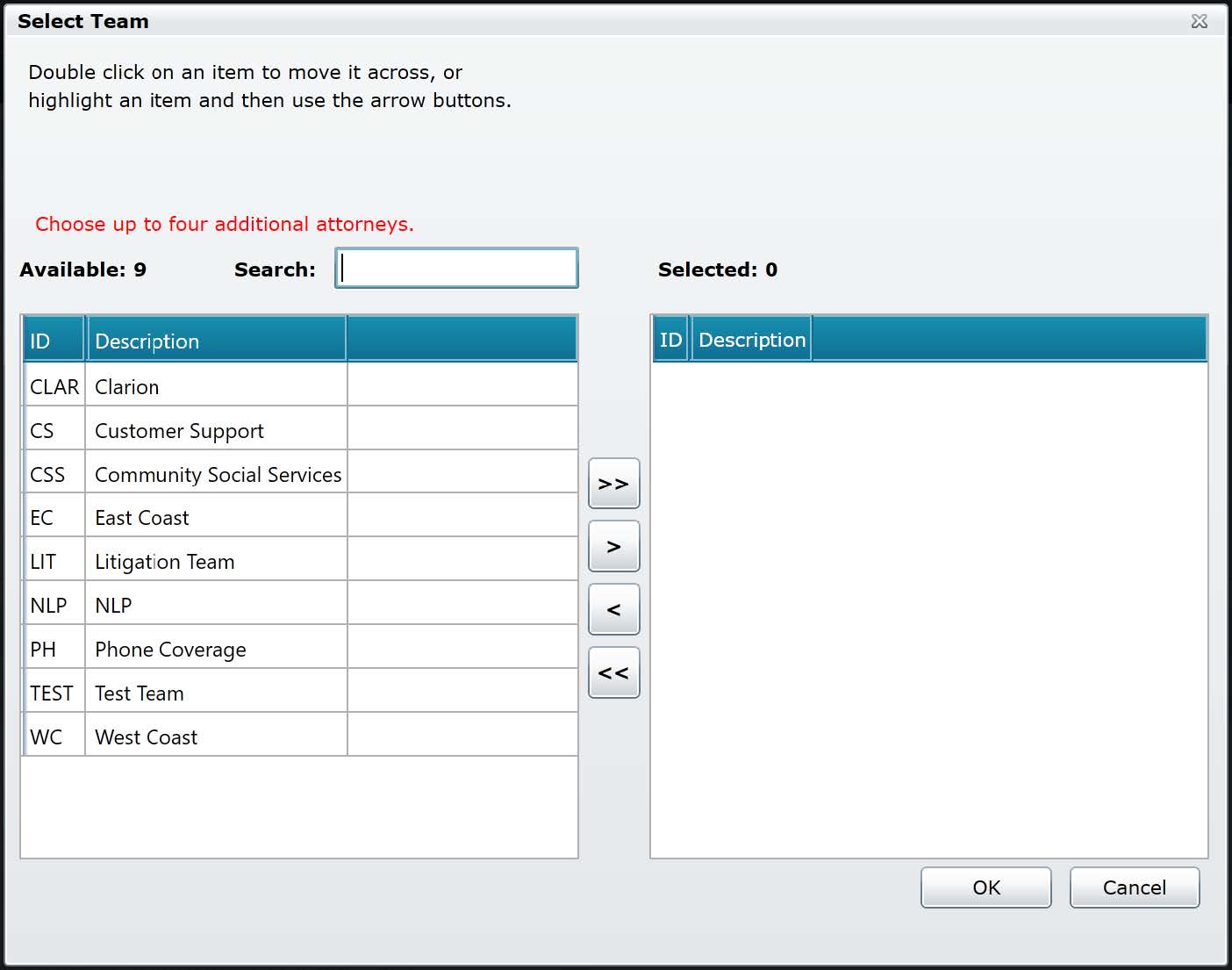
Use the arrow buttons (“>>”, “>”, “<<”, “<”) to move Teams from one list to the other. When all the Teams you wish to select are in the right-hand list, select OK to save and close the window.
Filtering Dashboard Sections
To filter the data in any grid, select the Filter button (in the shape of a funnel) at the right-hand side of a column in the grid.
The Filter Menu appears.
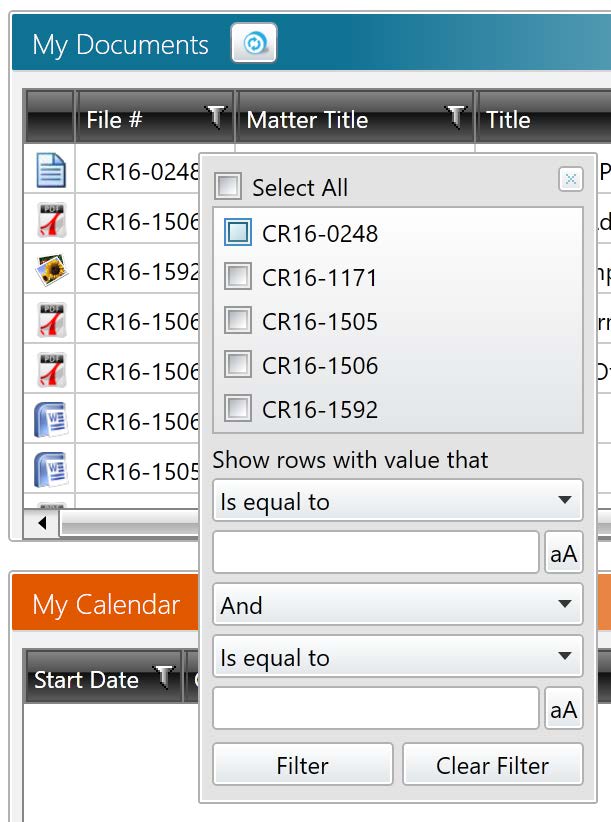
Select the Filter button to apply your filter and show only those items matching the specified criteria, or select the Clear Filter button to erase any applied filtering and show all items in the grid.
Accessing Files
There are several ways to access files. If the desired file is visible in a grid on your dashboard, double-click the file to open it. This works in both the Documents and Email sections of Skyline and Main Street. Double-click a matter in the Open Matters section to be taken to the Basic Screen of that matter in its respective Module, and double-click a calendar event to be taken to the Calendar.
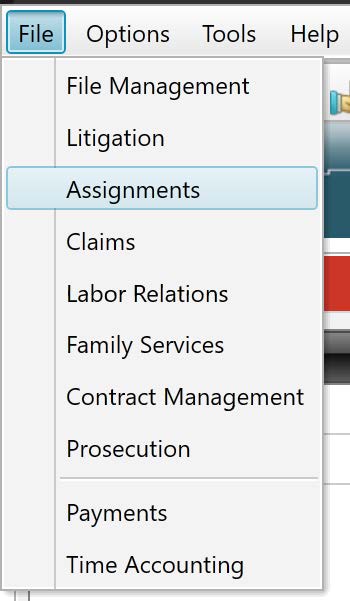
Files can also be accessed by searching a Module. There are two ways to open a Module. The first is by selecting its icon in the Global Toolbar:

The second is by selecting the Module’s name from the File Menu:
Comments
0 comments
Please sign in to leave a comment.