
Need a printable version of this article? Download the Article (PDF Version).
Need a reminder? Use the Quick Reference Guide.
Need more details? Check out the Standard Guide.
Quick Reference Guide
There are 6 steps to complete this task:
-
Open My Preferences.
-
Select Skyline & Main St. View Settings.
-
Check/uncheck the section(s) to display/hide.
-
For the displayed section(s), adjust available display options.
-
Press Save.
-
Press Close.
Standard Guide
Step 1. Open My Preferences.
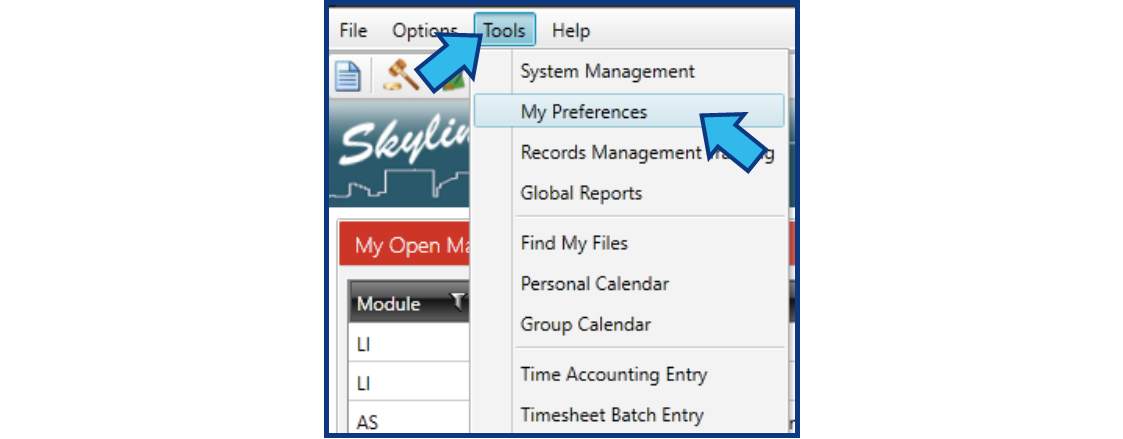
To open My Preferences, select Tools on the Menu Bar, then select My Preferences. The My Preferences window will appear.
Step 2. Select Skyline & Main St. View Settings.
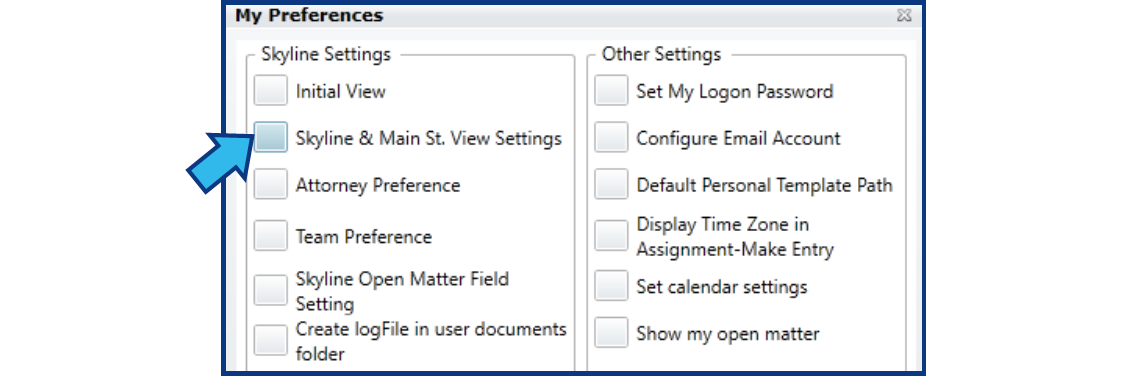
Select the box beside Skyline & Main St. View Settings located on the left side under Skyline Settings.
Step 3. Check/uncheck the section(s) to display/hide.
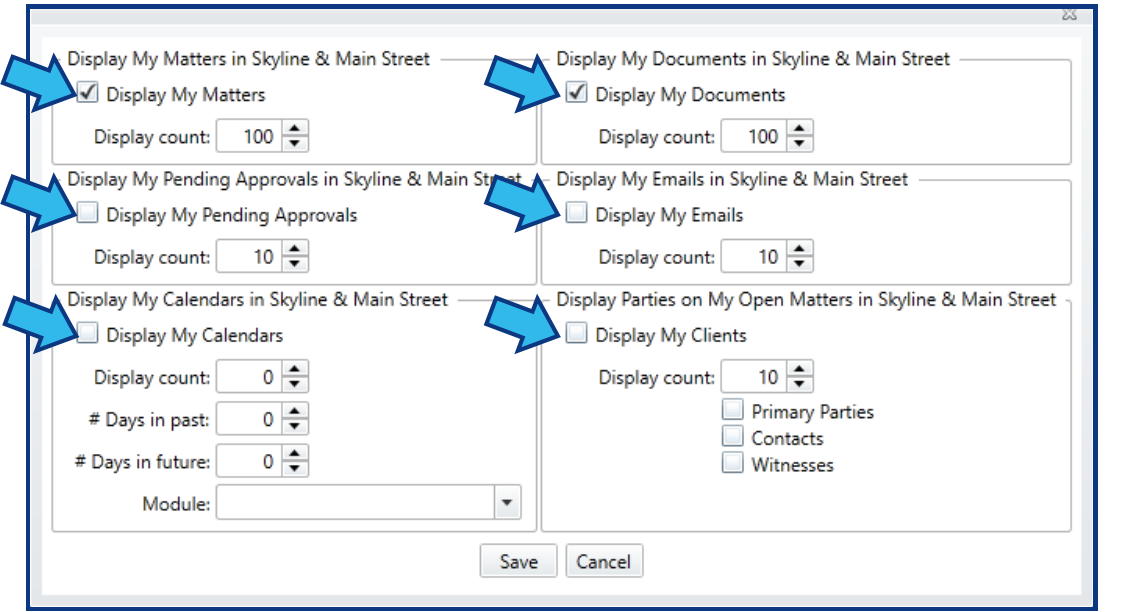
There are six displayable sections. Place a check next to those to be displayed.
Step 4. For the displayed section(s), adjust available display options.
Each section has one or more display options available to further customize the view.
Display count is the maximum amount of matters that will appear in the section. The files are sorted by date created or last modified.
Step 5. Press Save.
Press Save located at the bottom.

Step 6. Press Close.
Press Close located at the bottom-right of the My Preferences window.

Comments
0 comments
Please sign in to leave a comment.