
Need a printable version of this article? Download the Article (PDF Version).
You can access a list of all matters to which a contact is associated from any Find a Person window. You will encounter such a window anytime you try to add a contact to a matter. A more direct way to access contacts is through the Find People option on the Global Toolbar. This article provides instructions using this method. However, the instructions are the same from any Find a Person window.
There are three steps to complete this task:
Step 1. Open People Search Criteria
The People Search Criteria window can be accessed numerous ways. Most directly, select the Find People icon on the Global Toolbar.

Step 2. Search for Contact and Highlight
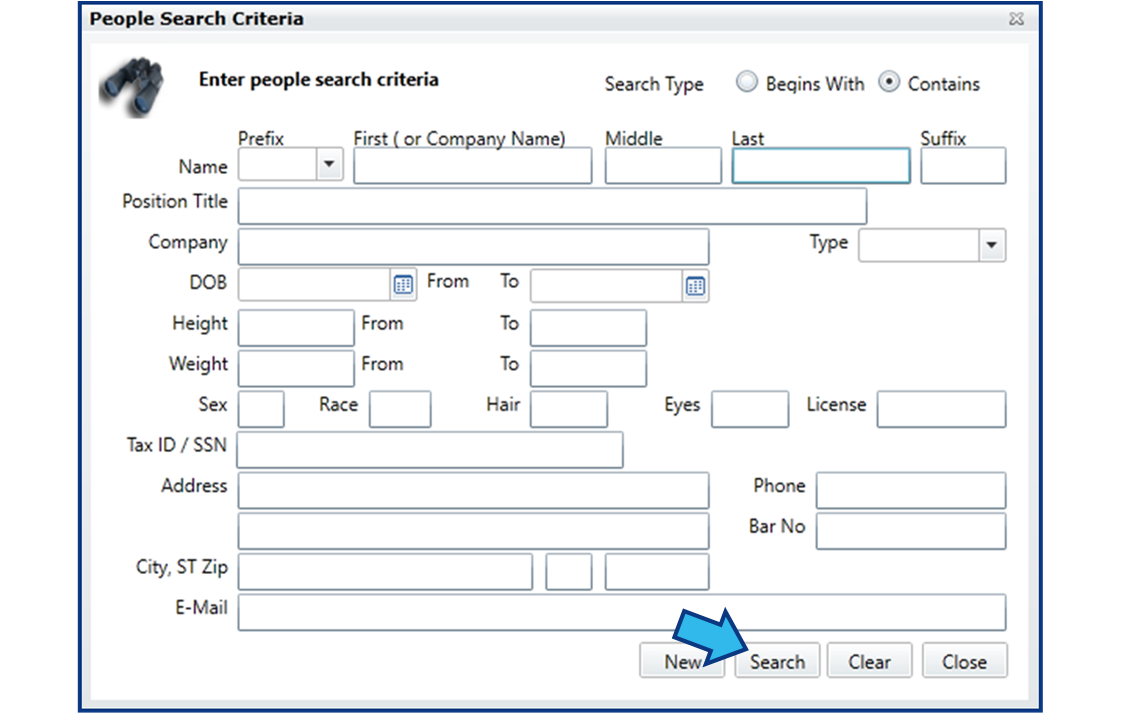
Consider in your search that the contact’s information may have been entered differently, or even incorrectly. Perhaps a nickname has been used, or perhaps the last name was misspelled. Enter the contact’s name and/or other information to search for the contact and then select Search. Remember that multiple contacts may share the same name and you may need to consider other information to confirm a contact’s identity.
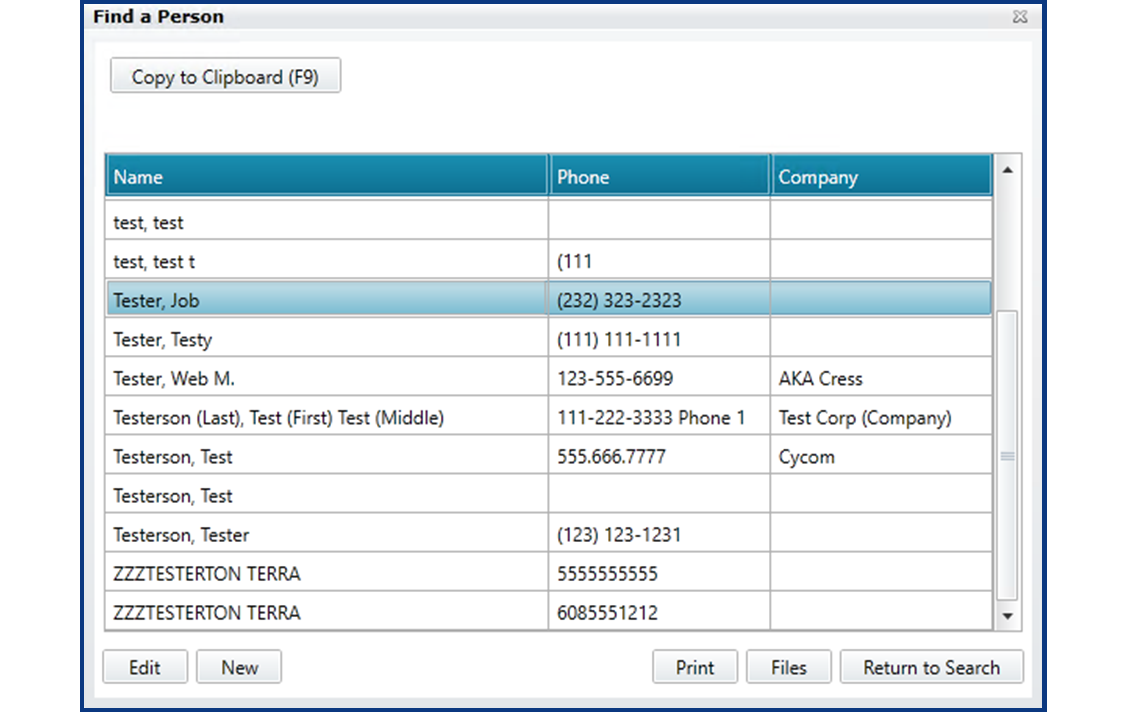
Once you have found the contact, select them by single left-clicking their name in the list.
Step 3. Review Files
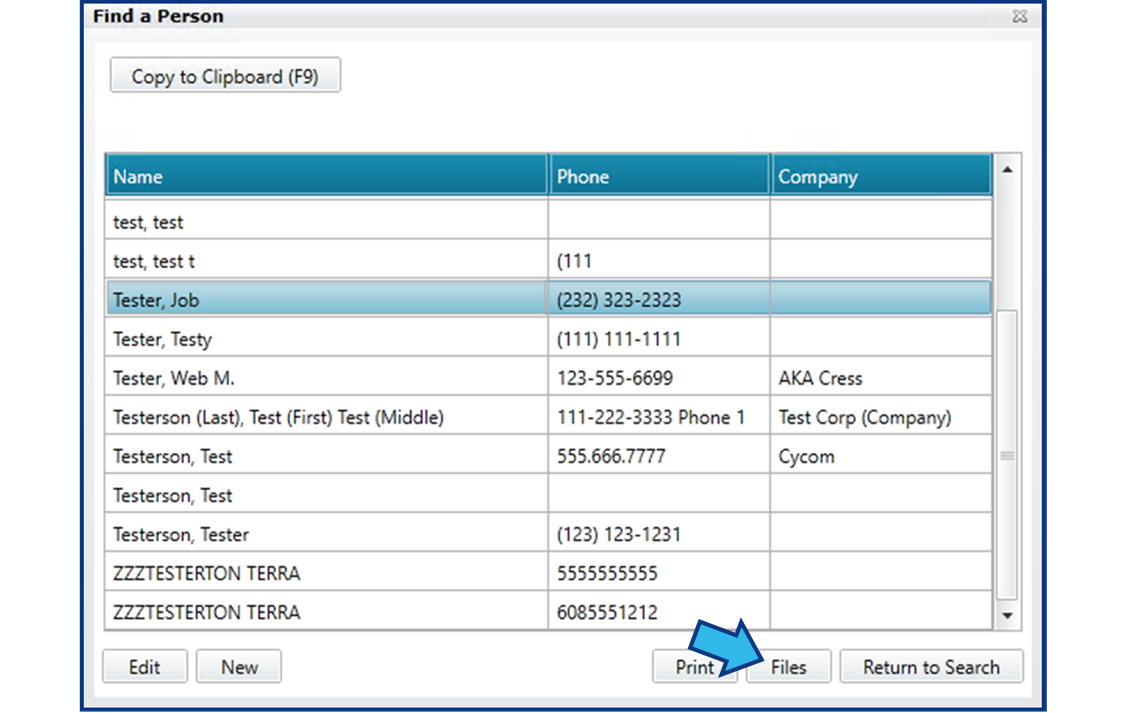
To review the contact’s files, select Files.
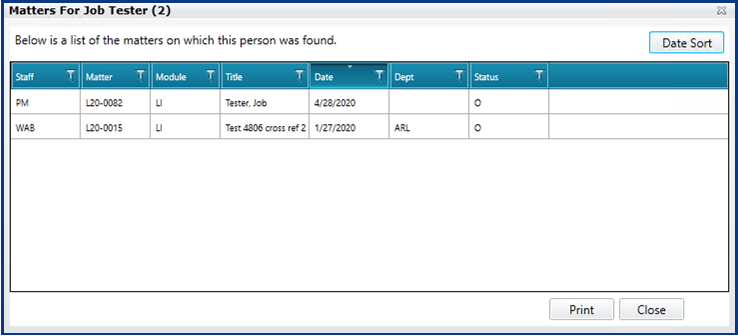
If the contact is associated with any matters, a list of those matters will appear. You can print the list of matters for review using the Print button.
If the contact is not associated with any matters, you will be prompted with an Information box stating that no matters were found.

Comments
0 comments
Please sign in to leave a comment.