
Need a printable version of this article? Download the Article (PDF Version).
Need a reminder? Use the Quick Reference Guide.
Need more details? Check out the Standard Guide.
Quick Reference Guide
Using Find People - there are 5 steps to complete this task:
-
Press Find People.
-
Enter search criteria.
-
Press Search.
-
Select contact from search results.
-
Press Edit or Files to view additional information.
Using System Management - there are 5 steps to complete this task:
-
Open System Management.
-
Select People.
-
Enter search criteria.
-
Select contact from search results.
-
Press Edit or Files to view additional information.
Standard Guide
Using Find People
Step 1. Press Find People.
On the Global Toolbar, press the Find People icon. A People Search Criteria window appears.

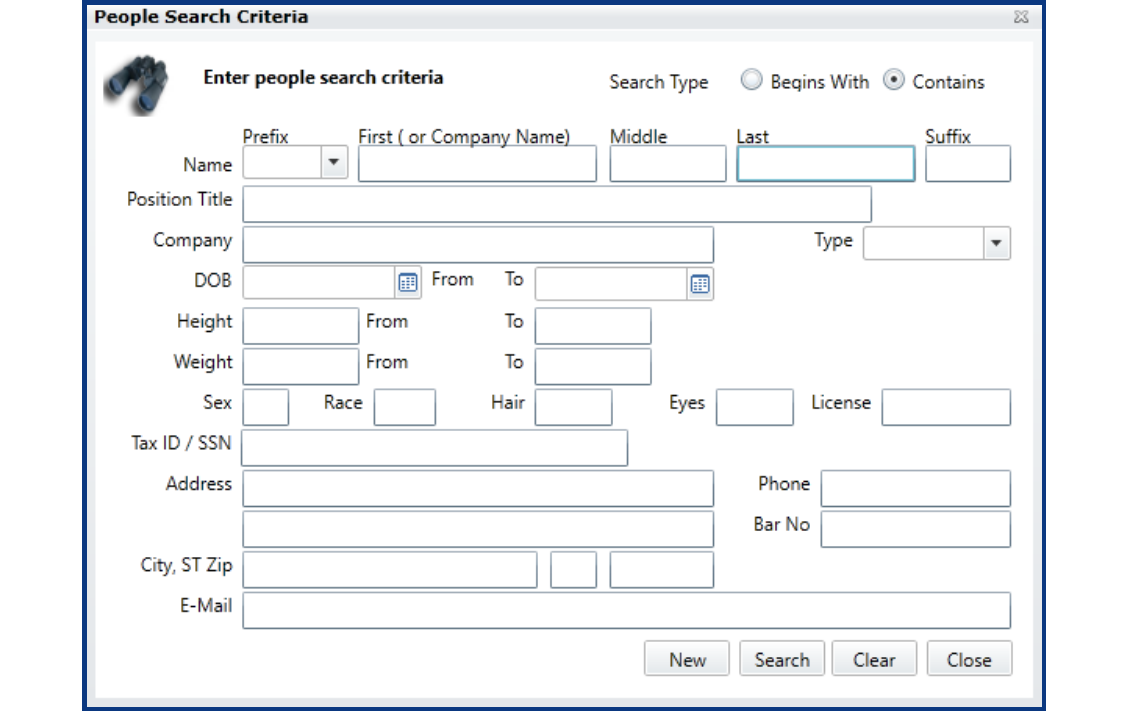
Step 2. Enter search criteria.
Enter information used to identify the person or firm. Partial information may be used.
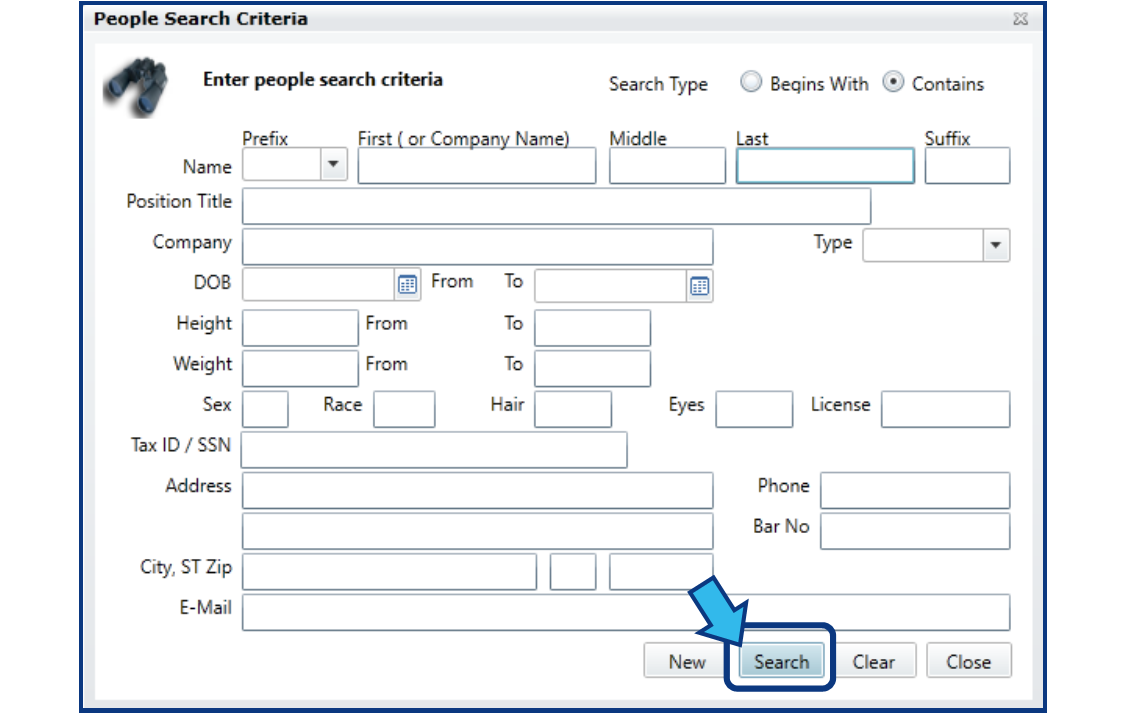
Step 3. Press Search.
The Search button is located at the bottom-right of the People Search Criteria window.
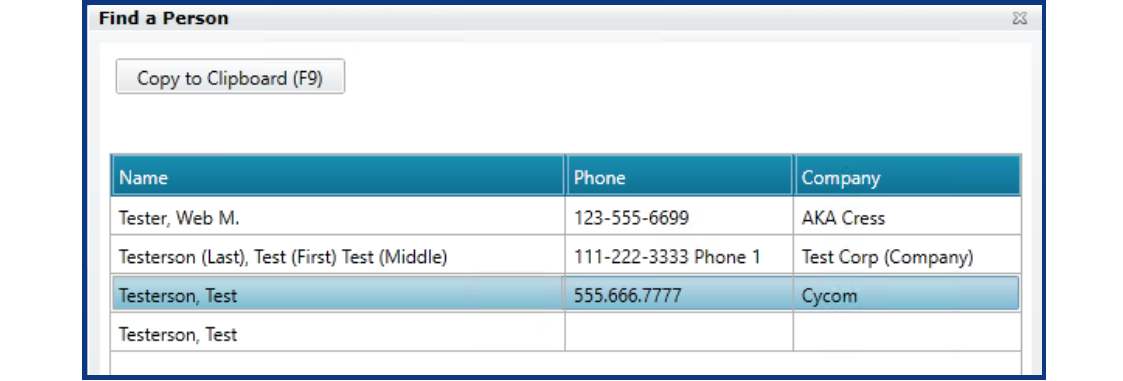
Step 4. Select contact from search results.
Locate and select the person or firm desired in the Find a Person window that appears. A selected contact will be highlighted in blue.
Step 5. Press Edit or Files to view additional information.
To see additional information for confirmation or identification, press Edit or Files. Edit will cause an Edit Party window to appear. From this window, the contact may be viewed or edited.

Files will cause a Matters window to appear displaying all the matters on which this person was associated.

Using System Management
Step 1. Open System Management.
On the Global Toolbar, press the System Management icon.

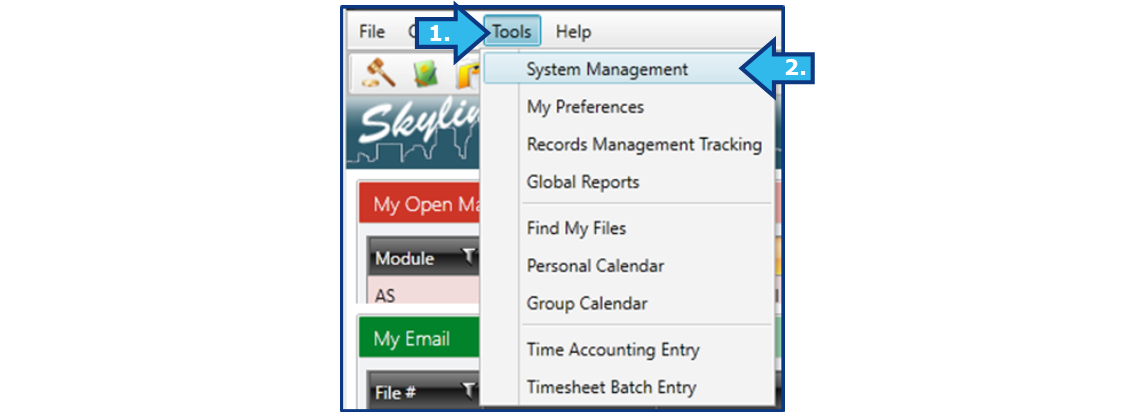
Alternatively, on the Menu Bar, select Tools and then System Management.
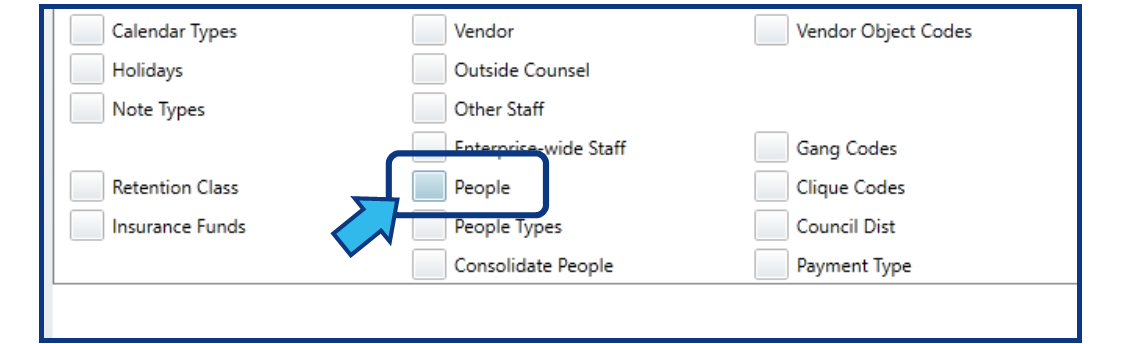
Step 2. Select People.
Select the box next to People, located in the middle near the bottom. A Find a Person window will appear.
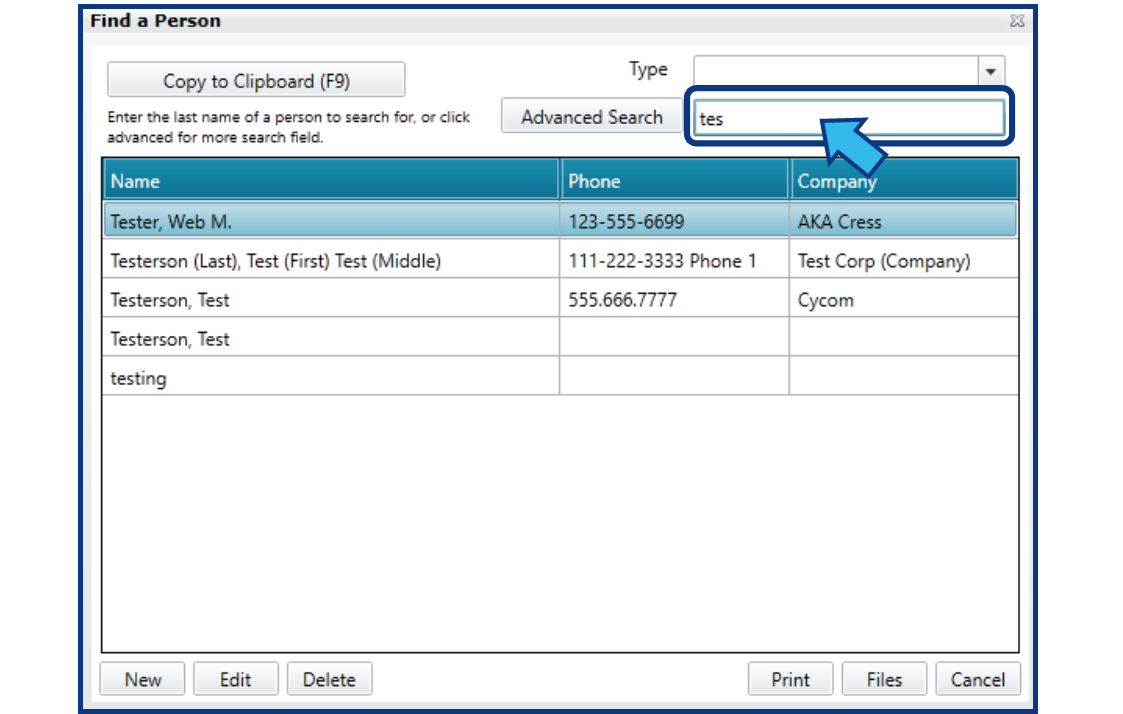
Step 3. Enter search criteria.
Begin typing a last name or firm name, if known.
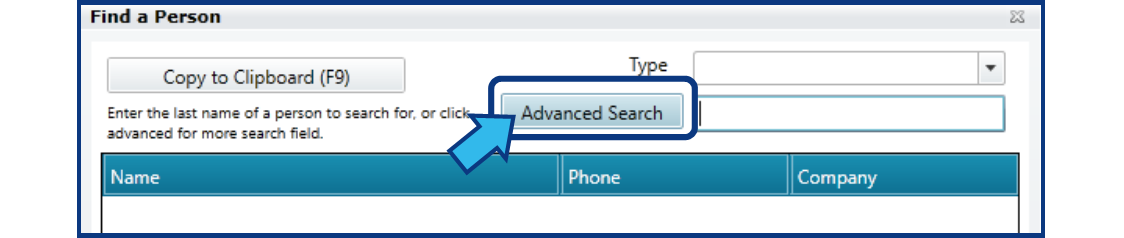
Alternatively, press Advanced Search to open a People Search Criteria window.
Enter information used to identify the person or firm. Partial information may be used. Press Search.
Step 4. Select contact from search results.
Locate and select the person or firm desired in the Find a Person window that appears. A selected contact will be highlighted in blue.
Step 5. Press Edit or Files to view additional information.
To see additional information for confirmation or identification, press Edit or Files. Edit will cause an Edit Party window to appear. From this window, the contact may be viewed or edited.
Files will cause a Matters window to appear displaying all the matters on which this person was associated.
Comments
0 comments
Please sign in to leave a comment.