
Need a printable version of this article? Download the Article (PDF Version).
There are several ways to locate a matter in CLW. The most efficient and effective method will depend on the information known about the matter.
Contents:
Search Descriptions
Global Matter Search
This method searches through all matters in all modules. This is the broadest search possible and returns all matters accessible to the user fitting the provided search criteria.
My Open Matters Search
This method searches through the user’s open matters. This is typically the most efficient search for a user to locate matters assigned to them.
Module Search
This method searches through all matters within a specific module. This is similar to a Global Matter Search, except it only searches within the given module.
Global Matter Search
In the Global Toolbar, press the Global Matter Search icon.


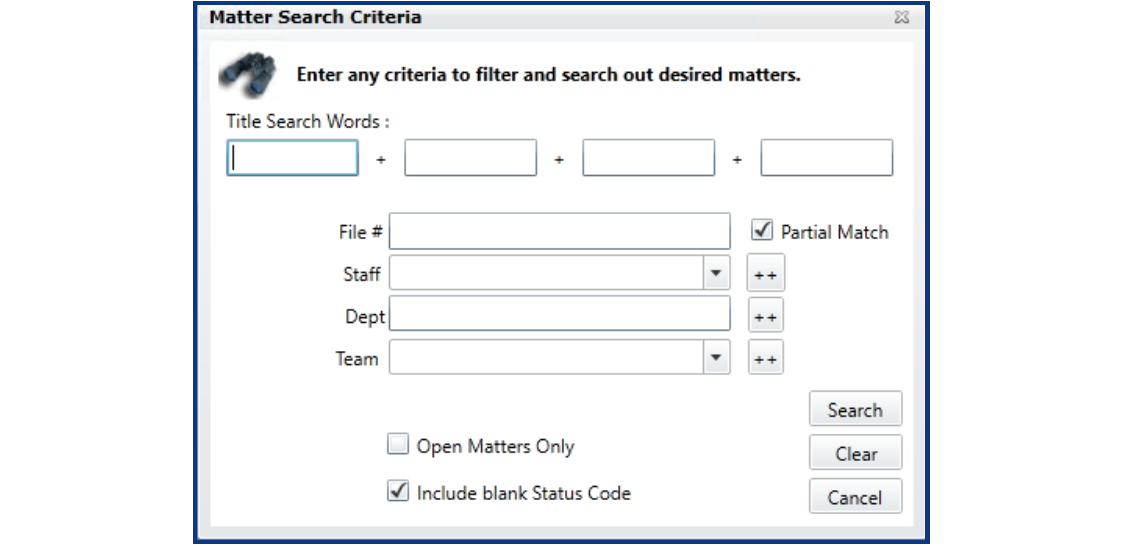
In the Matter Search Criteria window, fill in information to narrow the search. Enter any of the following: one or more words in the Title; the File #; the assigned Staff; the associated Department; and/or the assigned Team. To limit the search to only open matters, check the Open Matters Only box.
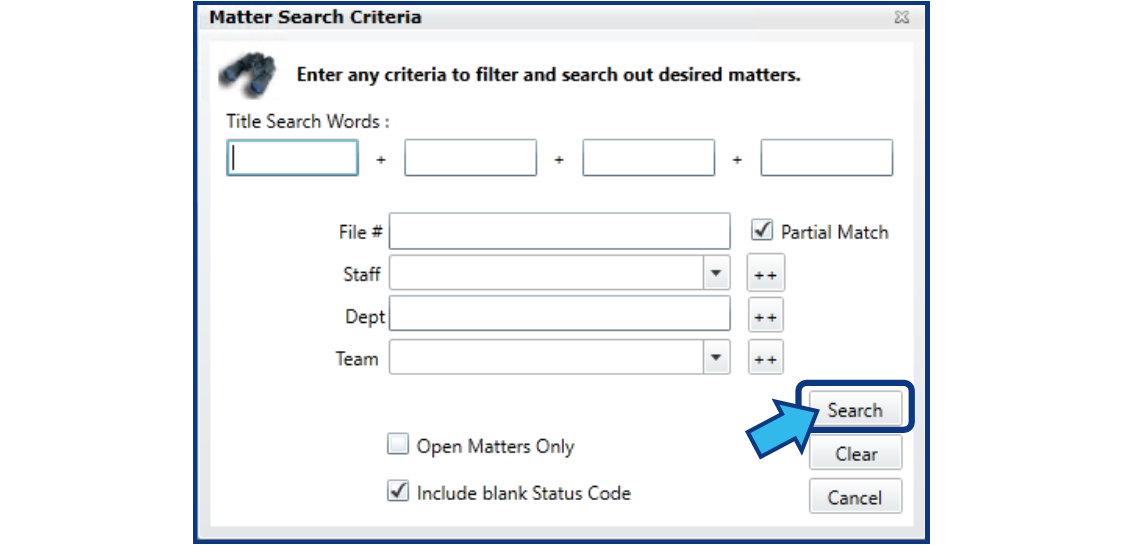
Press Search. The Search button is located in the bottom-right of the Matter Search Criteria window.
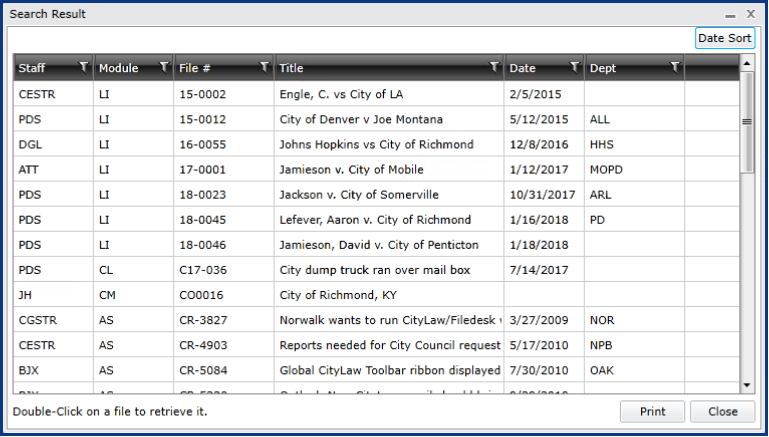
Search results appear in a Search Result window. If the results list is long, it can be further sorted by selecting any of the column headings. Double-click the desired matter.
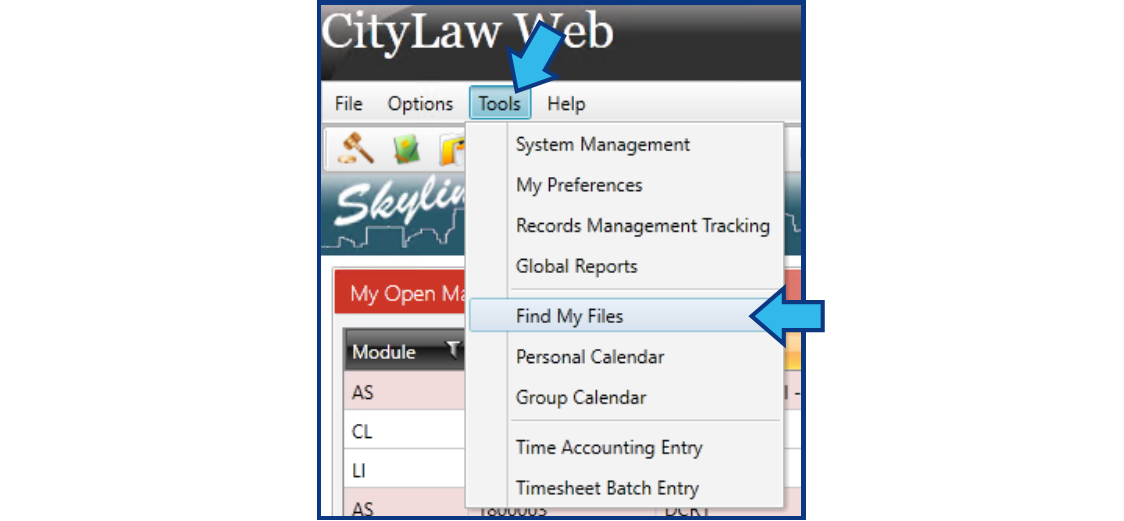
Alternatively, a sortable list of matters can be accessed. Press Tools in the Menu Bar and select Find My Files.
A Global Matter Search Results window appears. The list can be sorted by pressing any of the column headings.
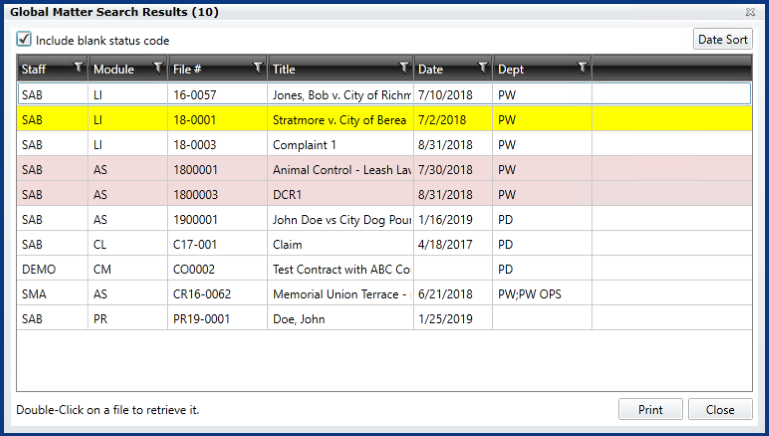
In this example, the list is sorted alphabetically by Title. Notice the Title heading is colored differently to show it is the column by which the list is sorted.

Each column is filtered according to a numerical or alphabetical default appropriate to the category. Pressing the Filter icon will open a window that allows more filtering options.

As an example, to see a list of all open Assignment matters, check the box for the AS module.

My Open Matters Search
If in Skyline View or Main Street View, and My Open Matters is set to display, a sortable list of open matters is visible.
Skyline View

Main Street View
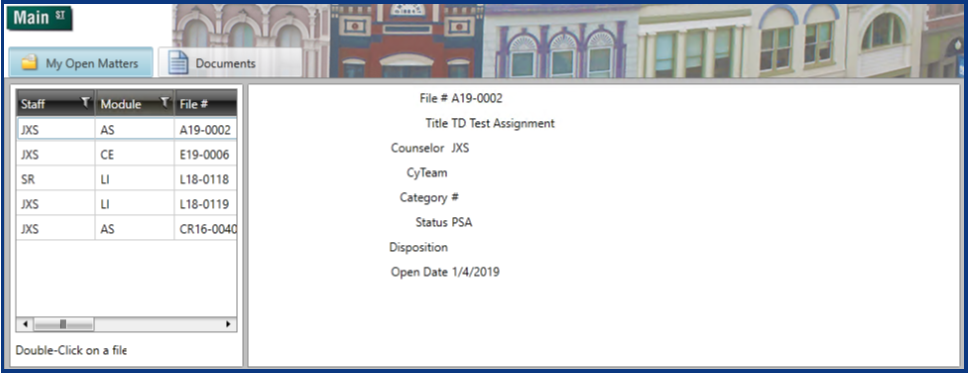
Open matters can also be viewed by pressing the My Open Files icon in the Global Toolbar.


The list in either case can be sorted by pressing any of the column headings. In this example, the list is sorted alphabetically by Title. Notice the Title heading is colored differently to show it is the column by which the list is sorted.

Each column is filtered according to a numerical or alphabetical default appropriate to the category. Pressing the Filter icon will open a window that allows more filtering options.

As an example, to see a list of all open Assignment matters, check the box for the AS module.

Module Search
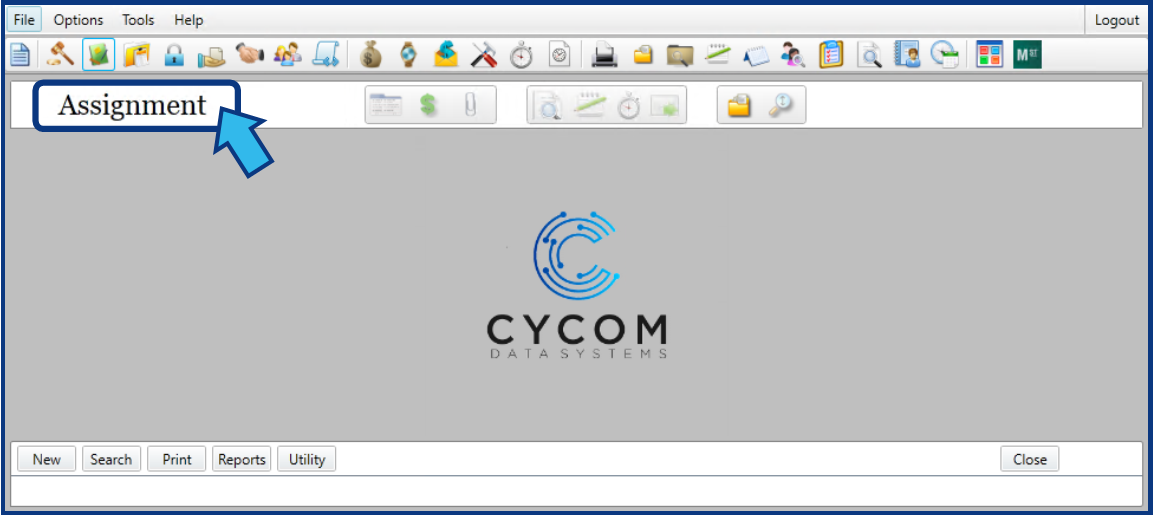
Open the module that matches the type of the matter to be found. When in the correct module, the module type name appears on the Module Toolbar, as shown below. In this guide, the example matter to be found is an Assignment, but the same process works for all matter types.
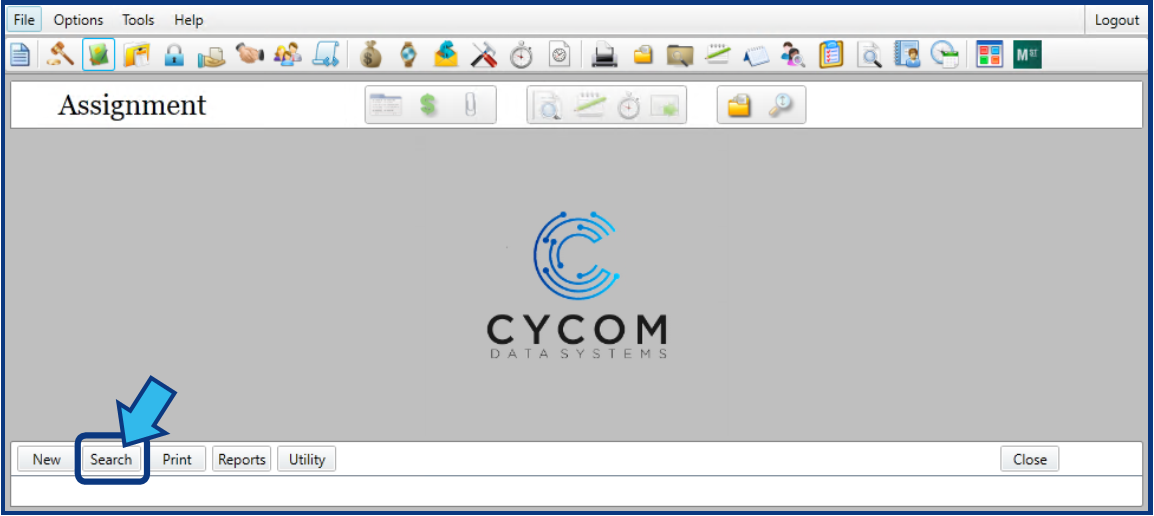
Press Search. The Search button is located in the bottom-left corner of the module window.
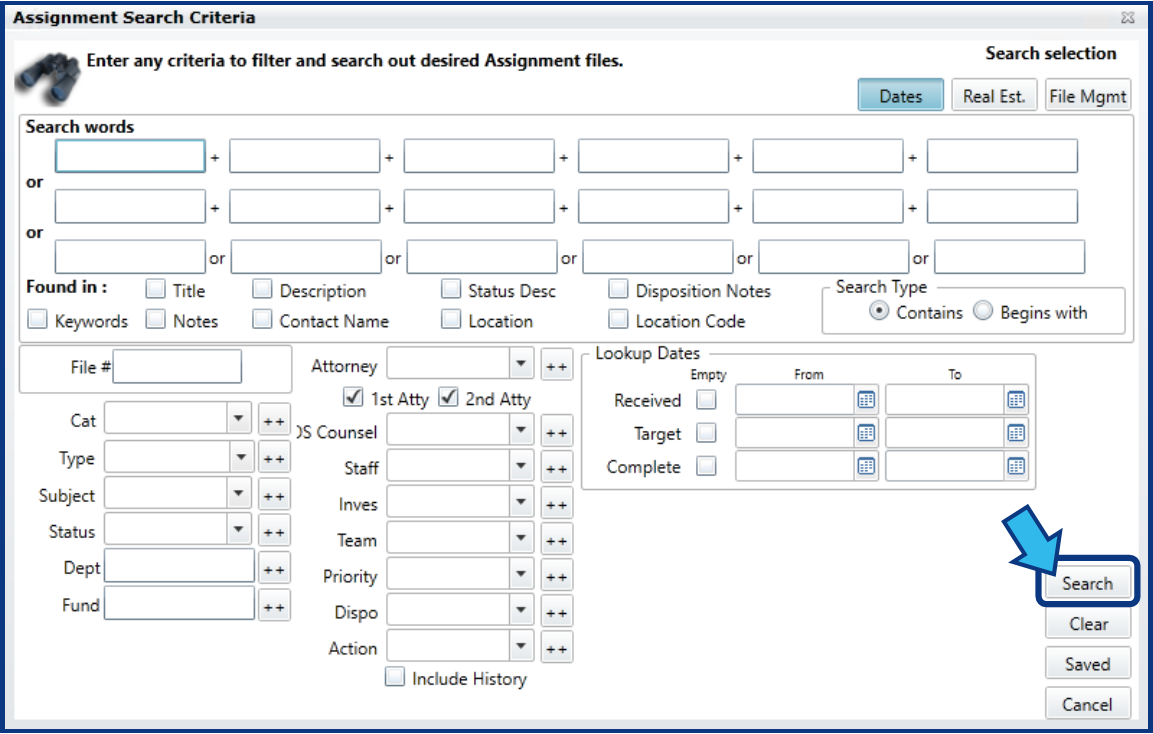
In the Search Criteria window, fill in the information known to narrow the search and then press Search. If all fields are left blank, the results will show all matters of the chosen module type.
Select the desired matter from the Search Result window.

Comments
0 comments
Please sign in to leave a comment.