
Need a printable version of this article? Download the Article (PDF Version).
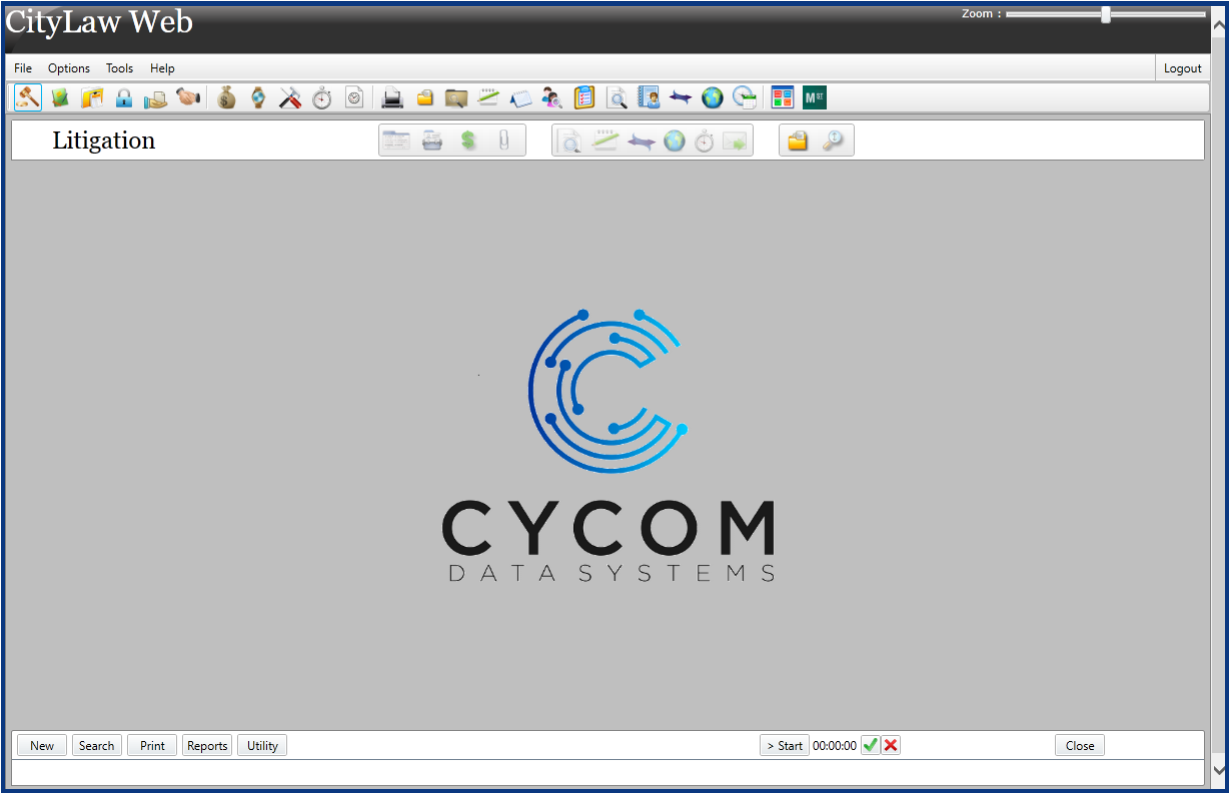
Unless the default Initial View is changed, when logging on CLW, you will see something similar to the image below.
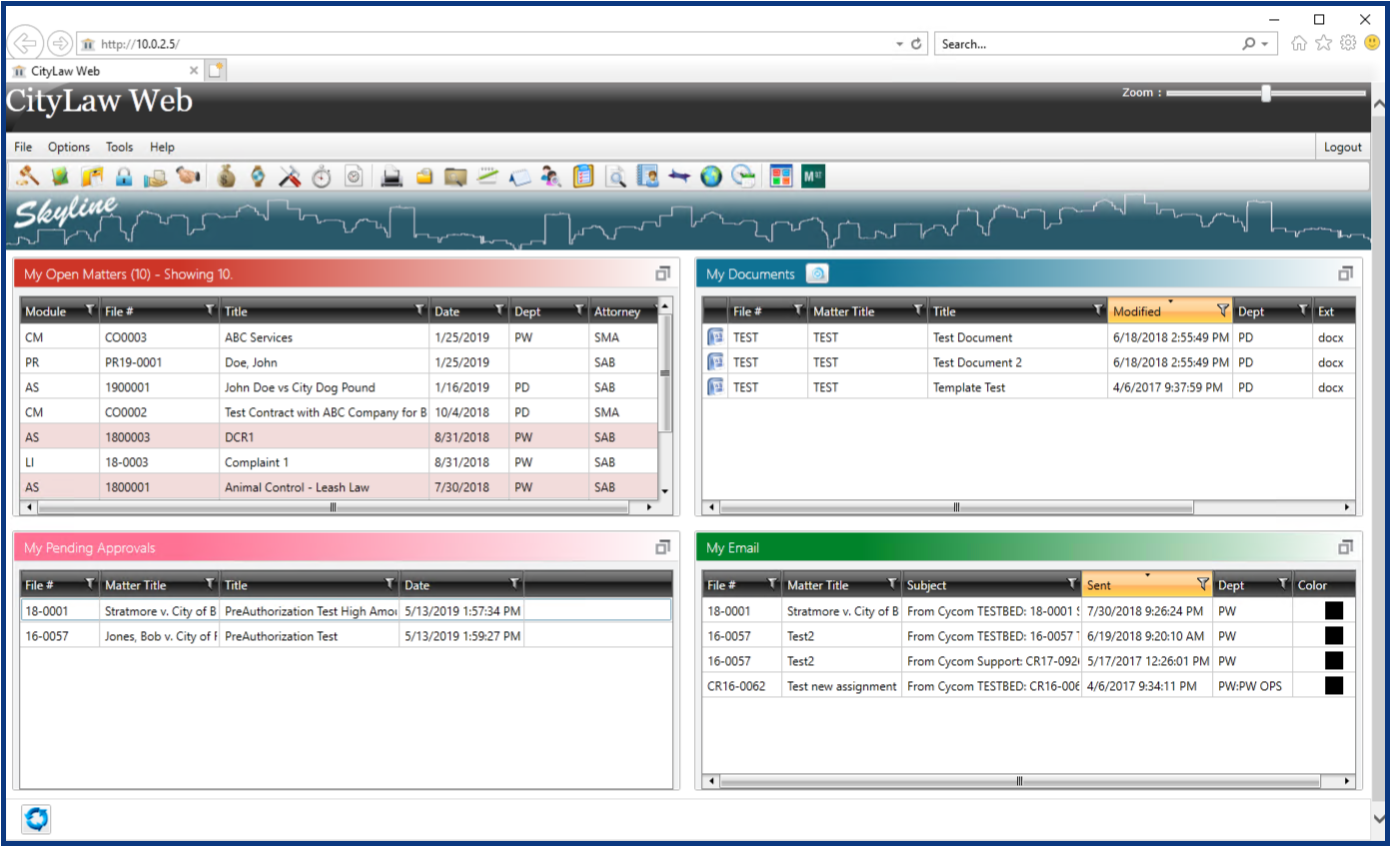
The general layout contains 3 sections:
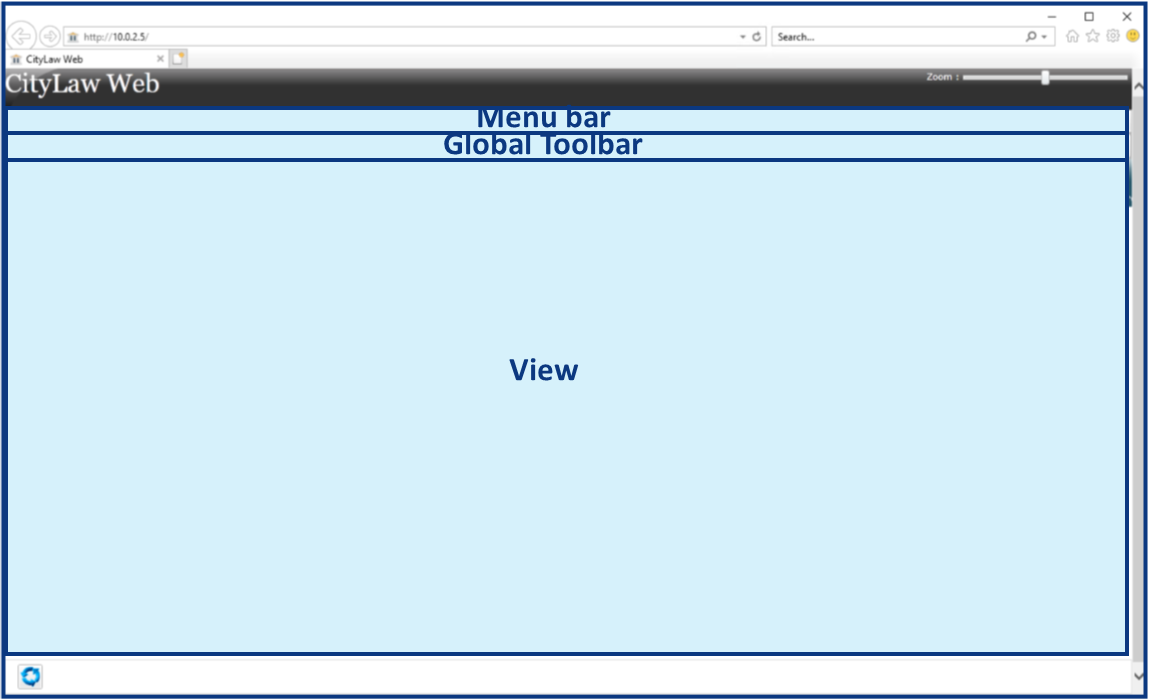
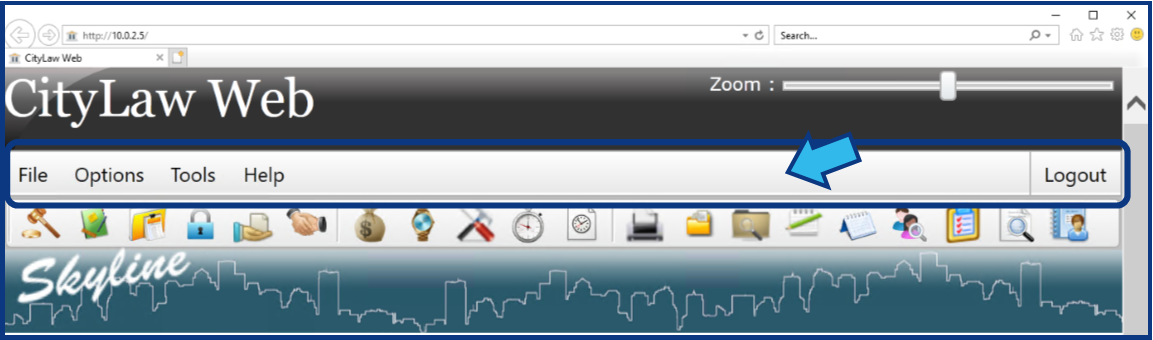
Menu Bar
The Menu Bar contains 5 menus:
- File
- Options
- Tools
- Help
- Logout
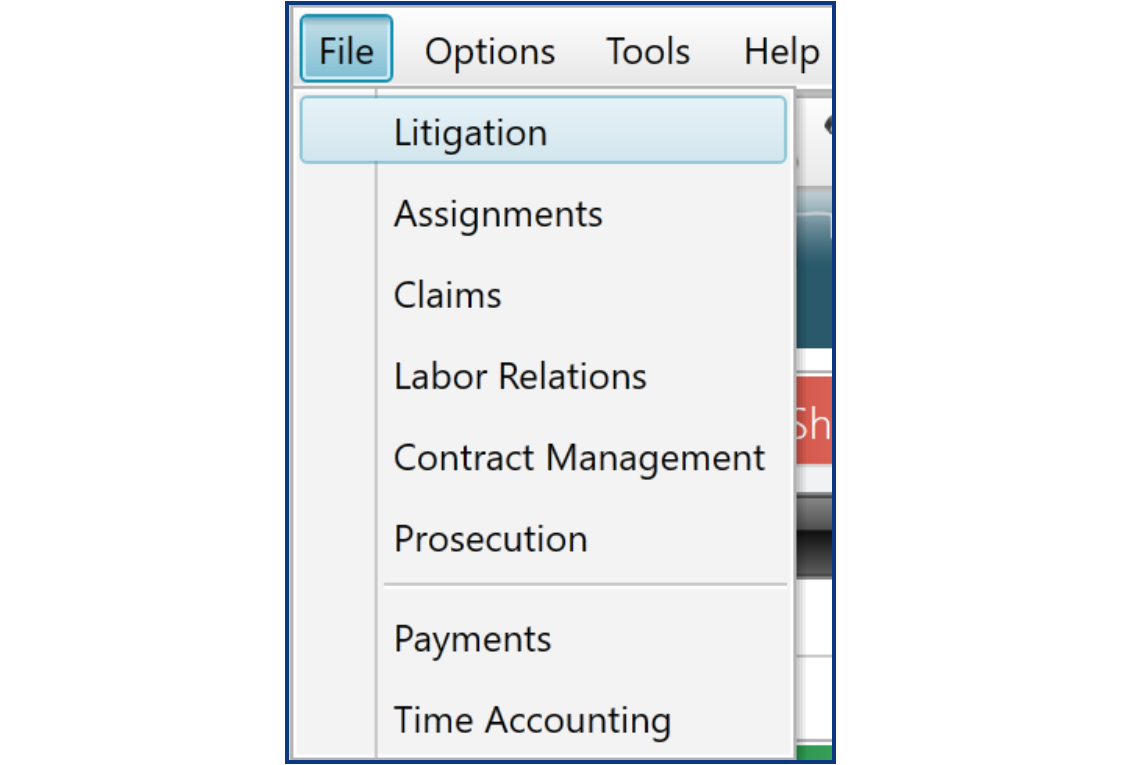
The File menu lists the modules available. Your list may vary.
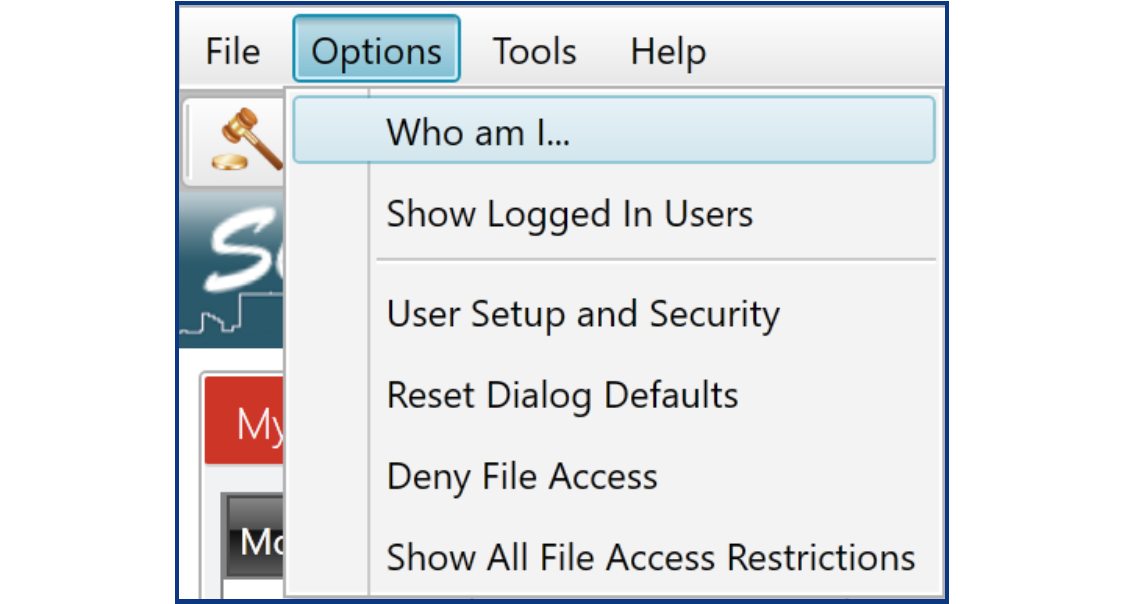
The Options menu lists user information and access options available. Your list may vary.
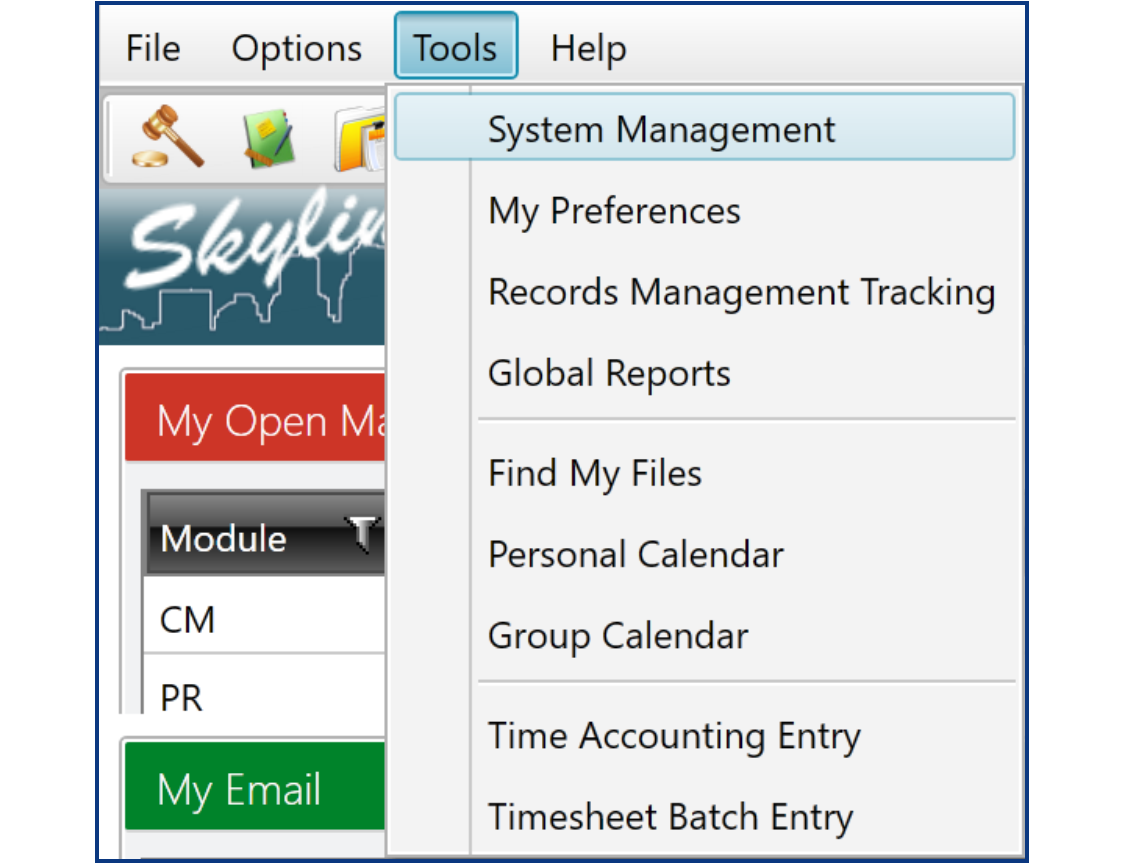
The Tools menu lists the management, report, calendar, and data entry tools available. Your list may vary.
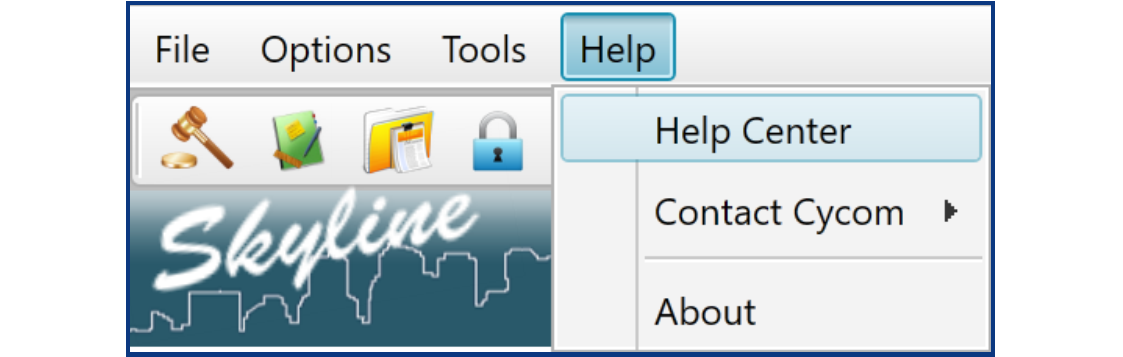
The Help menu lists system information and contact options available.
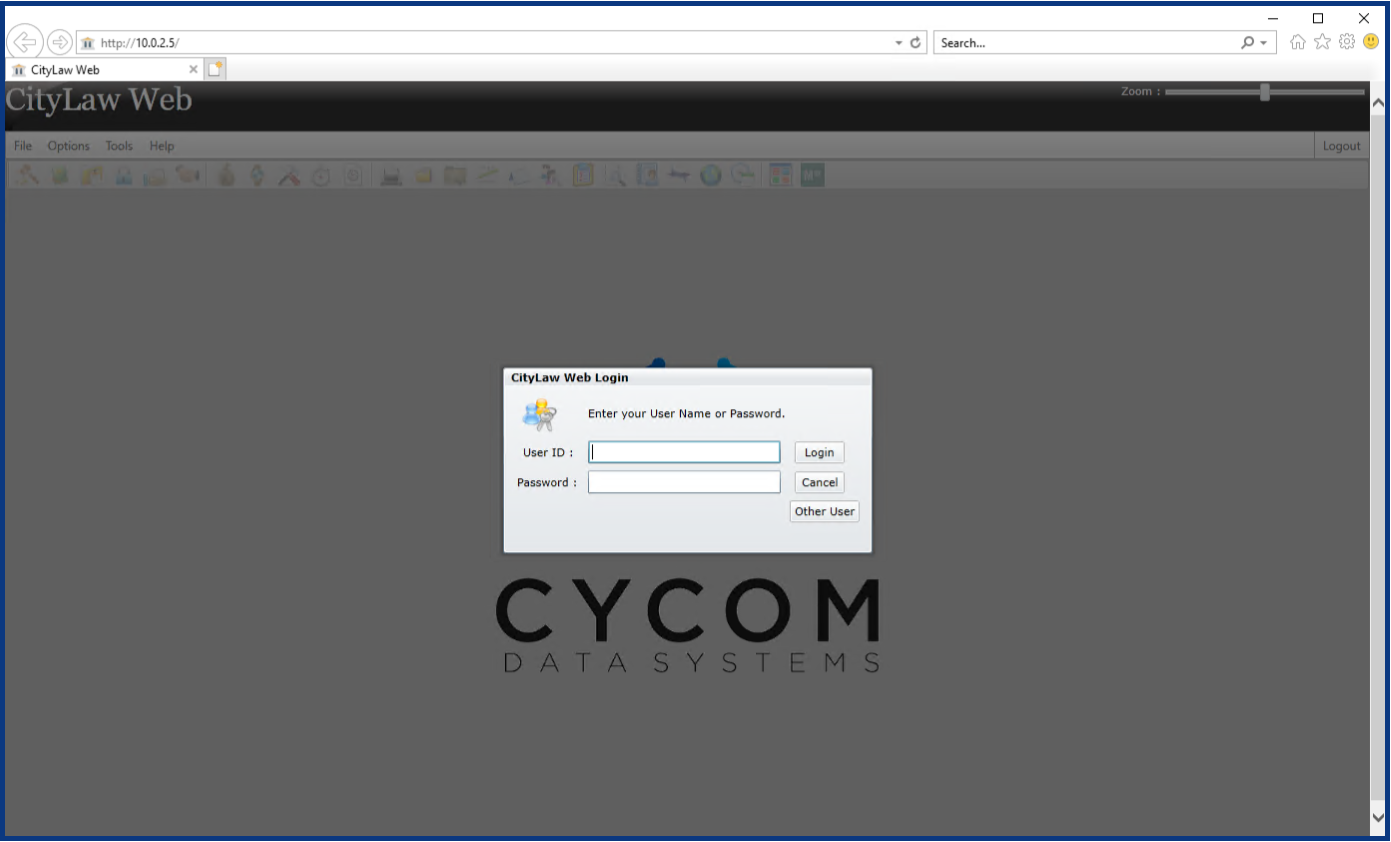
Logout logs the current user out and displays the login prompt.
Global Toolbar
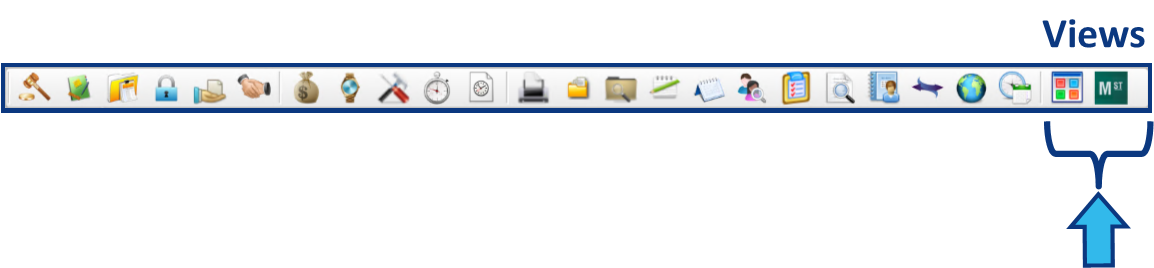
The Global Toolbar contains icons for all the modules, tools, and views to which a user has access.
The icons available will vary depending on modules and tools licensed to your site and made accessible to you.
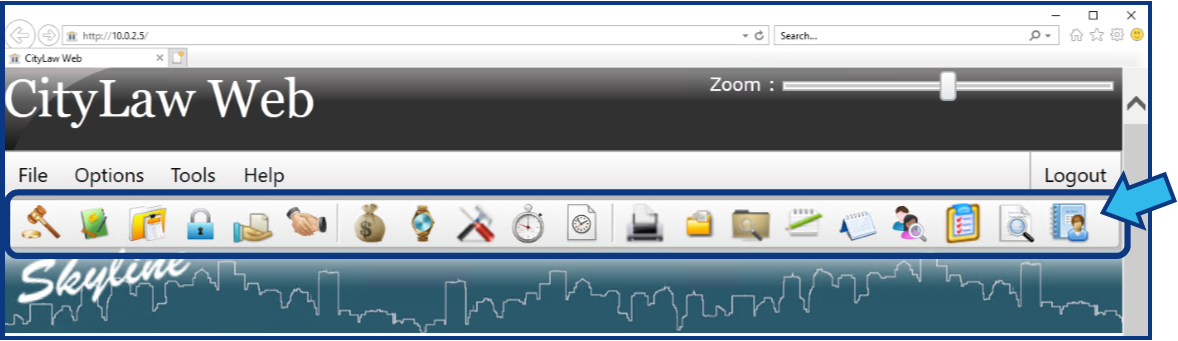
Hover the mouse pointer over any of the icons on the Global Toolbar to display the name.

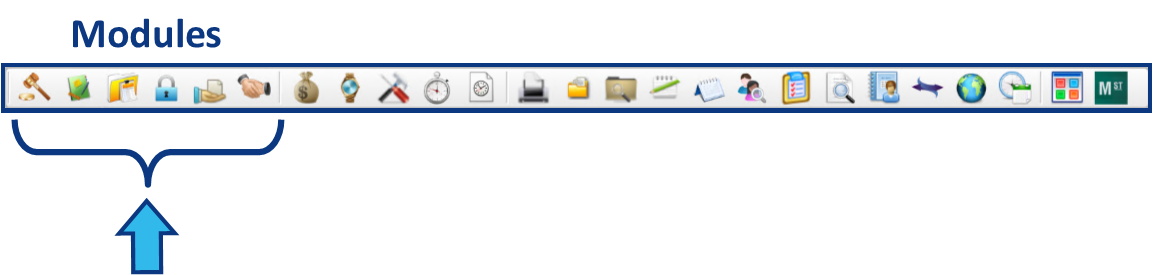
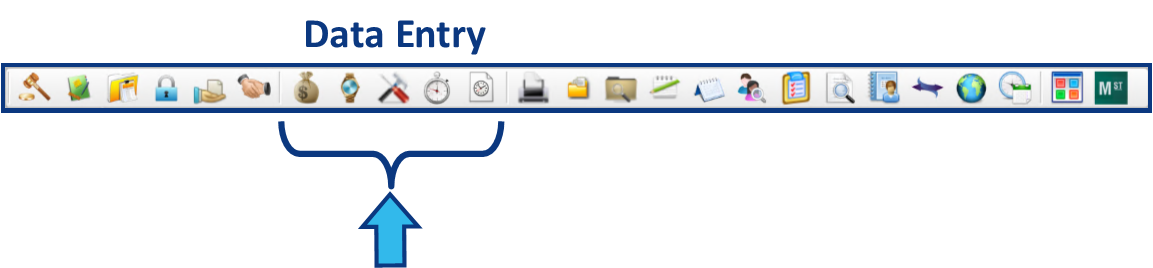
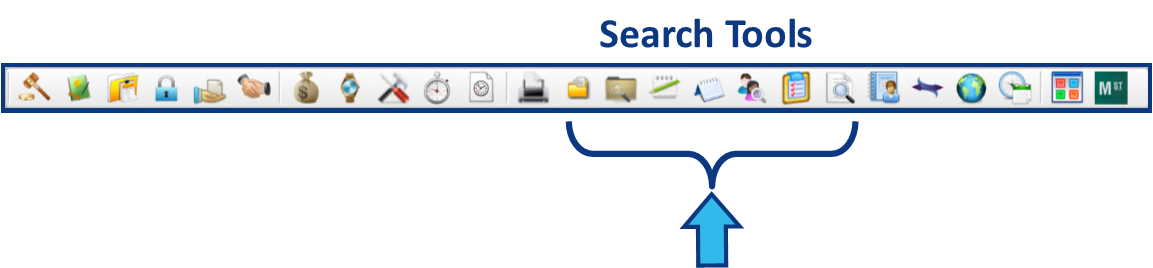
There are 5 general types of icons on the Global Toolbar: Modules; Data Entry and Management Tools; Search Tools; Report Tools, and Views.

View
The View changes depending on the configurations and selections made. There are 6 types of views:
- Skyline
- Main Street
- None (or Empty)
- Module
- Calendar
- Report
The Skyline View contains up to 4 aggregated tables displayed in a grid layout, chosen from matters, documents, emails, calendar events, pending approvals, or parties.
Each table can be sorted by any column heading. Clicking on a heading sorts the table contents by that heading. The column heading changes color to identify the contents are sorted by the contents in that column. Repeatedly clicking the column heading cycles through ascending, descending, and default order.
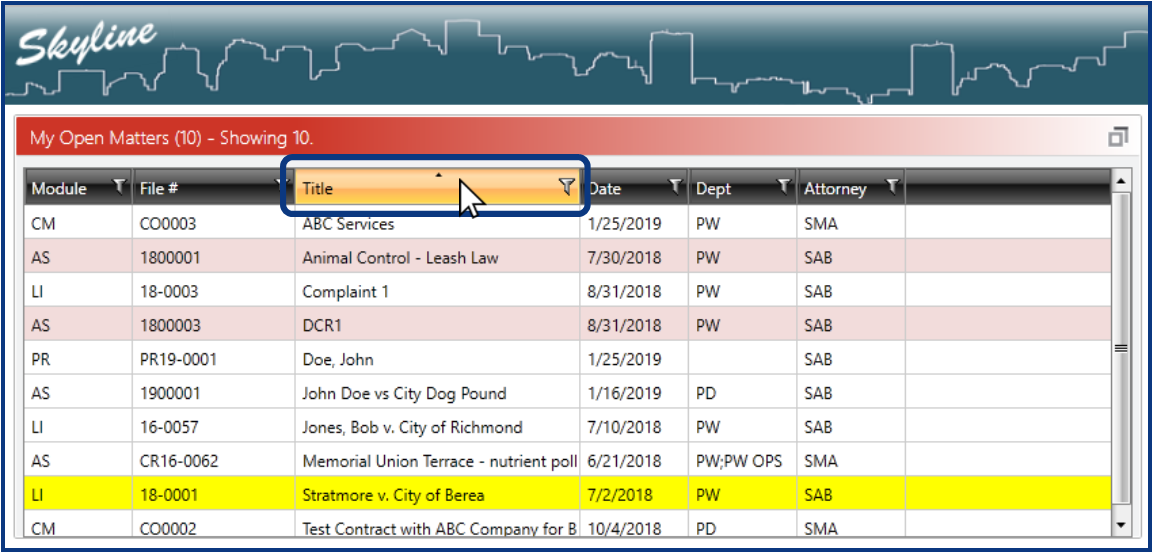
Each table can be further sorted using the column Filter. When hovering over the Filter option, the mouse pointer changes to a hand.

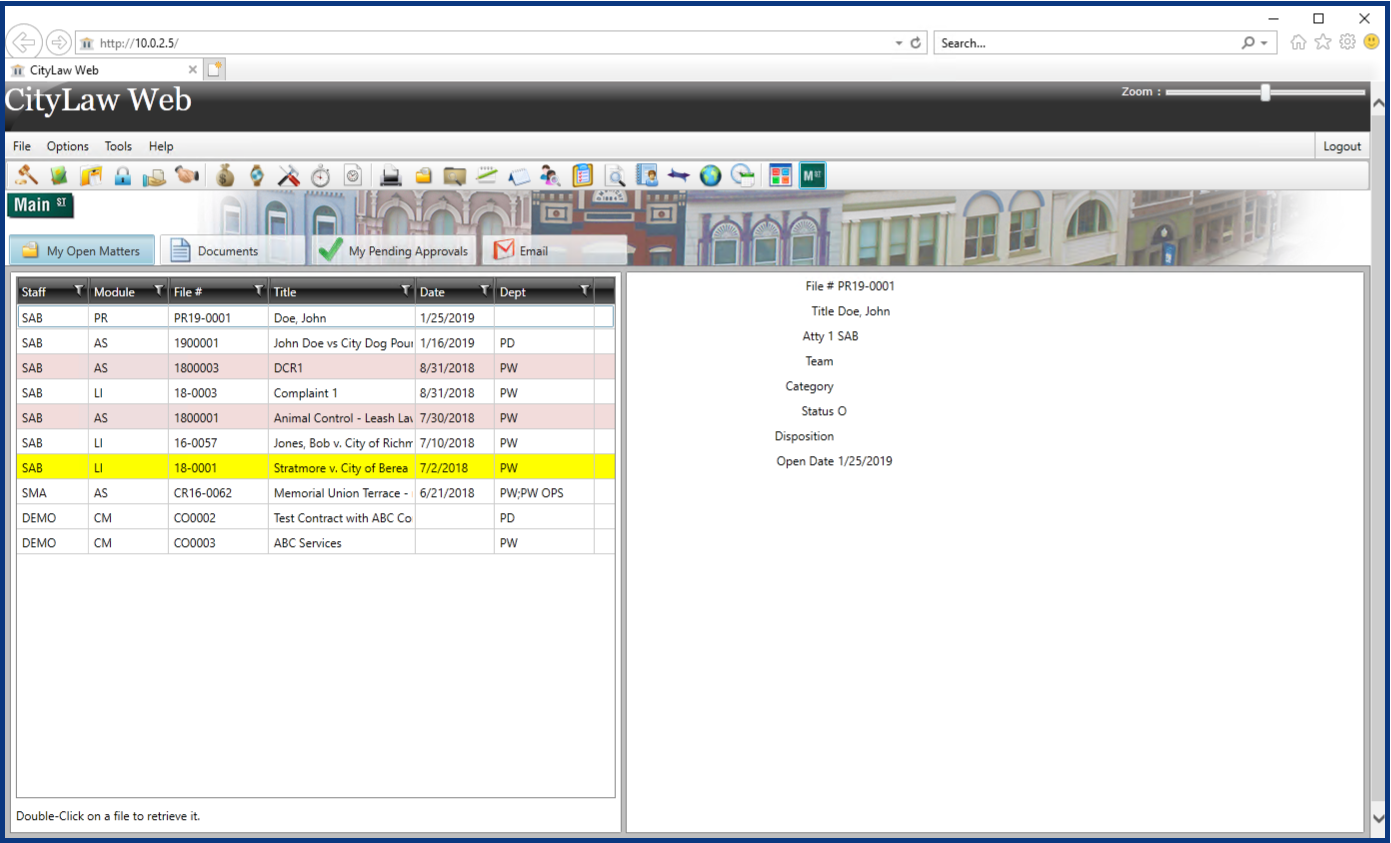
The Main Street View contains the same aggregated tables as Skyline View, but they are presented in a tabbed format with a preview/detail pane. The tables can be sorted by column heading and filtered.
The Empty View displays only the Cycom or CLW logo.
The Module View displays the current active module. All accessible modules may be open simultaneously. However, only the current active module will be visible. The Module View displays a header identifying which module is visible, along with a Module Toolbar and Module Action Bar.
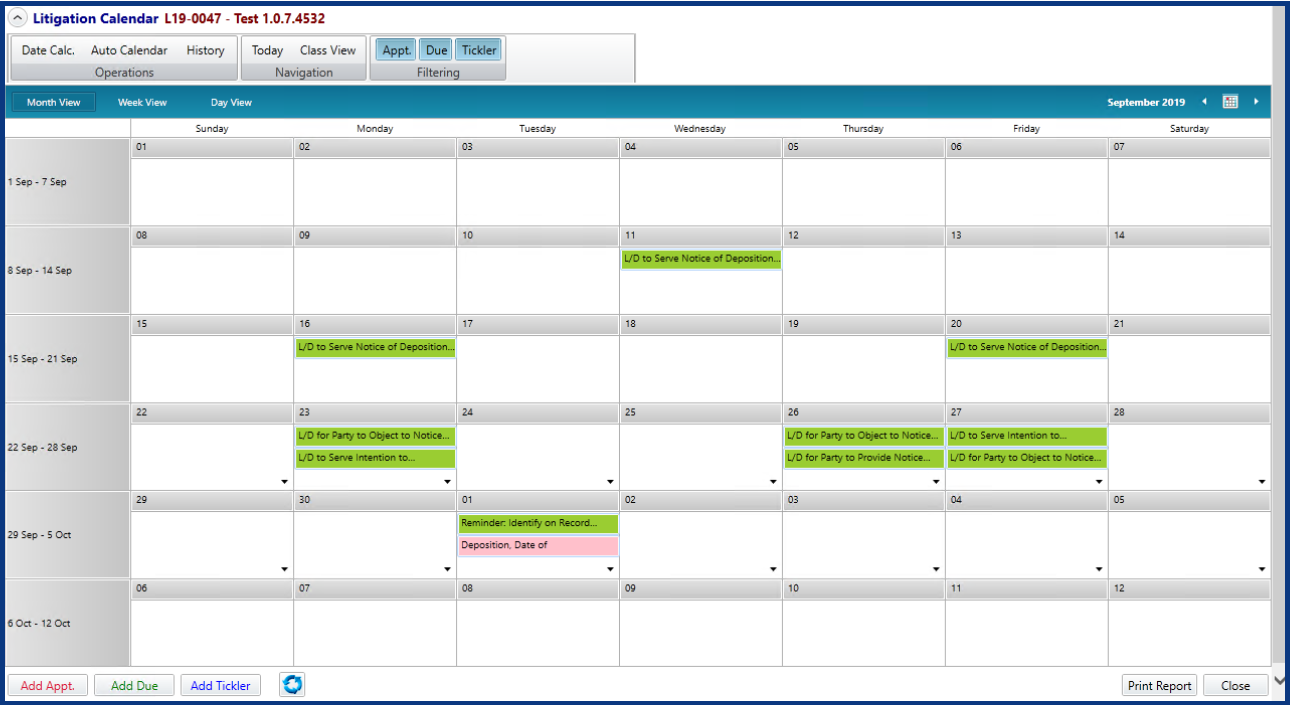
The Calendar View displays the current selected calendar. A calendar may be for a group of users, a single user, or a single matter.
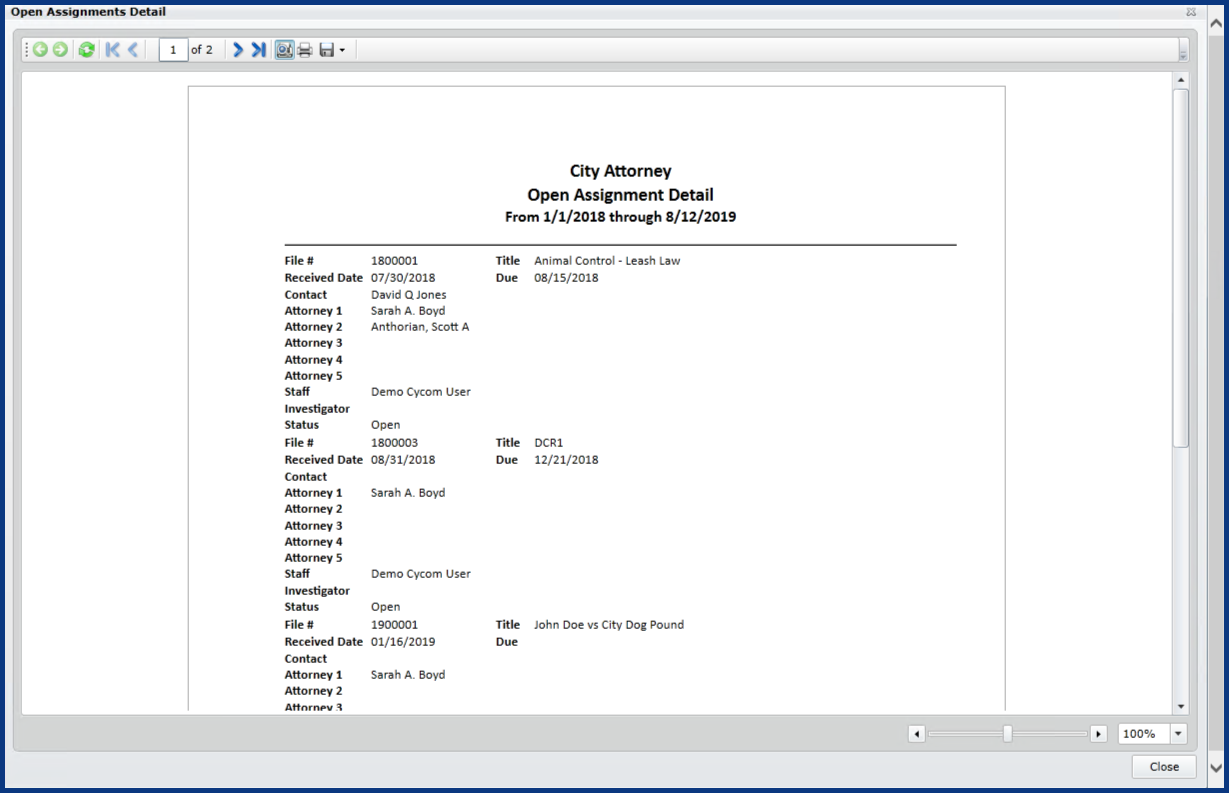
The Report View displays the current selected report. The Report View is displayed whenever the user selects a Print option throughout CLW.
Comments
0 comments
Please sign in to leave a comment.