
Need a printable version of this article? Download the Article (PDF Version).
Locate the CLW App.
The CLW app is accessed from an icon on the Desktop.
The icon typically looks like one of the following:

The icon name may be CityLaw (or CountyLaw) or CityLaw Web (or CountyLaw Web).
If you cannot find the icon, contact your System Administrator.
Log on CLW
Double-click the CLW icon to open the app. If your site requires password verification to log in, you will see a prompt requesting a User ID and Password like the one shown below.
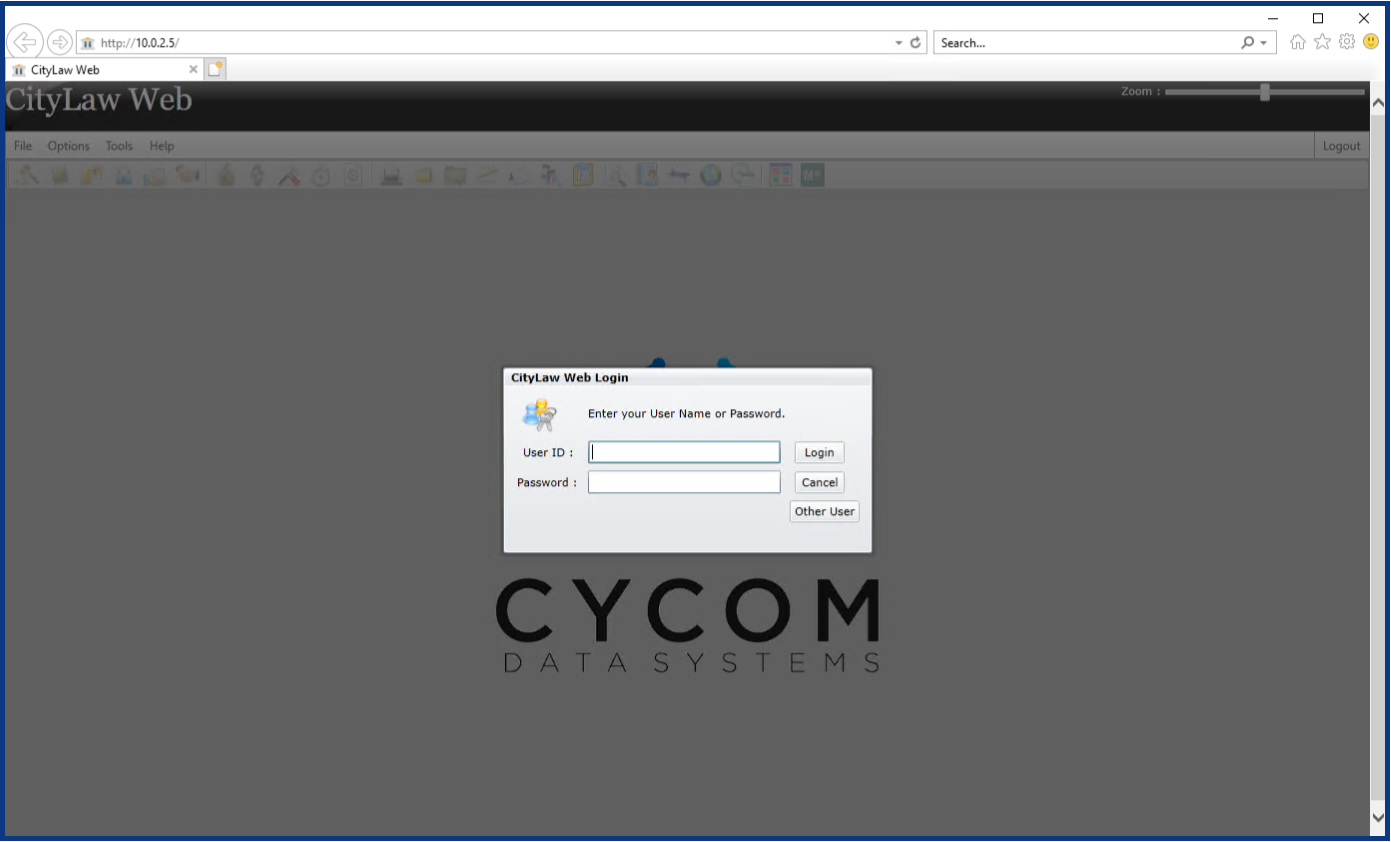
Enter your User ID and Password and press Login.
If you don't know your User ID and/or Password, contact your System Administrator.
If your site does not require password verification, CLW should open to your default view.
If your site does not require password verification, but you are prompted to enter one, contact your System Administrator.
Success!
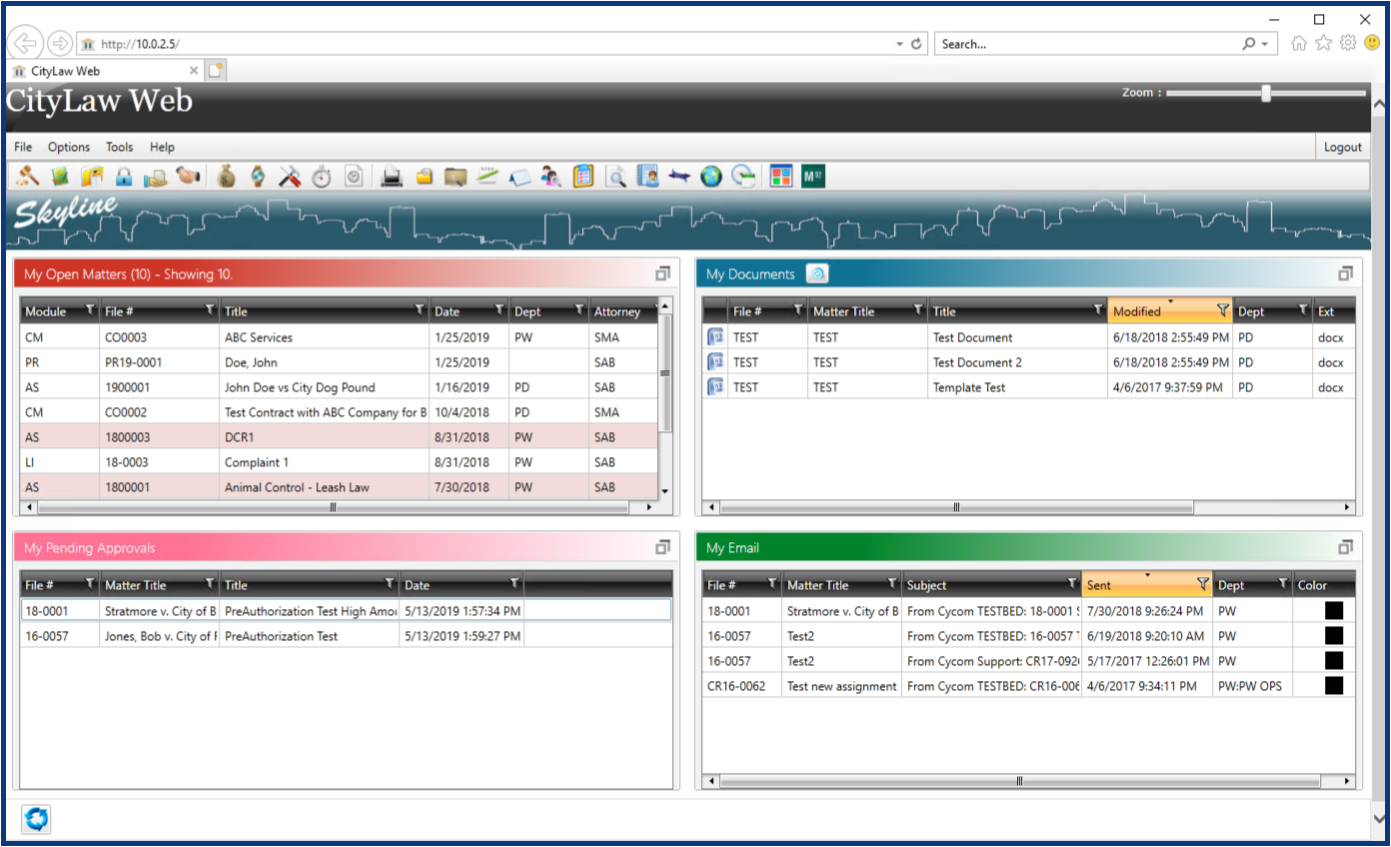
If your default Initial View is set to Skyline, you should see the Skyline header and grid with 1 to 4 tables.
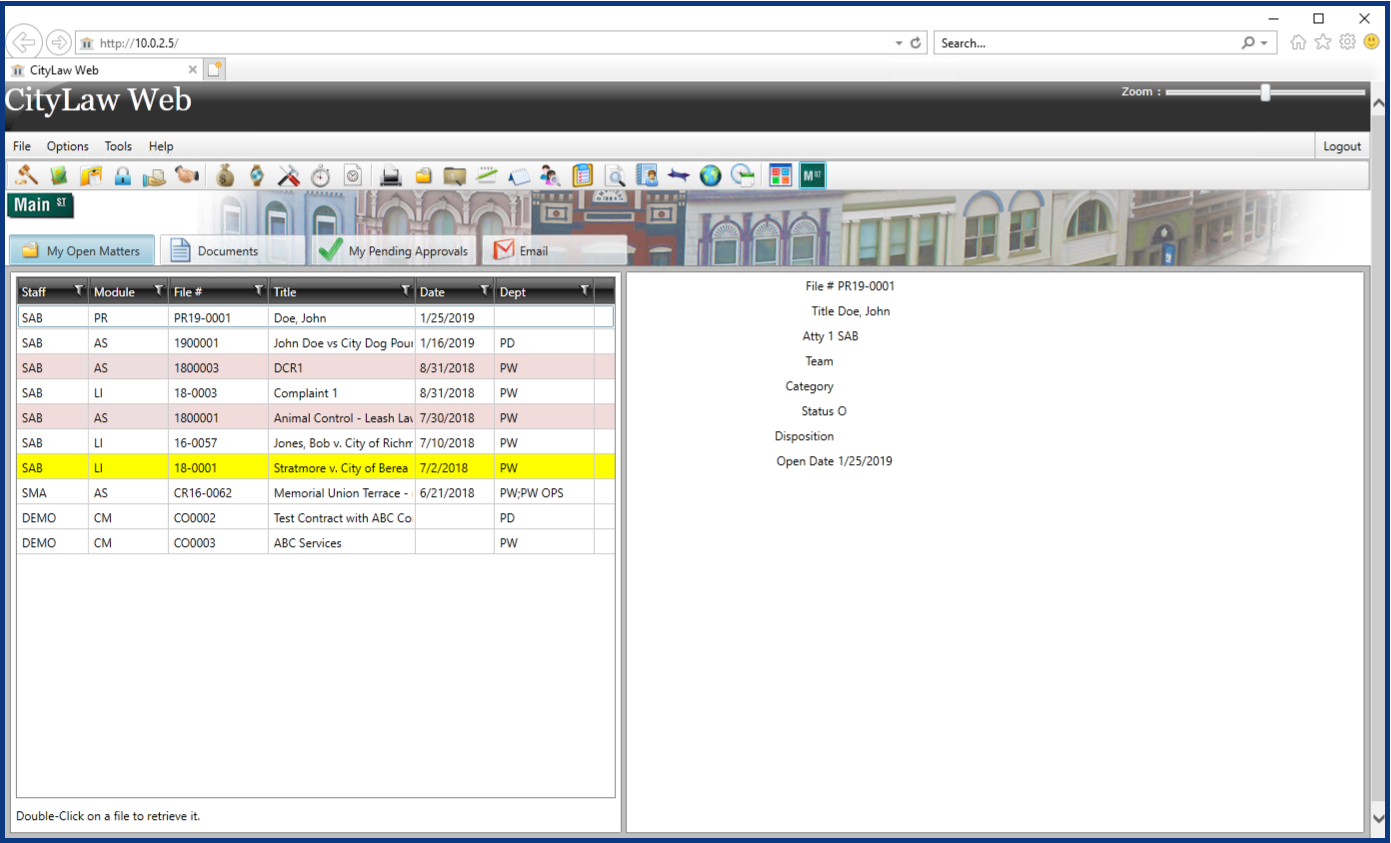
If your default Initial View is set to Main Street, you should see the Main Street header with 1 to 4 tabs and a preview (or detail) pane.
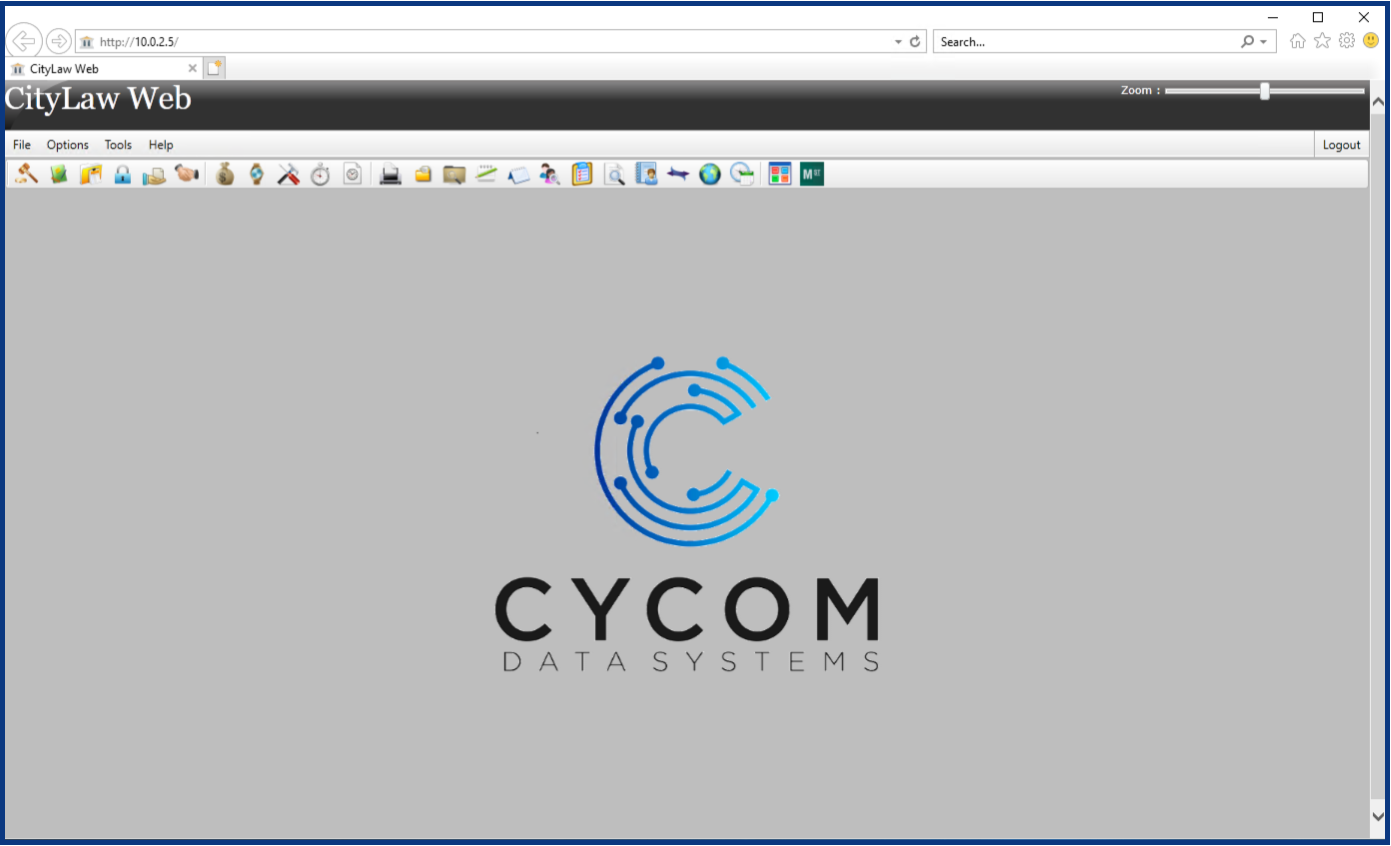
If your default Initial View is set to None, you should see the Cycom or CLW logo.
If you see a view that is different from those shown above, such as the one shown below, contact your System Administrator.
Comments
0 comments
Please sign in to leave a comment.