
CalendarRules can be used in any Module which has a Court or Jurisdiction:
- Litigation
- Claims
- Third Party Claims
- Workers’ Compensation
- Labor Relations
- Family Services
In this example we will be in the Litigation Module.
Prerequisites
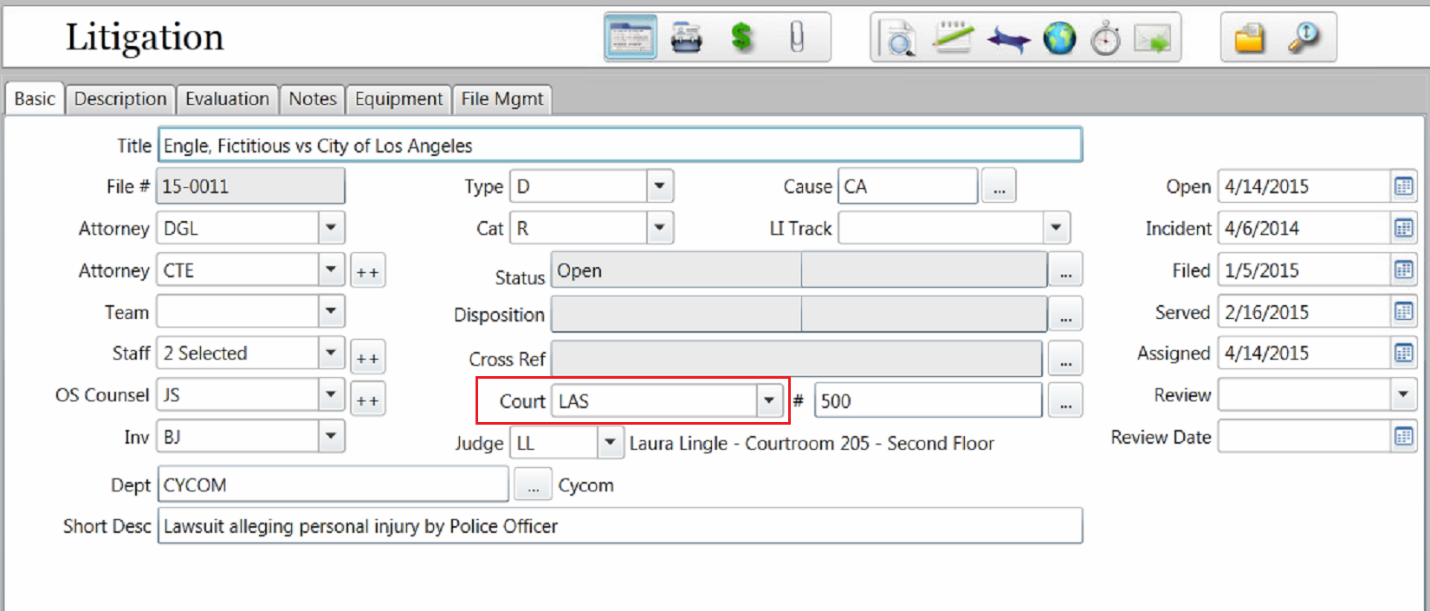
To add automated calendar events to a matter, it must have a Court with a CalendarRules Jurisdiction selected. The Court field is located on the Basic tab of the matter.
Adding Trigger Dates
To add a set of trigger dates, go to the matter’s calendar  and press the Add Appointment button.
The Appointment window opens.
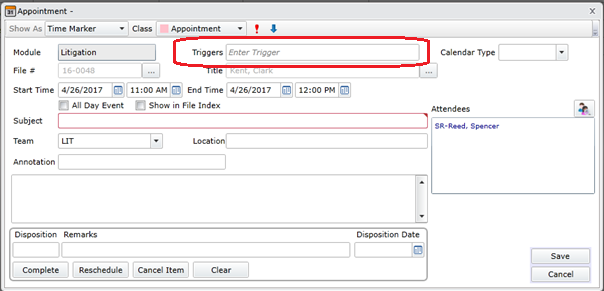
Note that the Triggers field is now visible. As you type in this field, a list of Triggers will be displayed. This is a list of the available Triggers in the Jurisdiction associated with the Court on this matter. The list is filtered by the text entered in the field. Select the desired Trigger from the list.
If you select a Trigger which requires a Service Type, a Service Type drop-down will appear below the Calendar Type field at the top-right of the Appointment window.
Once a Trigger has been selected, the Compute Events window will open. This window will display a list of all the events calculated for the selected Trigger.
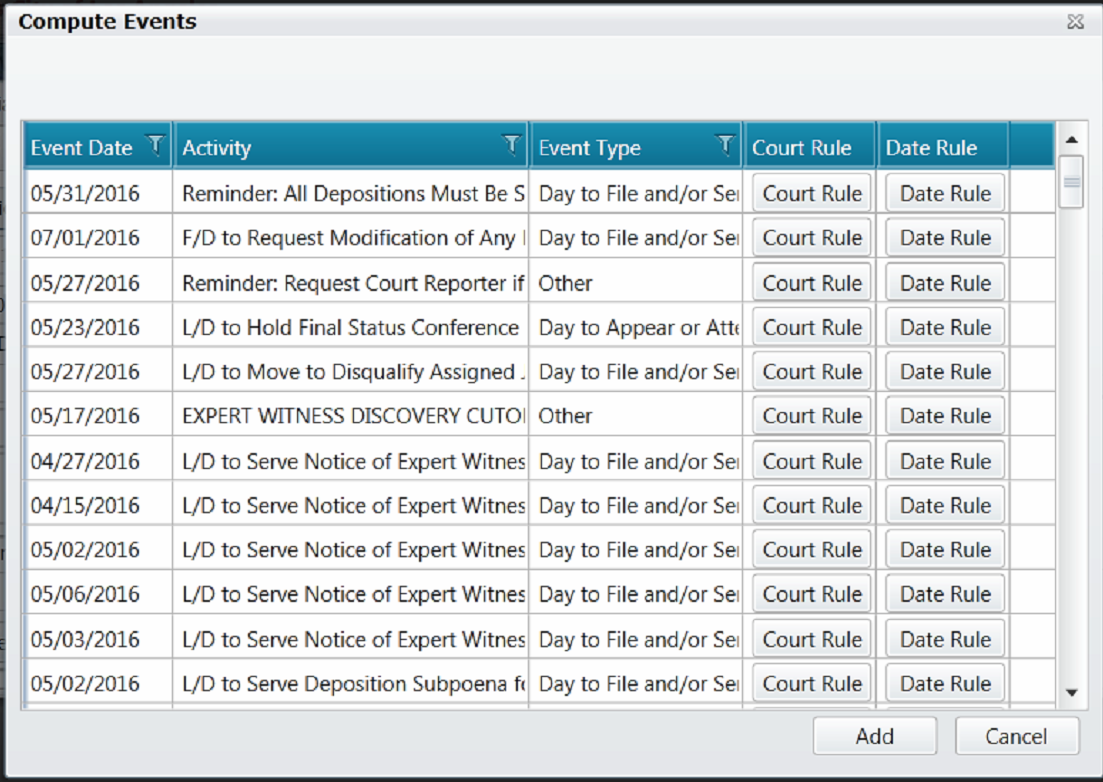
To view the relevant Court Rule for a particular calendar event, press the Court Rule button.
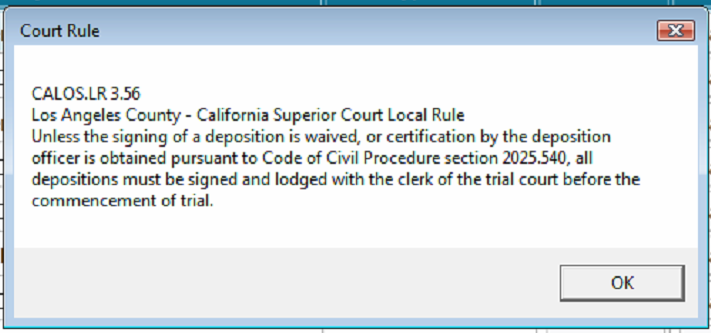
To view the logic of how the date of a particular event was calculated, press the Date Rule button.
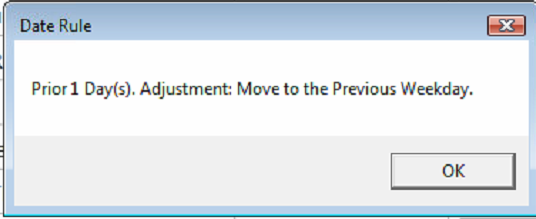
In the Compute Events window, press the Add button to save the listed events to the matter.
Viewing the Added Trigger Dates
After the system finishes adding the events to the matter’s calendar, the calendar will be displayed in Class View with the newly created events. The Trigger is shown as an Appointment, and the triggered events are shown as Due items.
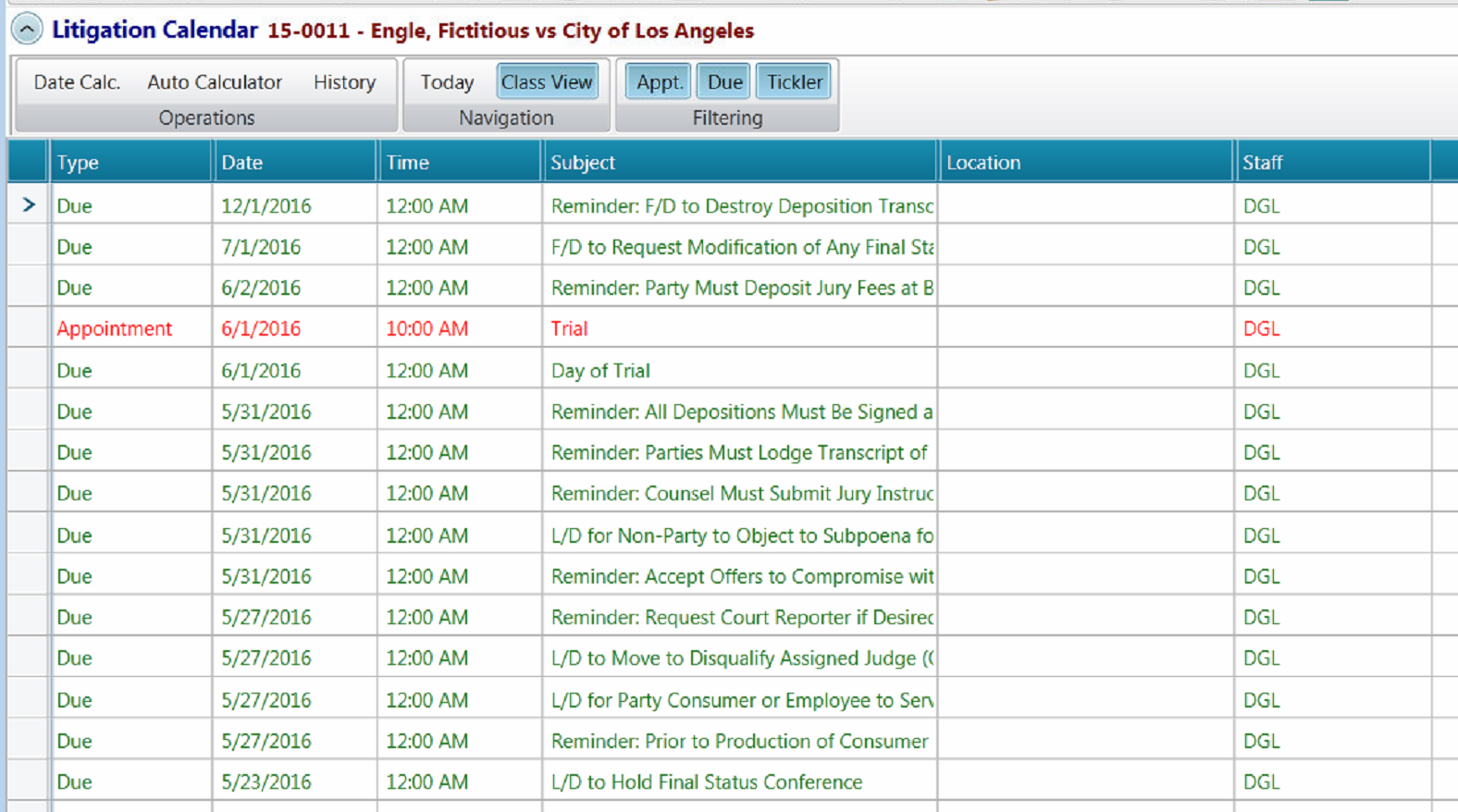
Comments
0 comments
Please sign in to leave a comment.