
Need a printable version of this article? Download the Article (PDF Version).
Need a reminder? Use the Quick Reference Guide.
Need more details? Check out the Standard Guide.
Quick Reference Guide
There are 5 steps to complete this task:
Standard Guide
Step 1. Open My Preferences.
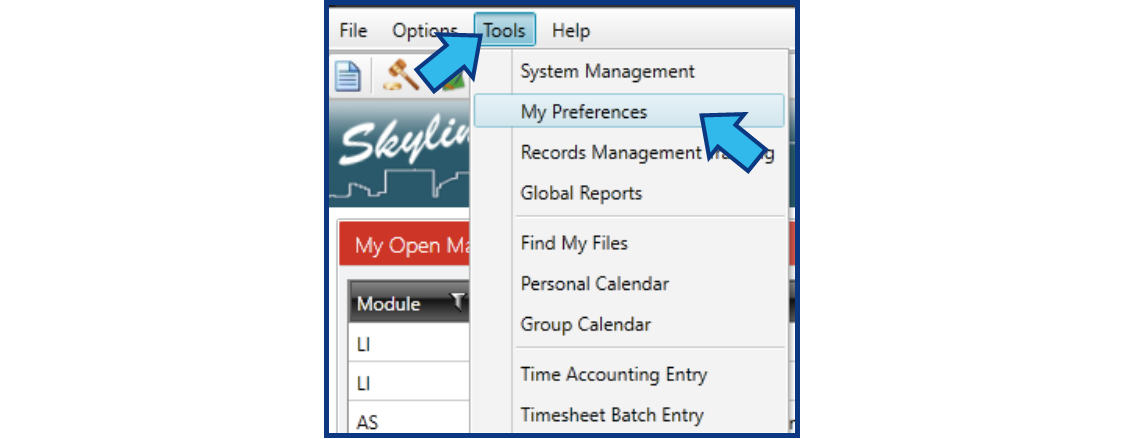
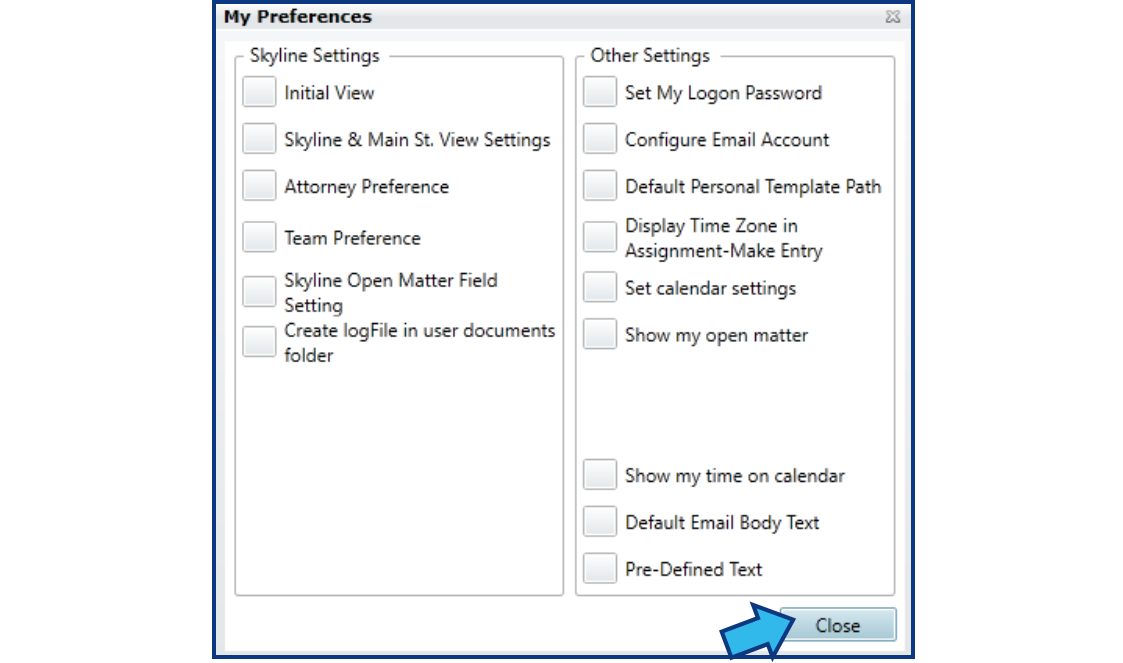
To open My Preferences, select Tools on the Menu Bar, then select My Preferences. The My Preferences window will appear.
Step 2. Select Initial View.
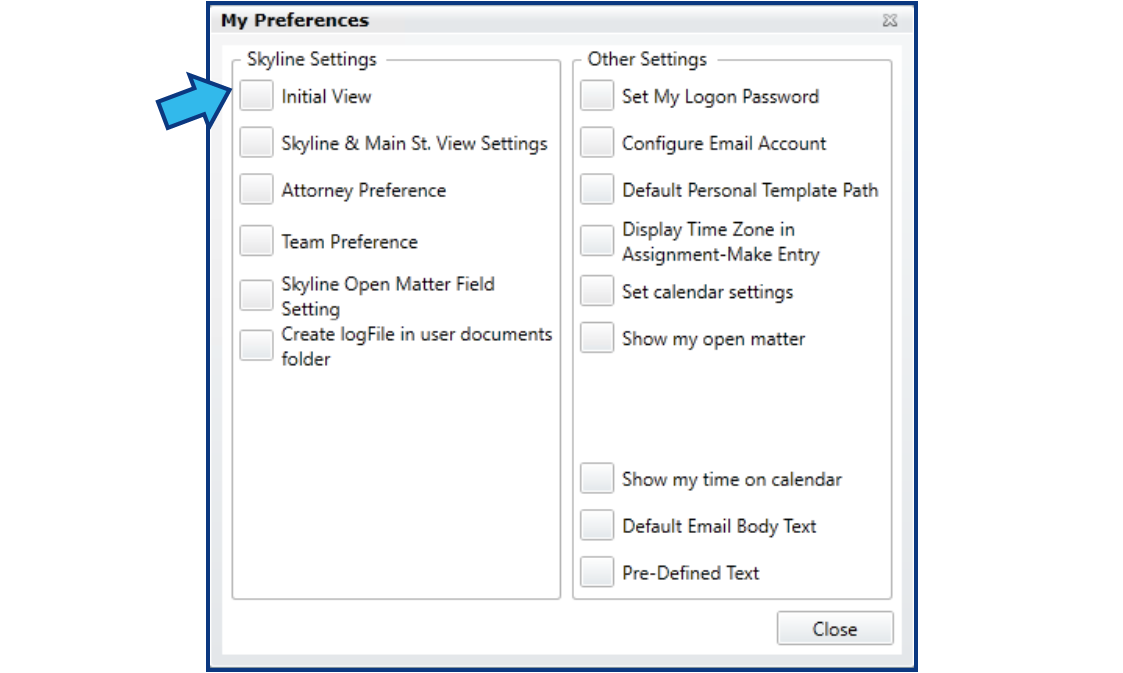
Select the box beside Initial View located on the left side under Skyline Settings.
Step 3. Select a default view.
In the Select a default view drop-down, choose a view.
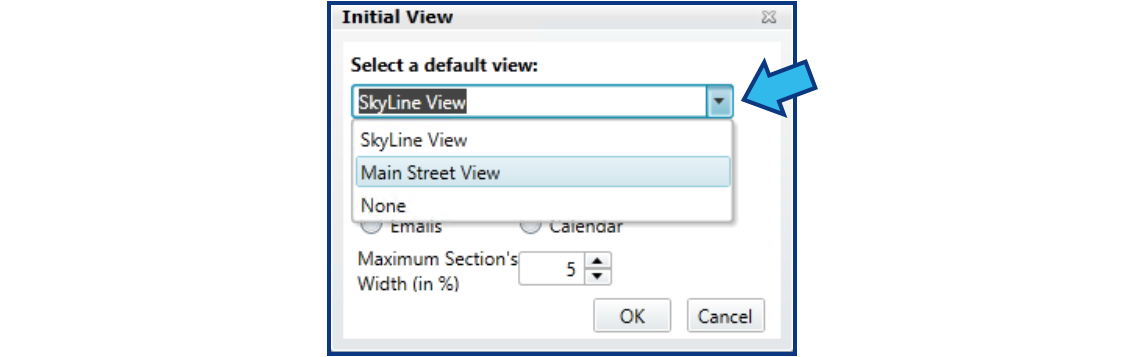

SkyLine View displays up to 4 of 6 possible categories in an at-a-glance grid layout. For more information, check out this article: Customize Skyline View.
Main Street View displays up to 4 of 6 possible categories as selectable tabs on the left side of a 2-panel layout. The right panel displays a preview when an item in the left panel is selected. For more information, check out this article: Customize Main St View.
None displays the Global Toolbar and an empty canvas.
Step 4. Press OK.
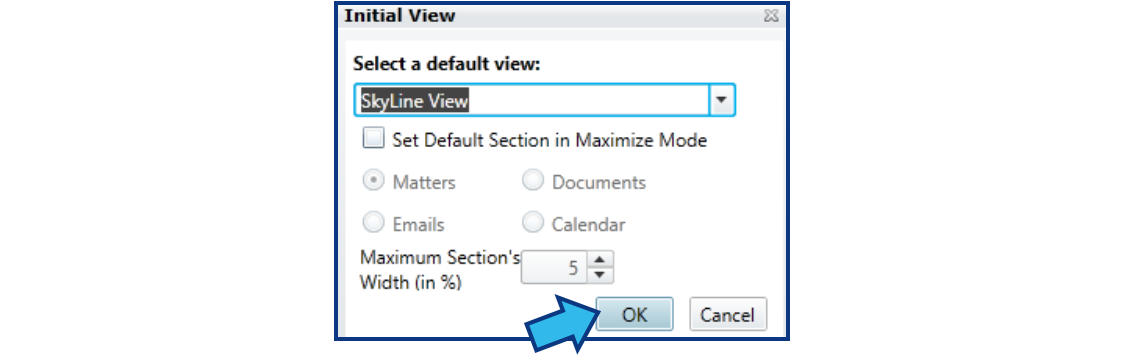
Press the OK button located at the bottom of the Initial View window.

Step 5. Press Close.
Press the Close button located at the bottom of the My Preferences window. The default view you have selected will be displayed.
Comments
0 comments
Please sign in to leave a comment.