
Need a printable version of this article? Download the Article (PDF Version).
Need a reminder? Use the Quick Reference Guide.
Need more details? Check out the Standard Guide.
Quick Reference Guide
There are 8 steps to complete this task:
-
Open a matter.
-
Press the Attachments icon in the Module Toolbar.
-
Press New, under Templates.
-
Copy the Template folder address.
-
Press Cancel.
-
Open File Explorer.
-
Paste the Template folder address to the address field.
-
Press the Enter key.
Standard Guide
Step 1. Open a matter.
Open any matter in any module. The example shown here uses a matter in the Assignments module, but that is irrelevant for this process.
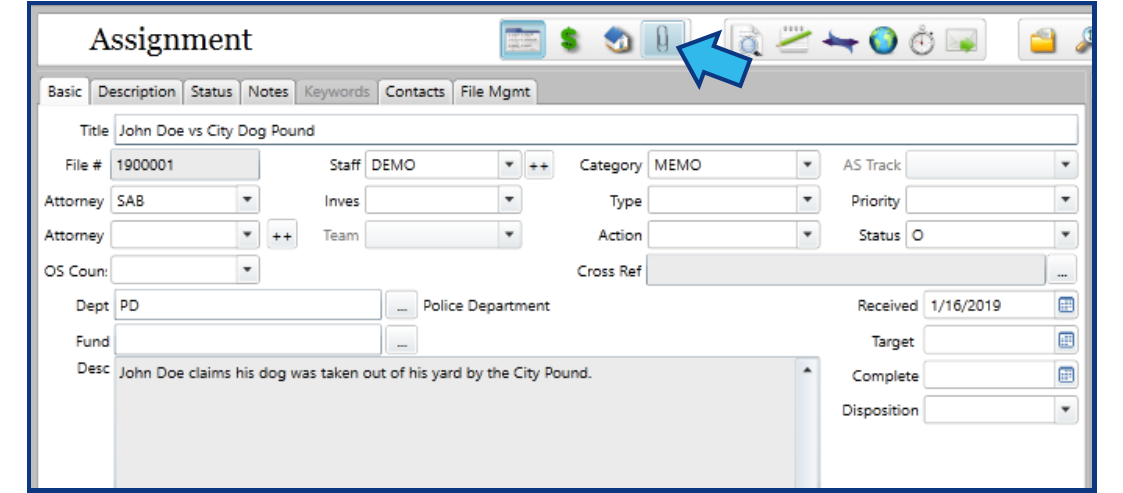
Step 2. Press the Attachments icon in the Module Toolbar.
The Attachments icon looks like a paper clip and is located in the middle of the Module Toolbar. Press this icon.
Step 3. Press New, under Templates.
On the right side of the Documents tab, under Templates, press the New button.

Step 4. Copy the Template folder address.
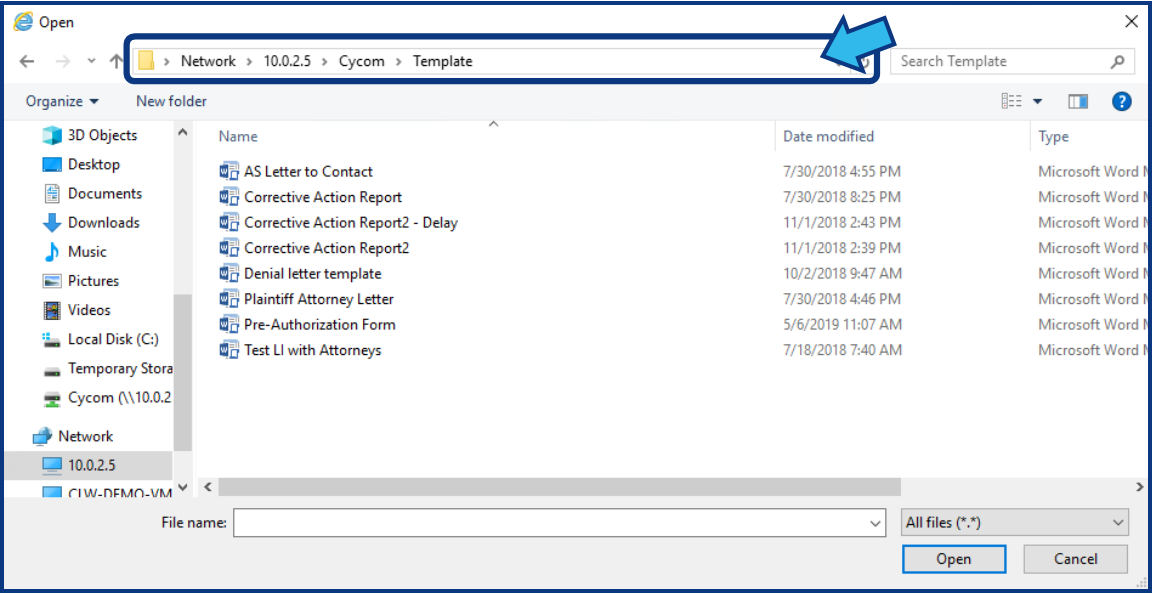
In the Open dialog window that appears there is an address field displaying the location of the Template folder. NOTE: Your displayed address may be different than the one shown here.
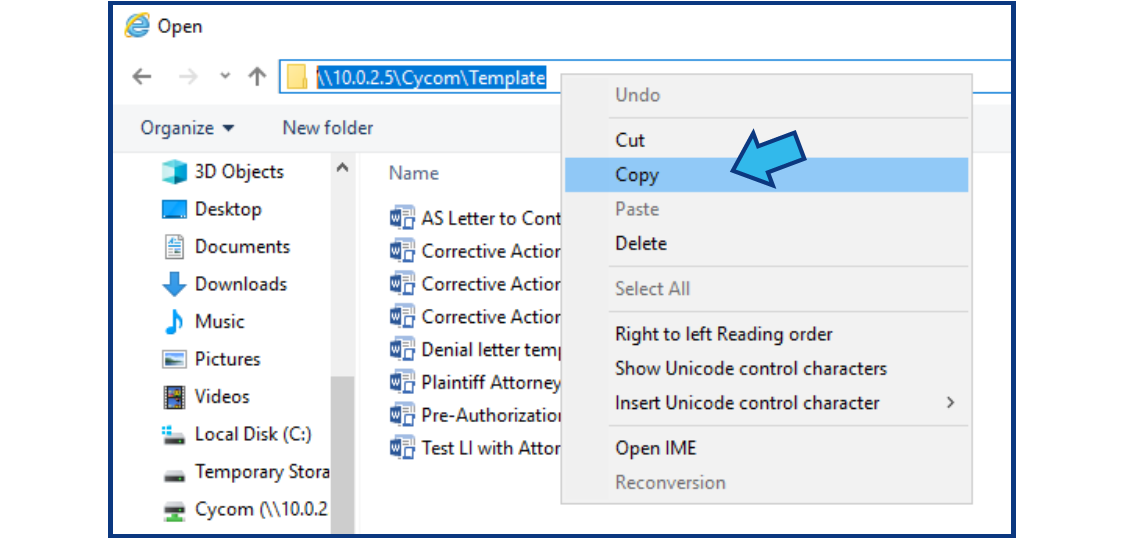
Copy the address by clicking anywhere in the address field. The address will be highlighted. Right-click and select Copy to copy the address to the clipboard.
Step 5. Press Cancel.
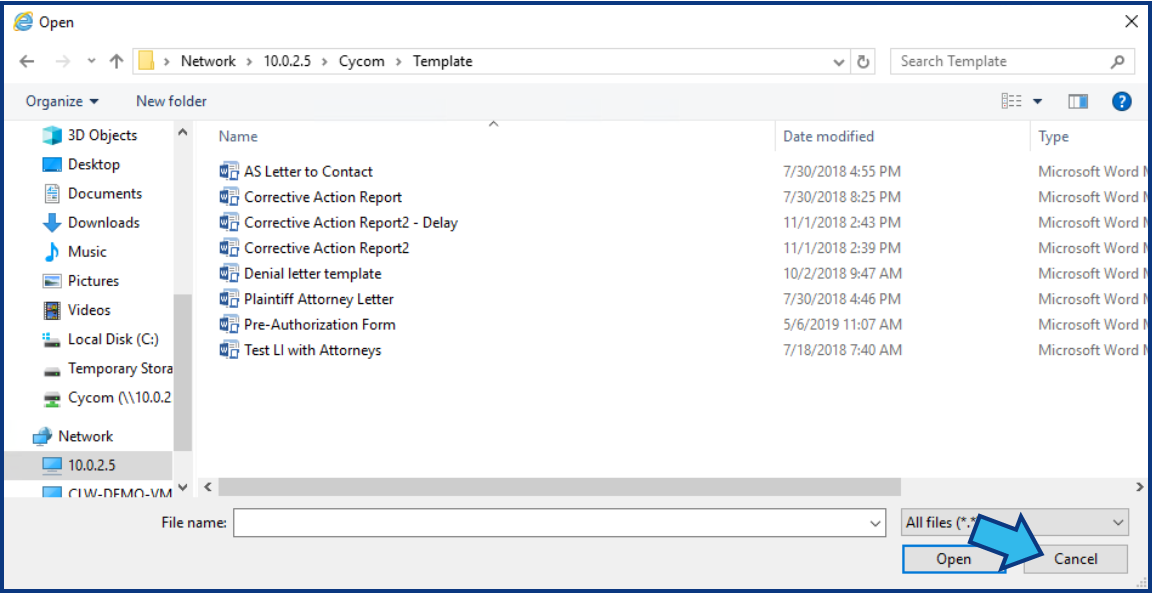
Press the Cancel button to close the Open dialog window.
Step 6. Open File Explorer.
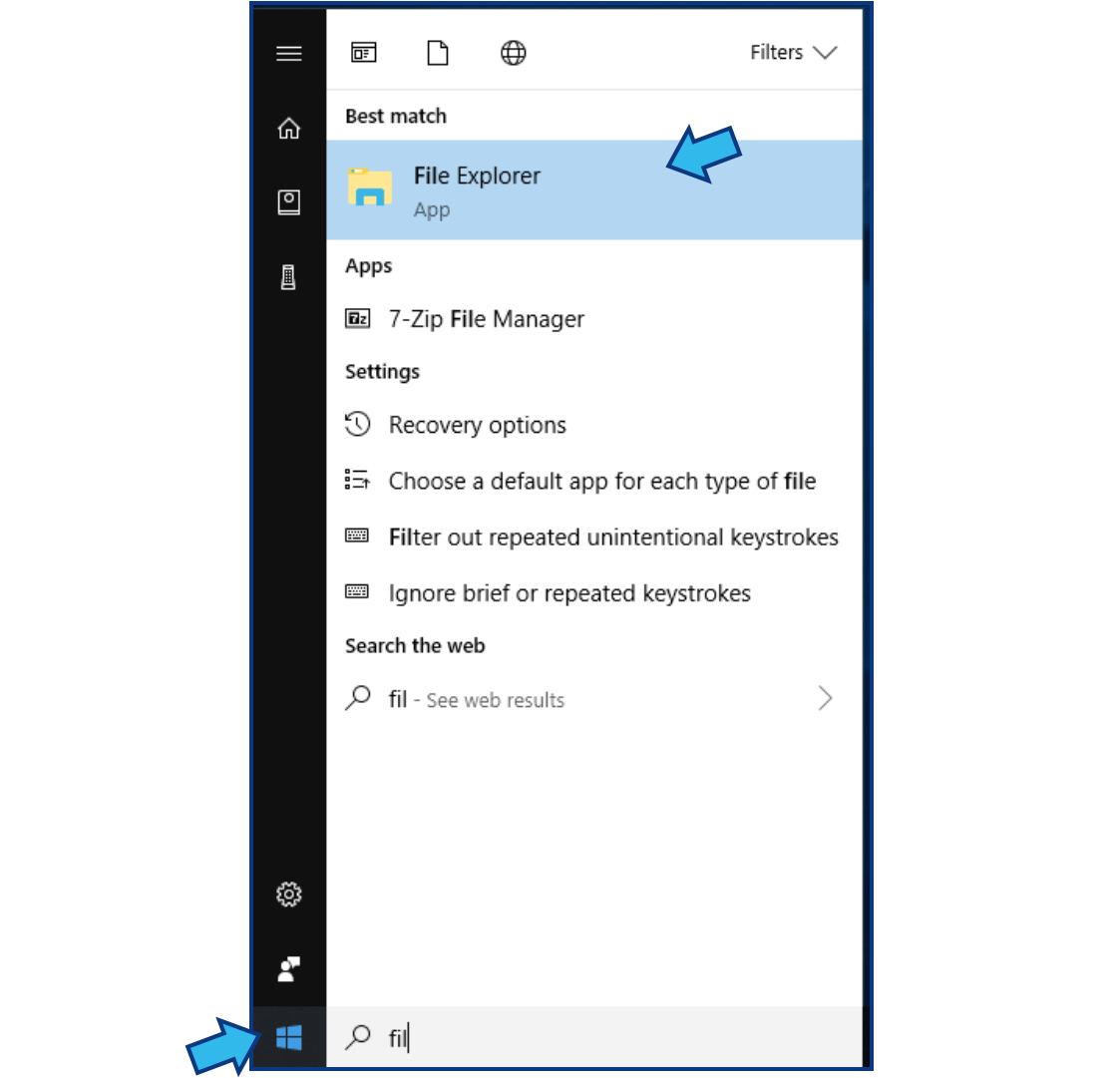
If the File Explorer icon is on the Taskbar, press it to open File Explorer.

Otherwise, press the Start (Window) icon and begin typing 'file explorer'. Select File Explorer when it appears in the results.
Step 7. Paste the Template folder address to the address field.
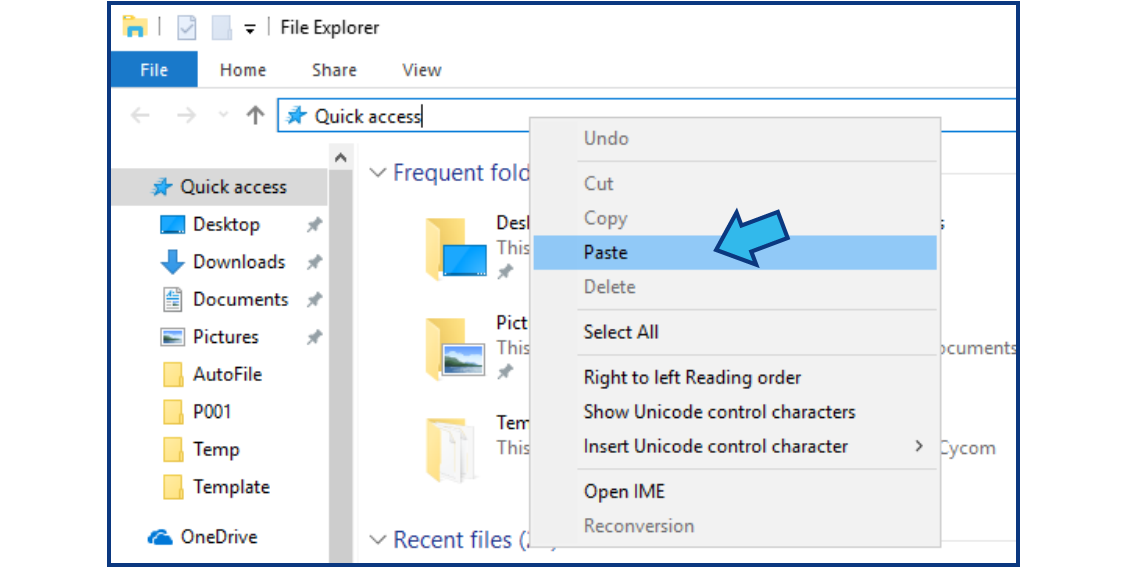
Click anywhere in the address field located at the top under the Menu headings. Right-click the address field in the File Explorer window and select Paste.
Step 8. Press the Enter key.
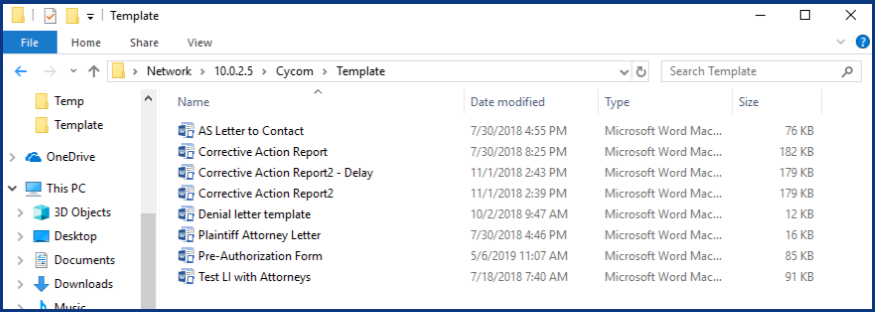
Press the Enter key on the keyboard to navigate to the Template folder. All the templates accessible through CLW are located within this folder. NOTE: The contents of your folder will be different from the image shown below.
Comments
0 comments
Please sign in to leave a comment.