
Need a printable version of this article? Download the Article (PDF Version).
Need a reminder? Use the Quick Reference Guide.
Need more details? Check out the Standard Guide.
Quick Reference Guide
There are four steps to complete this task:
-
Navigate to the template.
-
Open the template in Word.
-
Edit the template.
-
Save the template and close Word.
Standard Guide
Step 1. Navigate to the template.
To open the folder where templates are located within CLW, do the following steps:
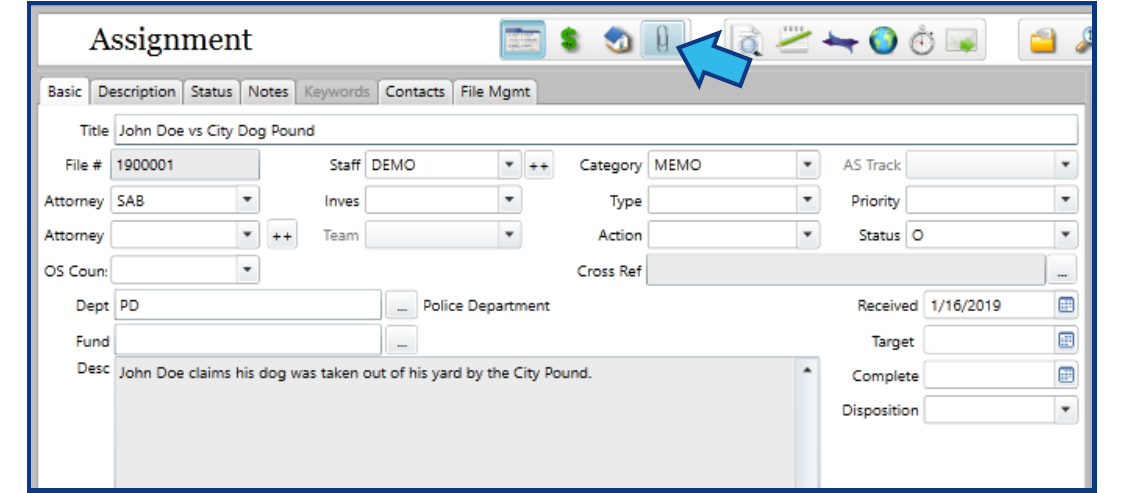
- From any matter in CLW press the Attachments icon in the Module Toolbar. The Attachments icon looks like a paperclip.
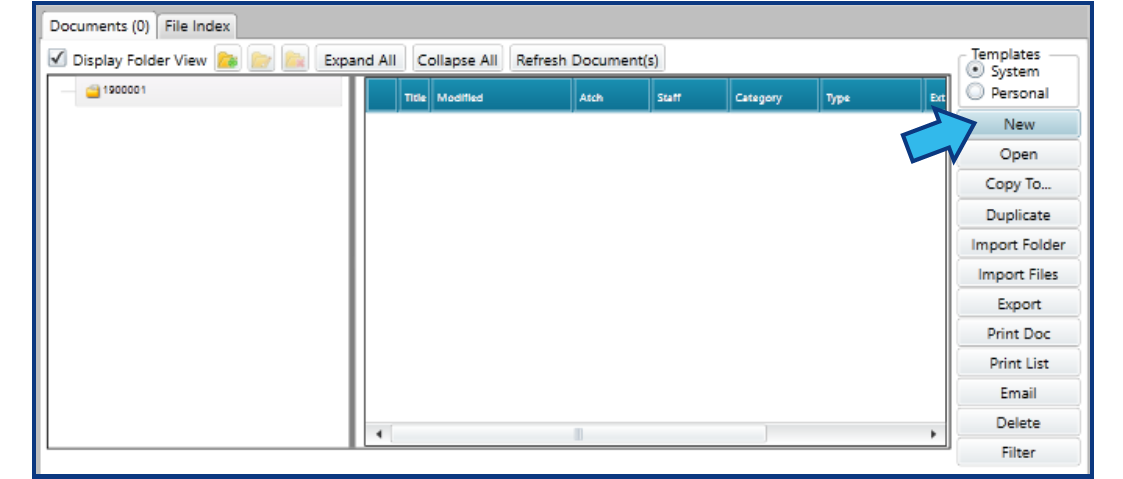
- Press New.
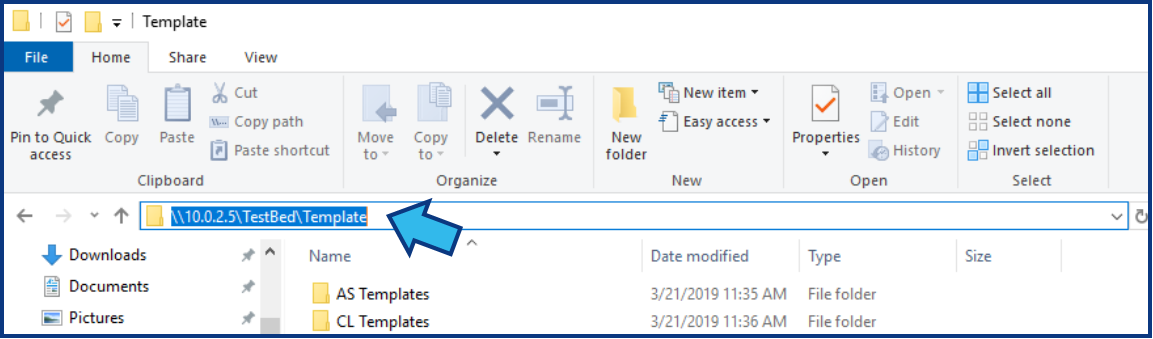
- Copy the address in the window that appears by highlighting the address and either pressing CTRL and C on the keyboard, or by right-clicking the address and selecting Copy.
- Press Cancel.

- Open File Explorer.

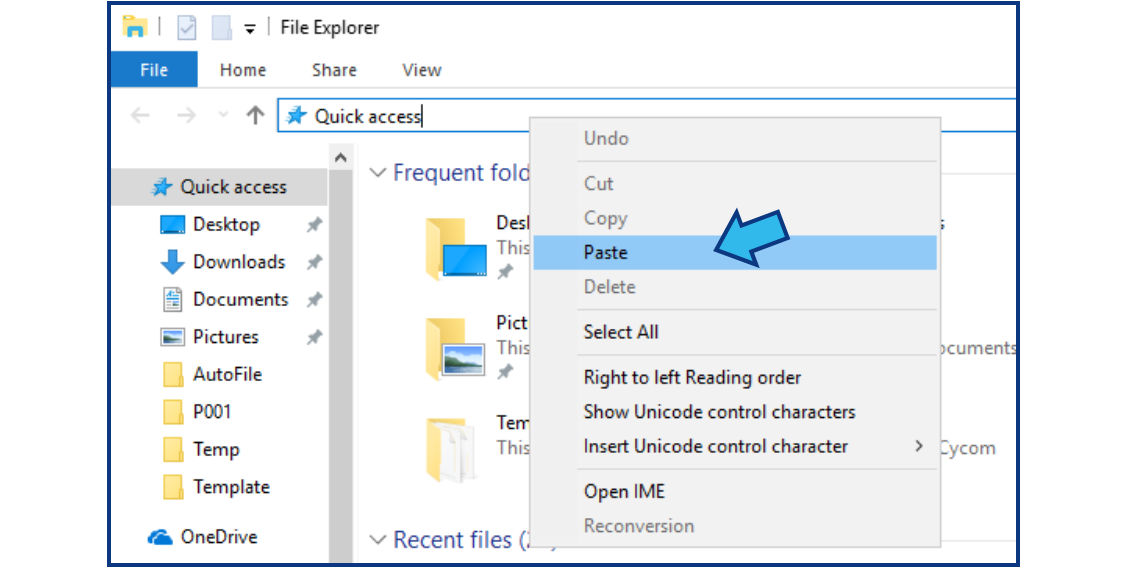
- Paste the address in File Explorer by right-clicking in the address bar and selecting Paste. Press the Enter key.
- Find the template to be edited but DO NOT double-click the template.
Step 2. Open the template in Word.
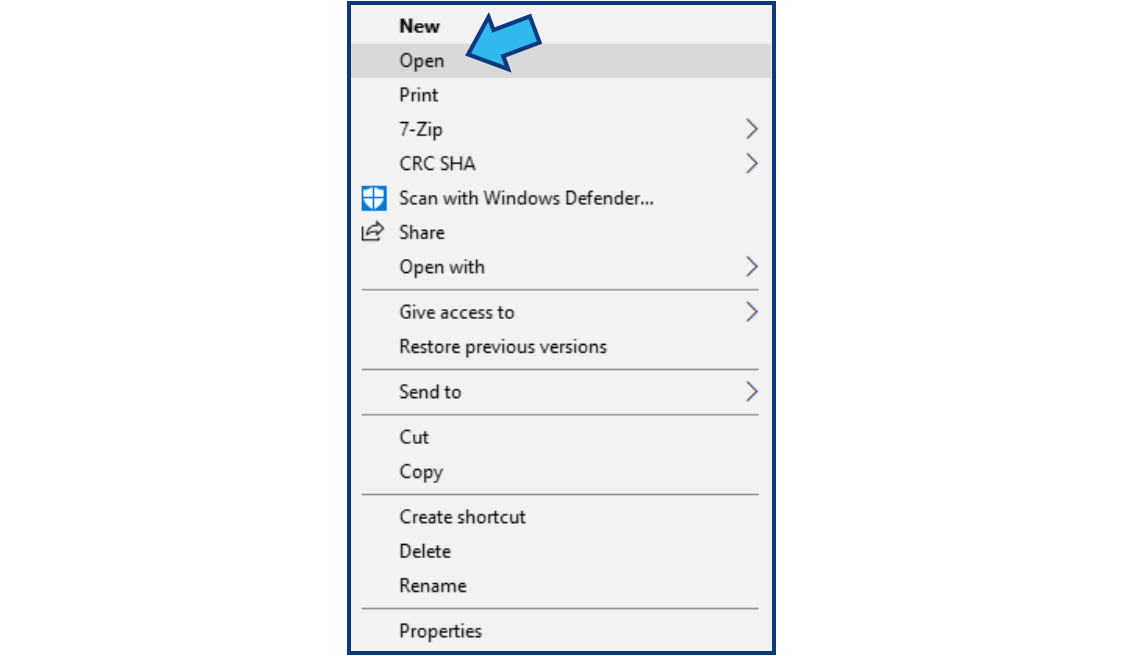
Right-click on the template and select Open to open the template in Word. (NOTE: If New is selected, or if the file is opened by double-clicking, it will open a document based on the template. Any changes made to the document will not affect the template.)
Step 3. Edit the template.
Make any changes desired to the template. (NOTE: If macro fields are used in the template, take care not to alter them unless intended. Macro fields are enclosed in curly braces - see below.)

Step 4. Save the template and close Word.
Once the desired edits have been made, close Word. When prompted, be sure to save the changes to the template.
Comments
0 comments
Please sign in to leave a comment.