
Need a printable version of this article? Download the Article (PDF Version).
Need a reminder? Use the Quick Reference Guide.
Need more details? Check out the Standard Guide.
Quick Reference Guide
There are 2 steps to complete this task:
Standard Guide
Step 1. Create a Self-Signing Digital Certificate
To create a self-signing digital certificate, first open the Create Digital Certificate dialog box.
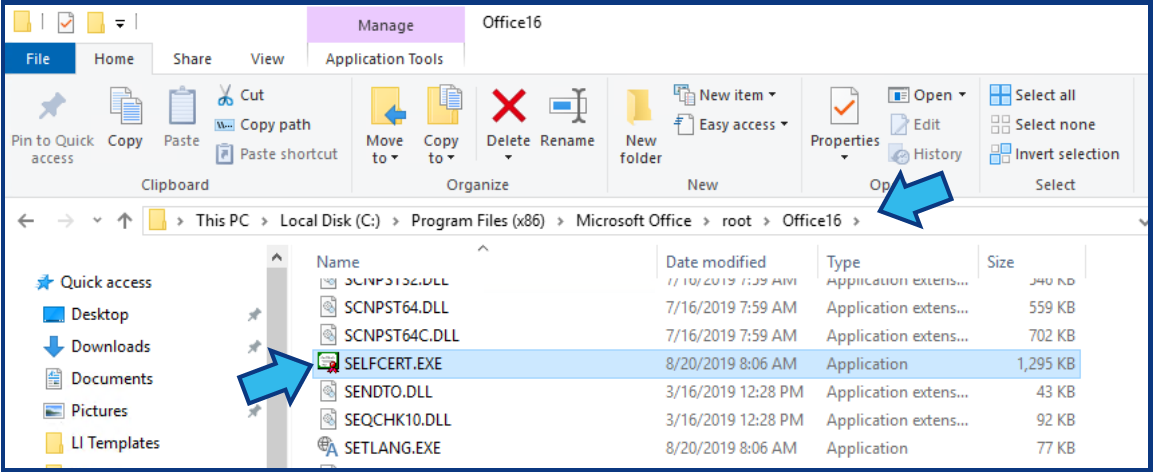
In Windows 10, in File Explorer, navigate to C:\Program Files (x86)\Microsoft Office\root\Office16 and open SelfCert.exe
For other versions of Windows:
- Windows 8: In File Explorer, navigate to C:\Program Files\Microsoft Office\VERSION\ and open SelfCert.exe (Replace VERSION with the Office version you are using).
- Windows 7: Press Start, point to All Programs, select Microsoft Office, select Microsoft Office Tools, and then select Digital Certificate for VBA Projects.
In Your certificate's name, type a descriptive name for the certificate. Press OK.
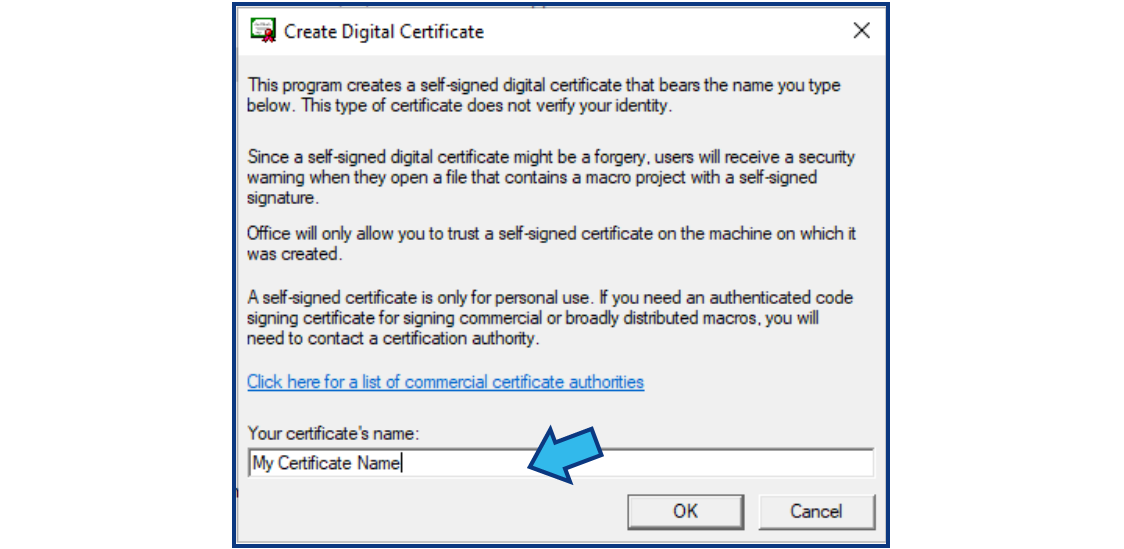
A SelfCert Success message will appear. Press OK.

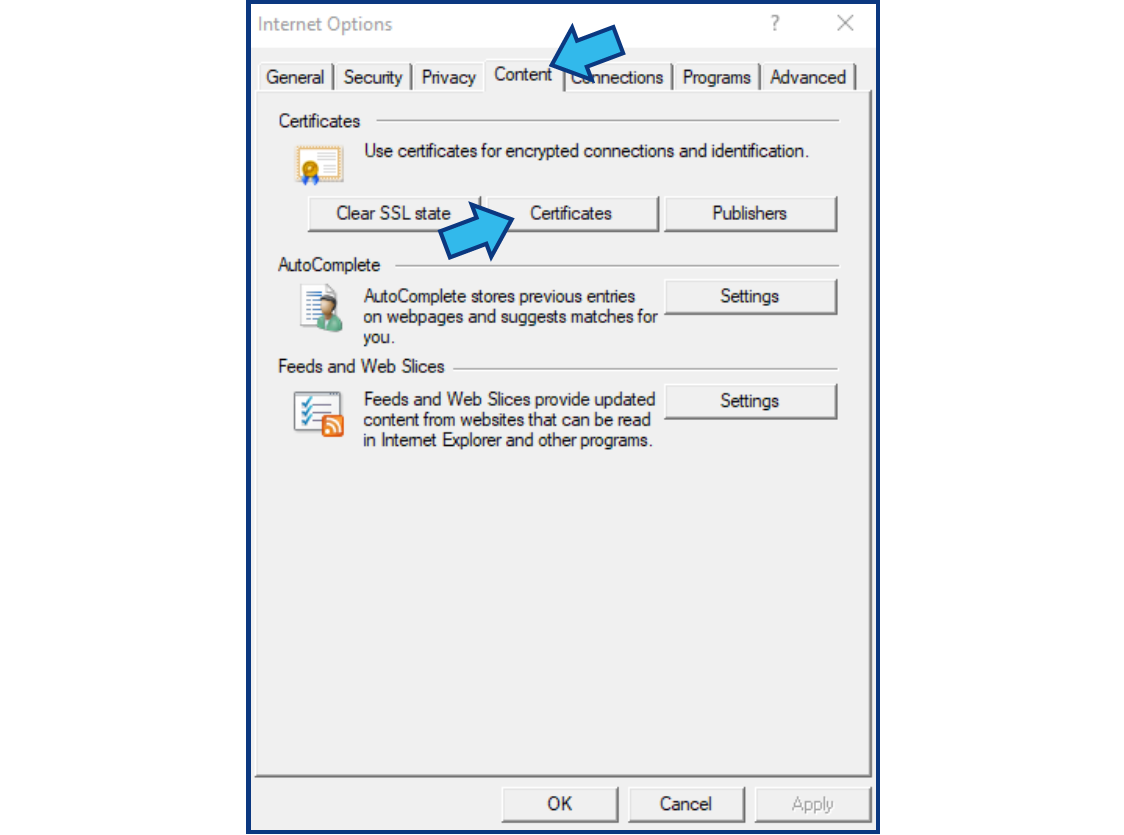
OPTIONAL: To view the certificate in the Personal Certificates store, Open Internet Explorer. On the Tools menu, select Internet Options.

Select the Content tab. Press Certificates.
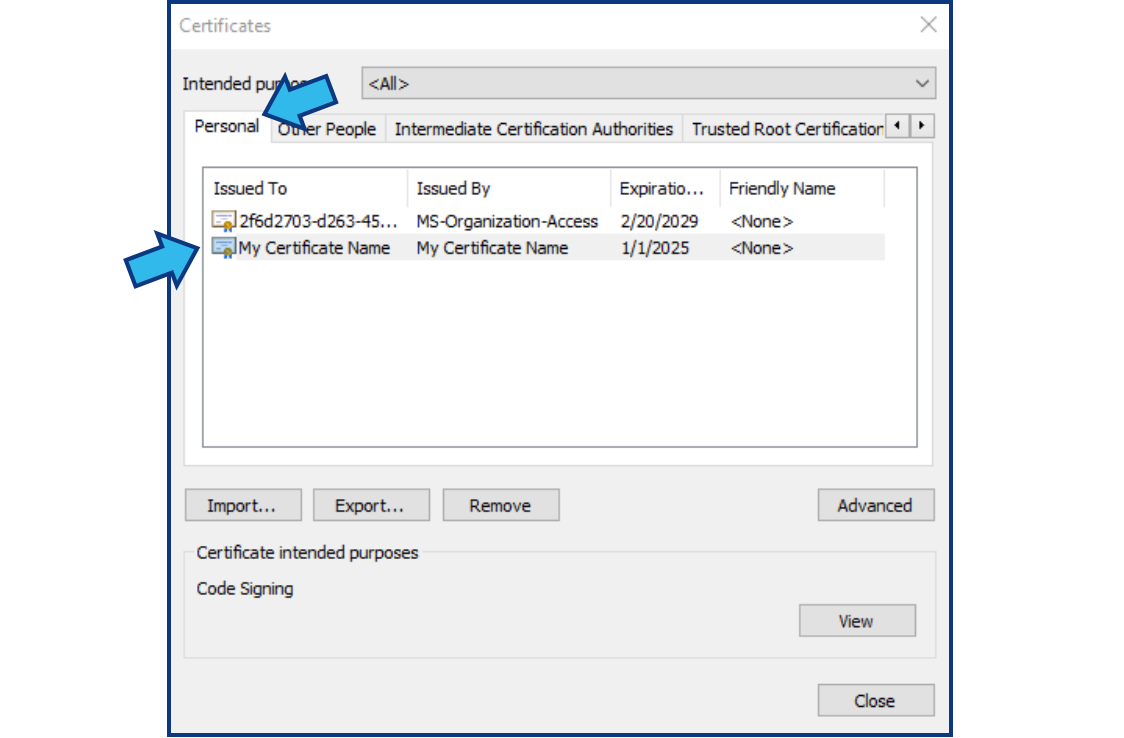
Select the Personal tab. Certificates you have created will be displayed.
Step 2. Import a Digital Certificate into a Template.
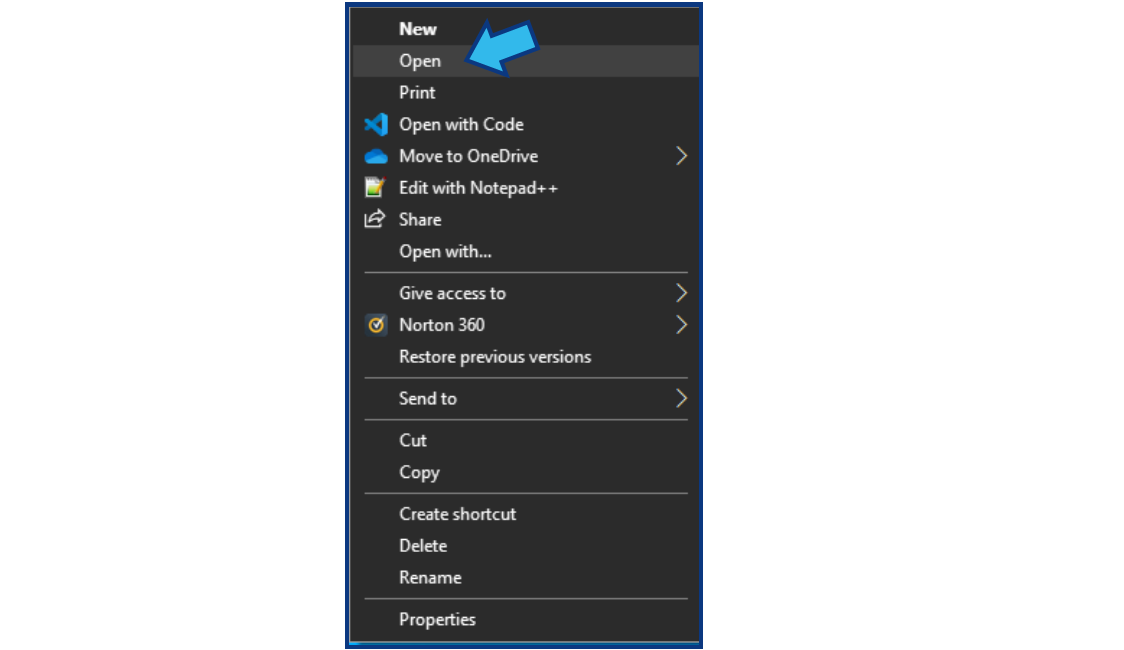
Open the template in Word. (Note that double-clicking the template will NOT open the template. It will create a New document based on the template. To open the template, right-click the template and select Open.)
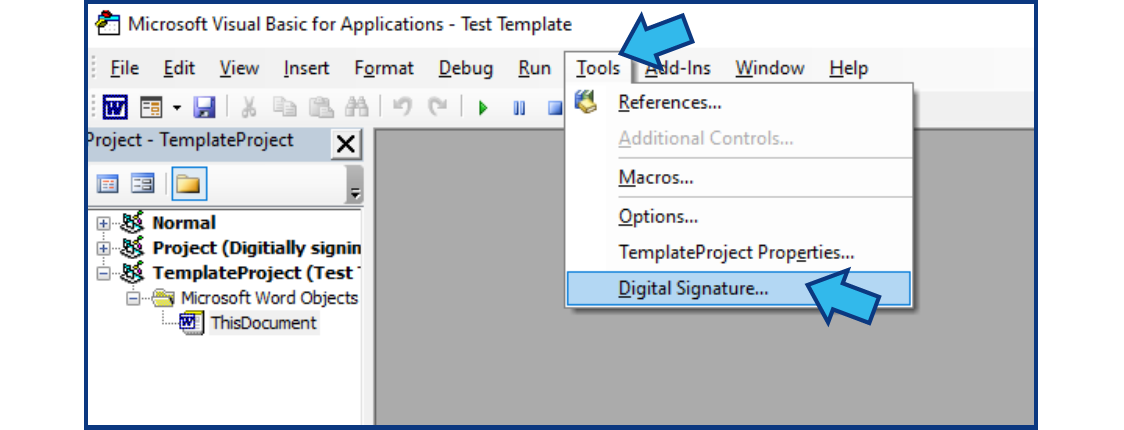
Select the Developer tab and press Visual Basic. (If the Developer tab is not available, it must be added. In any Word document or template, select File. Select Options and then Customize Ribbon. Place a check in the box beside Developer in the right column and press OK.)

Select Tools and then Digital Signature.
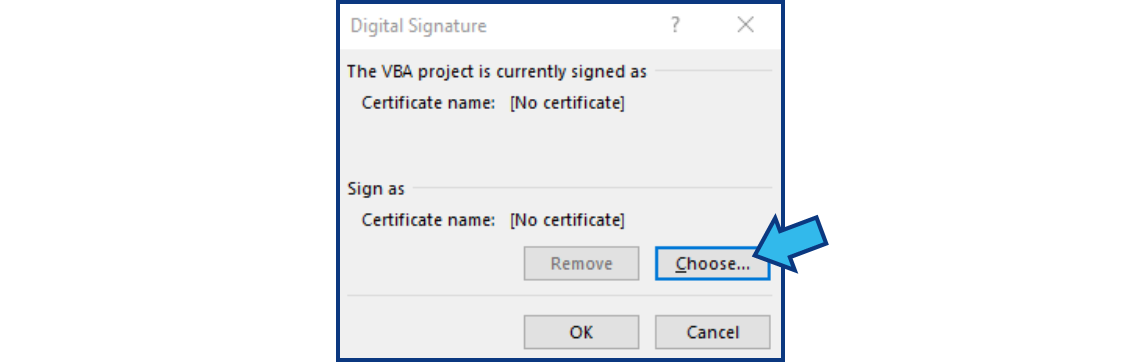
Select Choose and select the digital certificate you created.
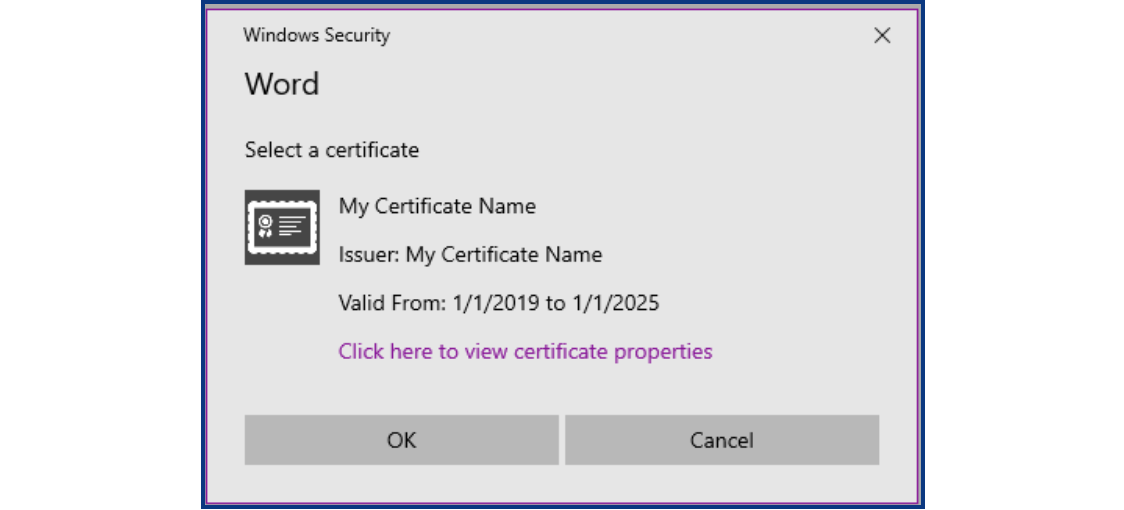
OPTIONAL: Select Click here to view certificate properties to see the expiration date.
Press OK to load the certificate into the template. Save the template.
Note the following:
- If you digitally sign a document using a digital certificate you create, and then share the digitally-signed file, other people cannot verify the authenticity of your digital signature without manually deciding to trust your self-signed certificate.
- Once a certificate is loaded the template cannot be changed. If the template is changed, the certificate will need to be reloaded.
Comments
0 comments
Please sign in to leave a comment.