
Need a printable version of this article? Download the Article (PDF Version).
Need a reminder? Use the Quick Reference Guide.
Need more details? Check out the Standard Guide.
Quick Reference Guide
There are 6 steps to complete this task:
-
Open the template in Microsoft Word.
-
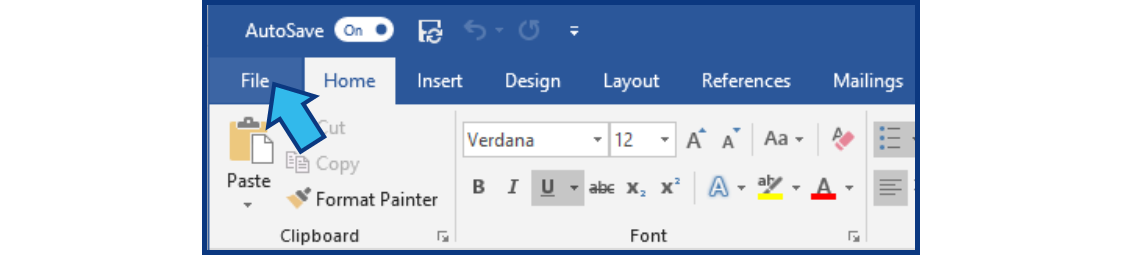
Select File.
-
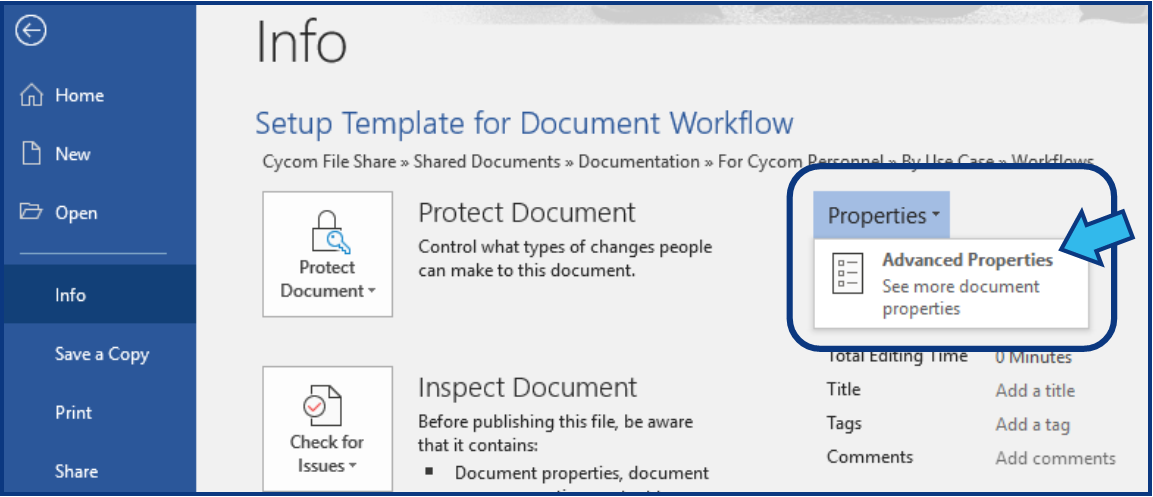
Select Properties to open Advanced Properties.
-
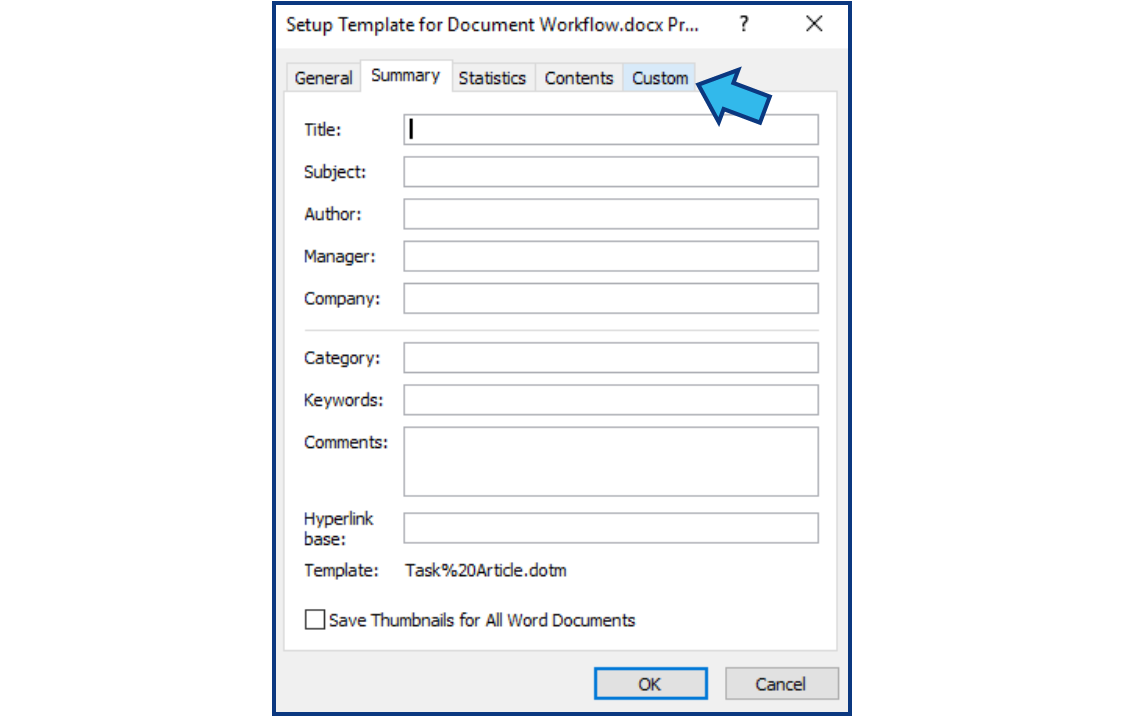
Select the Custom tab.
-
Add the CycomTemplate custom property.
-
Save and close the template.
Standard Guide
Step 1. Open the template in Microsoft Word.
Open the template you want to use within CLW in Microsoft Word.
Step 2. Select File
On the Menu Bar at the top, select File.
Step 3. Select Properties to open Advanced Properties.
On the top right, select the Properties drop-down and select Advanced Properties.
Step 4. Select the Custom tab.
Select the Custom tab from the Properties window.
Step 5. Add the CycomTemplate custom property.
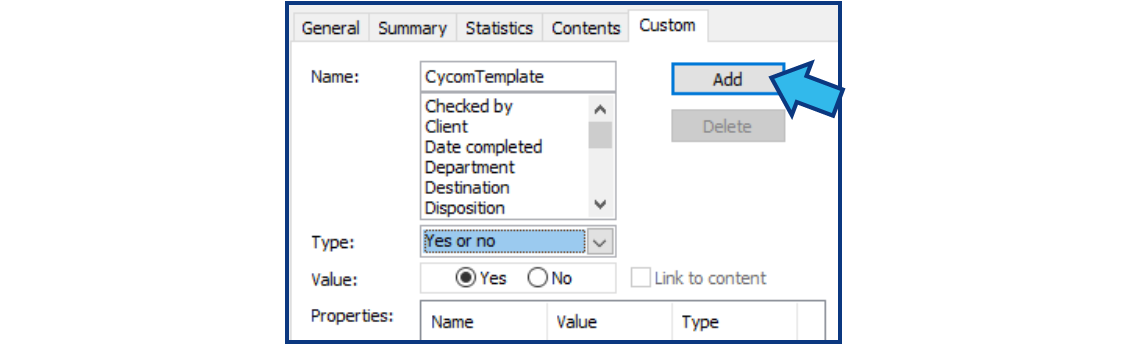
Add CycomTemplate property by completing the following steps:
- Enter CycomTemplate in the Name field. (NOTE: There are no spaces and 'C' and 'T' are capitalized.)
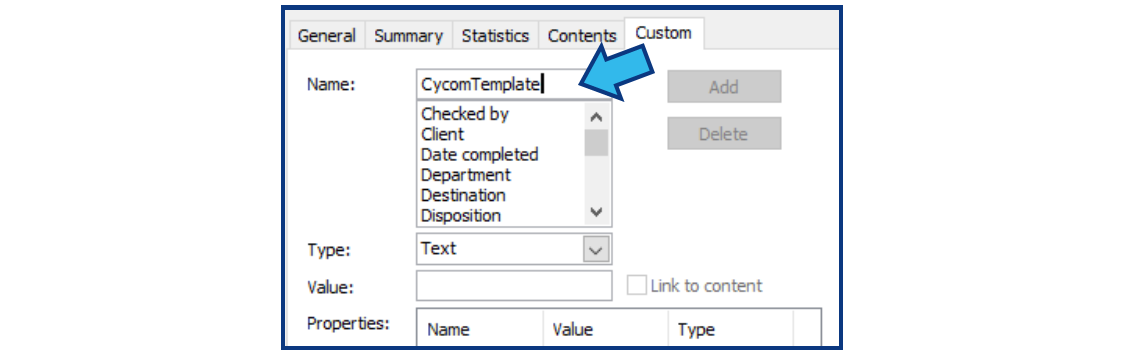
- Select Yes or no for the Type field.
- Select Yes for Value.

- Press Add to add the new CycomTemplate property to this template.
- Press OK to accept and apply the changes.
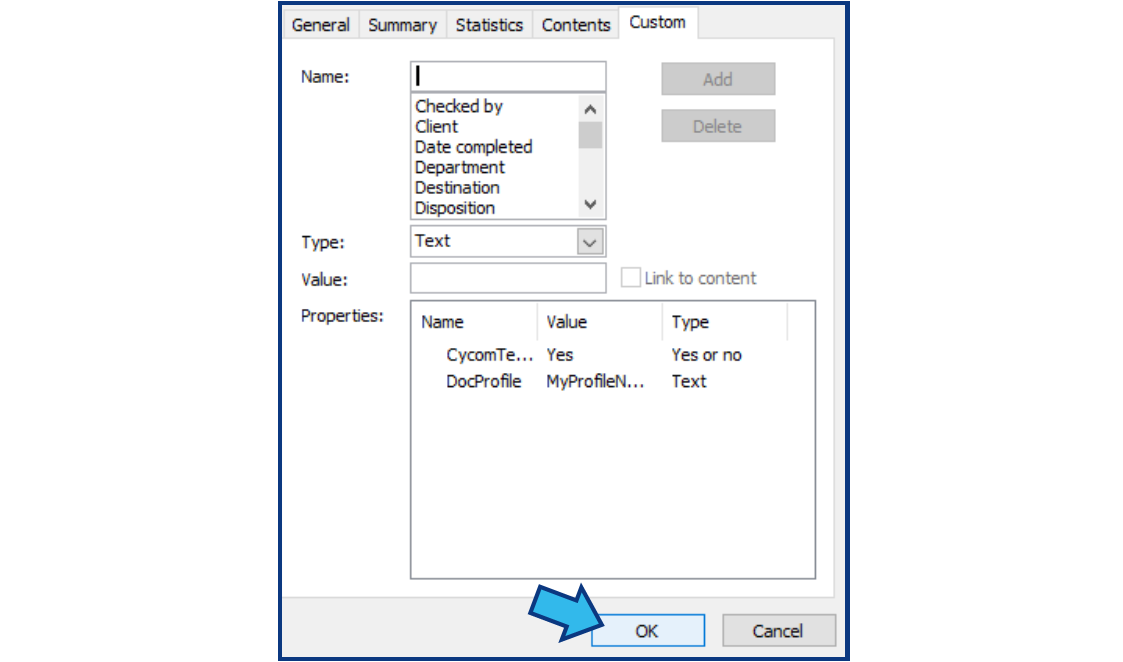
Step 6. Save and close the template.
In Word, close the template and save the changes when prompted. The template is now able to be used in CLW. Close Microsoft Word.
Comments
0 comments
Please sign in to leave a comment.