
Need a printable version of this article? Download the Article (PDF Version).
Modules in CLW share the same layout structure to make it easier to work in multiple modules.
The general layout contains 5 sections:
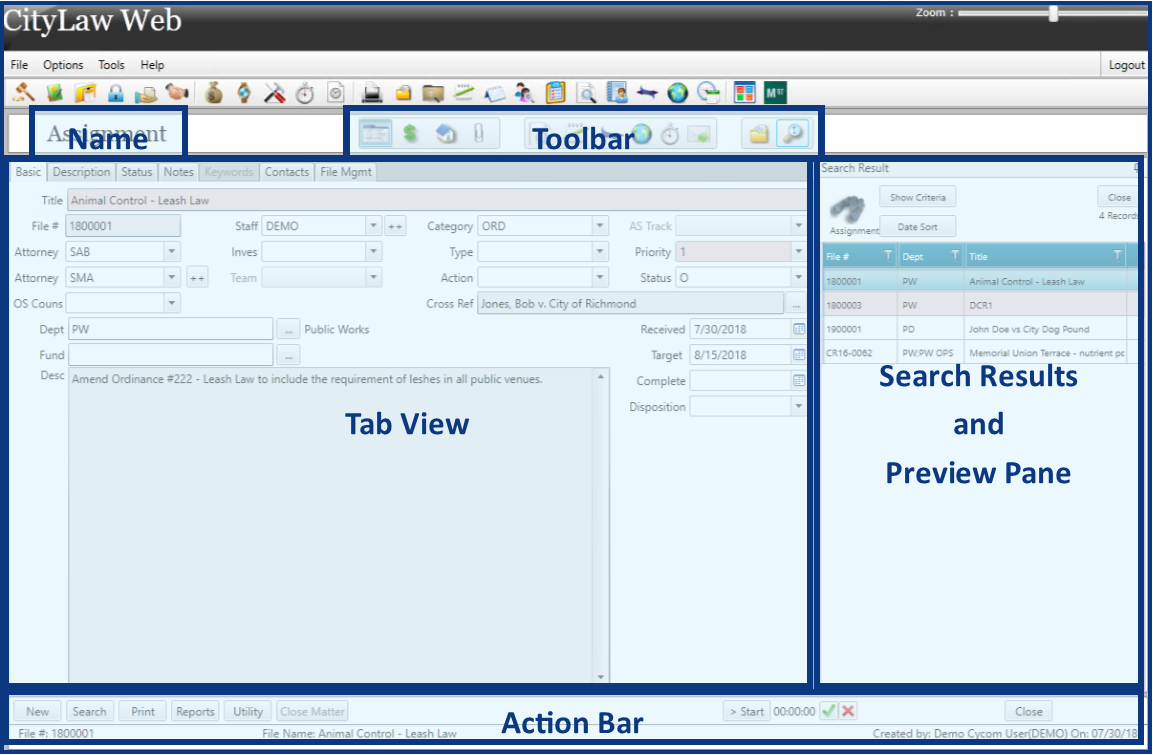
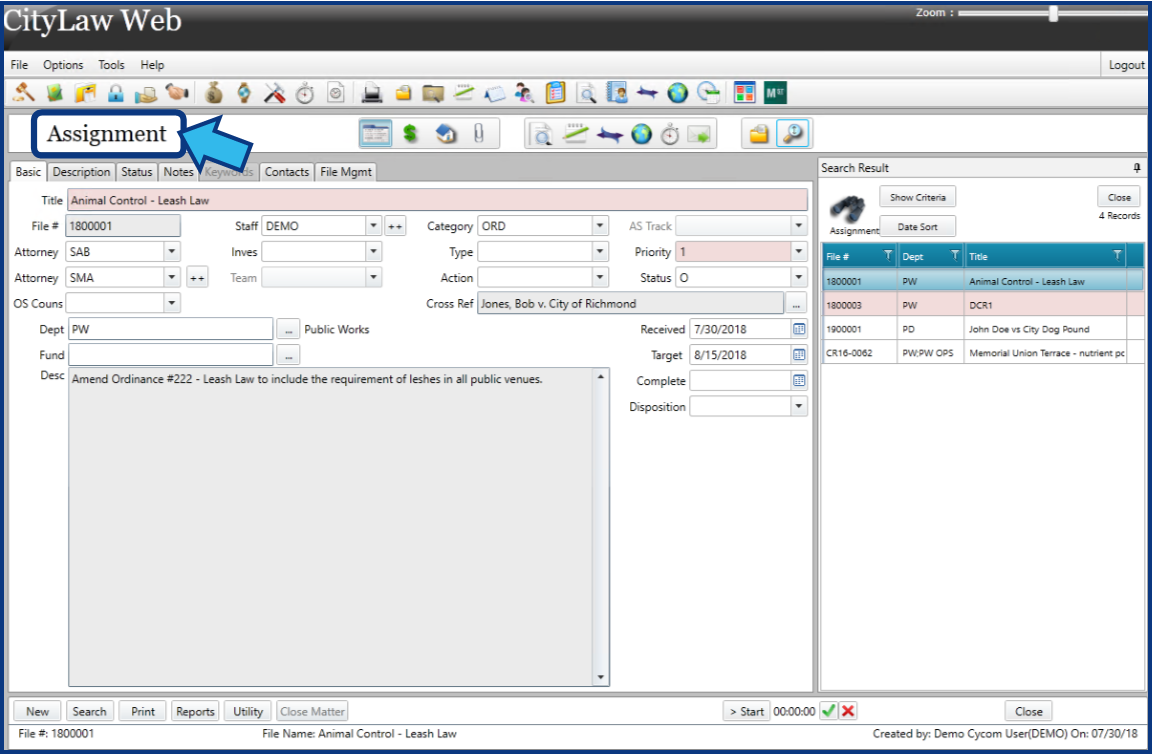
Module Name
The Module Name is located at the top-left of the view and identifies the current active module. The example below shows the Assignments module is displayed.
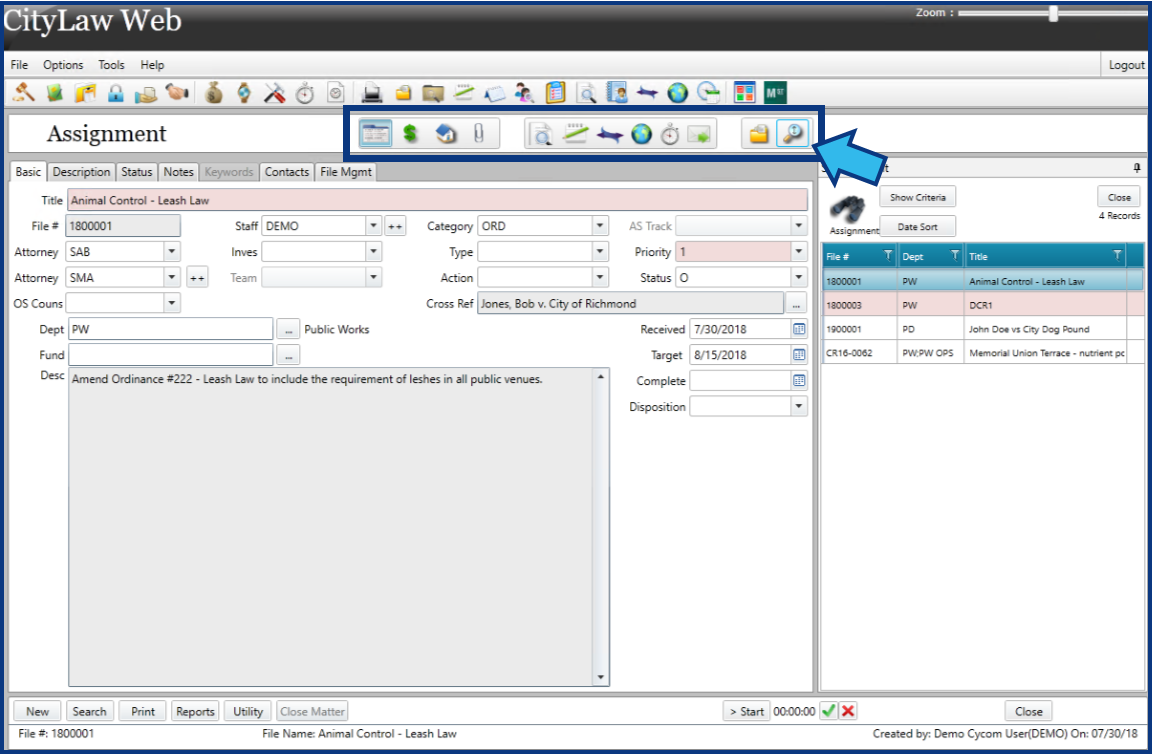
Module Toolbar
The Module Toolbar contains icons for all the module tools to which a user has access. The icons available will vary depending on the module selected and the tools licensed to your site and made accessible to you. Hovering the mouse pointer over an icon will display the name of the tool.
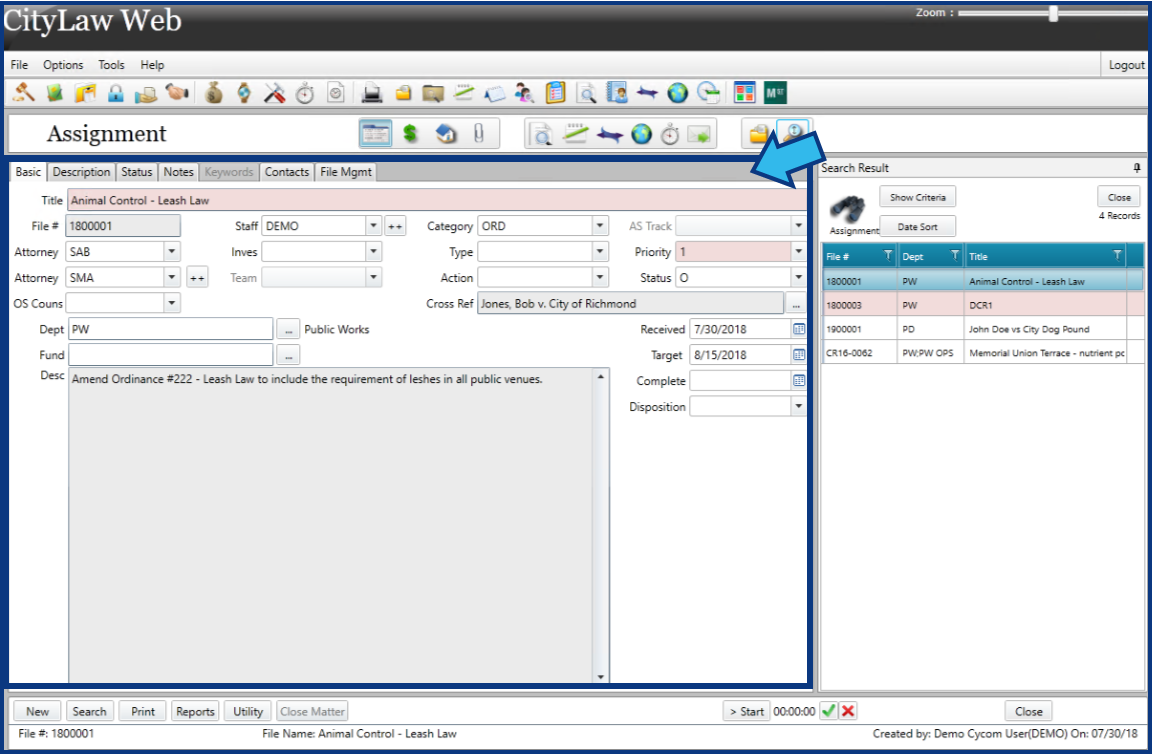
Module Tab View
The Module Tab View changes depending on the selections made. The default view is the Basic Matter Data view. Each tab view displays various tabs to organize the information, records, and attachments of each matter.
Module Search Results and Preview
The Module Search Results and Preview Pane is not always visible. The pane appears when a module search is performed or the Attachments icon is selected from the Module Toolbar.

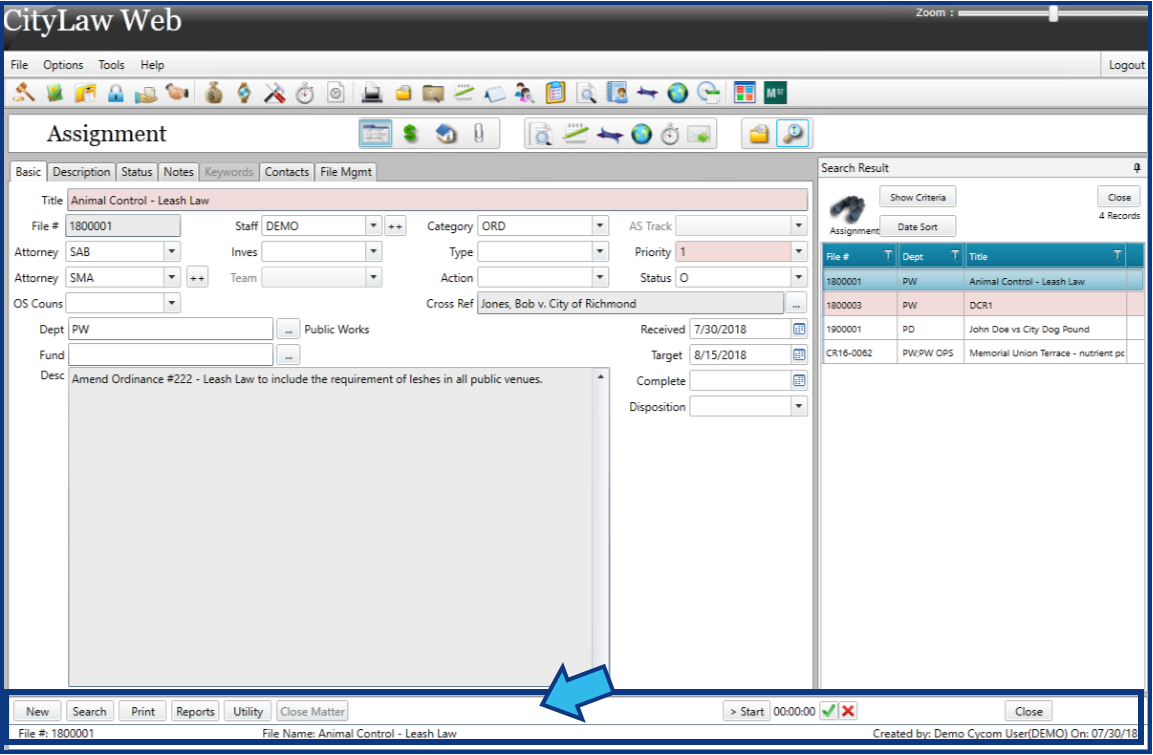
Module Action Bar
The Module Action Bar is located at the bottom and contains actions you can perform in the module. Available actions will vary based on the privileges granted to each user.
Comments
0 comments
Please sign in to leave a comment.