
Need a printable version of this article? Download the Article (PDF Version).
These notes are provided by Cycom Data Systems, Inc. to support the use of CityLaw / CountyLaw Web (CLW) and are intended to be used for review of general topics covered during training.
If you discover an error in this document, or if you encounter any problems performing any steps described, please contact Cycom Support at support@cycominc.com or by calling 888-292-6688.
Contents:
- Open the Module
- Create a New Matter
- Find a Matter
- Close a Matter
- Print Customized Reports
- Create Built-in Reports
- Basic Tab
- Defendant Tab
- Charges Tab
- Victim Tab
- Witness Tab
- Subpoena Tab
- Domestic Violence Tab
- Notes Tab
- File Management Tab
Prosecution Basic Actions
-
Open the Prosecution Module
-
Create a New Prosecution Matter
-
Find a Prosecution Matter
-
Close a Prosecution Matter
Open the Prosecution Module
The Prosecution module can be opened by selecting the Prosecution icon from the Global Toolbar.

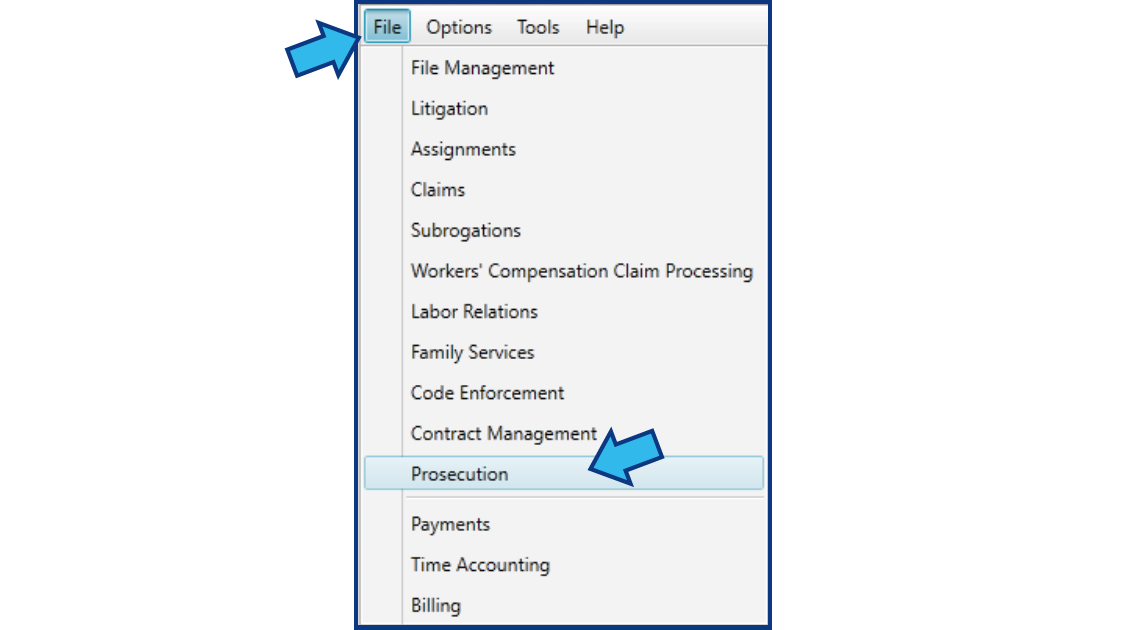
It can also be opened by selecting File from the Menu Bar and then selecting Prosecution from the list of options.
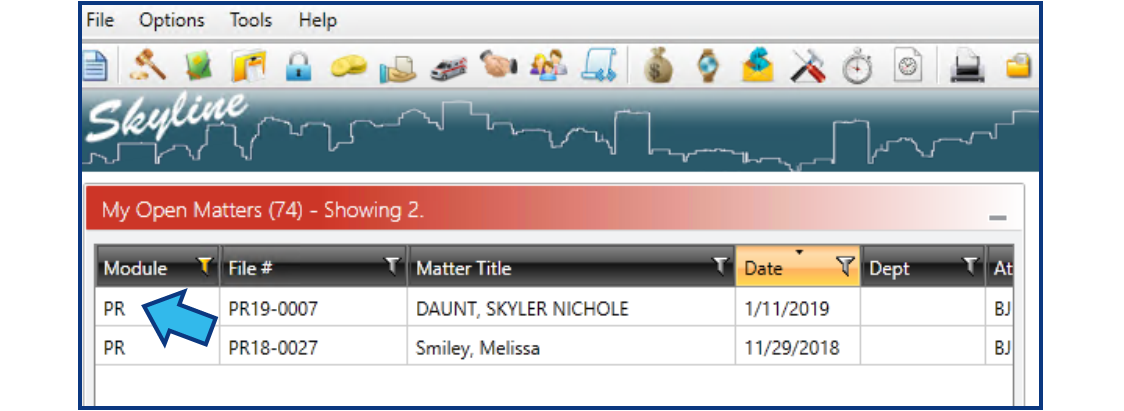
Finally, it can be opened by opening a Prosecution matter. For example, if a Prosecution matter is in the My Open Matters display in the Skyline view, then double-clicking on that matter will open the Prosecution module.
Create a New Prosecution Matter
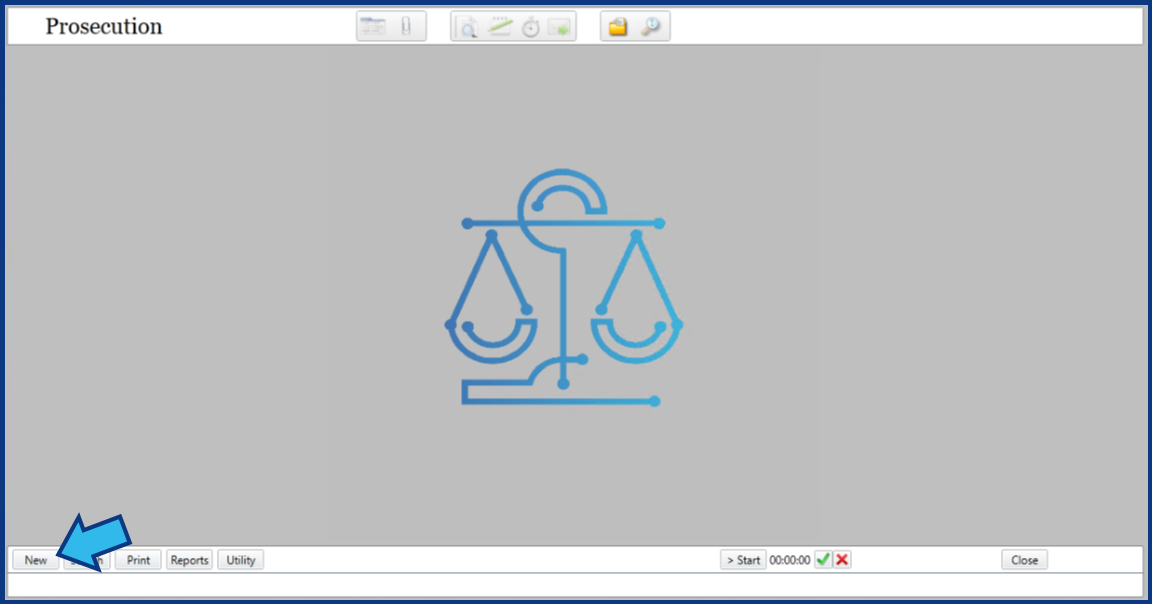
To create a new Prosecution matter, open the Prosecution module and select the New button on the action bar at the bottom.
You will be prompted to create a new File Number. Select the Auto button to have this number automatically assigned with the next available number.

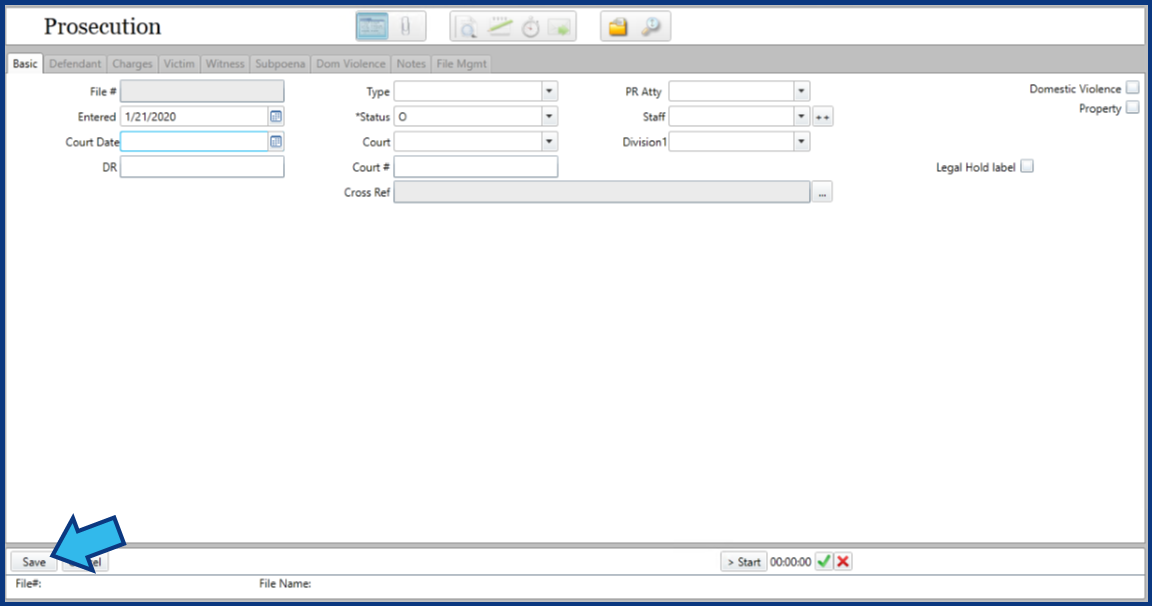
Enter the matter information into the Basic tab fields. The matter may automatically be saved when the information is added. If not, select Save in the lower left corner to save the matter and make the other tabs selectable.
Find a Prosecution Matter
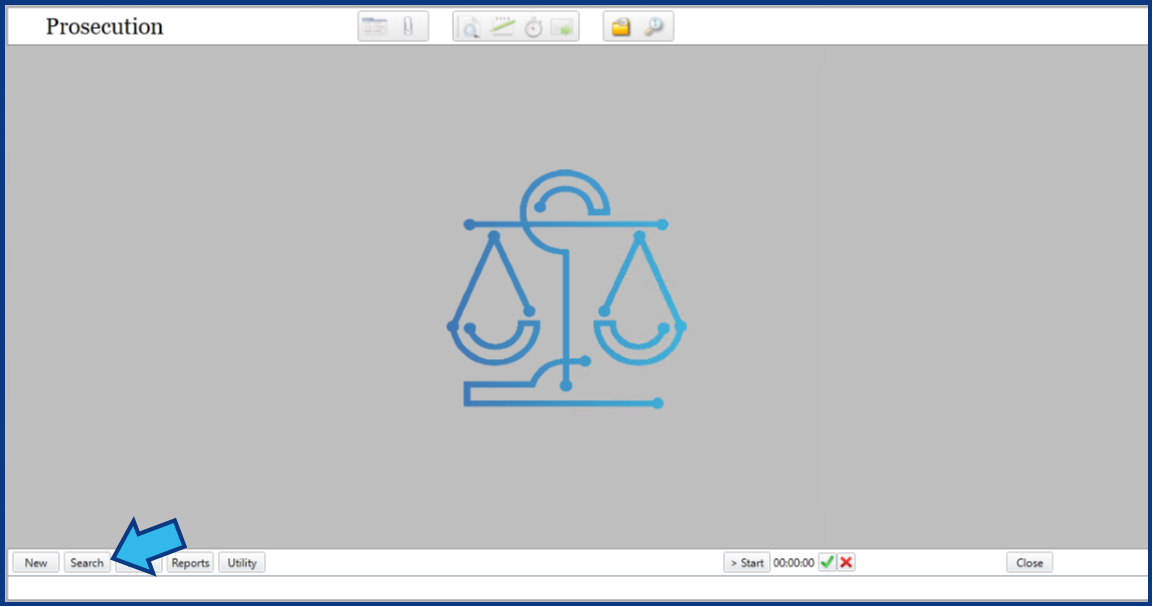
To find a Prosecution matter, first open the Prosecution module. Then select the Search button from the action bar on the bottom.
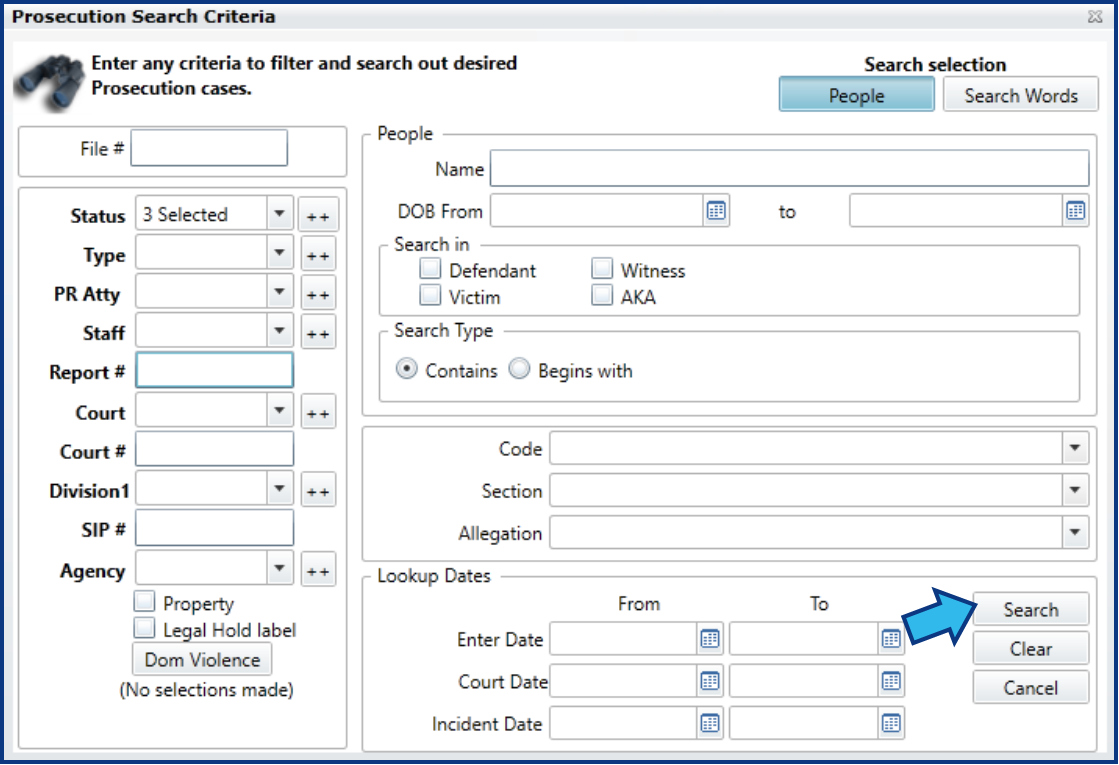
A Search Criteria window will appear allowing you to enter or select options to filter your search. Enter any information you know to locate the matter. Select Search to return the results.
Close a Prosecution Matter
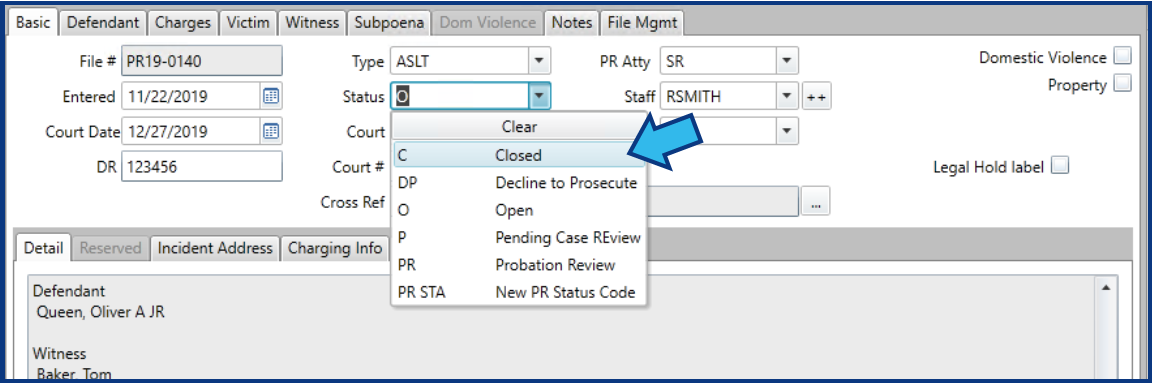
To close a Prosecution matter, first open the Prosecution module. Next, change Status to Closed, or if you have more than 1 Closed states, select the appropriate one.
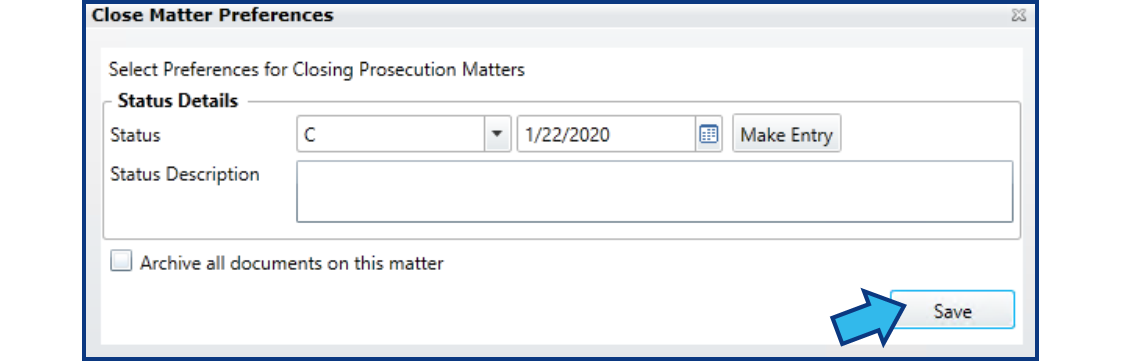
A Close Matter Preferences window will appear with options to make a Status entry (Make Entry button), enter a Status Description, and archive the documents (Archive all documents on this matter checkbox). Use these options according to your office's closing protocols. When finished, select Save.
Prosecution Report Options
Print Customized Prosecution Reports
Customized reports can be created by first executing a Search to find the Prosecution matters you want to include. Once at least 1 matter is displayed in the Search Result pane, select the Print button in the action bar at the bottom.
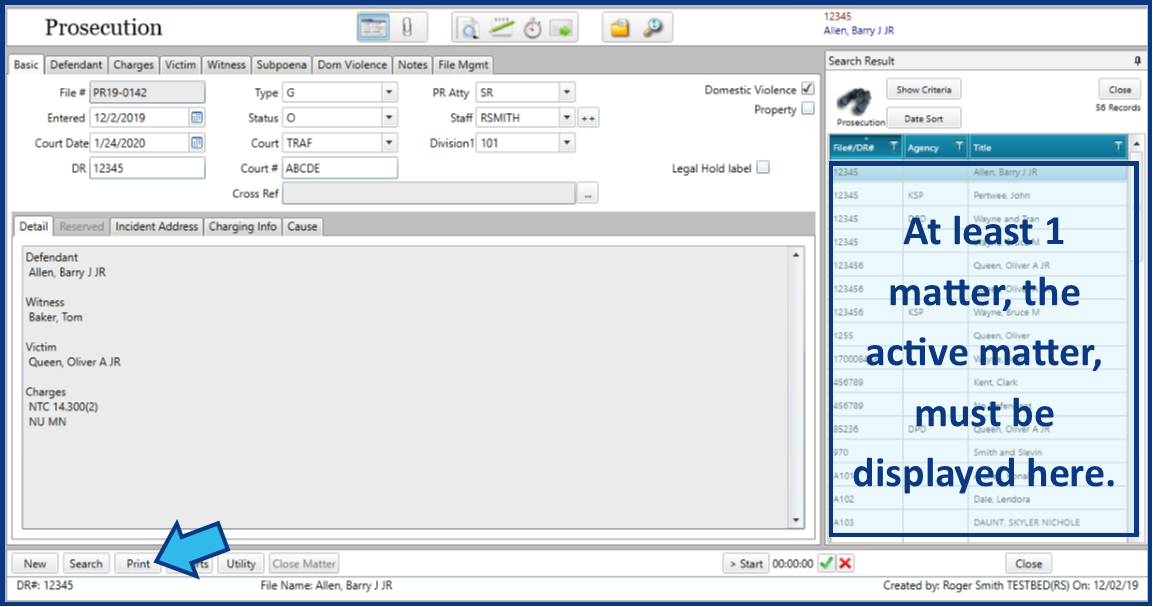
If you want to create a report for only the active matter, be sure to check the box for Selected matter only. If this box is unchecked, any report will include all the matters listed in the Search Results.
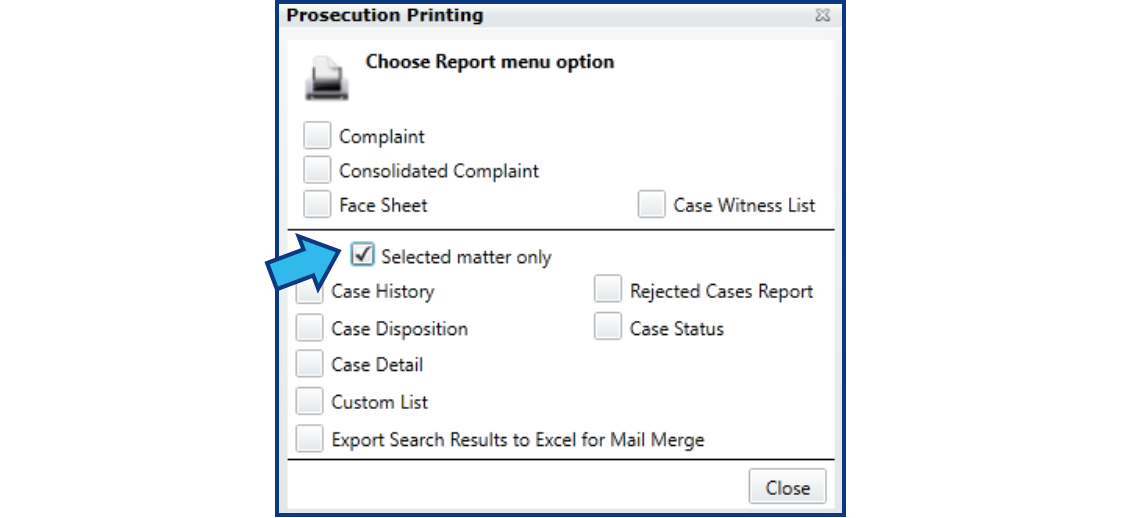
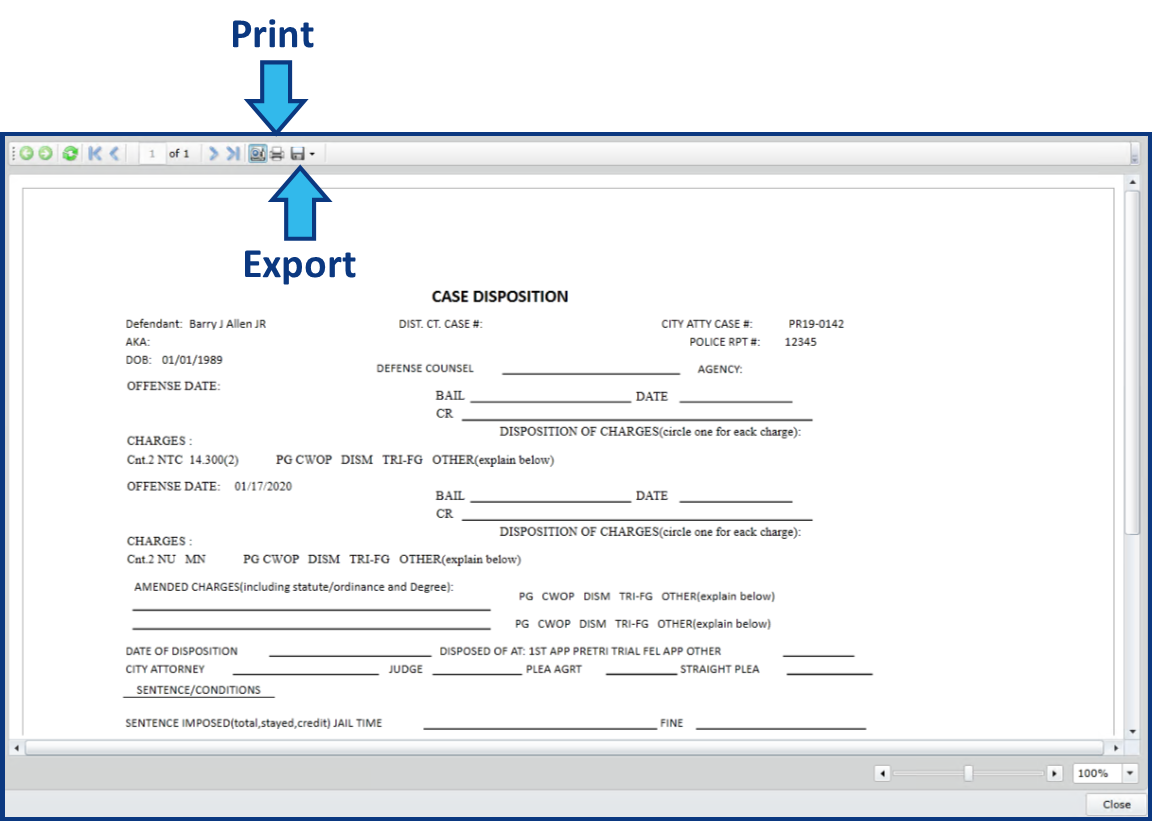
Select the type of report you'd like to generate. Some reports allow additional options and you will be prompted to make your selections. Your report will be displayed with options to print or export.
Create Built-in Prosecution Reports
There are several built-in Prosecution reports to choose from. To access these reports, select the Reports button from the action bar at the bottom.
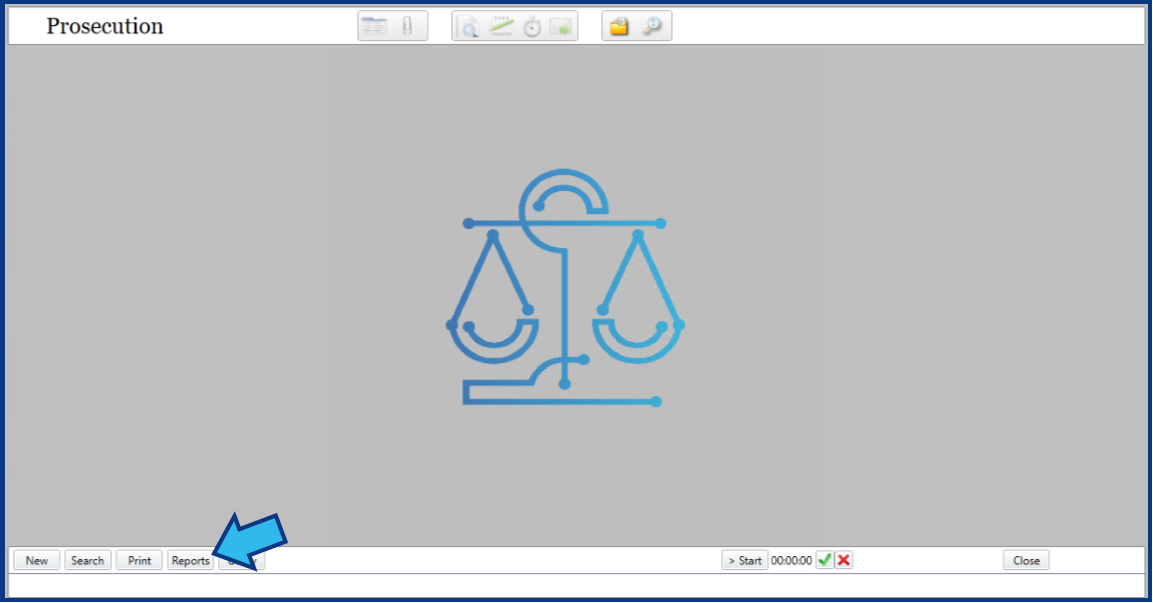
The Prosecution Reports will appear. Select the report you wish to view. Some reports allow additional options and you will be prompted to make your selections. Your report will be displayed once you have made your selections.

Prosecution Basic Matter Data Fields
-
Basic Tab
-
Defendant Tab
-
Charges Tab
-
Victim Tab
-
Witness Tab
-
Subpoena Tab
-
Domestic Violence Tab
-
Notes Tab
-
File Management Tab
Basic Tab
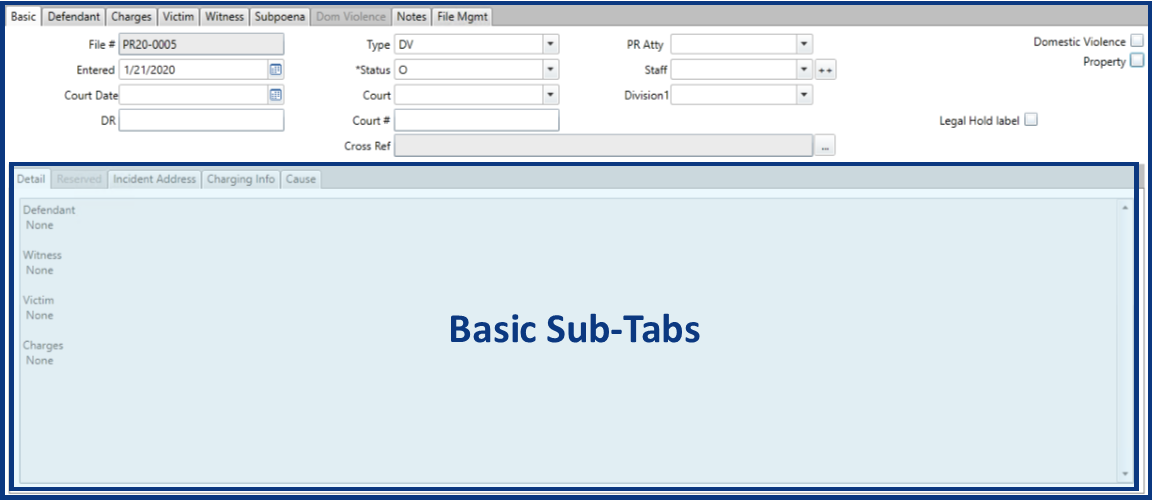
File #
The CLW Prosecution matter File Number. This will be auto-generated upon selecting Auto when creating a new Prosecution matter.
Entered
The date this matter was first entered into CLW. Defaults to today's date.
Court Date
The date this matter appears in court.
DR
The Police Report number.
Type
The type of Prosecution matter. Could include options such as Misdemeanor, Traffic, Animal, Environmental.
Status
The current status of the matter.
Court
The court that will hear this case.
Court #
The court number assigned to this case.
Cross Ref
Other CLW matters that are related to this matter.
PR Atty
The Prosecution attorney that will handle this case.
Staff
Any staff assigned to assist with this case.
Division
The court division that will hear this case.
Domestic Violence
A check indicates this is a domestic violence matter. If this box is checked, the Domestic Violence tab becomes selectable.
Property
A check indicates this is a property matter.
Legal Hold label
A check indicates this matter has a Legal Hold applied. Fields are not editable when this is applied. Some exceptions can be allowed by the System Administrator. Only a System Administrator, or someone with access to the Admin password, can apply a Legal Hold on a matter.
Basic Sub-Tabs
Detail Tab
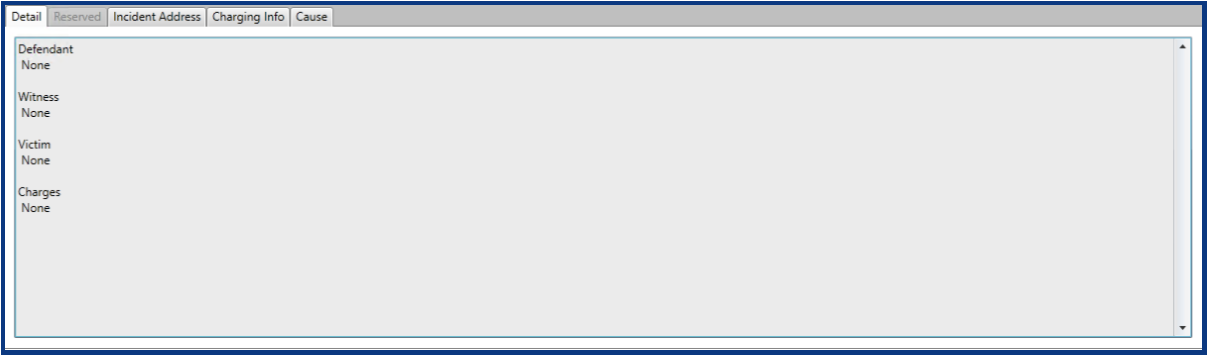
The Detail sub-tab displays any Defendants, Witnesses, Victims, and Charges entered for this matter.
Incident Address Tab
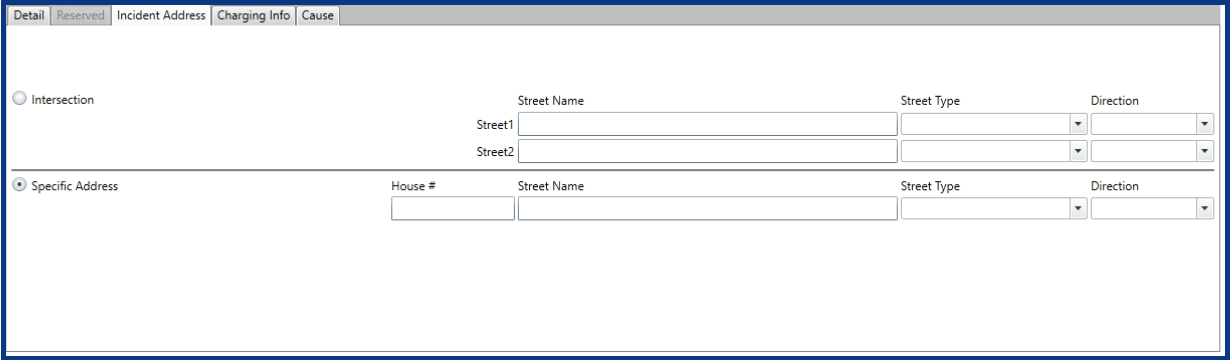
The Incident Address sub-tab has fields to specify information about the location where the incident occurred.
Charging Info Tab
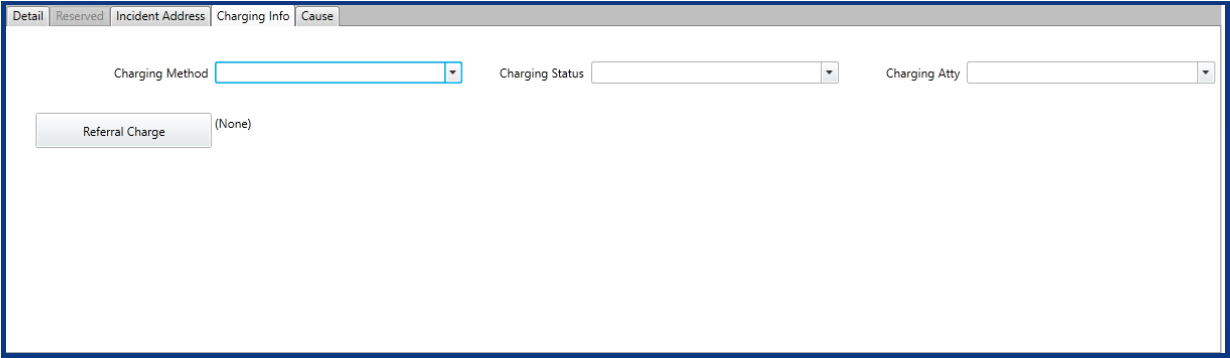
The Charging Info sub-tab has fields to enter additional information about any charges.
Cause Tab
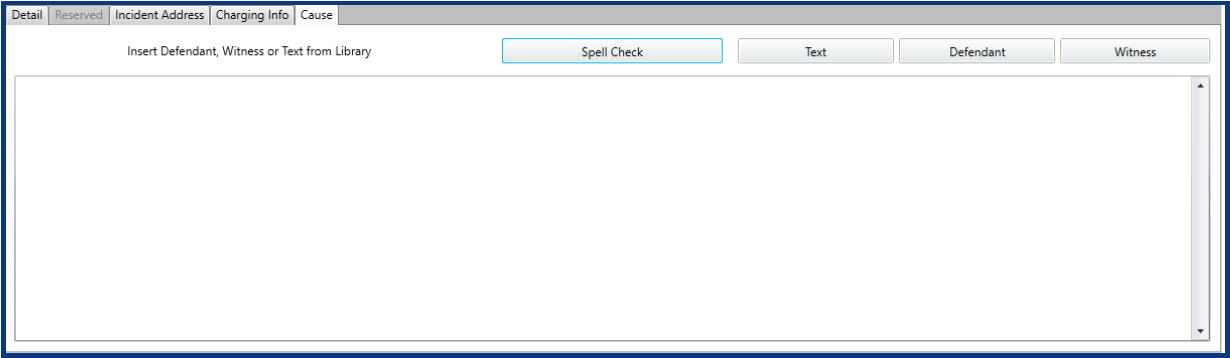
The Cause sub-tab has fields to enter Cause text.
Defendant Tab
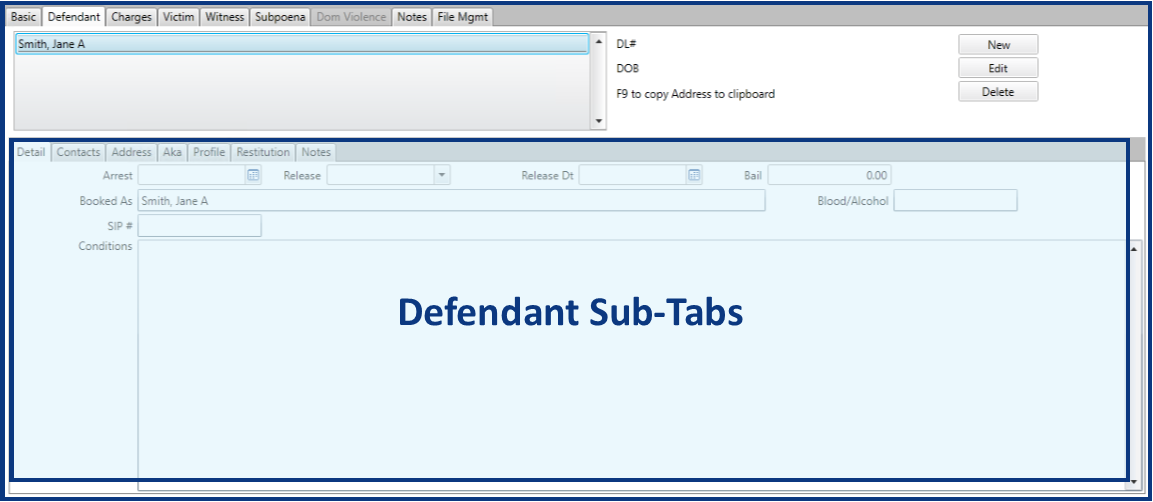
The Defendant tab contains a list of defendants on a matter. The list is managed via 3 buttons to the far right, named New, Edit, and Delete. The defendant highlighted in the list determines the information displayed in the Defendant Sub-Tabs section.
Defendant Sub-Tabs
Detail Tab
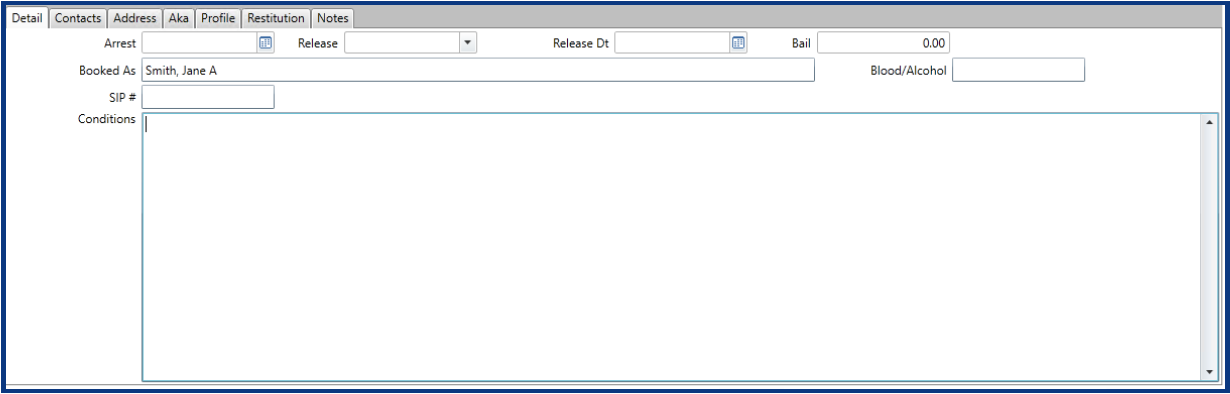
The Detail sub-tab has fields to enter specifics about the selected defendant's arrest and release.
Contacts Tab
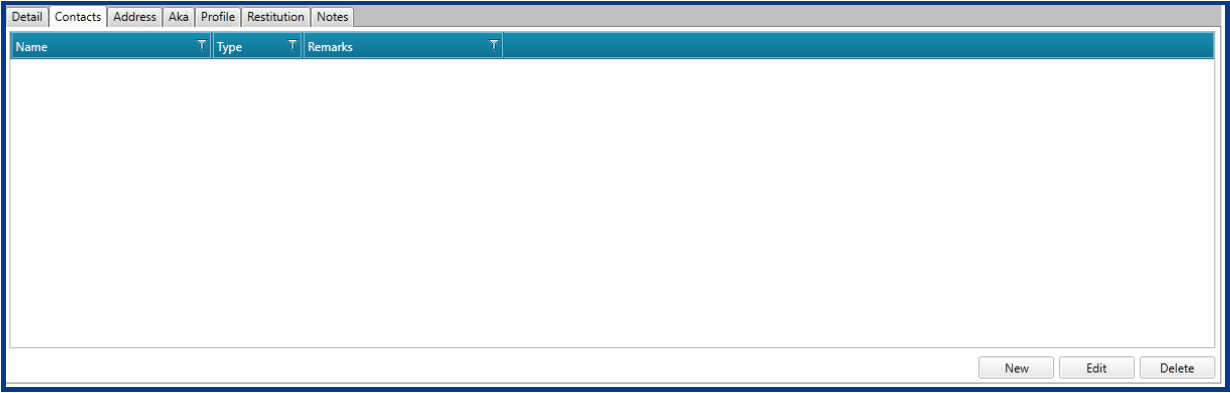
The Contacts sub-tab has fields to enter any contacts pertaining to the selected defendant, such as the Defendant's attorney.
Address Tab
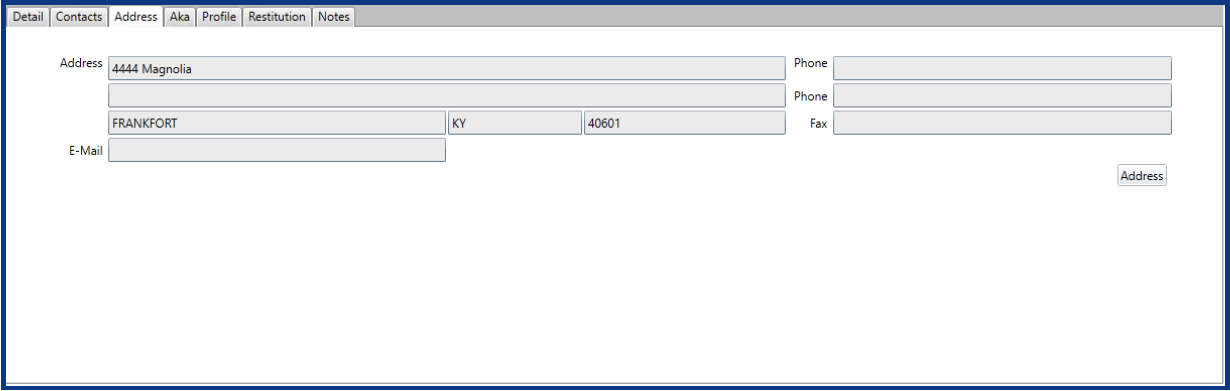
The Address sub-tab has fields to display the selected defendant's contact information.
Aka Tab
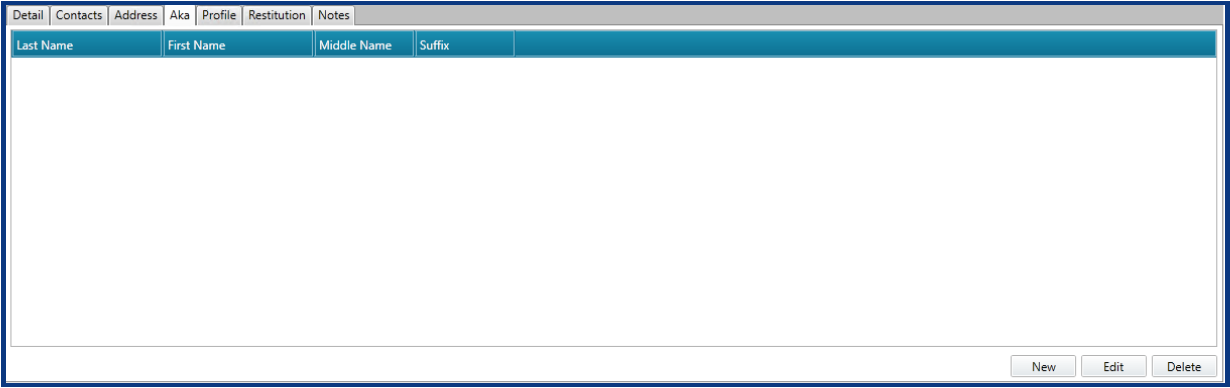
The Aka sub-tab has fields to enter aliases for the selected defendant.
Profile Tab
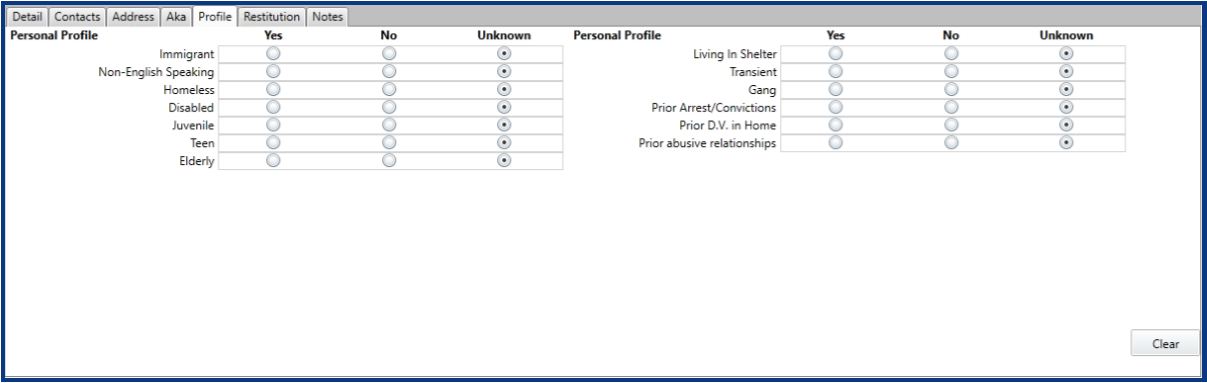
The Profile sub-tab has fields to enter profile information for the selected defendant.
Restitution Tab
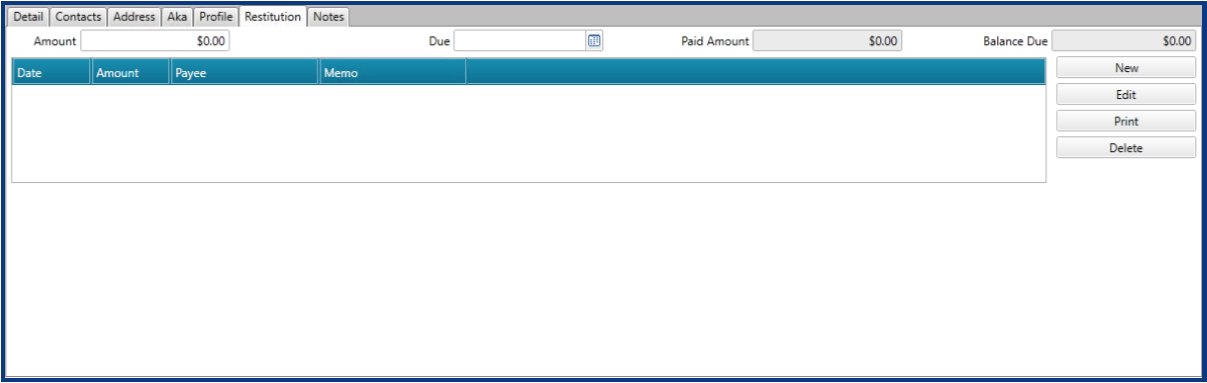
The Restitution sub-tab has fields to enter any restitution payments made by the selected defendant.
Notes Tab
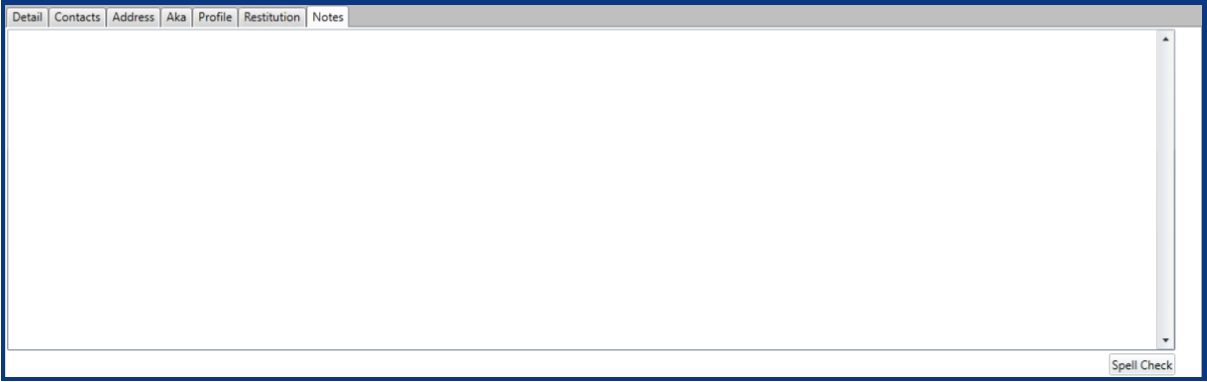
The Notes sub-tab has a text field to enter any notes related to the selected defendant.
Charges Tab
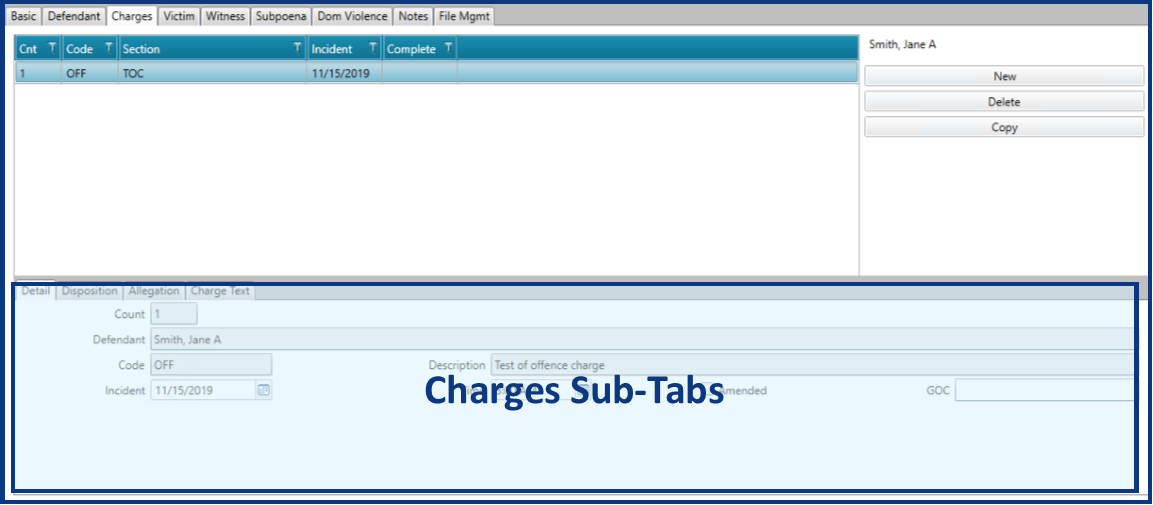
The Charges tab contains a list of charges. The list is managed via 3 buttons to the far right, named New, Delete, and Copy. Each charge is applied to a defendant. The Charges Sub-Tabs provide additional information about the highlighted charge.
Charges Sub-Tabs
Detail Tab

The Detail sub-tab has fields displaying charge details and fields to enter additional information for the highlighted charge.
Disposition Tab

The Disposition sub-tab has fields to enter information about the highlighted charge when it has been disposed.
Allegation Tab

The Allegation sub-tab has a list of allegations related to the highlighted charge.
Charge Text Tab

The Charge Text sub-tab has a text field to enter the charge text for the highlighted charge. It also contains an Allegation button to add additional allegations to the Allegation Sub-Tab list.
Victim Tab
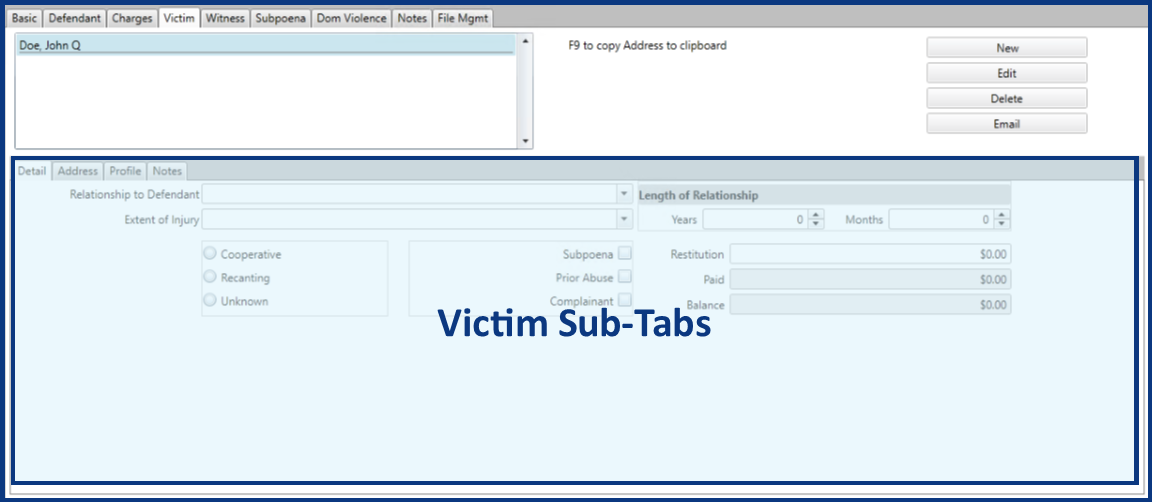
The Victim tab contains a list of victims on a matter. The list is managed via 3 buttons to the far right, named New, Edit, and Delete. A 4th button, Email, allows you to send an email to the victim highlighted. The victim highlighted in the list also determines the information displayed in the Victim Sub-Tabs section.
Victim Sub-Tabs
Detail Tab
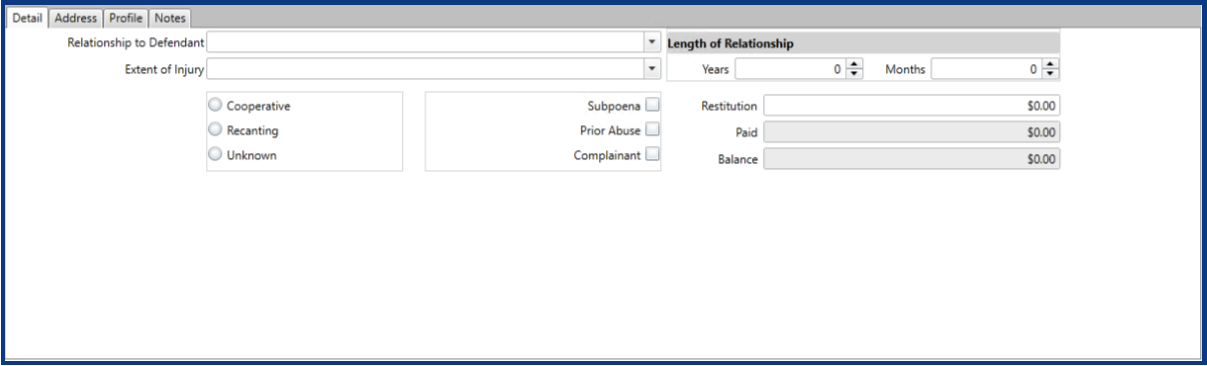
The Detail sub-tab has fields to enter addition information about the highlighted victim.
Address Tab
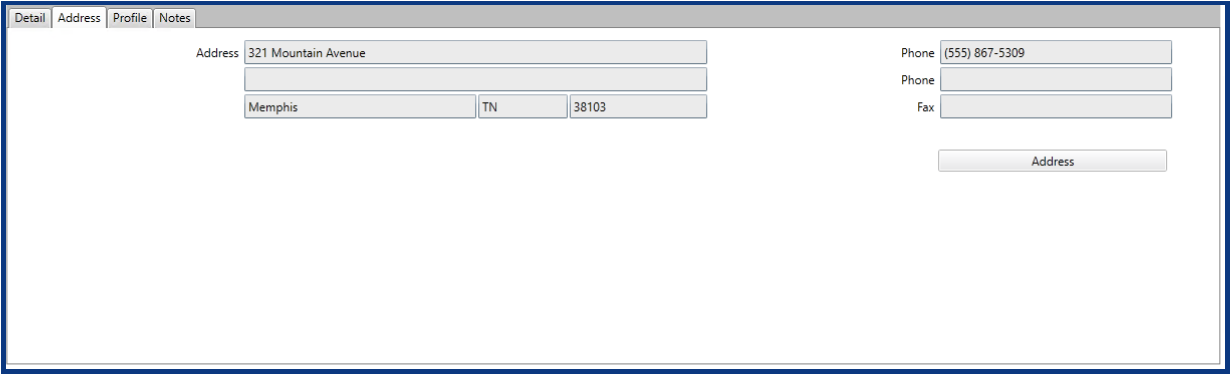
The Address sub-tab has fields to display the contact information for the selected victim.
Profile Tab
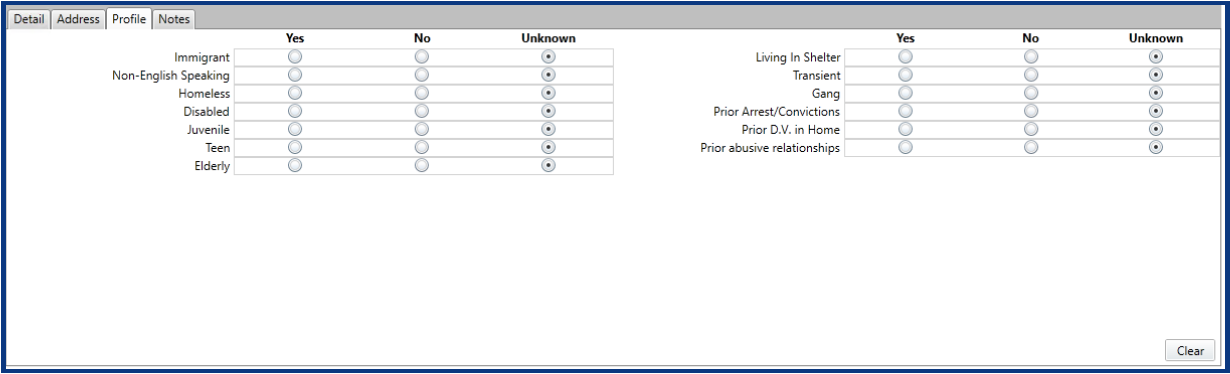
The Profile sub-tab has fields to enter profile information for the selected victim.
Notes Tab
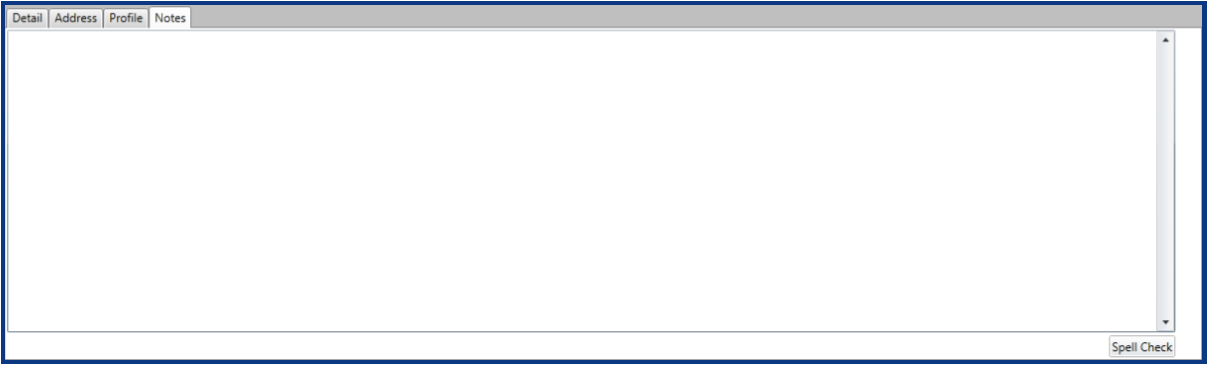
The Notes sub-tab has a text field to enter any notes related to the selected victim.
Witness Tab
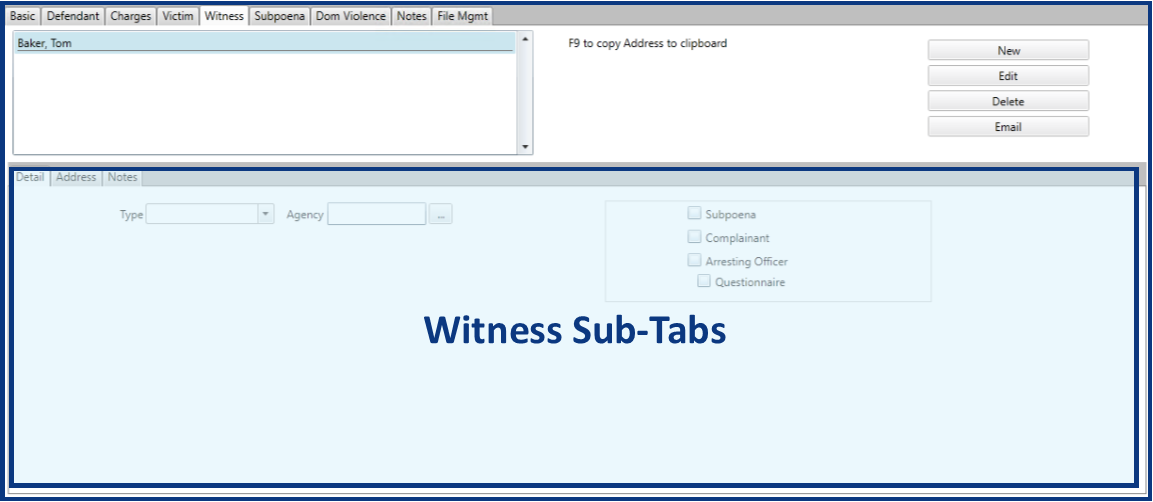
The Witness tab contains a list of witnesses on a matter. The list is managed via 3 buttons to the far right, named New, Edit, and Delete. A 4th button, Email, allows you to send an email to the witness highlighted. The witness highlighted in the list also determines the information displayed in the Witness Sub-Tabs section.
Witness Sub-Tabs
Detail Tab
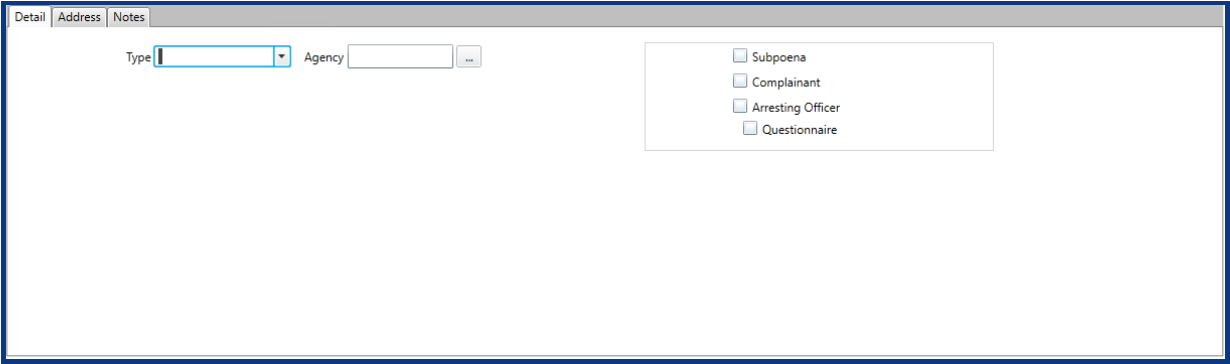
The Detail sub-tab has fields to enter addition information about the highlighted witness.
Address Tab
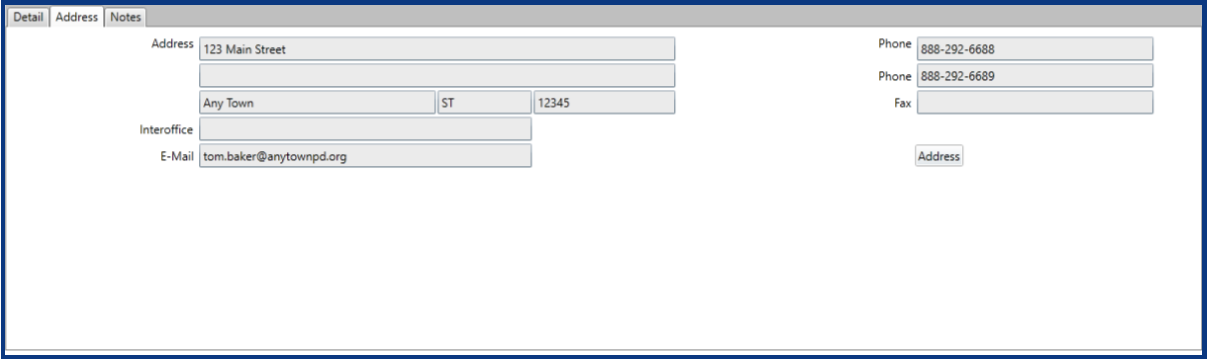
The Address sub-tab has fields to display the contact information for the selected witness.
Notes Tab
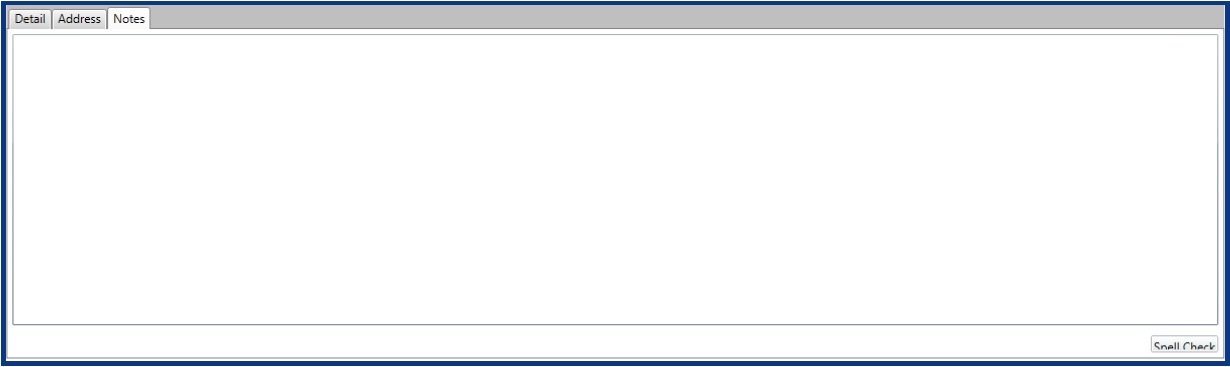
The Notes sub-tab has a text field to enter any notes related to the selected witness.
Subpoena Tab
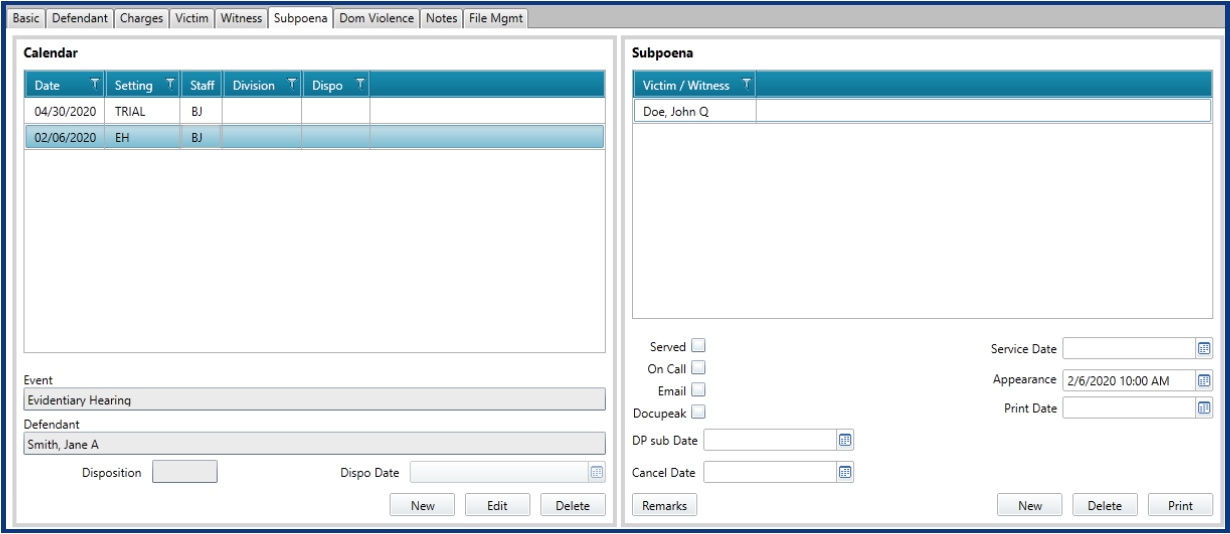
The Subpoena tab contains 2 sections. The first is the Calendar section which contains a list of matter events, such as court dates. The second is the Subpoena section which contains a record of the Victims and Witnesses that have been served subpoenas for a specific Calendar event. Subpoenas can't be entered until a Calendar event has been entered. The contents in the Subpoena section change based on which Calendar event is highlighted.
Domestic Violence Tab
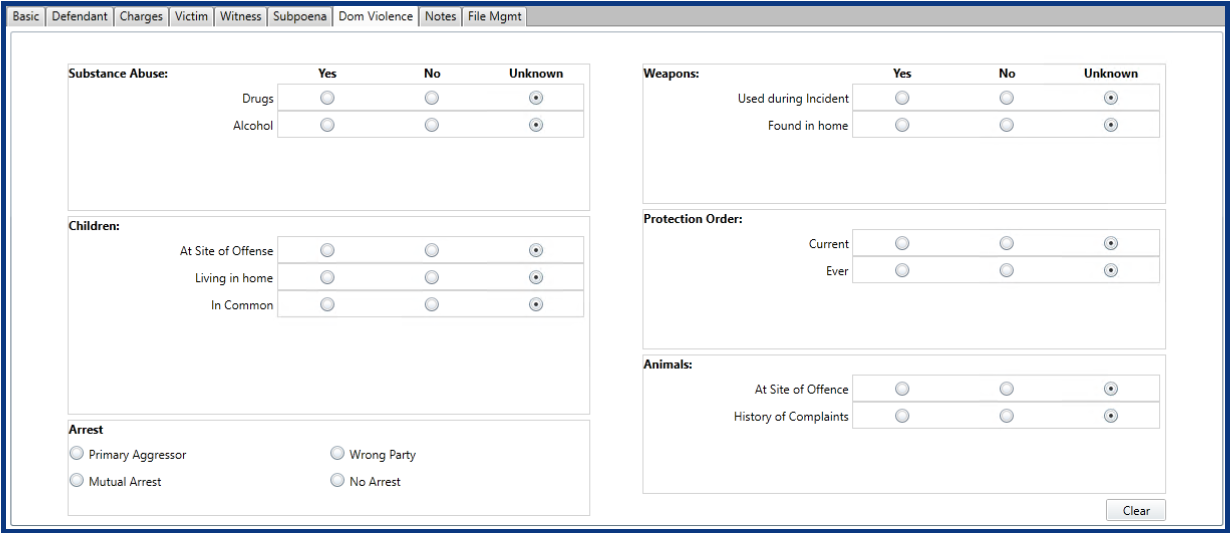
The Domestic Violence tab contains fields to enter additional information relevant to domestic violence matters.
Notes Tab
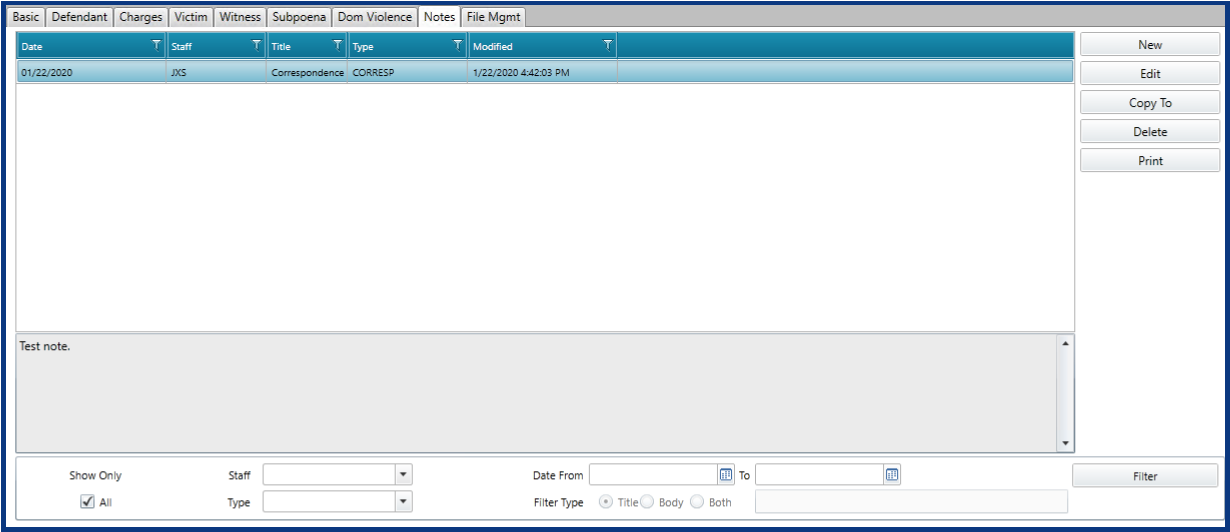
The Notes tab allows you to create notes on the matter. The list of notes can be sorted and filtered using the list column headings and filter options. The notes list is managed with 5 buttons to the far right named New, Edit, Copy To, Delete, and Print. A preview of the highlighted note displays in the gray box at the bottom.
File Management Tab
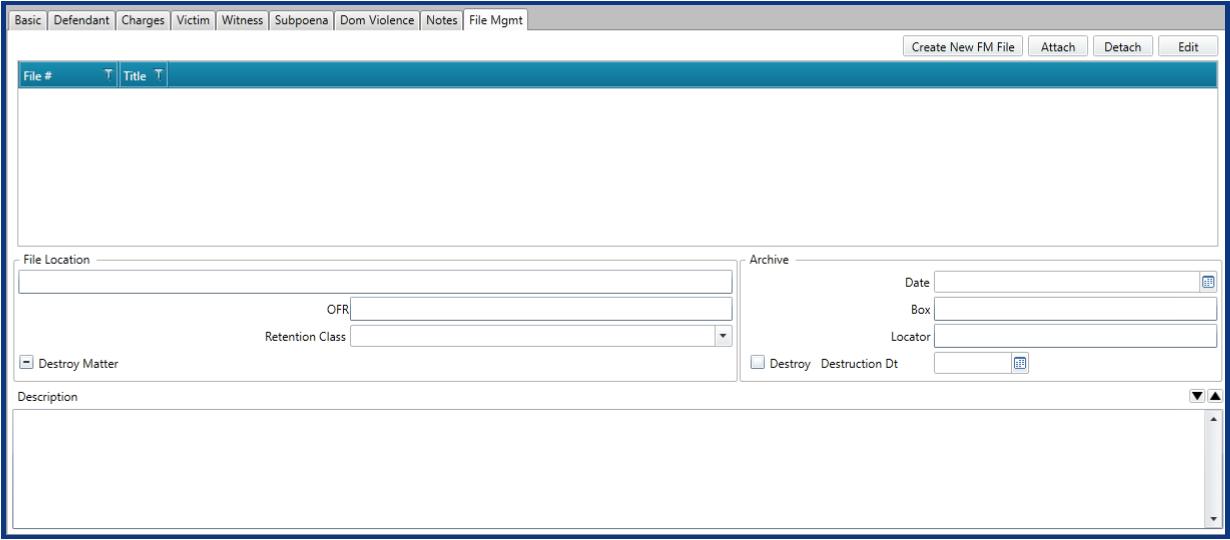
The File Management tab has fields to enter file storage, archival, and destruction information. There are 4 buttons at the top right named Create New FM File, Attach, Detach, and Edit. These allow you to create a file management file (available if you have the File Management module), and to attach or detach additional matters to this matter.
Article (PDF Version)
Comments
0 comments
Please sign in to leave a comment.