
Need a printable version of this article? Download the Article (PDF Version).
These notes are provided by Cycom Data Systems, Inc. to support the use of CityLaw / CountyLaw Web (CLW) and are intended to be used for review of general topics covered during training.
If you discover an error in this document, or if you encounter any problems performing any steps described, please contact Cycom Support at support@cycominc.com or by calling 888-292-6688.
Contents:
- Open the Module
- Create a New Matter
- Find a Matter
- Close a Matter
- Print Customized Reports
- Basic Tab
- Description Tab
- Evaluation Tab
- Allegations Tab
- Notes Tab
- Equipment Tab
- Keywords Tab
- FM Link Tab
Labor Relations Basic Actions
-
Open the Labor Relations Module
-
Create a New Labor Relations Matter
-
Find a Labor Relations Matter
-
Close a Labor Relations Matter
Open the Labor Relations Module
The Labor Relations module can be opened by selecting the Labor Relations icon from the Global Toolbar.

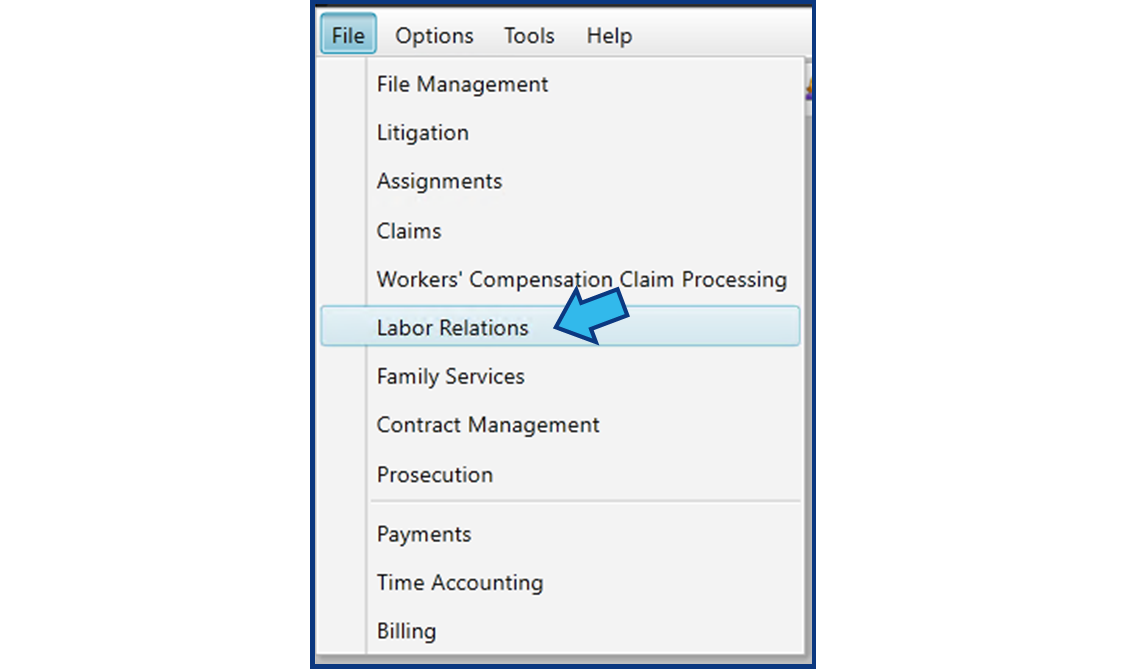
It can also be opened by selecting File from the Menu Bar and then selecting Labor Relations from the list of options.
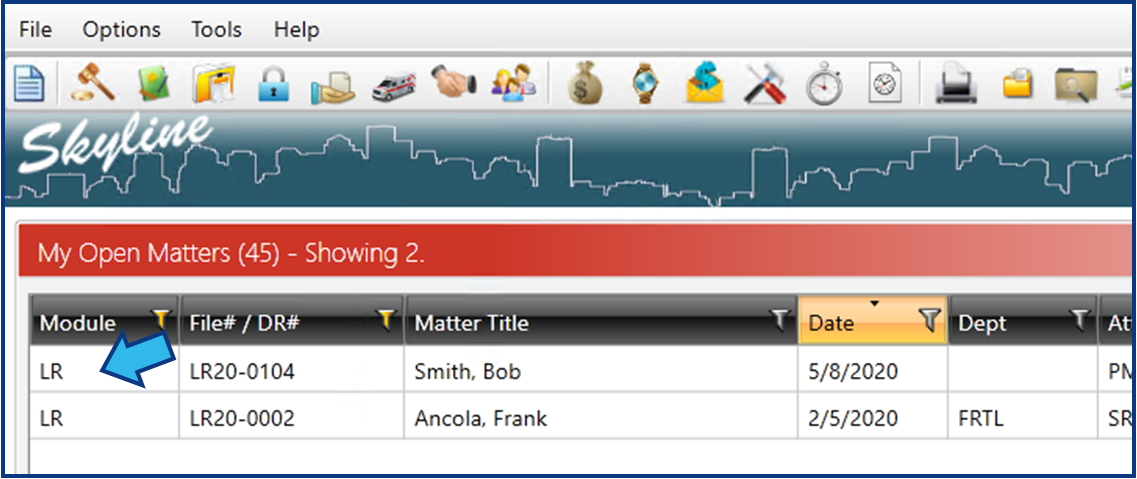
Finally, it can be opened by opening a Labor Relations matter. For example, if a Labor Relations matter is in the My Open Matters display in the Skyline view, then double-clicking on that matter will open the Labor Relations module.
Create a New Labor Relations Matter
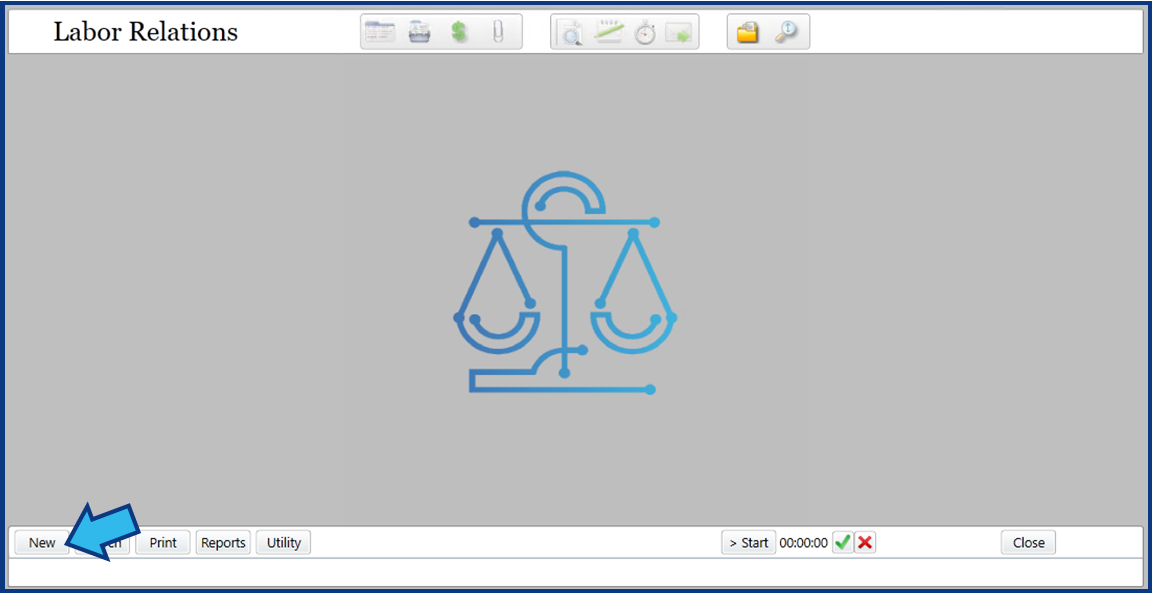
To create a new Labor Relations matter, open the Labor Relations module and select the New button on the action bar at the bottom.
You will be prompted to create a new File Number. Select the Auto button to have this number automatically assigned with the next available number.

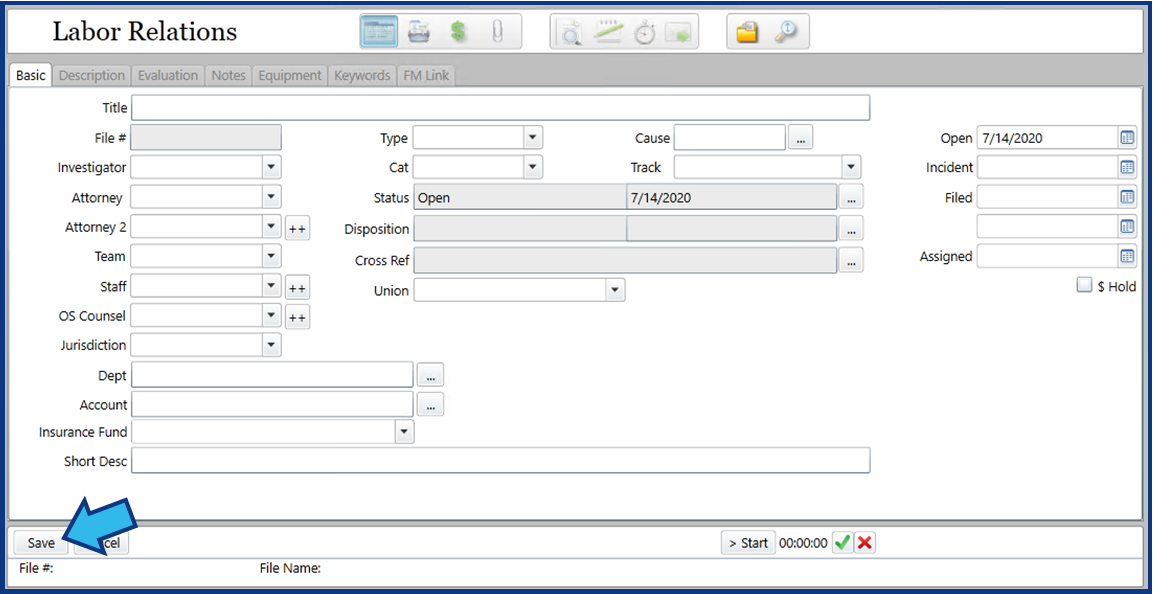
Enter the matter information into the Basic tab fields. The matter may automatically be saved when the information is added. If not, select Save in the lower left corner to save the matter and make the other tabs selectable.
Find a Labor Relations Matter
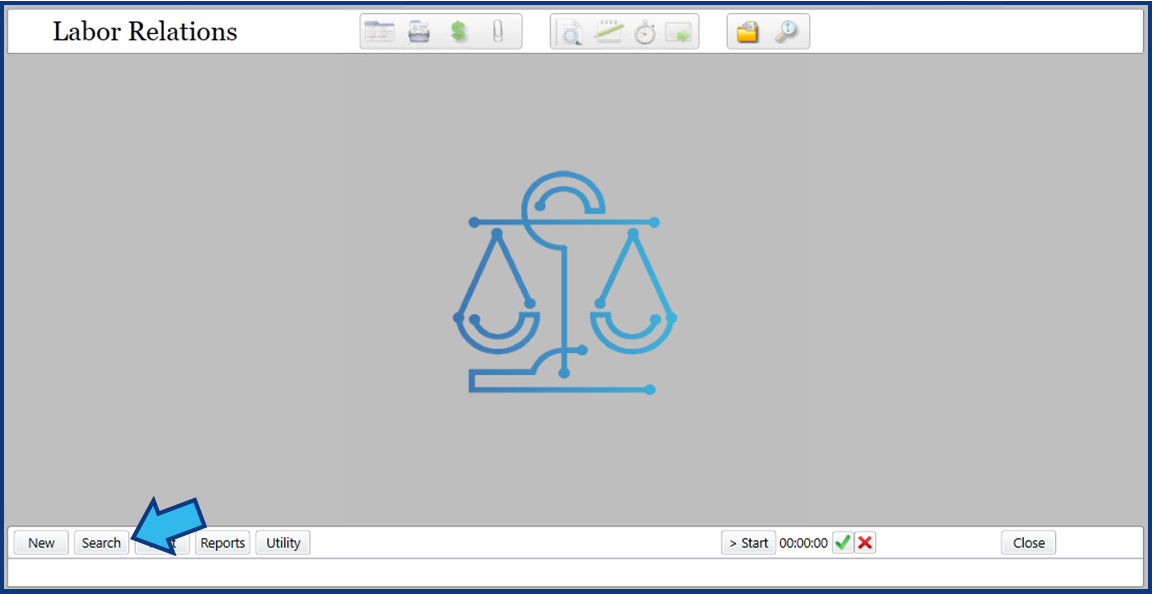
To find a Labor Relations matter, first open the Labor Relations module. Then select the Search button from the action bar on the bottom.
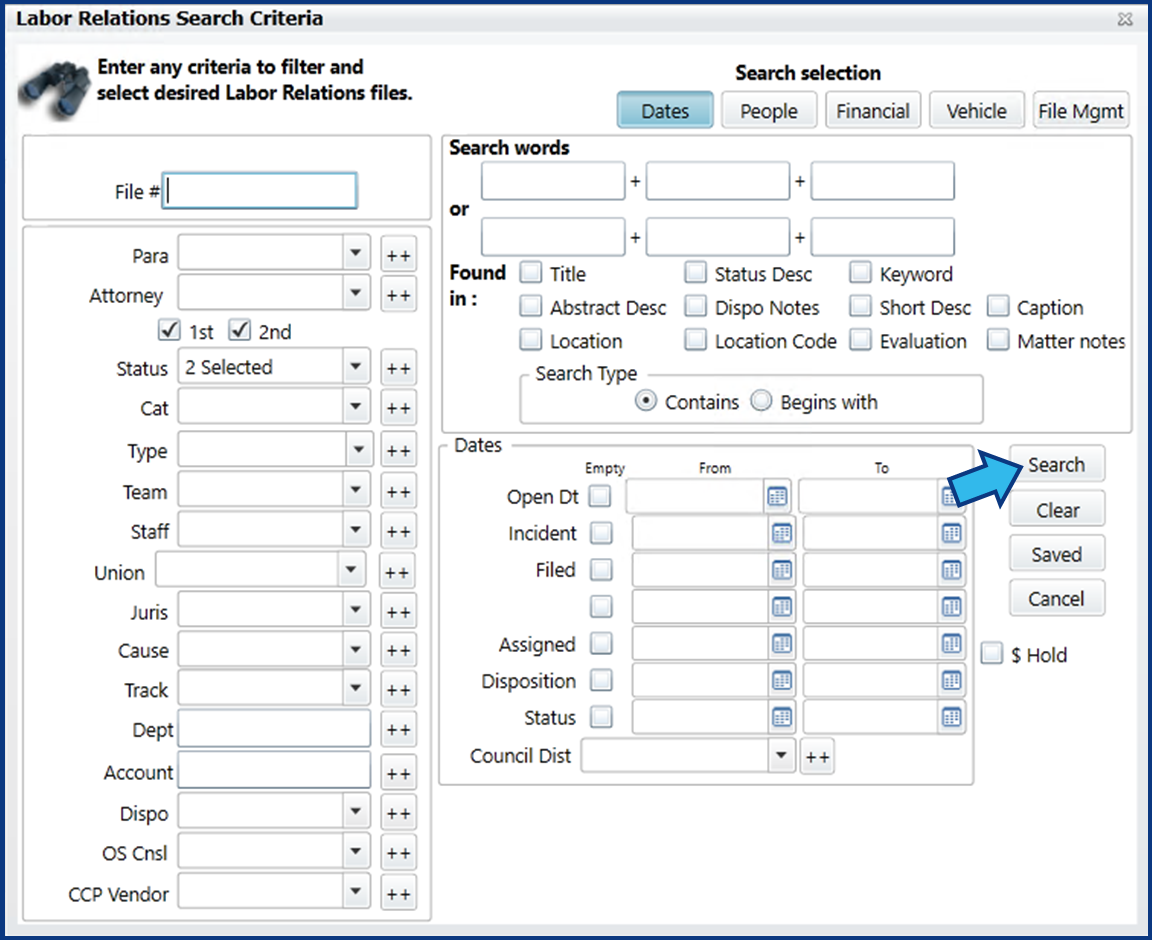
A Search Criteria window will appear allowing you to enter or select options to filter your search. Enter any information you know to locate the matter. Select Search to return the results.
Close a Labor Relations Matter
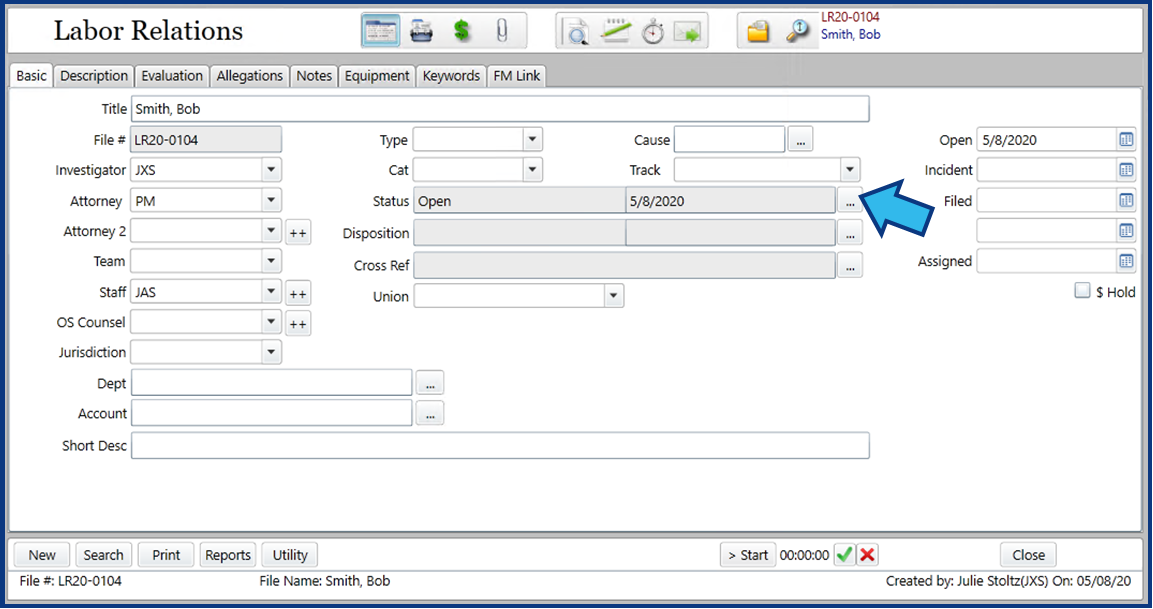
To close a Labor Relations matter, first open the matter and select the ellipsis button to the right of the Status field.
Next, in the Status Details window, change Status to Closed, or if you have more than one Closed state, select the appropriate one.
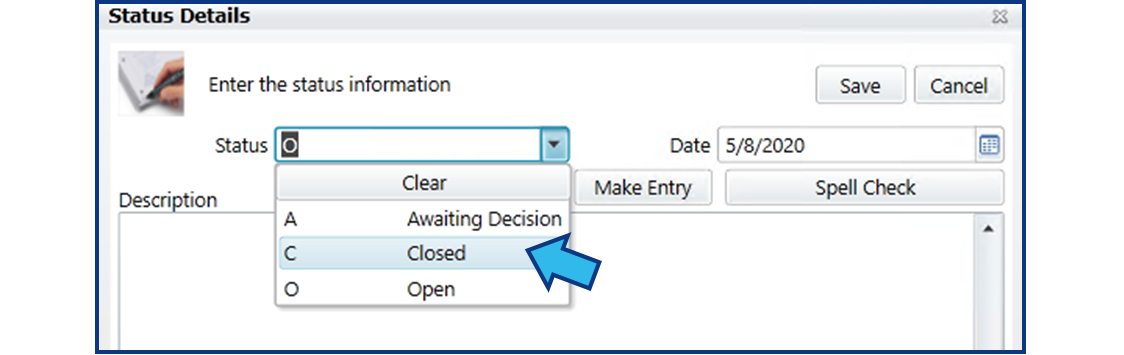
Enter the closing date in the Date field.
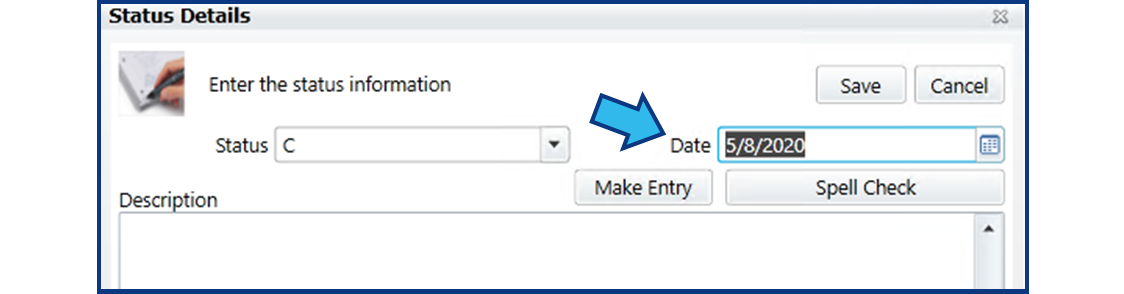
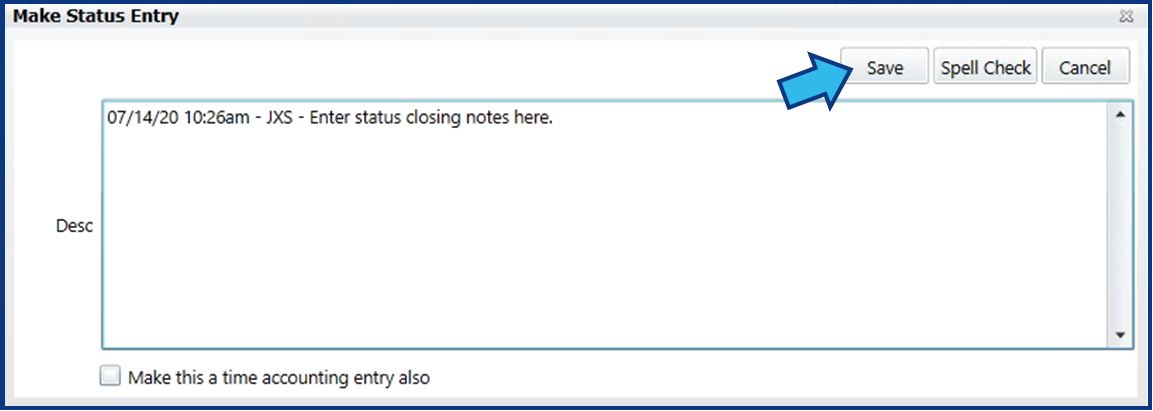
Select the Make Entry button to enter status closing notes according to your office's closing protocols. When finished, select Save.
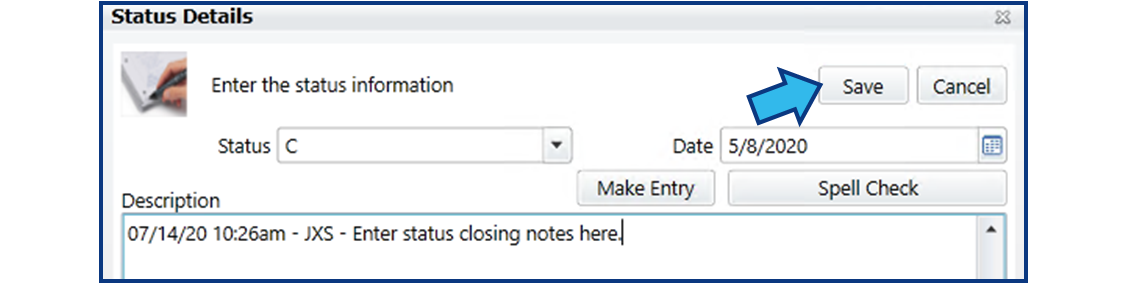
Select Save in the Status Details window to save your changes.
Labor Relations Report Options
Print Customized Labor Relations Reports
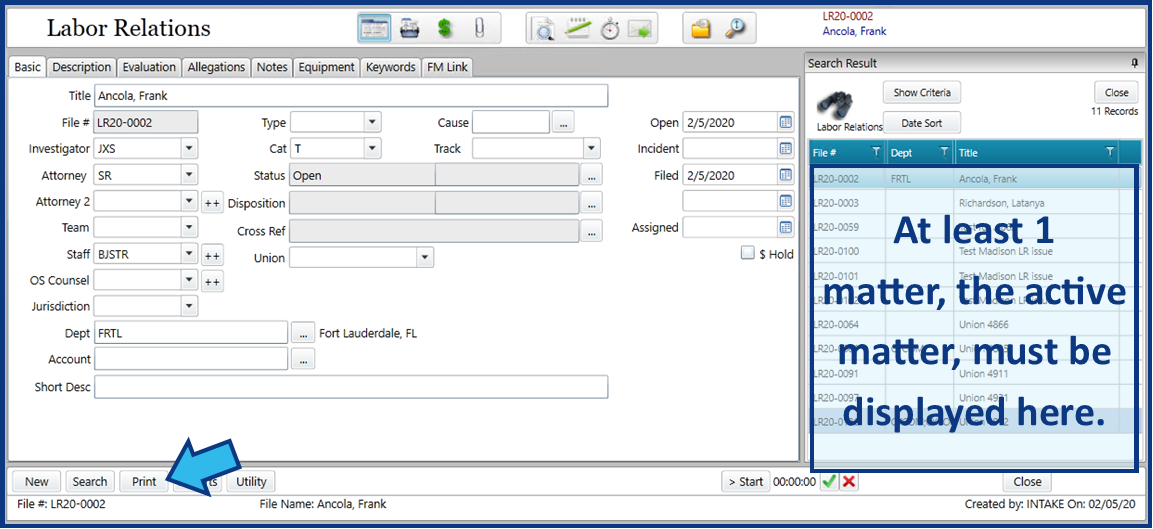
Customized reports can be created by first executing a Search to find the Labor Relations matters you want to include. Once at least one matter is displayed in the Search Result pane, select the Print button in the action bar at the bottom.
If you want to create a report for only the active matter, be sure to check the box for Selected matter only. If this box is unchecked, any report will include all the matters listed in the Search Results.
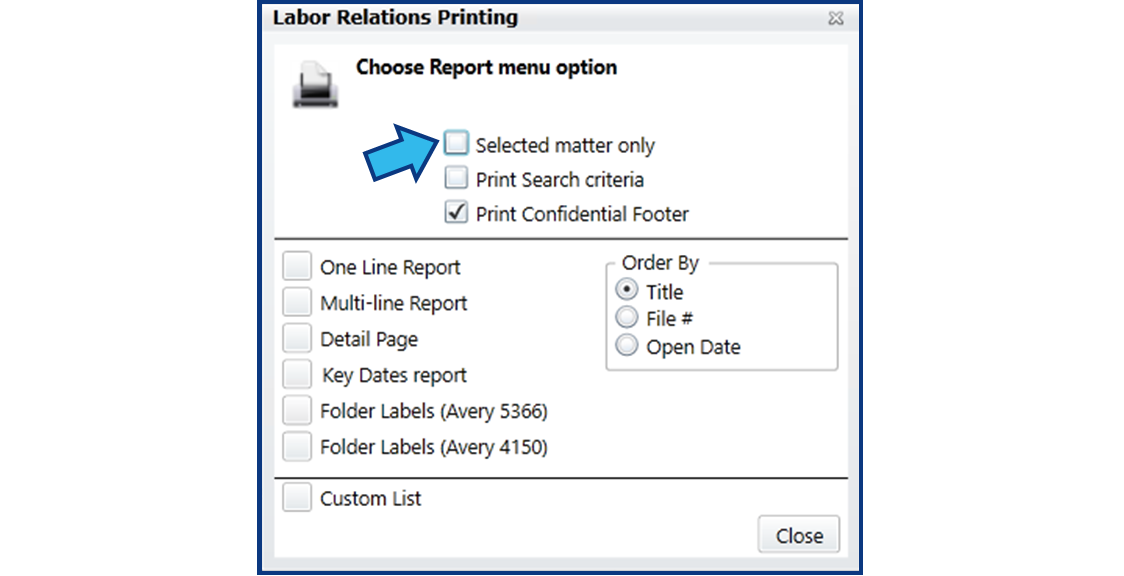
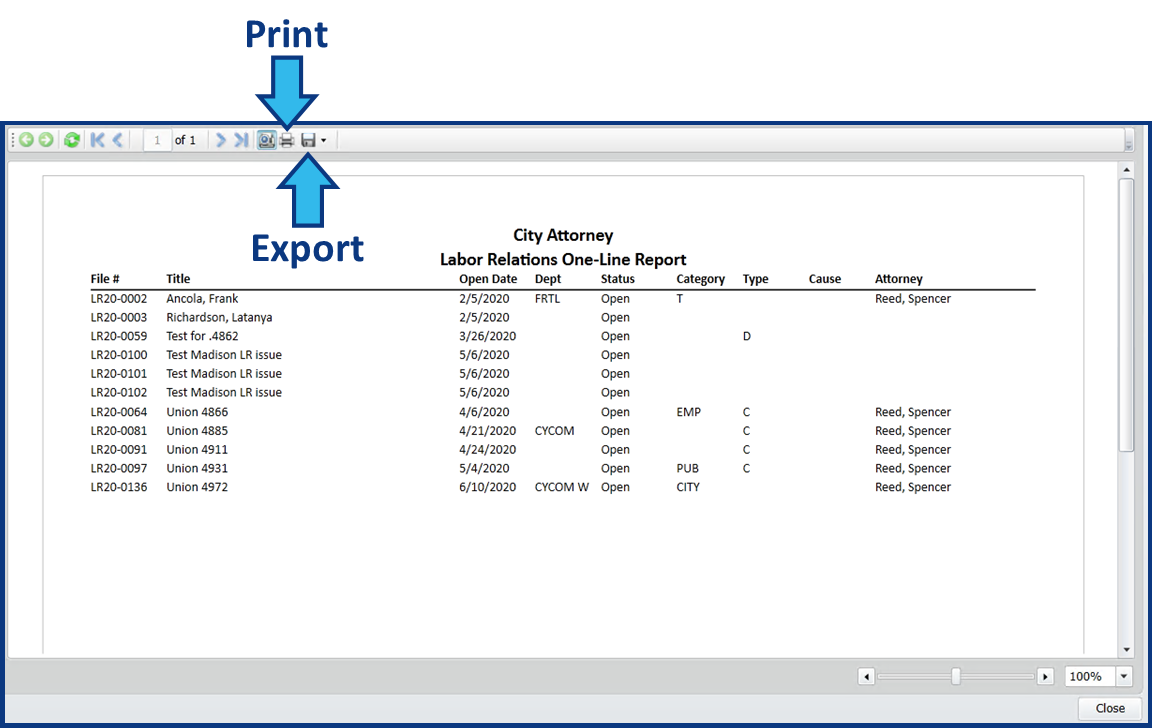
Select the type of report you'd like to generate. Some reports allow additional options and you will be prompted to make your selections. Your report will be displayed with options to print or export.
Labor Relations Basic Matter Data Fields
-
Basic Tab
-
Description Tab
-
Evaluation Tab
-
Allegations Tab
-
Notes Tab
-
Equipment Tab
-
Keywords Tab
-
FM Link Tab
Basic Tab
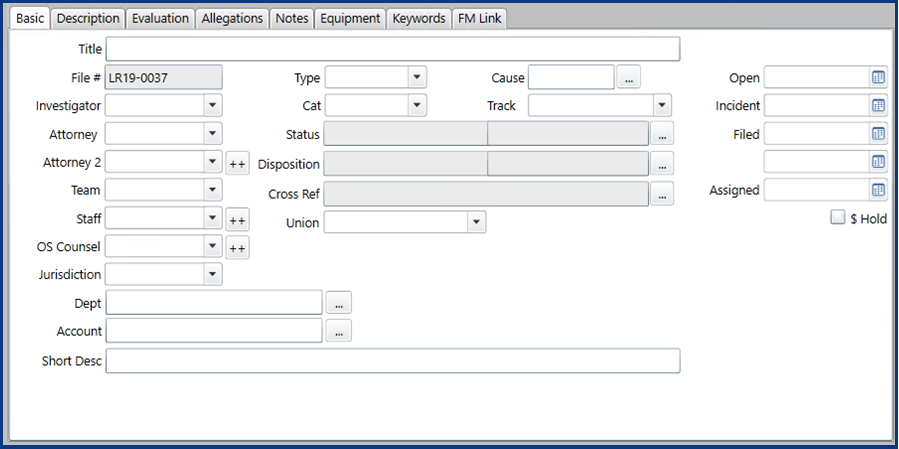
Title
The descriptive title for the matter.
File #
The CLW Labor Relations matter File Number. This will be auto-generated upon selecting Auto when creating a new Labor Relations matter.
Investigator
The investigator assigned to this matter.
Attorney
The lead attorney on the matter.
Attorney 2
Additional attorneys on the matter. (NOTE: CLW limits the number of second attorneys to four.)
Team
If your office divides work assignments by team, the assigned team for this matter is selected for this field.
Staff
Any staff assigned to assist with this matter.
OS Counsel
Outside counsel assigned to this matter.
Jurisdiction
The jurisdiction for which this matter is assigned.
Dept (Department)
The department represents the entity to whom the services of the matter are being rendered.
Account
The account to which expenses for this matter are applied.
Short Desc (Description)
A short description of the matter.
Type
Type codes separate matters into classifications relevant to your office.
Cat (Category)
Category codes separate matters into classifications relevant to your office.
Cause
The cause code for the matter.
Track
The track code for the matter.
Status
The current status of the matter. Status codes are classified as either open or closed types and are used in searches and reports to limit selections to those types. One common observance of this in practice is the user's My Open Matters list in Skyline or Main Street view.
Disposition
The disposition details for the matter. Disposition includes a disposition code identifying how the matter was disposed, as well as a disposition date identifying when the matter was disposed.
Cross Ref (Reference)
A list of other matters that should be referenced to the current matter.
Union (or Court)
The union or court that will see this matter. (NOTE: A court number field may be used to further identify the court.)
Open
The date the matter was opened.
Incident
The date the matter incident occurred.
Filed
The date the matter was filed.
Board
The board date of the matter. (NOTE: In the image above the Board label is not shown.)
Assigned
The date the matter was assigned.
Legal Hold
A check indicates this matter has a hold applied. Editing fields is restricted when this is applied. Only a System Administrator, or someone with access to the admin password, can apply a hold on a matter.
Description Tab
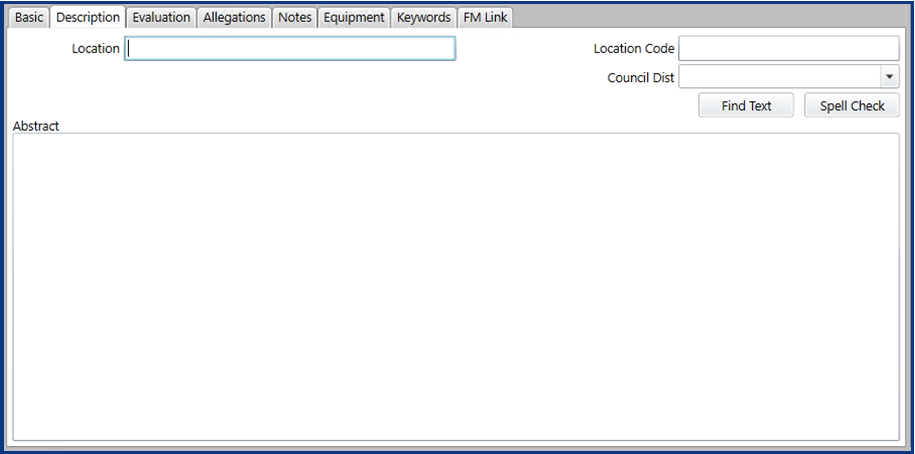
Location
This field may be used to note the location of the incident or the location of matter files. Check with your System Administrator or Office Manager to confirm how your site uses this field.
Location Code
The location code for this matter.
Council Dist (District)
The council district in which this matter occurred or in which this matter is being prosecuted. Check with your System Administrator or Office Manager to confirm how your site uses this field.
Find Text
An action button that opens a text search tool.
Spell Check
An action button that opens a spell-checking tool.
Abstract
An unlimited text field to enter the matter abstract and/or any additional description of the matter.
Evaluation Tab
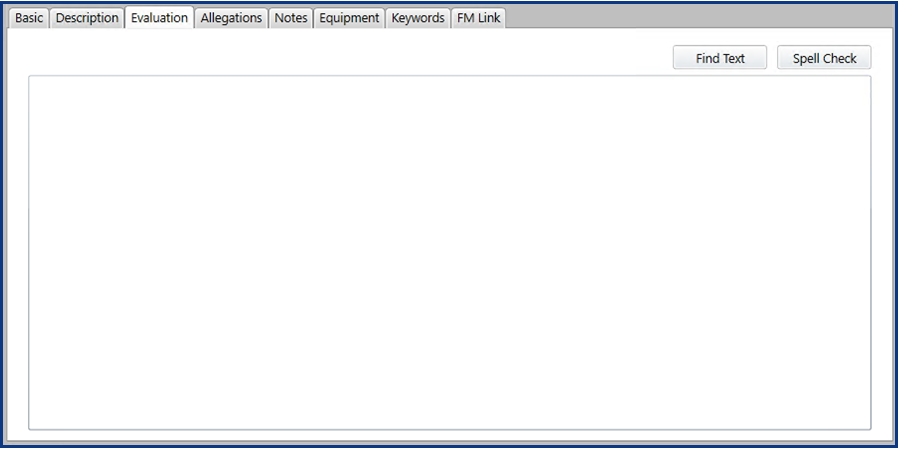
Find Text
An action button that opens a text search tool.
Spell Check
An action button that opens a spell-checking tool.
Unlabeled Text Field
An unlimited text field to enter any evaluation details of the matter.
Allegations Tab
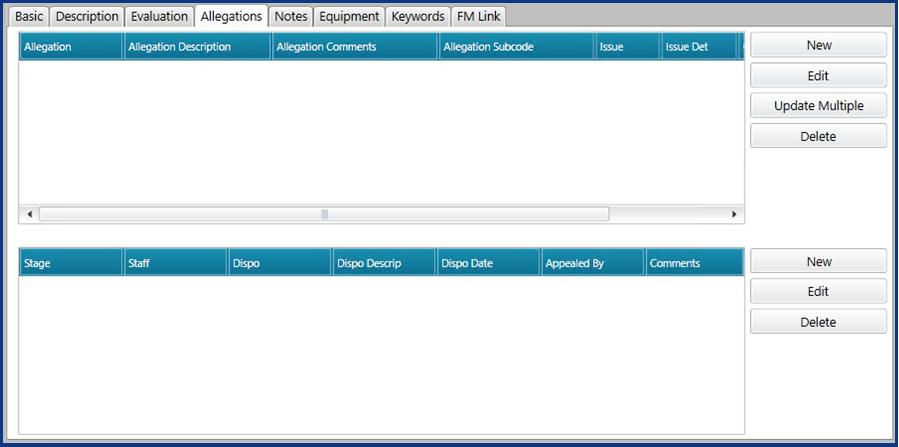
The Allegations tab contains two sections. The top section displays a list of allegations. The lower section displays a list of allegation stages for the allegation highlighted in the top section.
New (top section)
An action button that opens the Add Allegation tool to create a new allegation.
Edit (top section)
An action button that opens the Edit Allegation tool to edit an allegation entry.
Update Multiple
An action button that opens the Update Multiple Allegations tool to change multiple allegations. To become enabled, multiple allegations must be selected (highlighted in blue). To select multiple allegations, hold down the CTRL key while making selections with the left mouse button.
Delete (top section)
An action button that deletes the selected allegation entry.
New (lower section)
An action button that opens the Add Allegation Stage tool to create a new allegation stage.
Edit (lower section)
An action button that opens the Edit Allegation Stage tool to edit an allegation stage entry.
Delete (lower section)
An action button that deletes the selected allegation stage entry.
Notes Tab
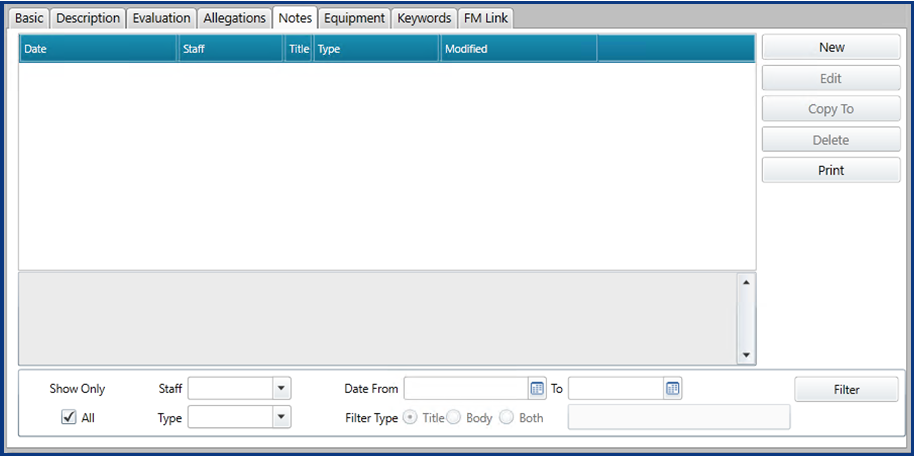 The Notes tab displays a list of notes that can be sorted using the list column headings and filtered using the filter options. A gray box at the bottom shows a preview of the highlighted note in the list above.
New
An action button that opens the Memo Field Description tool to create a new note.
Edit
An action button that opens the Memo Field Description tool to edit a note.
Copy To
An action button that opens the Select Matter tool to select a matter to which to copy the selected note. The original and copied note will exist separately in the database. Edits to one will not affect the other.
Delete
An action button that deletes the selected note.
An action button that creates a report listing all the notes in the notes list. The report can be printed or exported.
Show Only All
Checking this box shows all the notes. Uncheck this box if you would like to filter the list using any of the parameters provided.
Staff
Filter the notes to show only those created by a specific staff person.
Type
Filter the notes to show only those of a specific type.
Date From/To
Filter the notes according to a specific date range.
Filter Type
Radio buttons to select to filter the notes by Title, Body, or Both. The text field to the right of the buttons is used to enter the filter terms.
Filter
An action button to filter the note list according to the parameters selected or entered. (NOTE: To filter the notes list, you must uncheck the Show Only All box.)
Equipment Tab
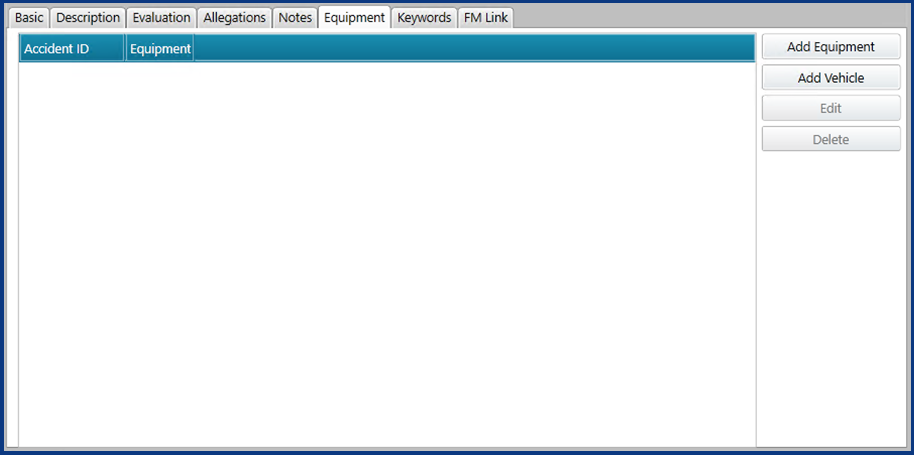
The Equipment tab displays a list of equipment and/or vehicles involved in the matter.
Add Equipment
An action button that opens the Add Equipment Form tool to create a new equipment entry.
Add Vehicle
An action button that opens the Vehicle Add Form tool to create a new vehicle entry.
Edit
An action button that opens the Edit Equipment Form or Vehicle Edit Form tool to edit the selected equipment or vehicle entry.
Delete
An action button that deletes the selected equipment or vehicle entry.
Keywords Tab
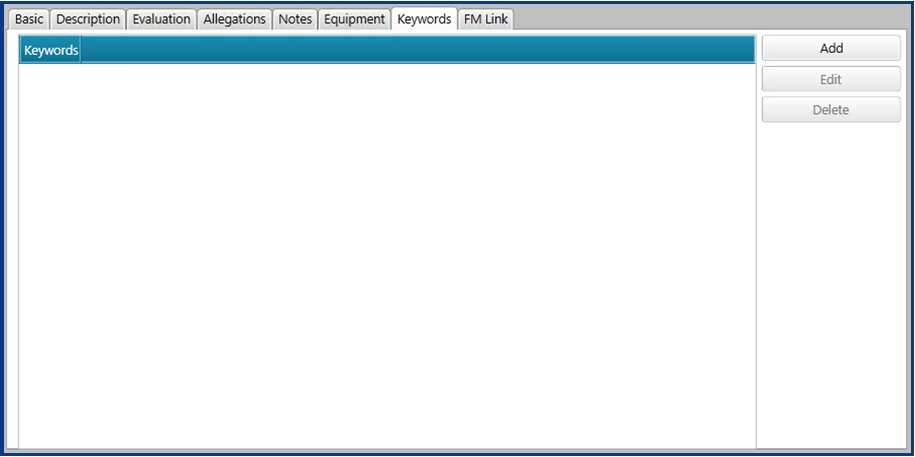
The Keywords tab displays a list of keywords. The use of keywords is no longer needed because of the full text search capabilities in CLW. Because of this your keywords tab may be inactive or missing. CLW Best Practices discourages using keywords, and instead encourages attention to proper spelling in all documents and text fields. All unlimited text fields in CLW have a Spell Check button for this purpose.
Add
An action button that opens the Keyword Add tool to create a new keyword.
Edit
An action button that opens the Keyword Edit tool to edit the selected keyword entry.
Delete
An action button that deletes the selected keyword entry.
File Management Tab
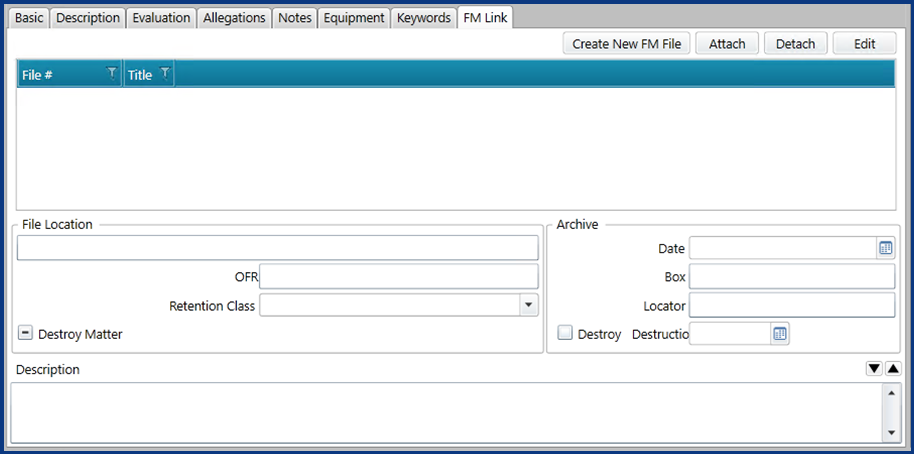
The File Management tab has fields to enter file storage, archival, and destruction information. There are four buttons at the top right named Create New FM File, Attach, Detach, and Edit. These allow you to create a file management file (available if you have the File Management module), and to attach or detach additional matters to this matter.
Comments
0 comments
Please sign in to leave a comment.