
Need a reminder? Use the Quick Reference Guide.
Need more details? Check out the Standard Guide.
Quick Reference Guide
There are 4 steps to complete this task:
-
Close all applications.
-
Find Secman DLL or Download.
-
Open Command Prompt as Administrator.
-
Enter registry command.
Standard Guide
Step 1. Close all applications.
At a minimum, make sure CityLaw / CountyLaw and Outlook, or any email client you use, are closed. It is best to close all applications.
Step 2. Find Secman DLL or Download.
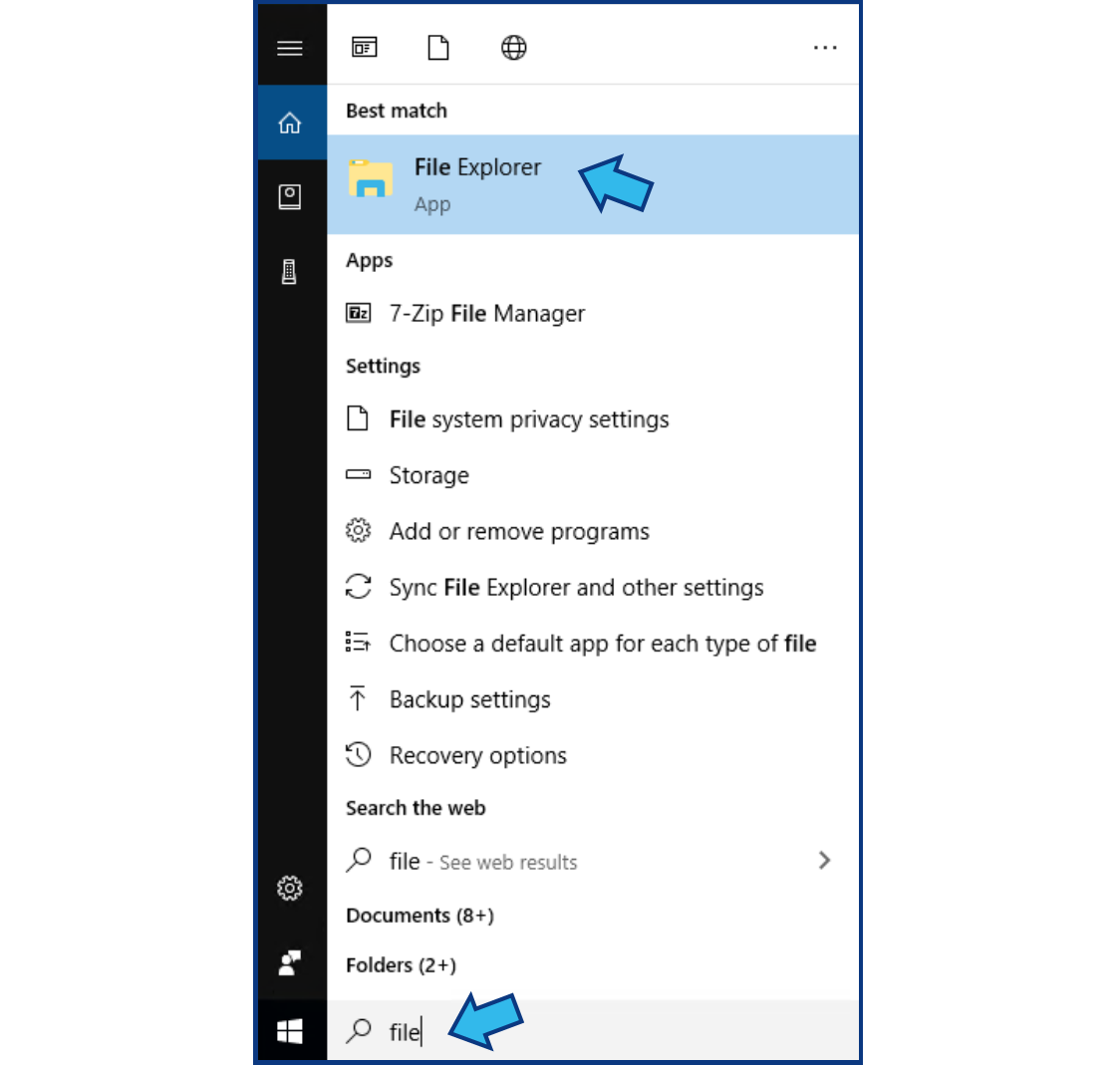
Open an instance of File Explorer. You can do this by either clicking the File Explorer folder icon in the taskbar, or pressing the Windows Key and typing 'file explorer.' When the app appears in the list, select it using the mouse, or pressing Enter.
In File Explorer, navigate to the CycomSQL folder in the C:\ drive. Search for secman.dll using the search bar or by scrolling through the files.
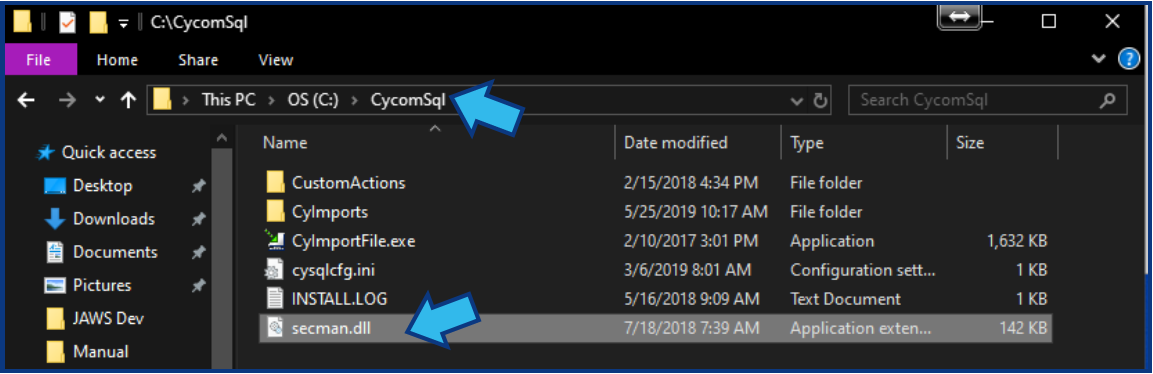
If secman.dll is not found, you can download it here: secman.dll. Place the file in the CycomSQL folder in the C:\ drive.
Step 3. Open Command Prompt as Administrator.
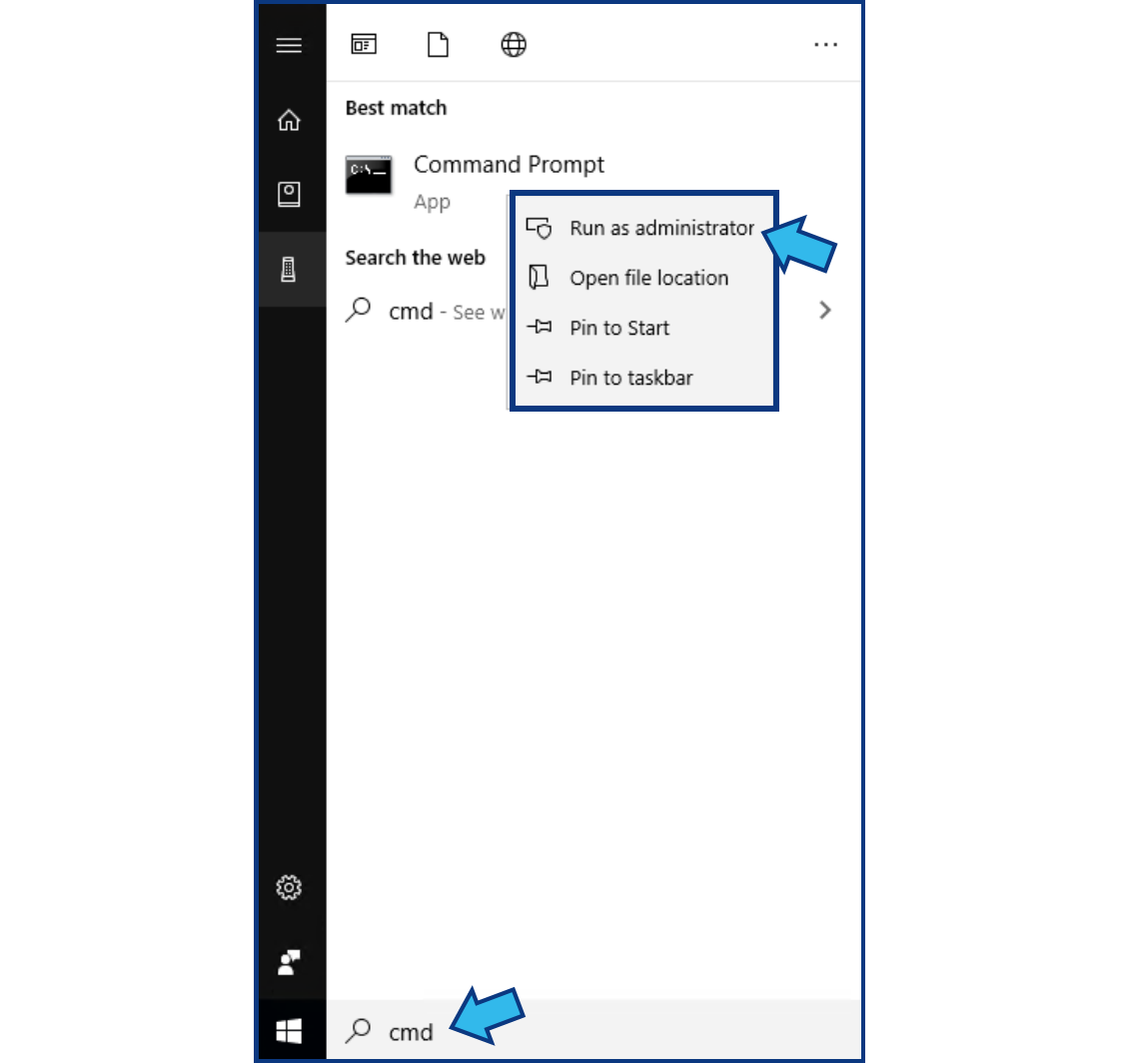
Press the Windows Key and type 'cmd.' Command Prompt should show in the apps listed. Right-click the app and select Run as Administrator.
Step 4. Enter registry command.
Type or copy/paste the following at the command prompt and press Enter.
regsvr32 c:\cycomsql\secman.dll
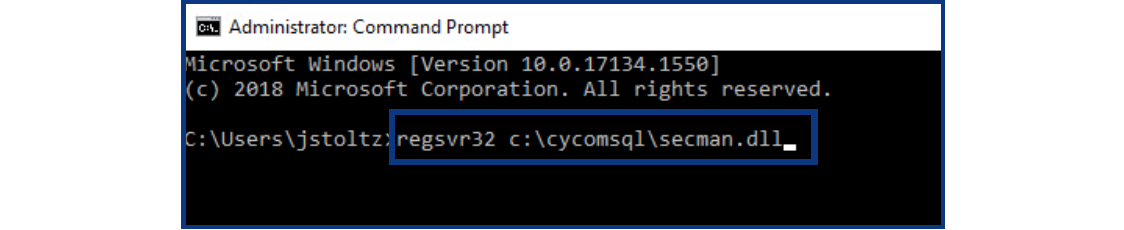
You should see a confirmation dialog confirming the library was registered successfully.

Comments
0 comments
Please sign in to leave a comment.