
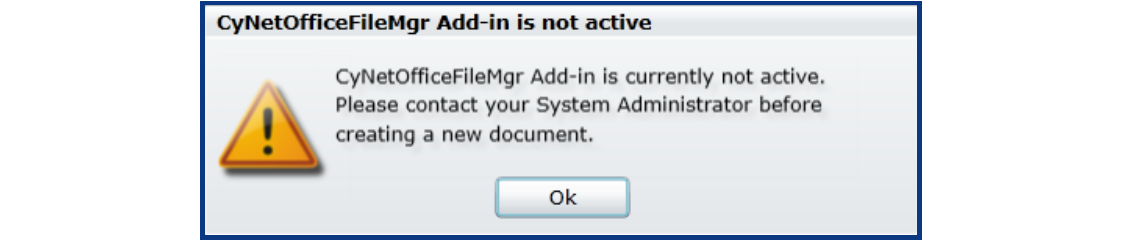
Seeing this message?
Resolution Guide
Complete the following steps to resolve this issue:
Step 1. Open a Microsoft Word document.
Open any Word document in your PC. Any document will work.
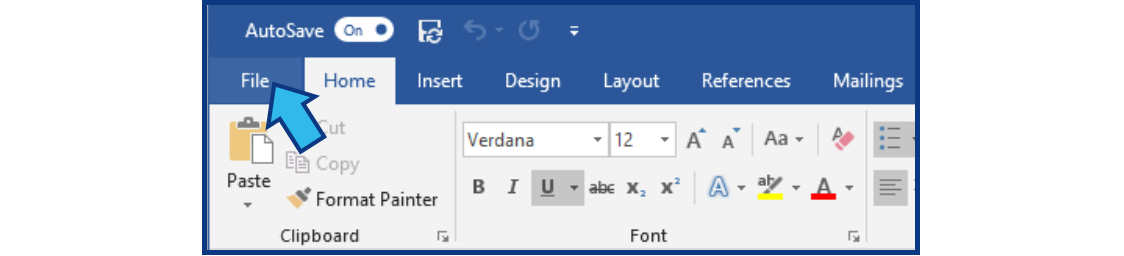
Step 2. Select File.
Select the File tab at the top-left corner of the Microsoft Word window.
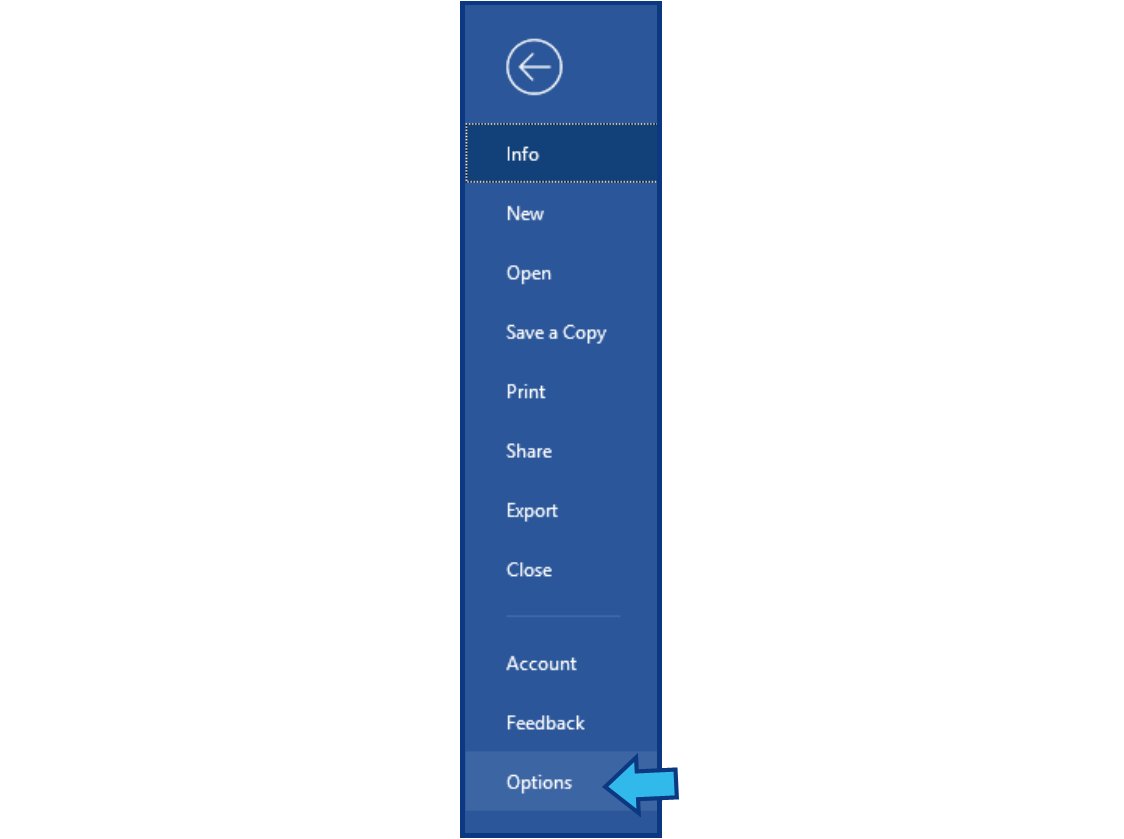
Step 3. Select Options.
In the navigation pane on the left, select Options.
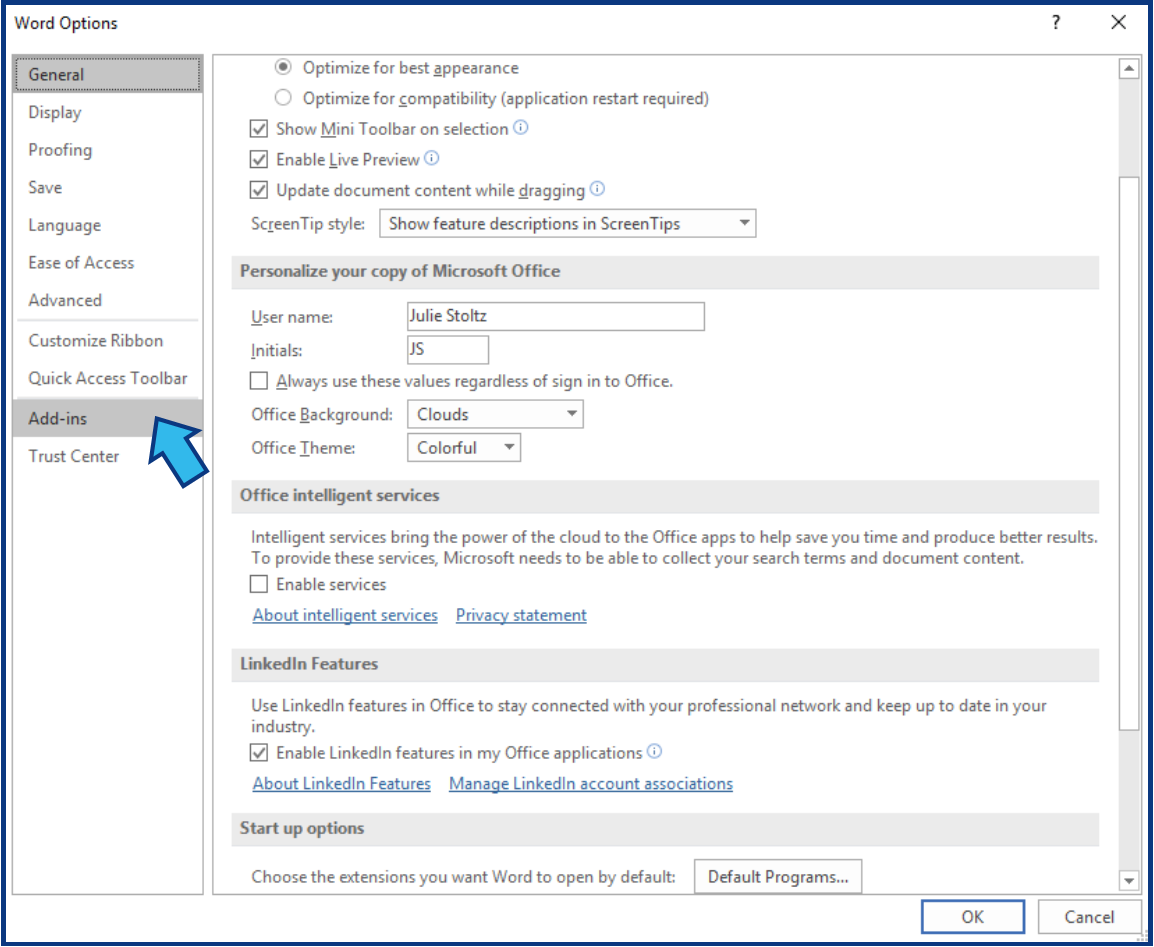
Step 4. Select Add-ins.
In the navigation pane on the left, select Add-ins.
Step 5. Select CyNetOfficeFileMgr.
CyNetOfficeFileMgr should be listed under Inactive Application Add-ins. When selected it will be blue, as shown below.
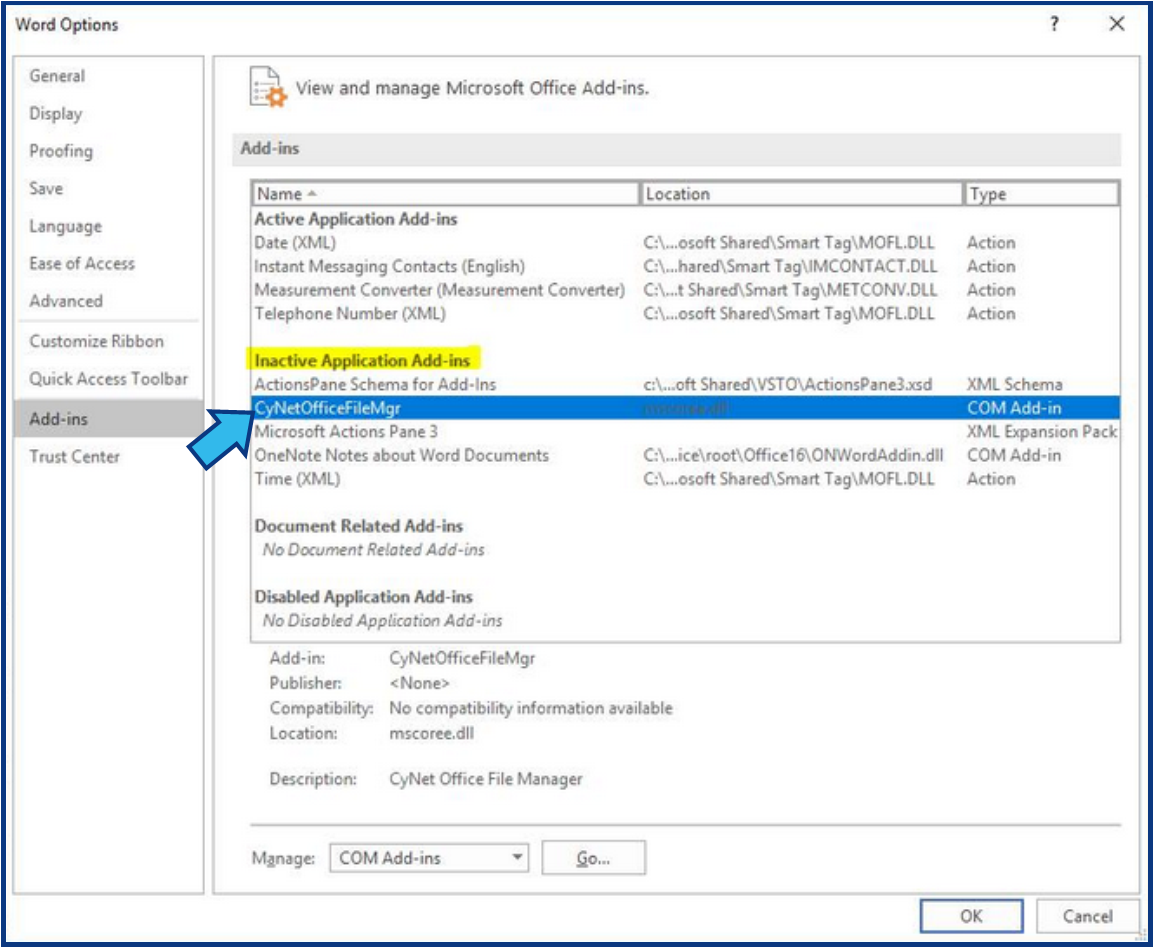
If CyNetOfficeFileMgr is not listed under Inactive Application Add-ins, contact Cycom Support.
Step 6. Press Go...
The Go... button is located at the bottom next to the Manage COM Add-ins button. If it is not, select it from the drop-down list before pressing Go…

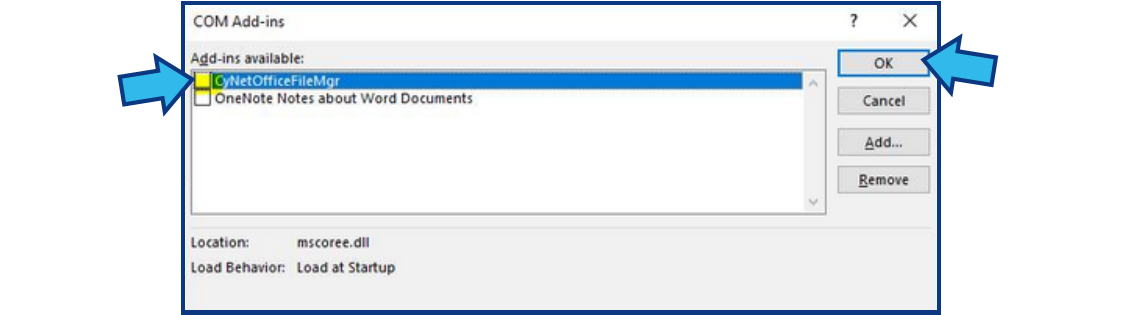
Step 7. Check the CyNetOfficeFileMgr box and press OK.
Place a check in the box next to CyNetOfficeFileMgr. Press OK on the top-right of the COM Add-ins window.
Step 8. Close Microsoft Word and try templates again.
After closing Word, repeat the steps taken prior to receiving the "CyNetOfficeFileMgr Add-in is not active" warning message.
If this did not resolve your issue, contact Cycom Support.
Cycom Support can be reached in the following ways:
- Phone call to 1-800-292-6688
- Email to support@cycominc.com
Want a print-friendly version of this article?
Comments
0 comments
Please sign in to leave a comment.