
Need a printable version of this article? Download the Article (PDF Version).
In some modules, such as Litigation and Assignments, the Basic tab of a matter allows the user to manage cross references. Press the ellipsis button to the right of the Cross Ref field.

The Cross Reference Details window will open, displaying a list of the cross-referenced matters, if any.
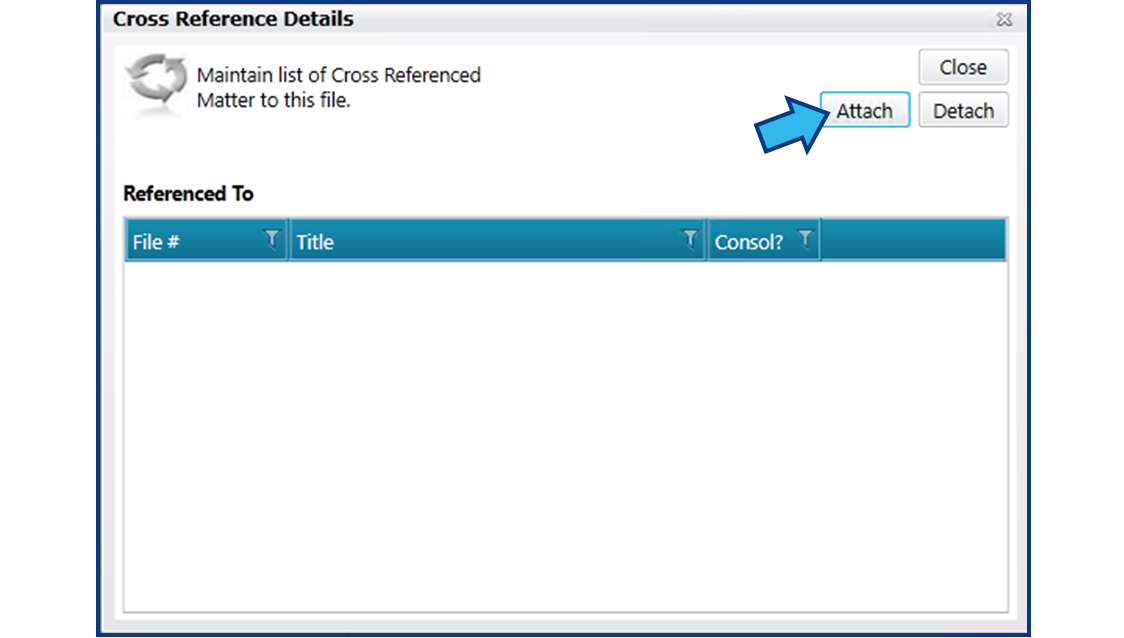
Press the Attach button to add a matter to the list.
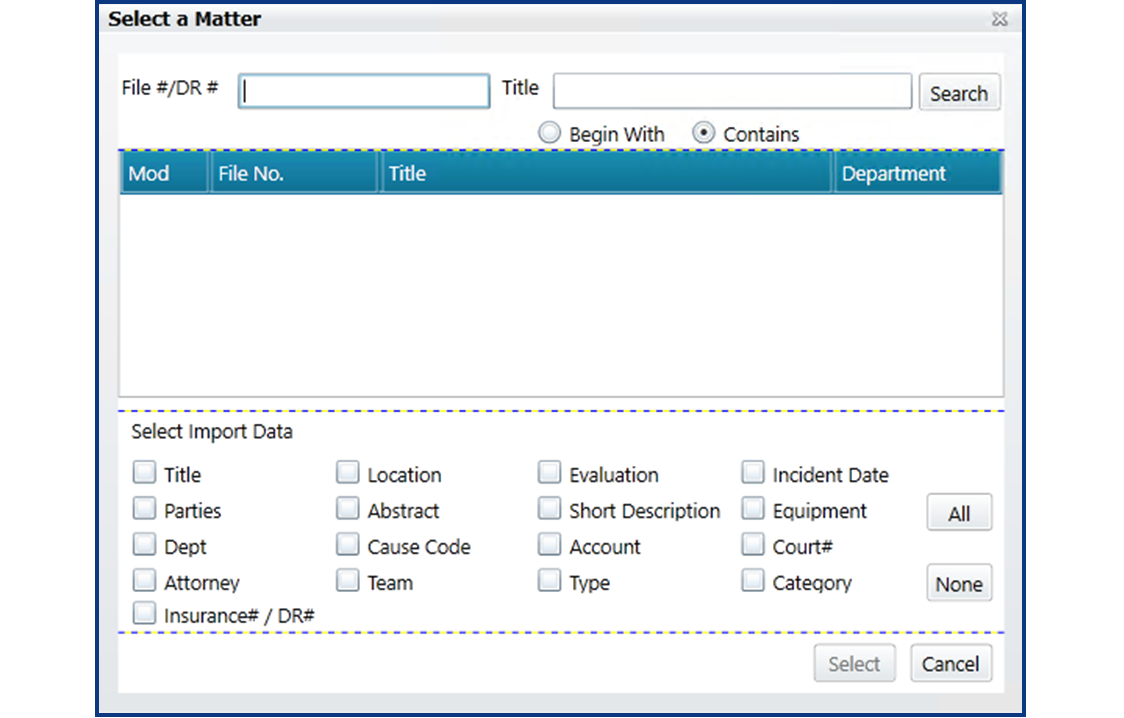
Search for the matter by File Number, DR#, or Title using the Search fields at the top. Once you locate the matter, select it in the list. It will appear highlighted in blue. At this point you may also select data to import from the cross-referenced matter to the current matter. This is especially useful when consolidating matters. Once you have made your selections, press the Select button in the lower right corner.
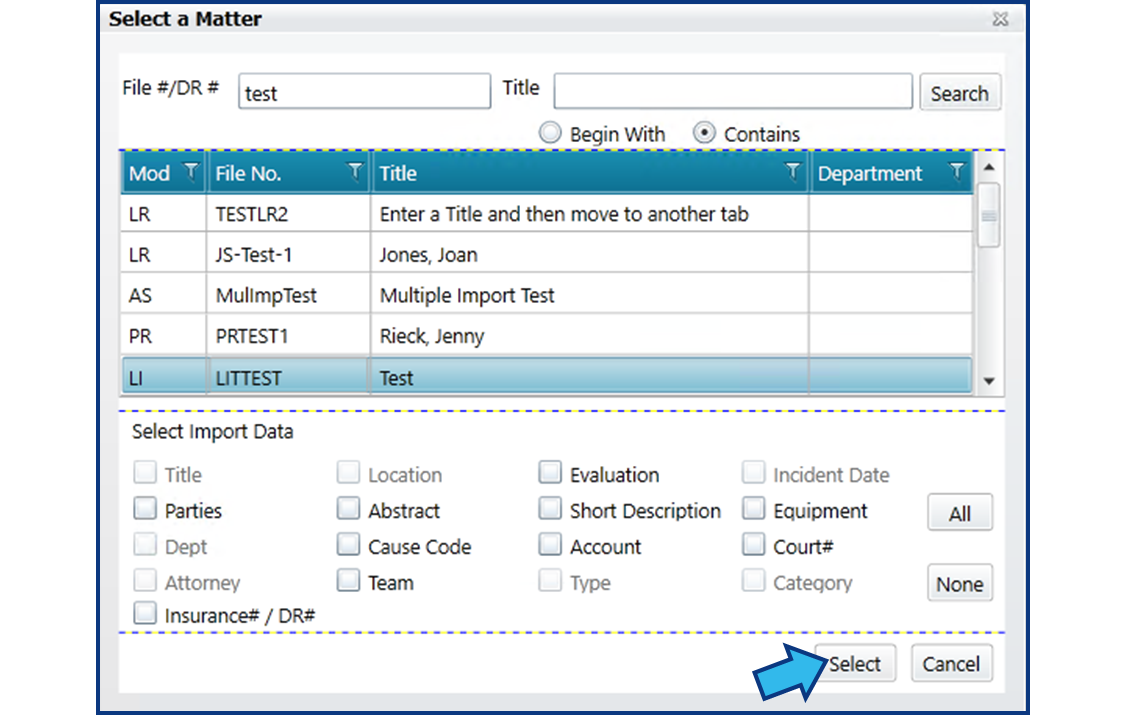
NOTE: The fields which are available for import are module-specific. Some modules, such as Claims and Litigation, do allow you to import data from other modules, but this is very limited.
The matter you have just selected is now added to the list in the Cross Reference Details window.
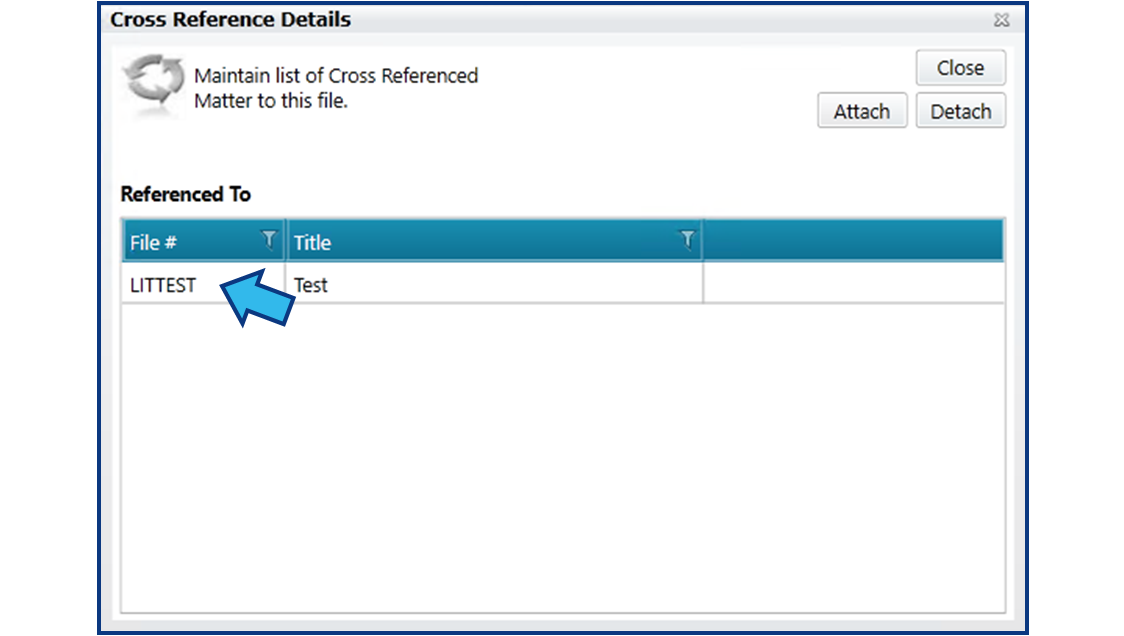
If you wish to remove a cross-referenced matter, select it in this list so that it appears highlighted in blue and then select the Detach button in the top right corner.
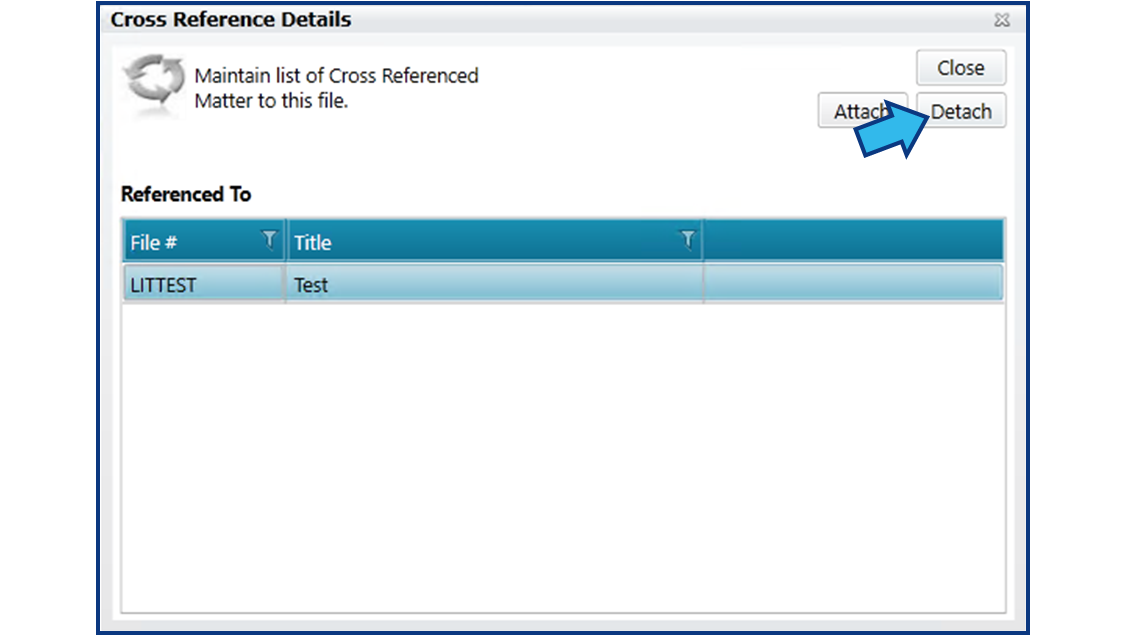
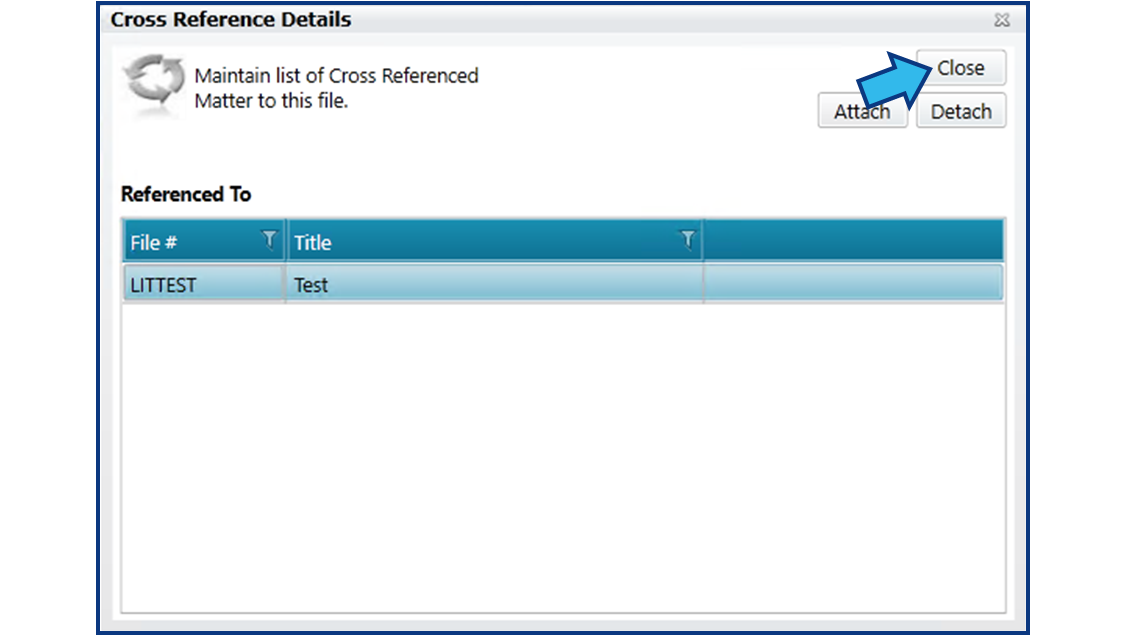
Once you are finished attaching and/or detaching matters, select Close in the top right corner.
In the Basic tab, in the Cross Ref field, any cross-referenced matter will be noted by its Title. NOTE: When more than one matter is cross-referenced on a matter, the Cross Ref field will display “Multiple Matters” in the field.

In all cases, to review any cross-referenced matters, select the ellipsis button for the Cross Ref field and then double-click the cross-referenced matter in the Cross Reference Details window to open that matter.
Comments
0 comments
Please sign in to leave a comment.