
Need a printable version of this article? Download the Article (PDF Version).
Need a reminder? Use the Quick Reference Guide.
Need more details? Check out the Standard Guide.
Quick Reference Guide
There are 5 steps to complete this task:
-
Open the Litigation module.
-
Press New.
-
In the New File window, press Auto.
-
In the New Litigation Entry window, fill out all mandatory fields.
-
Press Save.
Standard Guide
Step 1. Open the Litigation module.
There are 2 ways to open this module.
1-Step Option:
Press the Litigation icon on the Global Toolbar.


2-Step Option:
- On the Menu Bar, press File.
- Press Litigation.

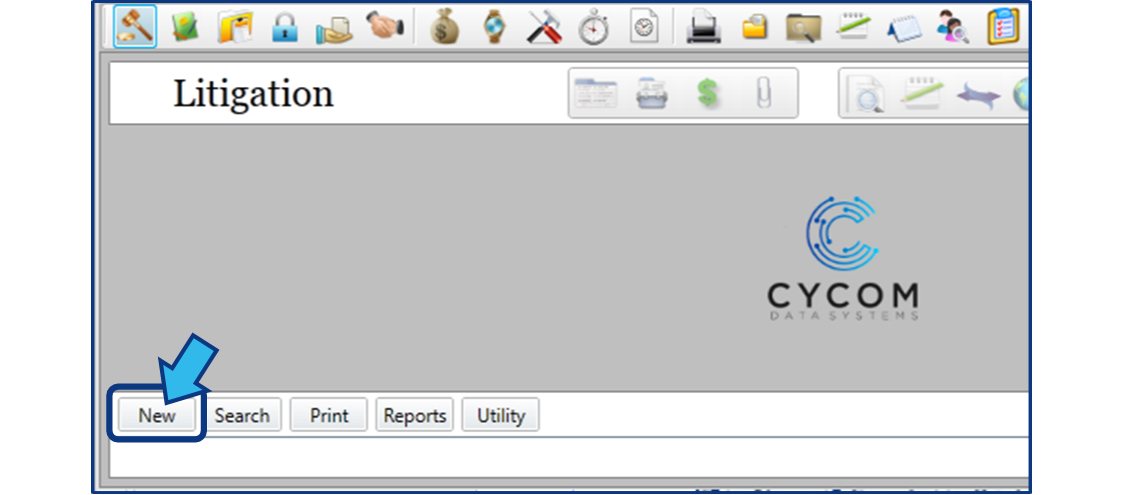
Step 2. Press New.
The New button is located in the bottom-left corner of the screen.
Step 3. Press Auto in the New File window.
A New File window appears on completing Step 2. Press the Auto button to automatically generate a File Number for the new matter in accordance with the naming convention of your office.

Step 4. Fill out the mandatory fields in the New Litigation Entry window.
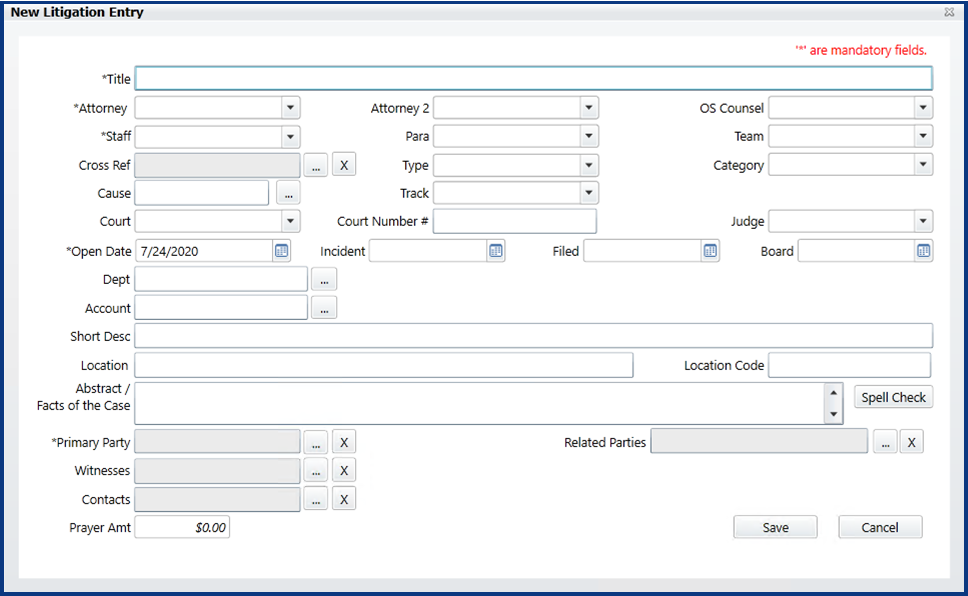
A New Litigation Entry window appears on completing Step 3. Fill out the mandatory fields for the matter.
Looking for field descriptions?
Check out the New Litigation Entry Field Description Guide.

Mandatory fields are marked with an asterisk (*). The new litigation cannot be saved until values for these fields are provided. A Warning window will appear if you try to save a new litigation without values in these fields.

You can navigate from field to field using Tab or Shift + Tab, and can cycle through drop-down lists with the up and down arrow keys.


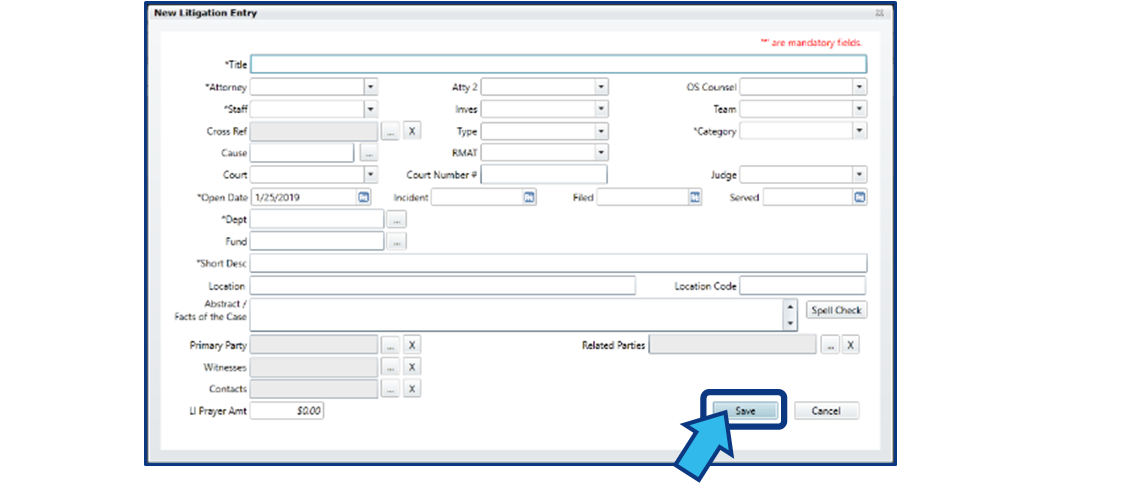
Step 5. Press Save.
The Save button is located in the bottom-right corner of the New Litigation Entry window.
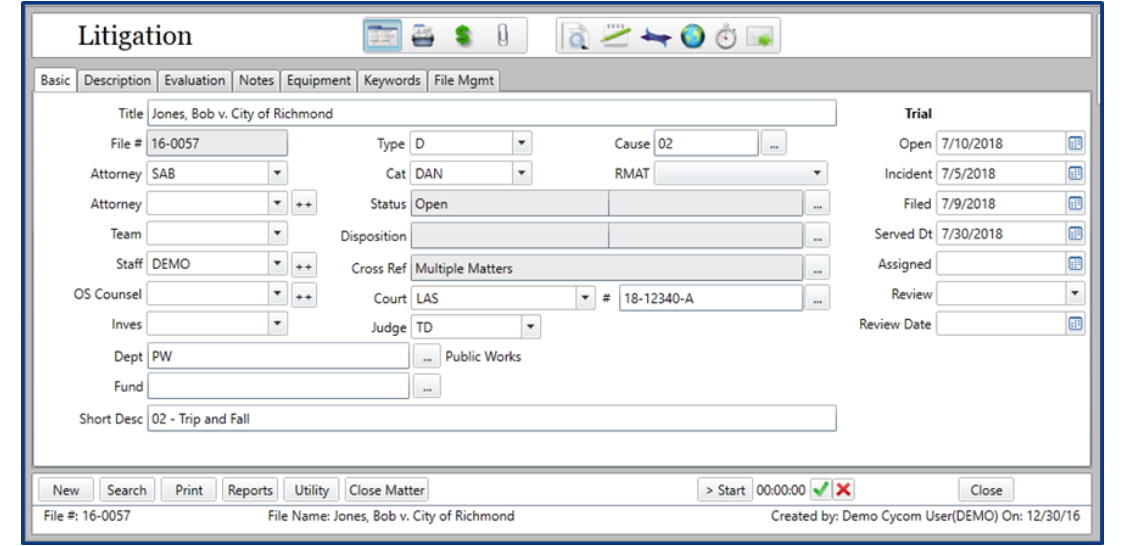
After saving, the Basic Tab of your new Litigation matter will appear.
New Litigation Entry
Field Description Guide
- Title
- Attorney
- Attorney 2 (Atty 2)
- Outside Counsel (OS Counsel)
- Staff
- Paralegal (Para)
- Team
- Cross Reference (Cross Ref)
- Type
- Category
- Cause
- Track
- Court
- Court Number #
- Judge
- Open Date
- Incident
- Filed
- Board
- Department (Dept)
- Account
- Short Description (Short Desc)
- Location
- Location Code
- Abstract / Facts of the Case
- Primary Party
- Related Parties
- Witnesses
- Contacts
- Prayer Amount (Prayer Amt)
The configuration of the CLW installation in your office determines which fields are mandatory or disabled, and which fields are visible. If you discover an issue with the field configuration in the New Litigation Entry window, please contact your System Administrator.
1. Title
The name of the new matter.
This is a mandatory field.
2. Attorney
The attorney to whom the matter was given. If you are an attorney, this field will auto-populate with your username.
3. Attorney 2 (Atty 2)
An additional attorney, if applicable.
4. Outside Counsel (OS Counsel)
Outside Counsel used on the matter.
5. Staff
The staff assigned to the matter, or the staff responsible for managing the entry of this matter.
6. Paralegal (Para)
The paralegal assigned to the matter.
7. Team
The team to which the matter is assigned.
8. Cross Reference (Cross Ref)
It is possible to cross-reference another matter when creating a new case. See Cross-referencing a matter to learn more.
9. Type
Each Category code has a subset of Type codes. Some examples of type codes are Procurement, Licensing, Civil Rights, Personnel, and Zoning.
10. Category
Category codes separate matters into classifications relevant to your office. Some examples of categories are Contracts, Ordinances, Opinions, and Resolutions.
11. Cause
The cause code for the matter.
12. Track
A tracking code to identify the matter handling process.
13. Court
The court that will see this matter.
14. Court Number #
The court number for this matter.
15. Judge
The judge that will preside over this matter.
16. Open Date
The date the matter was opened.
17. Incident
The date of the incident.
18. Filed
The date the matter was filed.
19. Board
The board date of the matter.
20. Department (Dept)
The Department field represents the entity to whom the services of the matter are being rendered.
21. Account
The account to which expenses for this matter are applied.
22. Short Description (Short Desc)
A short description of the matter.
23. Location
This field may be used to note the location of the incident or the location of matter files. Check with your System Administrator or Office Manager to confirm how your site uses this field.
24. Location Code
The location code for this matter.
25. Abstract / Facts of the Case
An unlimited text field to enter the matter abstract and/or any additional description of the matter.
26. Primary Party
The primary party, or parties, on this matter. Primary parties typically include the Claimant and Respondent.
27. Related Parties
Parties related to a primary party. Related parties typically include attorneys or others responsible for representing the interests of, or acting as agents for, a primary party.
28. Witnesses
Individuals who may have witnessed the incident or may provide relevant information.
29. Contacts
Additional individuals relevant to the matter that are neither assigned staff, primary parties, related parties, or witnesses.
30. Prayer Amount (Prayer Amt)
The amount the Litigant is seeking to resolve the matter.
Comments
0 comments
Please sign in to leave a comment.