
The Edit button allows you to put a Matter into a locked state so that no one can edit it until you release the lock. The Edit button has been added to the Matter Basic tab of these Modules:
- Assignments
- Litigation
- Claims
- Subrogation (Third Party Claims)
- Labor Relations
- Family Services
- Workers Compensation
Using the Edit button
The Matter Edit button is located at the top-left of the Basic tab.
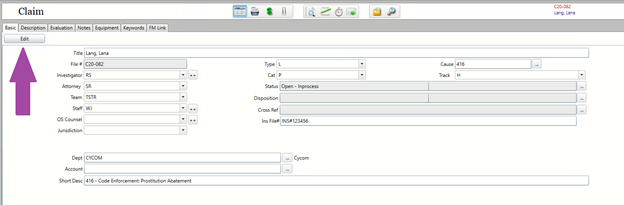
No changes can be made on the Basic tab until the Edit button is pressed. When the Edit button is pressed, the caption changes to “Finalize Edits” and the Basic tab of that matter is locked, preventing other users from making changes.
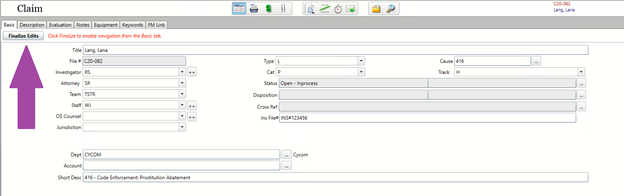
Matter lock notification
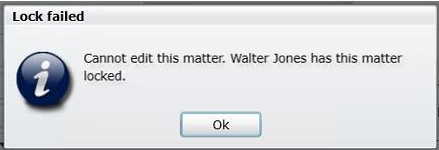
Anyone who attempts to edit a locked Matter will receive a notification with the name of the current editor:
Matter Unlock Timer
When you press the Edit button, an invisible 10-minute timer will begin. When the timer runs out, you will receive a notification that the Matter lock will be released in thirty seconds:
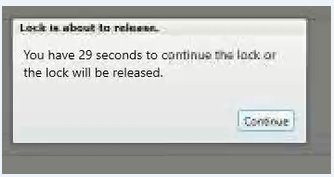
If you press "Continue", the timer will reset. If you do not press "Continue" and the remaining thirty seconds expire, the Matter is unlocked and any changes you have made since the lock will be lost.
The default timer duration can be changed from 10 minutes to any duration between one (1) and sixty (60) minutes.
Finalizing edits
Once you are done with your changes, press "Finalize Edits" to release the lock on the matter and save your changes.
NOTE: While the Matter is locked, you cannot navigate to other tabs or sections of the Matter, nor are you able to navigate to other matters in the Search Results. You must first press "Finalize Edits", which releases the lock and allows you to navigate as normal.
Comments
0 comments
Please sign in to leave a comment.