
Need a reminder? Use the Quick Reference Guide.
Need more details? Check out the Standard Guide.
Need it print-friendly? Download the Article (PDF Version).
Quick Reference Guide
There are 5 steps to complete this task:
-
Open the Assignments module.
-
Press New.
-
In the New File window, press Auto.
-
In the New Assignment Entry window, fill out all mandatory fields.
-
Press Save.
Standard Guide
Step 1. Open the Assignments module.
There are 2 ways to open this module.
1-Step Option:
Press the Assignments icon on the Global Toolbar.


2-Step Option:
- On the Menu Bar, press File.
- Press Assignments.

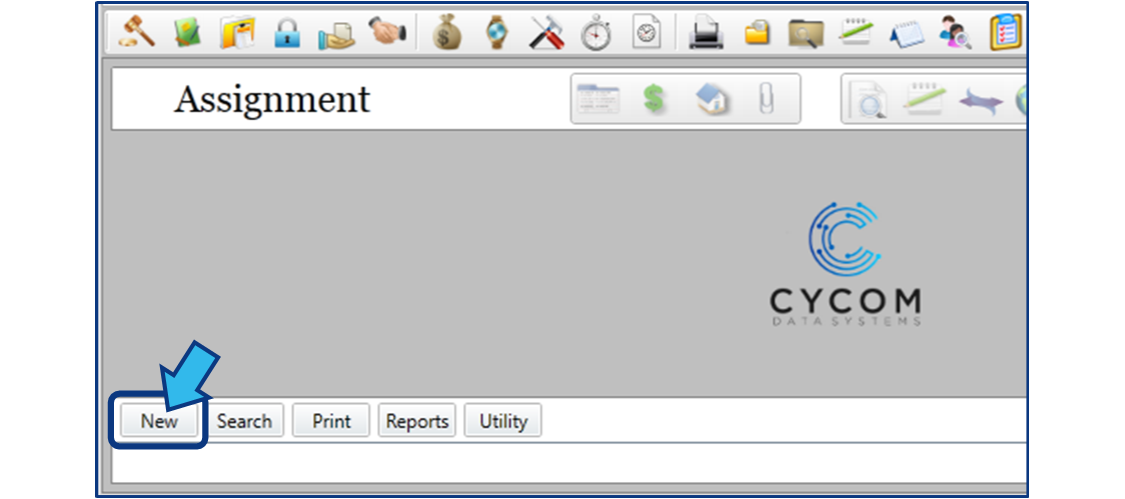
Step 2. Press New.
The New button is located in the bottom-left corner of the screen.
Step 3. Press Auto in the New File window.
A New File window appears after you complete Step 2. Press the Auto button to automatically generate a File Number for the new matter in accordance with the naming convention of your office.

Step 4. Fill out the mandatory fields in the New Assignment Entry window.
A New Assignment Entry window appears after you complete Step 3. Fill out the mandatory fields for the matter.
Looking for field descriptions?
Check out the New Assignment Entry Field Description Guide.

Mandatory fields are marked with an asterisk (*). The new assignment cannot be saved until values for these fields are provided. A Warning window will appear if you try to save a new assignment without values in these fields.

You can navigate from field to field using tab, and can cycle through drop-down lists with the up and down arrow keys.


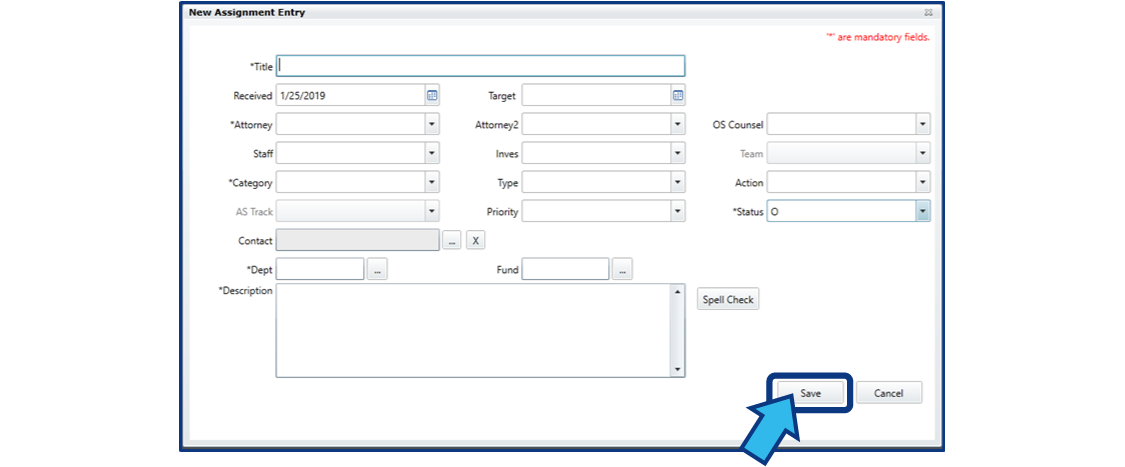
Step 5. Press Save.
The Save button is located in the bottom-right corner of the New Assignment Entry window.
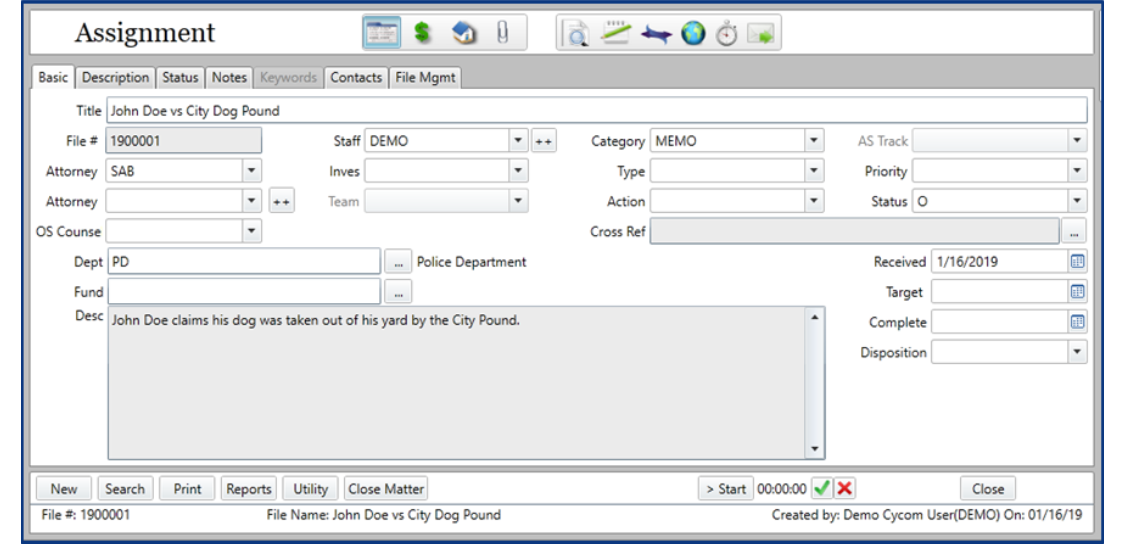
After saving, the Basic Tab of your new Assignment matter will appear.
New Assignment Entry
Field Description Guide
- Title
- Received (Date)
- Target (Date)
- Attorney
- Attorney 2
- Outside Counsel (OS Counsel)
- Staff
- Investigator (Inves)
- Team
- Category
- Type
- Action
- AS Track
- Priority
- Status
- Contact
- Department (Dept)
- Fund
- Description
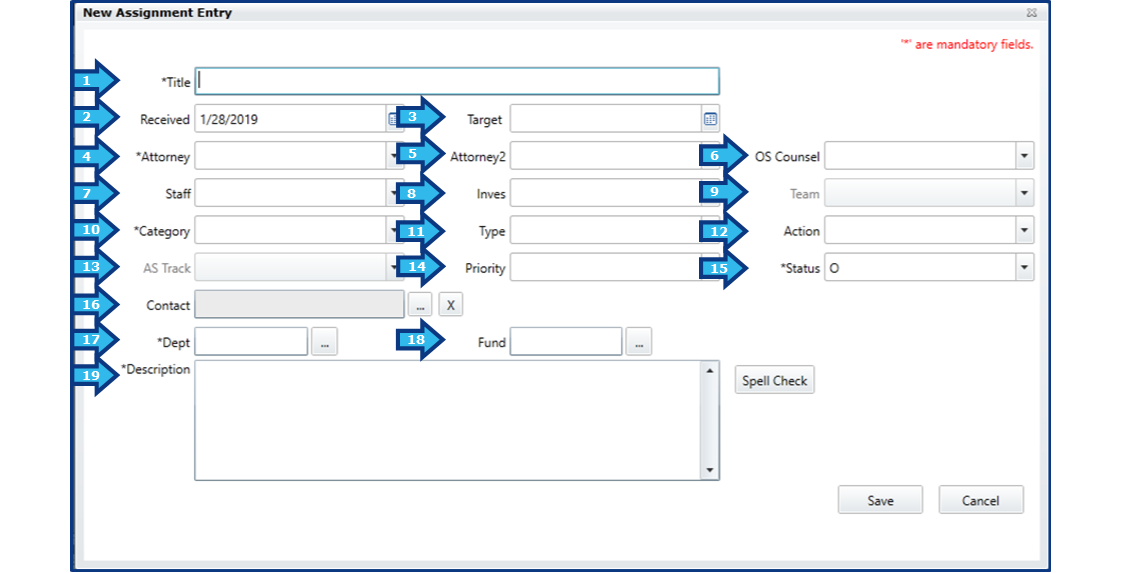
The configuration of the CityLaw/CountyLaw installation in your office determines which fields are mandatory or disabled, and which fields are visible. If you discover an issue with the field configuration in the New Assignment Entry window, please contact your System Administrator.
1. Title
The name of the new Assignment matter.
This is a mandatory field.
2. Received (Date)
The date the assignment was received. The value will default to the current date.
This is a mandatory field.
3. Target (Date)
The estimated date the assignment will be completed. Entering a Target Date will automatically place it on the calendar.
4. Attorney
The attorney to whom the assignment was given. If you are an attorney, this field will auto-populate with your username.
5. Attorney 2
An additional attorney, if applicable.
6. Outside Counsel (OS Counsel)
Outside Counsel used on the assignment.
7. Staff
The staff to whom the assignment was given, or the staff responsible for managing the entry of this assignment.
8. Investigator (Inves)
The investigator used on the assignment.
9. Team
The Team responsible for the assignment.
10. Category
Category codes separate assignments into classifications relevant to your office. Some examples of Categories are Contracts, Ordinances, Opinions, and Resolutions.
This is a mandatory field.
11. Type
Each Category code has a subset of Type codes. Some examples of Type codes are Procurement, Licensing, Civil Rights, Personnel, and Zoning.
12. Action
Action codes describe the service to be performed by the Attorneys or Staff member on the assignment matter (e.g. Review, Prepare, Attend, Advice).
13. AS Track
...
14. Priority
The priority assigned to this matter.
15. Status
The current state of the matter (e.g. Open, Closed, Pending).
This is a mandatory field.
16. Contact
It is best practice to assign a contact to every Assignment matter. This might be a Department contact or a non-City/County employee.
17. Department (Dept)
The Department field represents the entity to whom the services of the Assignment are being rendered.
This is a mandatory field.
18. Fund
...
19. Description
This is a description of the nature of the assignment for the purpose of understanding its scope and aiding in future searches for this or similar assignments.
Comments
0 comments
Please sign in to leave a comment.