

Vol.3 - March / April 2019
In this issue:
-
News
-
On the Horizon
-
Beyond the Horizon
-
Tips from Support
-
New Help Center Articles
-
Enhancement Lists
-
Upcoming Webinars
-
Contacting Cycom Support
-
Observed Holidays
News
Cloud-based Subscriptions
CityLaw / CountyLaw is compatible with Microsoft’s cloud environment – Microsoft Azure. There are many options that Microsoft provides with Azure environments, and therefore different ways this can be used with our system. If your IT infrastructure is moving towards the cloud, contact us at upgrades@cycominc.com to discuss how we can assist with that migration.
On the Horizon
Debt Collections module
Debt Collections will be used to track a citizen’s obligations to a client department or agency, referred to the legal department for enforcement. This module tracks fines, judgements, payments, and interest. Report progress back to the various agencies from the module’s print-outs.
Beyond the Horizon
E-file documents directly from CityLaw / CountyLaw
Wouldn’t it be nice to click a button on your documents page in CityLaw / CountyLaw that says “E-File” and have a PDF copy of the highlighted document be e-filed with the associated court on the matter? We’re working to make that a reality. Every jurisdiction will have their own standards for how that connection is made, so this will become available on an ad-hoc basis, as jurisdictions make the necessary connection details available.
Tips from Support
Password of the Day Requests
Password of the Day requests can be made by authorized persons via email. Include "Password of the Day" in the subject of the email and send it to support@cycominc.com. We will respond with the numeric portion of the Password of the Day. This password is required for adding or removing Deny File Access Restrictions.
How to Deny File Access
Deny File Access is the process where a user or users of CityLaw\CountyLaw can be blocked from opening a matter. If a user is denied file access, the user will not be able to search for a matter or documents associated with the file as well as search for the matter itself.
To deny file access, you will need the password of the day. The password of the day is only given to users who have been granted permission to receive the password. The Password of the Day will give the user the ability to enter the Deny File Access module listed under options.
After gaining access to the Deny File Access module, you will need to enter in the matter number or title you wish to have access denied. Once the matter is selected, you will then be able to select the staff that you wish to be denied access to the matter.
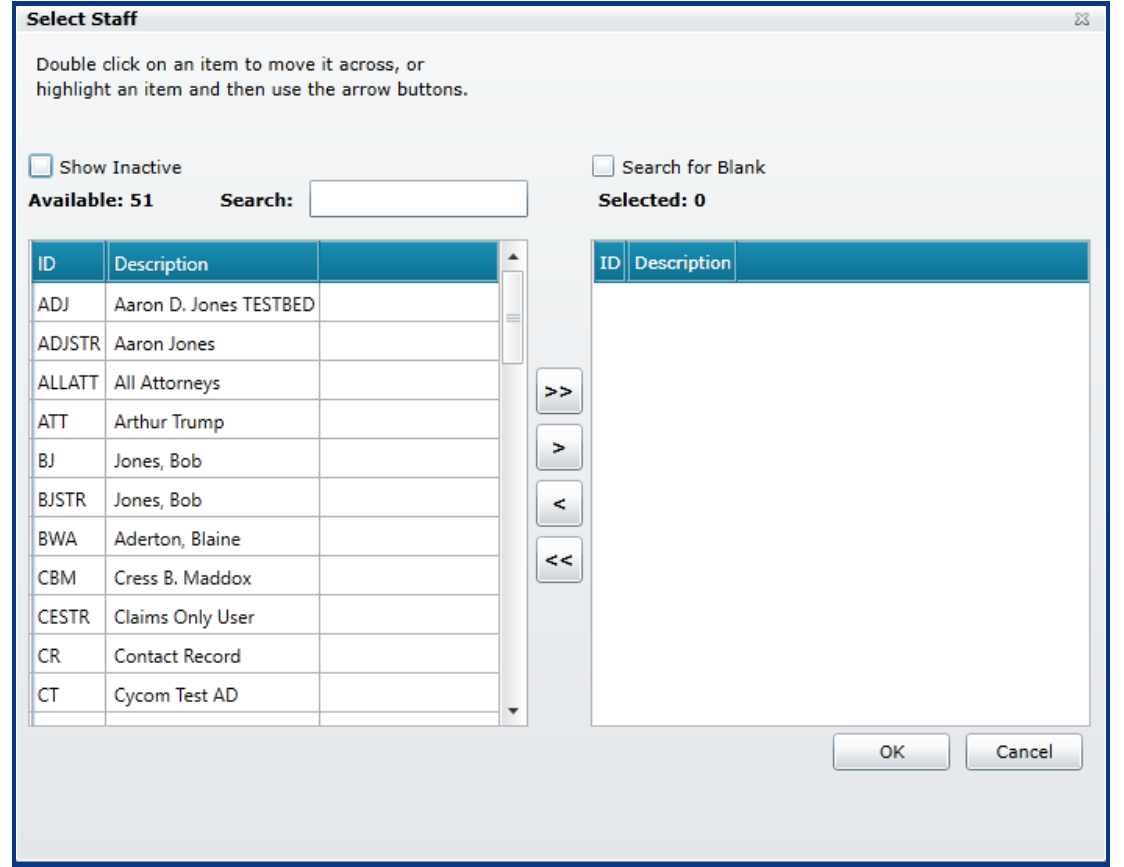
You will do this by pressing the New button and then selecting the ++ next to the staff option. In the next dialog, you will be moving staff names from the left side to the right side. Those on the right side will be denied access to the file. It is important that you leave your name as the admin on the left side or you will also be denied file access. Once all the names have been moved to the right, press the OK button and close out the Deny File Access dialog.
It is best to put a minimum amount of information into a new matter that you wish to deny file access to. After that, then you can go and do the deny file access process and then add more information to the matter.
If you accidentally find that you have denied yourself access to the matter you can call Cycom Support and we will get you access again. All new users entered into Tools\System Management will automatically be denied access to any file that has a deny file access associated with it. To grant file access you will need to undo the file restriction for that user.
How to Grant File Access
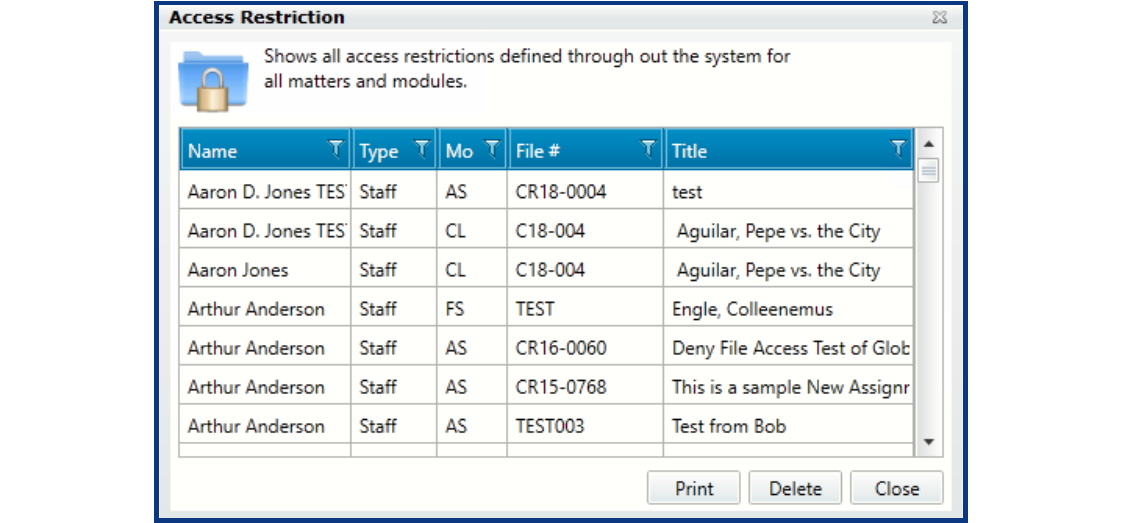
Granting File Access to a user to a matter that has been denied access also requires the password of the day. Under Options, you will use the Show All File Access Restrictions module to remove the denial
This module will show you all users who have been denied a file access and which files they are denied access to. To grant access simply highlight their name and press the delete button. You will be asked to confirm that you want the denial removed. After pressing the yes button, the user’s name will be removed off the list for that matter and they will have access to that file.
New Help Center Articles
We are continually adding articles to the Help Center to help you find the information you need. A few of our latest additions include:
Enhancement Lists
You can view the latest enhancements to CityLaw / CountyLaw in the Release Notes section of our Help Center.
Upcoming Webinars
Reports – No end of options
Friday, March 15, 2019 10:00 AM – 10:30 AM CDT
Time Entry made easy
Friday, May 10, 2019 10:00 AM – 10:30 AM CDT
Document Management
Friday, July 12, 2019 10:00 AM – 10:30 AM CDT
Contacting Cycom Support
Cycom Support can be reached in the following ways:
- Phone call to 1-800-292-6688
- Email to support@cycominc.com
Whether calling or emailing please describe the issue as clearly and succinctly as you can. This will help us respond in an appropriate amount of time and with the tools needed.
When leaving a voice message, please include your name, phone number, your organization, and a brief description of the issue.
Observed Holidays
Cycom Support will be closed the following days.
- May 27, 2019: Memorial Day
- July 4, 2019: Independence Day
- September 2, 2019: Labor Day
- November 11, 2019: Veteran’s Day
- November 28 and 29, 2019: Thanksgiving Day
- December 25, 2019: Christmas Day
Comments
0 comments
Article is closed for comments.