

Vol.5 - July / August 2019
In this issue:
Enhancements
Two recent enhancements are highlighted below.
Search Results Window Size Persists
In version 1.4438, we added a customization enhancement so that adjusting the size of the search results grid in a module is persistent for that module, even after the module or CityLaw / CountyLaw has been closed.
Category Codes can be Inactivated
In version 1.4440, we added the ability to inactivate Category Codes in all modules.
Enhancement Lists
You can view all the latest enhancements to CityLaw / CountyLaw in the following articles in our Help Center:
On the Horizon
Allegations tab for Litigation
We’re adding an optional tab to the Litigation module which assists with tracking discrimination complaints: Allegations. The Allegations tab can be connected to the online intake portal so citizens can file discrimination complaints from their computer or phone. The following languages are currently in development for this portal: English, Spanish, French, Mandarin, Hmong, and Tibetan.
New Module: Debt Collections
We’re adding an entirely new module to CityLaw / CountyLaw! The Debt Collections module is a part of CityLaw / CountyLaw NG and will be available next quarter. If your office collects debts on behalf of referring agencies of the city or county, contact us to find out how the Debt Collections module will work for you.
Calendar Sync add-in on Office Add-in Platform
We’re rewriting our Outlook Calendar Sync add-in, allowing you to link appointments to CityLaw / CountyLaw matters from Outlook Desktop and Web. If you use Microsoft Office 365, you can manage the deployment of Calendar Sync from the Admin Portal.
Beyond the Horizon
CityLaw / CountyLaw Next Gen (NG)
- Completion of the NG edition of CityLaw / CountyLaw is slated for the end of Q2 2020.
Automatic Upgrade Notifications
- CityLaw / CountyLaw NG will notify you when a new version is available, allowing you to opt in or out of version upgrades. Grant upgrade management authority to the personnel of your choosing.
Tips from Support
In this issue we will look at the many options available for the Skyline View.
Changing the Default View
CityLaw / CountyLaw Web offers three possible default views.
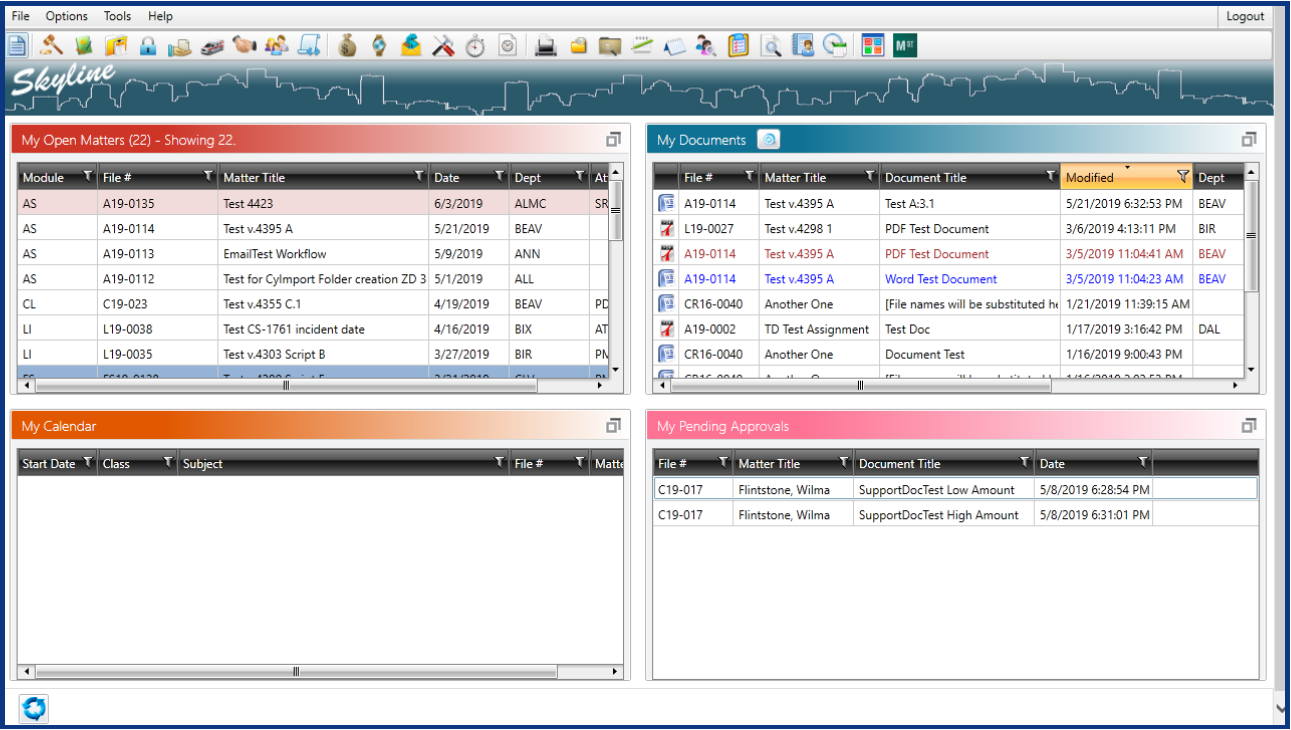
Skyline View
Skyline View displays up to 4 information tables in a grid.
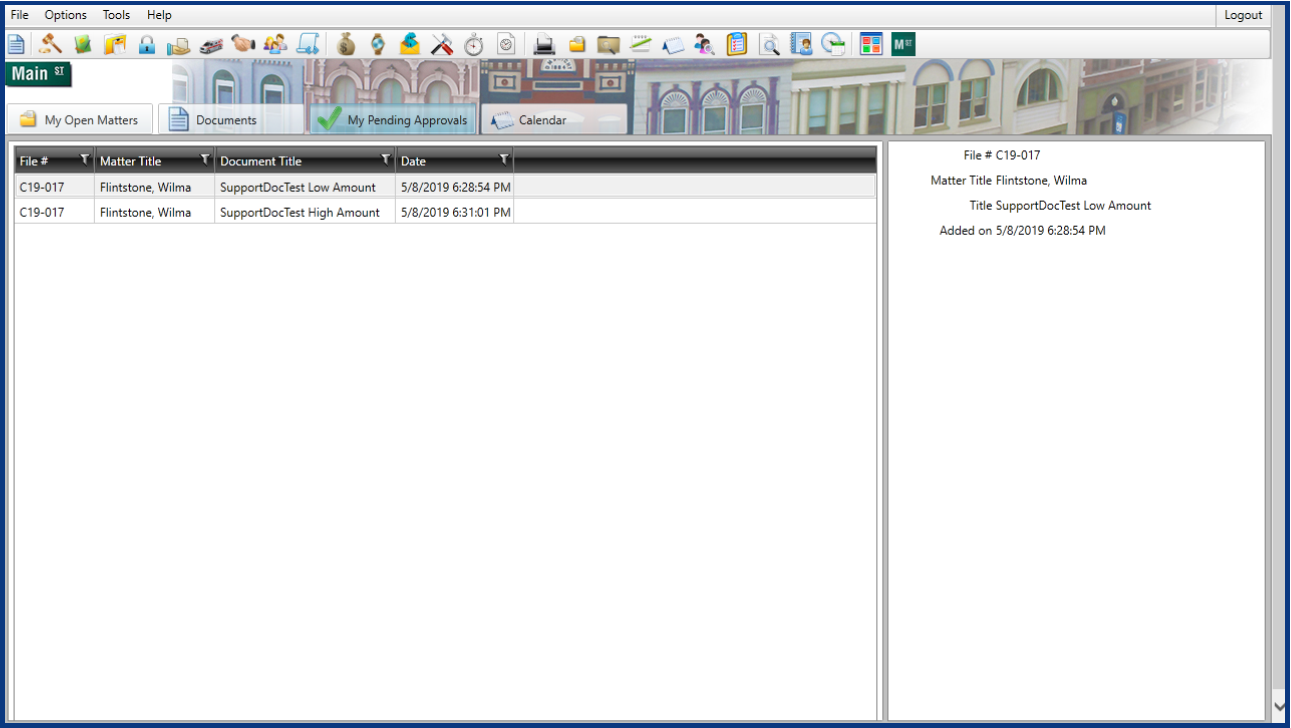
Main Street View
Main Street View displays up to 4 information tables in a tabbed pane.
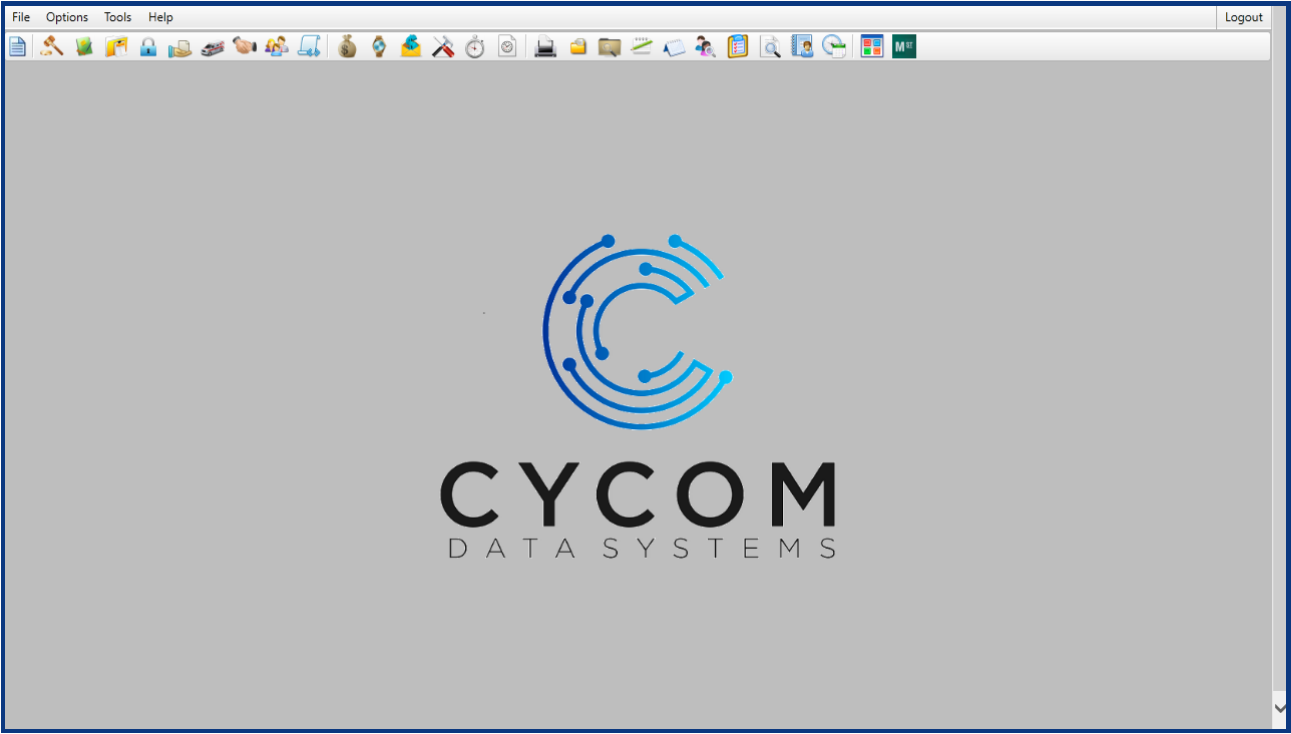
None View
None View only displays the Global Toolbar.
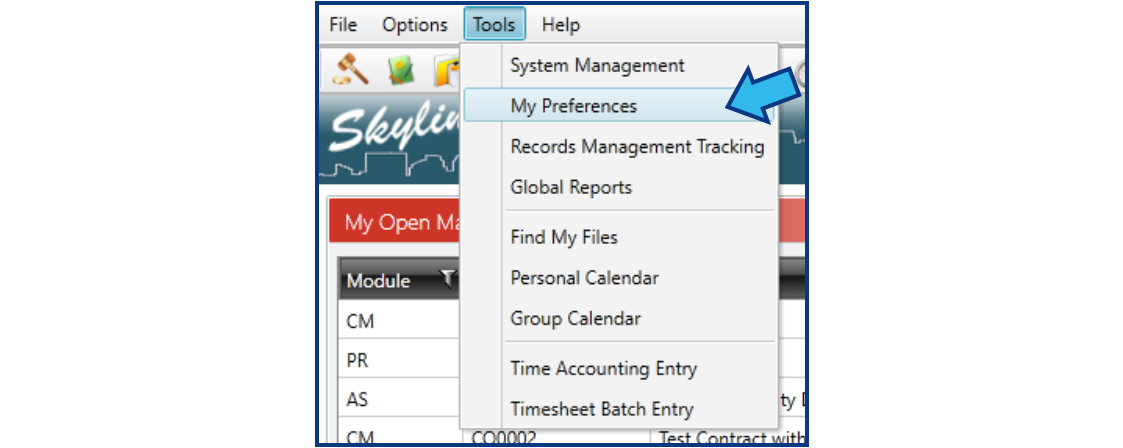
The default view can be set by going to Tools > My Preferences > Initial View.
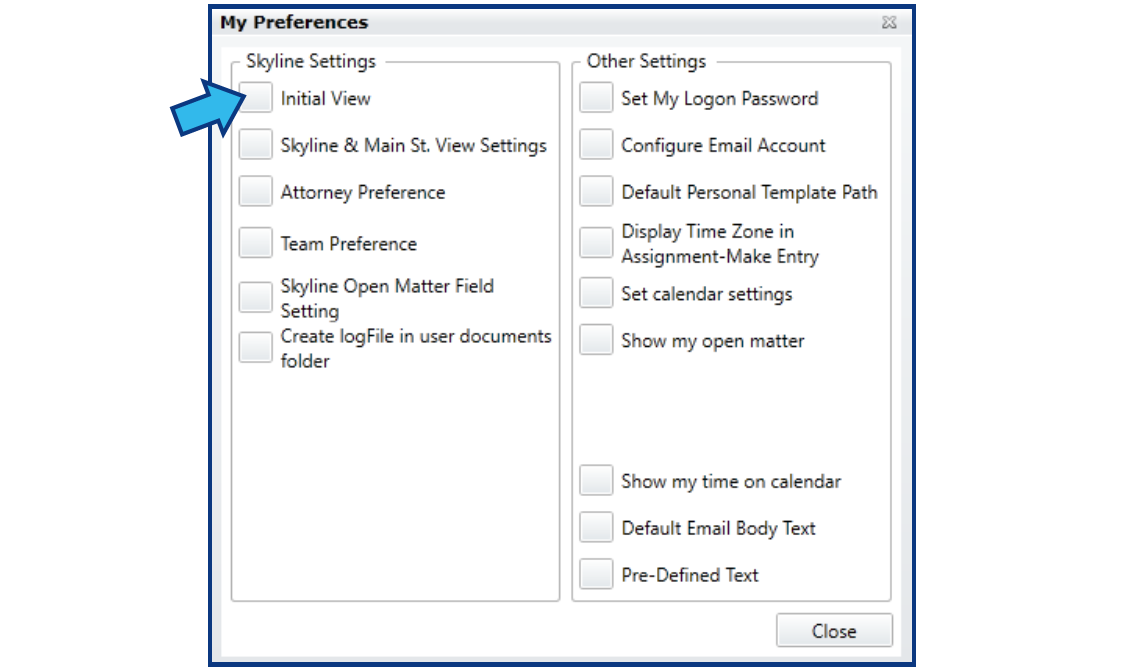
Customizing Skyline Display Options
The information tables in the Skyline View can be customized by selecting the Tools > My Preferences > Skyline and Main St. View Settings option.
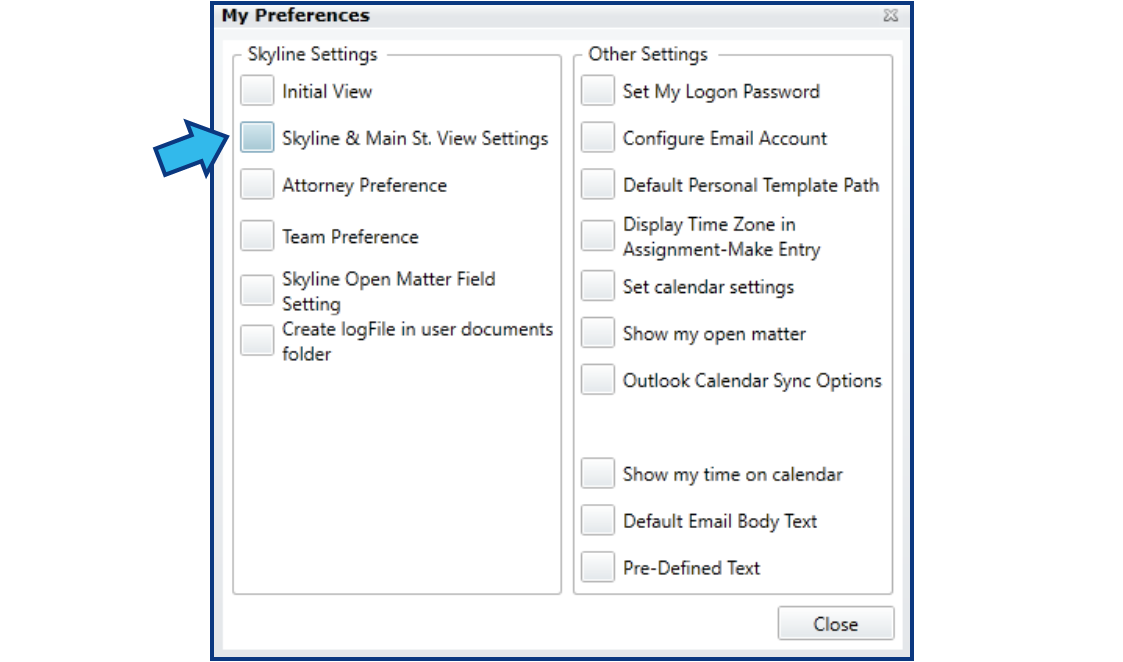
There are 6 options to choose from, and you can choose up to 4 of them:
- My Matters
- My Documents
- My Pending Approvals (this option is still being developed and may not be available at your site)
- My Emails
- My Calendars
- Parties on My Open Matters
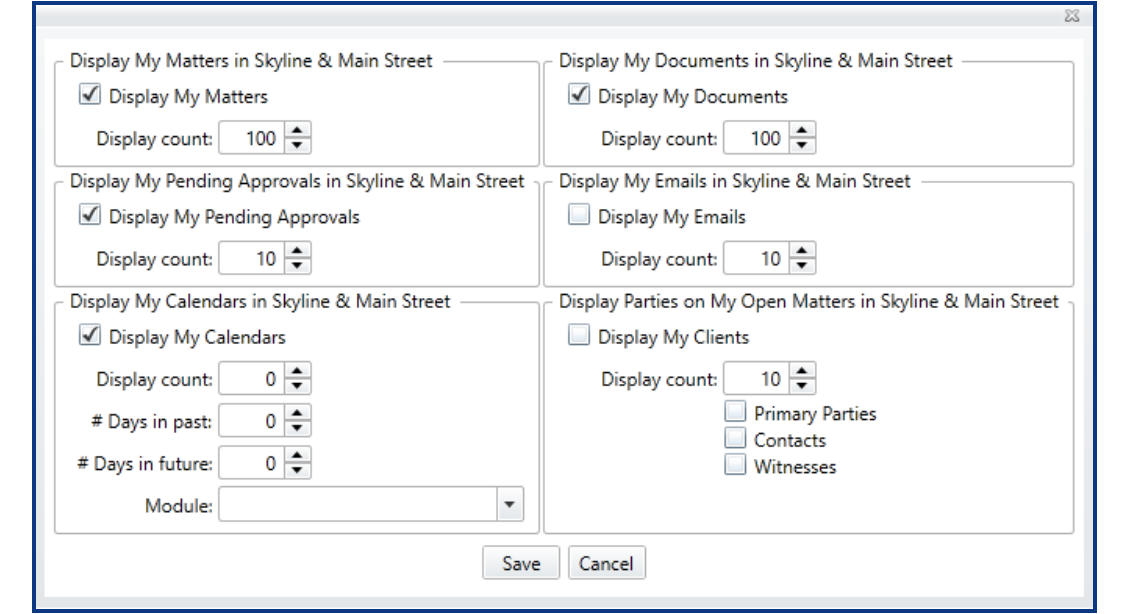
Each option has a box to check to display them in Skyline. You can also select how many of each you wish to display using the Display count field.
The My Calendars option also includes a setting to select a module to see only the calendar events for that module and settings to select the number of days in the future and past you wish to display the calendared events.
The Parties option includes 3 check boxes (Primary Parties, Contacts, and Witnesses) to specify the types of parties to display.
Customizing Skyline Open Matter Fields Displayed
Skyline has an Open Matter Field Setting option that allows you to add the following to the My Matter display:
- Assign Date
- Review Date
- Incident Date
- Serve Date
- Team
- Category
- Filed Date
- Target Date
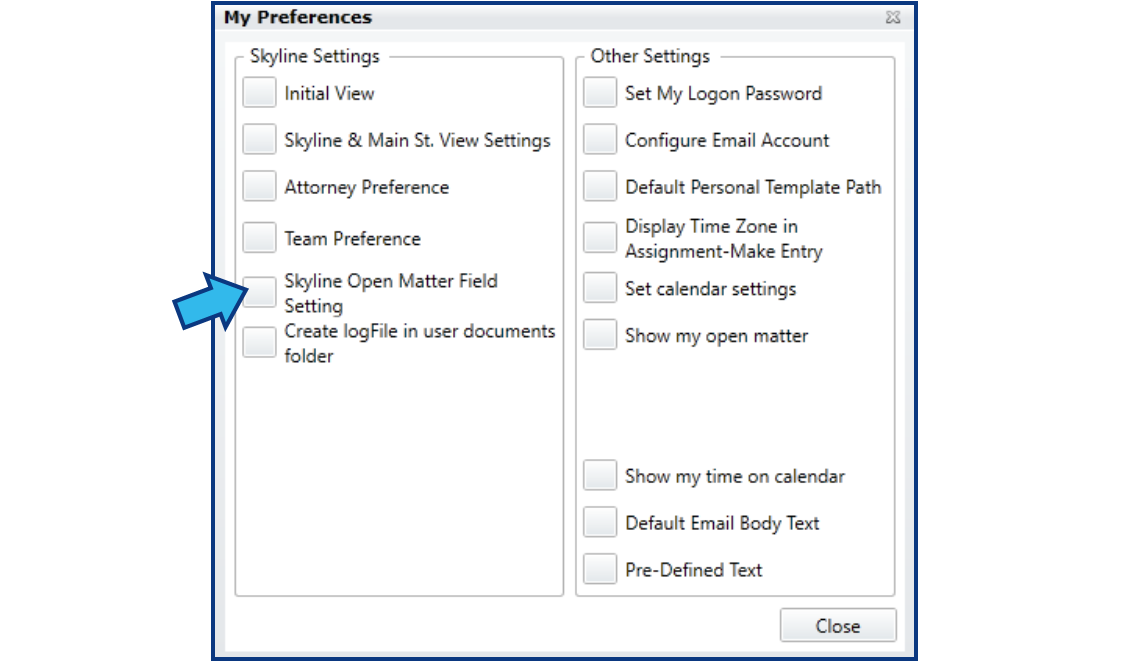
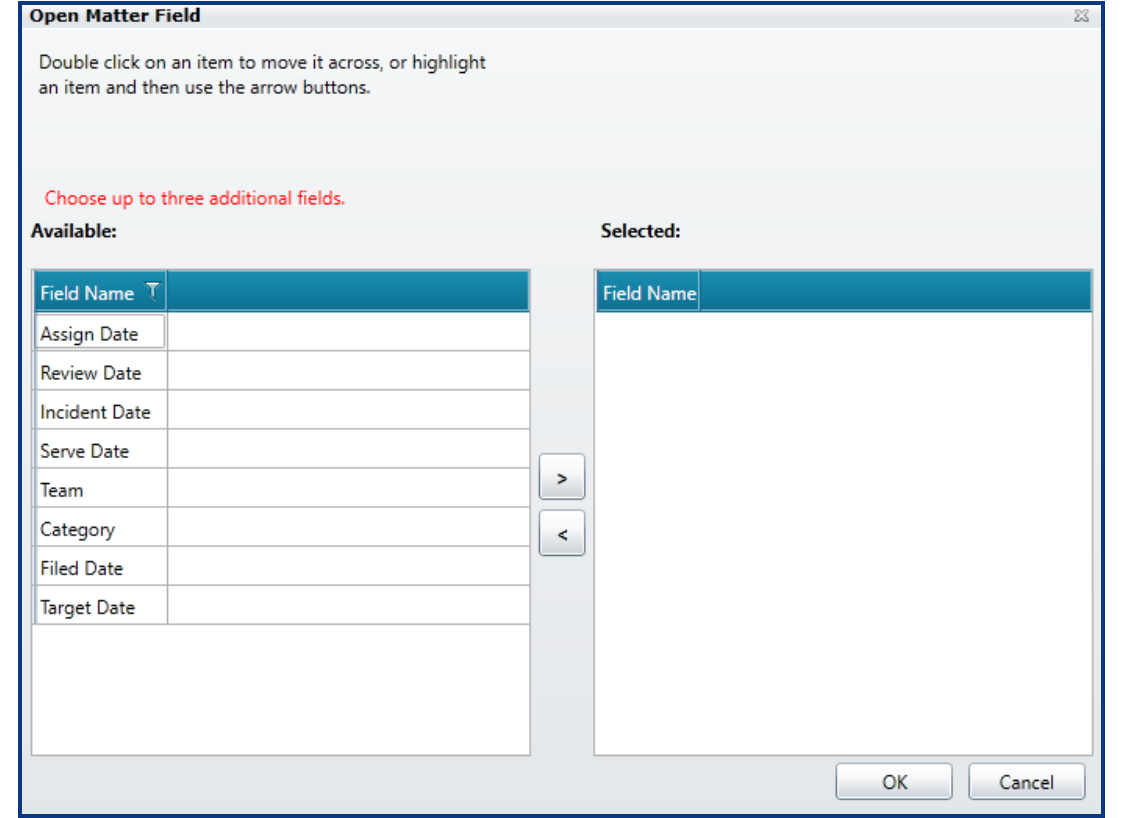
These options will not show for every module but will show for those modules that have the fields as part of the basic screen. For example, the Assignments module does not have an assigned date option, but Litigation does.
New Help Center Articles
We are continually adding articles to the Help Center to help you find the information you need. A few of our latest additions to our FAQ section include:
Support Q & A
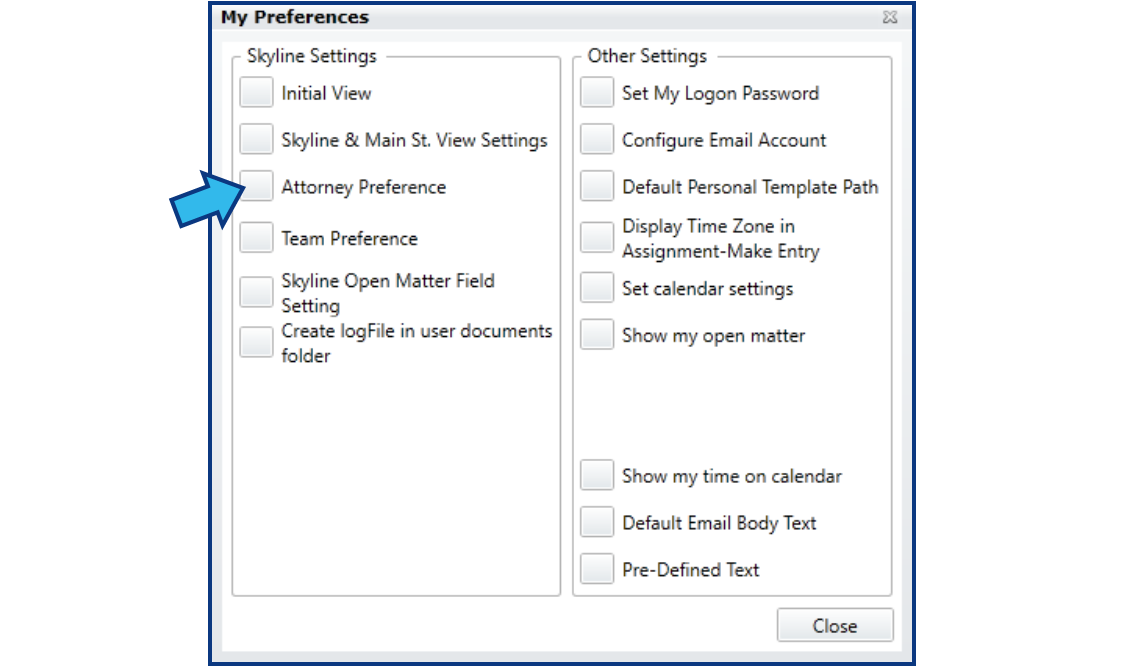
Q – Is there a way for me to see a specific attorney's open matters in my Skyline View?
-
A – Yes. Under Tools > My Preferences > Attorney Preferences.

-
Here you can select one or more attorneys from the drop-down and their open matters will be added to your view. The only exception is if the file has been denied access to you.
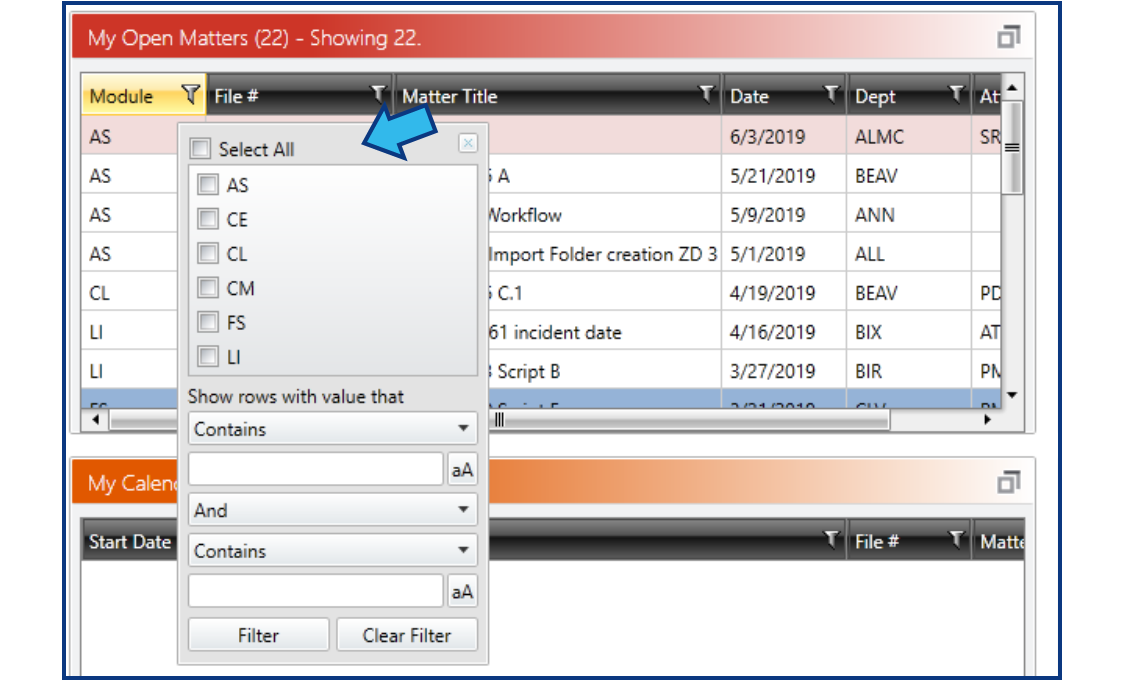
Q – Is there any way to filter my Skyline View?
-
A – Yes. There are filters located at the top of each of the column headings.

-
You can use these to limit the modules you see, the attorney or department listed, and more. Just click on the funnel on any heading to see the filter options available for that column.
Q – Can the sort order be rearranged?
-
A – To some degree it can. You can click on the column label and the order will reverse, either alphabetically or by date, depending on the column contents.
Support Topic Suggestions?
We would love to hear from you with your suggestions for Support Topics to be put in our newsletter. If you have any suggestions, send them to support@cycominc.com and put Newsletter Topic in the subject line.
Upcoming Webinars
Document Management
Friday, July 12, 2019 10:00 AM – 10:30 AM CDT
Contacting Cycom Support
Cycom Support can be reached in the following ways:
- Phone call to 1-800-292-6688
- Email to support@cycominc.com
Whether calling or emailing please describe the issue as clearly and succinctly as you can. This will help us respond in an appropriate amount of time and with the tools needed.
When leaving a voice message, please include your name, phone number, your organization, and a brief description of the issue.
Observed Holidays
Cycom Support will be closed the following days.
- July 4, 2019: Independence Day
- September 2, 2019: Labor Day
- November 11, 2019: Veteran’s Day
- November 28 and 29, 2019: Thanksgiving Day
- December 25, 2019: Christmas Day
Comments
0 comments
Please sign in to leave a comment.