

Vol.4 - May / June 2019
In this issue:
-
Tips from Support
-
Support Q & A
-
Support Topic Suggestions?
-
New Help Center Articles
-
Enhancement Lists
-
Upcoming Webinars
-
Contacting Cycom Support
-
Observed Holidays
Tips from Support
In this issue we will look at working with adding a new staff record, making staff inactive and adding staff back in who were once made inactive. These options require access to Global Utilities and knowledge of the Admin Password. We also review how to find cases for staff who have been made inactive.
Adding a New Staff Member
To add a new staff member, you will go to Tools\System Management\ and either staff or attorney as appropriate. At a minimum, you will need to enter in the following:
- User ID (must be unique for that user in CityLaw / CountyLaw)
- Net User value (This value is the Windows net user value)
- Email address for the user
- Select the modules that the user should have access to
When you save the staff record, you will get a prompt.

If you answer “yes”, then the user will be denied all matters that everyone else is denied. If you answer “no”, then you will need to enter in the admin password and the user will have access to all matters.
If you want to restrict access to any matters for this new user after choosing “no” you will need to go to the Deny File Access options and choose the matters that the user should not have access to.
Even if you answer “yes” you can still go to the Show File Restrictions and remove the denial from any matters you choose.
Whether you answer “yes” or “no” will depend on whether it is faster to add file denials or remove file denials after creating the staff record.
Making Staff Inactive
When staff leave your organization, you will need to remove them from CityLaw / CountyLaw. We do not recommend ever deleting the staff entry. If you do, then you will lose all historical references to matters that the staff member worked on or was assigned to.
The best way to deal with this is to make the departed staff member’s record inactive. This will allow the history of their work to be maintained but at the same time remove them from being able to be selected for current assignments.
Making a staff member inactive is simple. Go to Tools\System Management\ and then select the appropriate staff category they are in, such as Attorney or Other Staff. Highlight their name in the list and press the inactive button. That is all there is to it.
However, before you make them inactive you may want to make sure that any open assignment is either re-assigned to a new staff member or that the matter is closed if that is appropriate.
You can accomplish this by doing a quick search of open matters in each module and selecting the staff person to search by. Then you can close them or re-assign them to another staff member. Once all matters assigned to the departing staff member have been taken care of you can make the staff member inactive.
Showing Inactive Staff
When a staff member has been made inactive you sometimes find you need to do a search on cases they were once assigned. This can be done by pressing the ++ option next to the staff or attorney search option. In the next dialog you can put a check in the box that says show inactive. This will load into the list of choices all staff who have been marked inactive.
Making an Inactive Staff Active Again
Sometimes a staff member leaves and then comes back. To make them active again, go into the appropriate staff records in Tools\System Management, such as Attorney or Staff. Put a check in the box next to Show Inactive. This will bring all inactive staff records into view.
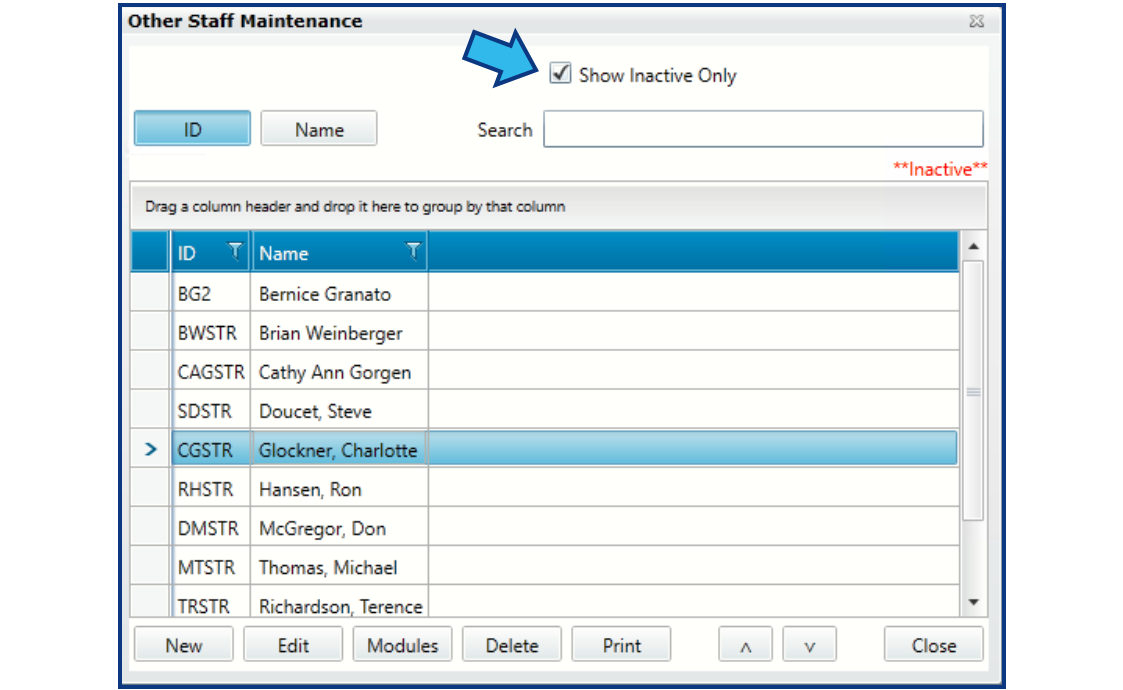
Highlight the record you want to make active again and press the edit button. You will need to remove the check mark from the Inactive box in the lower right corner. You will need to add the Net User of the person and select the modules they will be using by pressing the Modules button in the upper right corner. You may also need to select the Billable, Calendaring and other options in the lower right as needed. Save the entry.

You can now get out of Tools\System Management and go to the User Set Up and Security under Options. Select the staff record and assign the desired profile to the user that you just made active. You will need the admin password to do this.
Support Q & A
Q – I heard that Internet Explorer is being phased out. What does this mean for CityLaw / CountyLaw?
-
A – CityLaw / CountyLaw Web (CLW) is built using the Silverlight plug-in that only operates within Internet Explorer. Microsoft is phasing out support of the Silverlight platform as of October 2021. CityLaw / CountyLaw Next Generation (NG) will replace CityLaw / CountyLaw Web. NG will be completely browser independent. It is in development now and is expected to ship 2020 – Quarter 4. This will allow plenty of time to get your version of CityLaw / CountyLaw upgraded to NG prior to Microsoft’s end of support for Silverlight.
Support Topic Suggestions?
We would love to hear from you with your suggestions for Support Topics to be put in our newsletter. If you have any suggestions, send them to support@cycominc.com and put News Letter Topic in the subject line.
New Help Center Articles
We are continually adding articles to the Help Center to help you find the information you need. A few of our latest additions include these troubleshooting guides:
- Internet Explorer has stopped working
- Unable to Email from Desktop Version
- CyNetOfficeFileMgr Add-in is not active
Enhancement Lists
You can view the latest enhancements to CityLaw / CountyLaw in the Release Notes section of our Help Center.
Upcoming Webinars
Time Entry made easy
Friday, May 10, 2019 10:00 AM – 10:30 AM CDT
Document Management
Friday, July 12, 2019 10:00 AM – 10:30 AM CDT
Contacting Cycom Support
Cycom Support can be reached in the following ways:
- Phone call to 1-800-292-6688
- Email to support@cycominc.com
Whether calling or emailing please describe the issue as clearly and succinctly as you can. This will help us respond in an appropriate amount of time and with the tools needed.
When leaving a voice message, please include your name, phone number, your organization, and a brief description of the issue.
Observed Holidays
Cycom Support will be closed the following days.
- May 27, 2019: Memorial Day
- July 4, 2019: Independence Day
- September 2, 2019: Labor Day
- November 11, 2019: Veteran’s Day
- November 28 and 29, 2019: Thanksgiving Day
- December 25, 2019: Christmas Day
Comments
0 comments
Please sign in to leave a comment.