
Need a printable version of this article? Download the Article (PDF Version).
Need a reminder? Use the Quick Reference Guide.
Need more details? Check out the Standard Guide.
Quick Reference Guide
There are 10 steps to complete this task:
-
Open the System Management module.
-
Select Outside Counsel.
-
Press New in the Outside Counsel Maintenance window.
-
Fill in the mandatory fields.
-
Press Modules... in the Maintain Outside Counsel Records window.
-
Check the Modules to include.
-
Press Save in the Modules window.
-
Press Save in the Maintain Outside Counsel Records window.
-
Press Close in the Outside Counsel Maintenance window.
-
Press Close in the System Management window.
Once these steps are complete, the new Outside Counsel record should appear as expected. Users may have to exit and restart CLW to see the changes.
Standard Guide
Step 1. Open the System Management module.
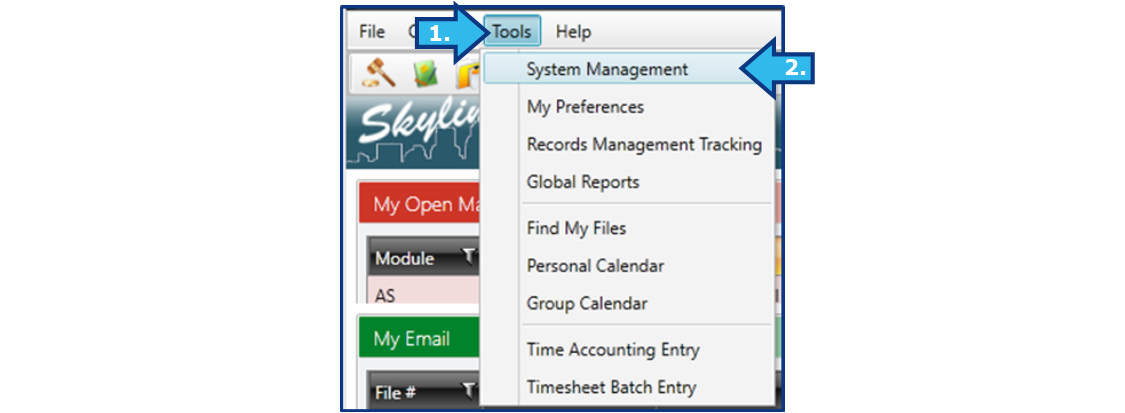
There are two ways to open this module.
1-Step Option:
Press the System Management icon on the Global Toolbar.


2-Step Option:
- On the Menu Bar, press Tools.
- Press System Management.
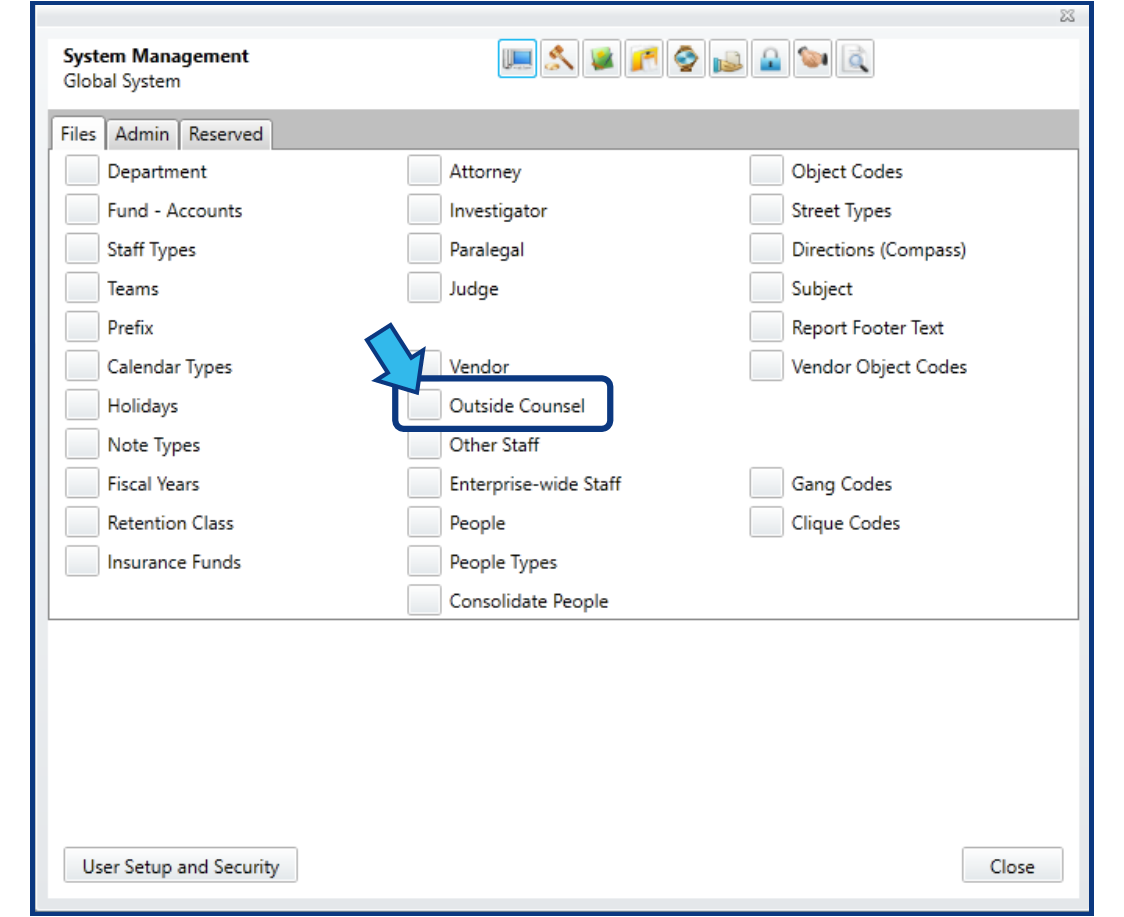
Step 2. Select Outside Counsel.
On first opening System Management, Global System should be the default module selected and should be listed under the System Management heading.

If not, press the Global System icon.
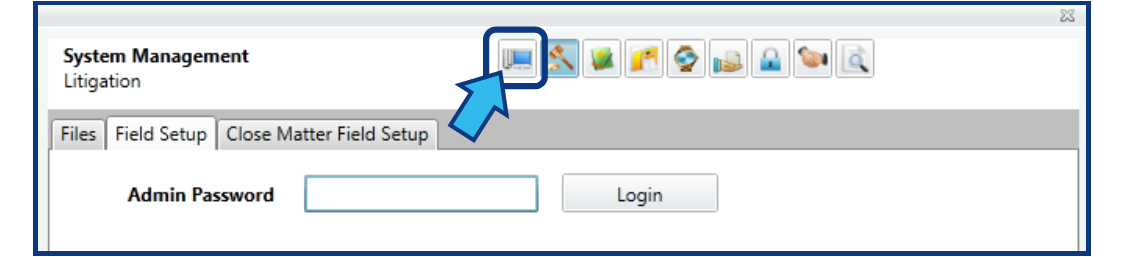
The Files tab should be selected by default.
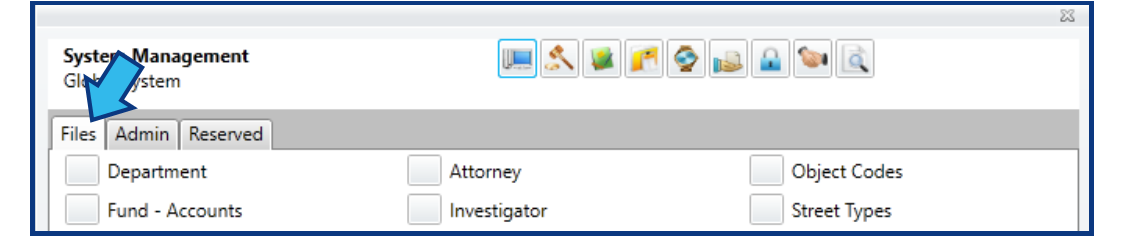
If not, select the Files tab.
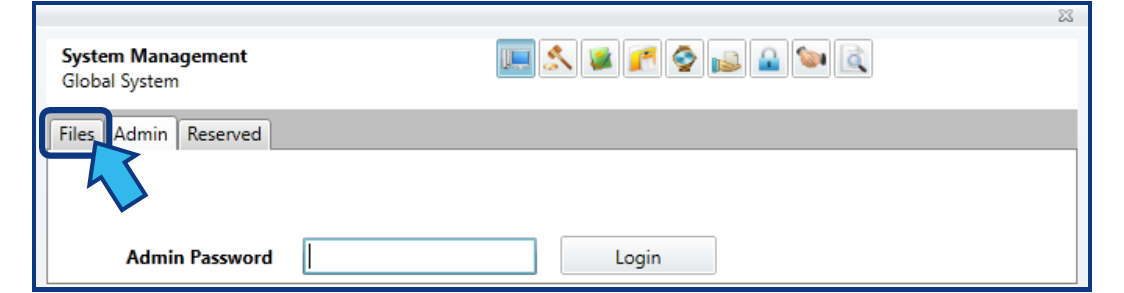
Press the selection box beside Outside Counsel, which is located near the middle of the window.
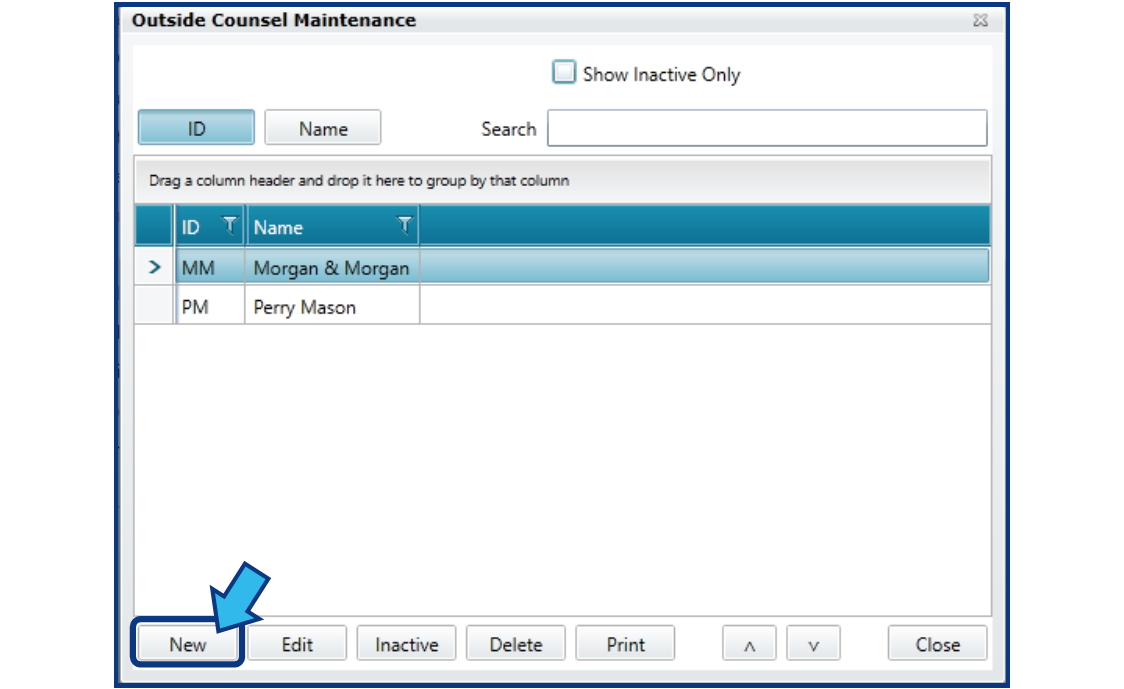
Step 3. In the Outside Counsel Maintenance window, press New.
After completing Step 2, an Outside Counsel Maintenance window appears. Press New in the bottom-left corner of the window.
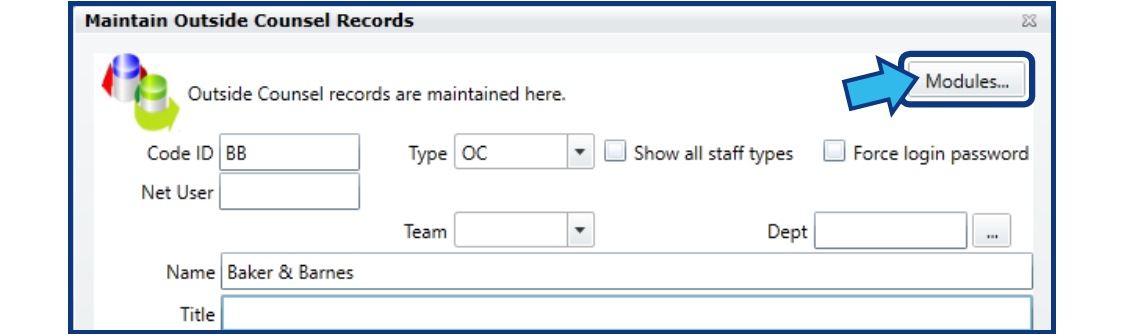
Step 4. Fill in the mandatory fields.
In order to save a new Outside Counsel record, a Code ID and Name must be entered.

Step 5. In the Maintain Outside Counsel Records window, press Modules...
The Modules... button is located in the top-right corner of the Maintain Outside Counsel Records window.
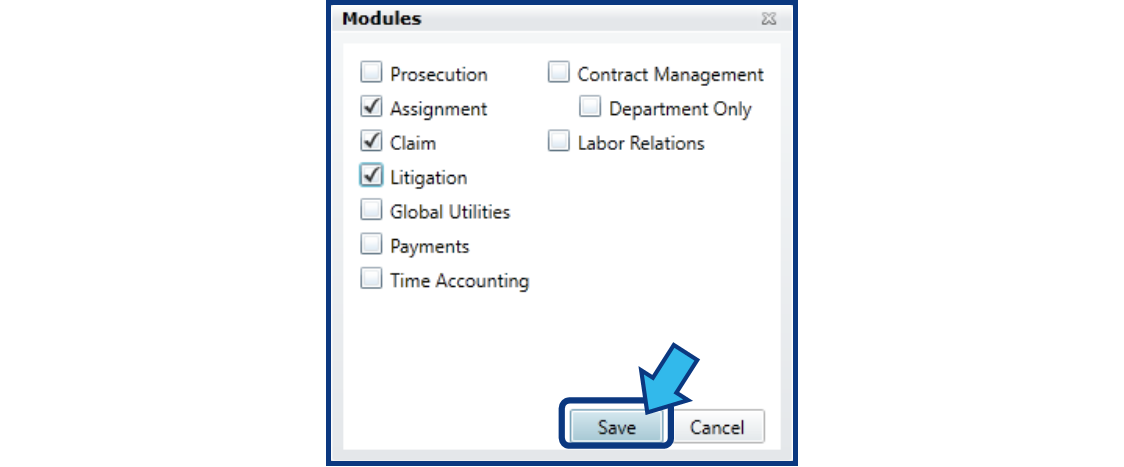
Step 6. In the Modules window, check the Modules to include.
Put a check beside each module that should have access to this Outside Counsel record. By default, none of the modules are selected. If none are selected, this Outside Counsel record will not appear in any module.
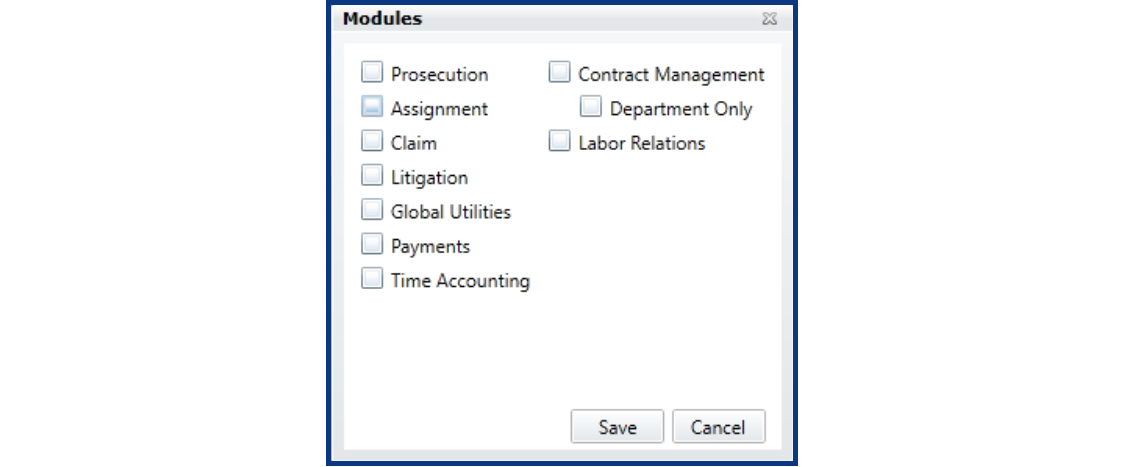
Step 7. In the Modules window, press Save.
After checking the appropriate modules, press the Save button located in the bottom-right of the Modules window.
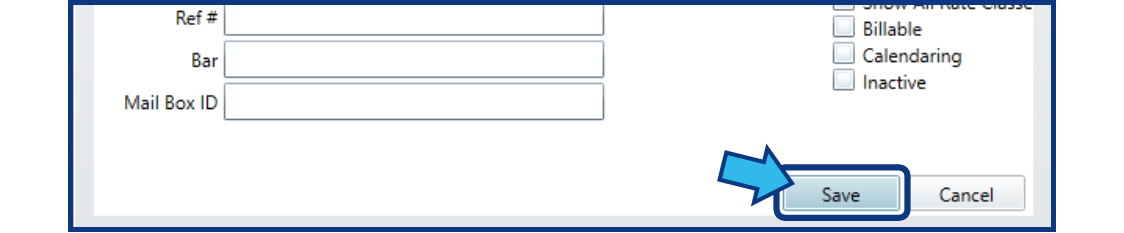
Step 8. In the Maintain Outside Counsel Records window, press Save.
Press the Save button located in the bottom-right corner of the Maintain Outside Counsel Records window.
Step 9. In the Outside Counsel Maintenance window, press Close.
The new Outside Counsel record will not yet be visible. Press the Close button located in the bottom-right corner of the Outside Counsel Maintenance window.

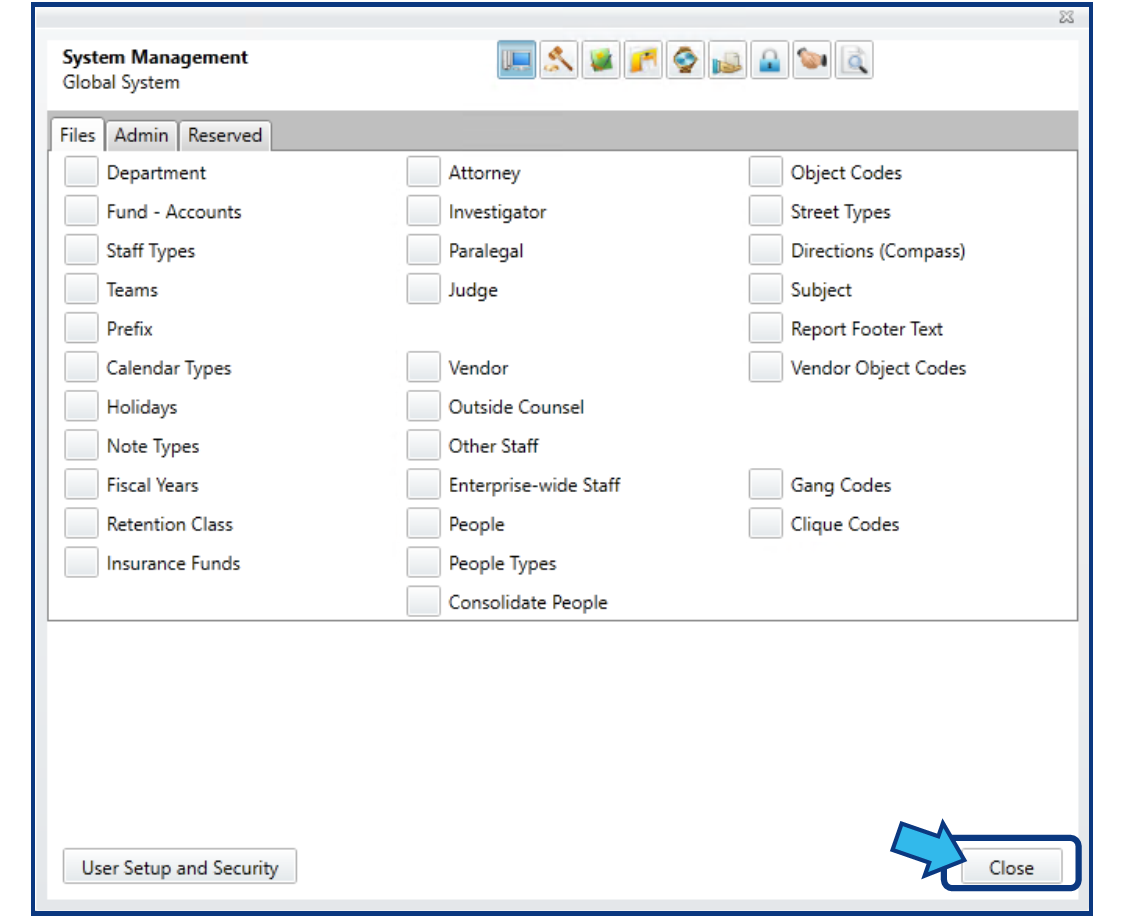
Step 10. In the System Management window, press Close.
Press the Close button located in the bottom-right corner of the System Management window.
Comments
0 comments
Please sign in to leave a comment.