
Need a printable version of this article? Download the Article (PDF Version).
Need a reminder? Use the Quick Reference Guide.
Need more details? Check out the Standard Guide.
Quick Reference Guide
There are 11 steps to complete this task:
-
Open System Management.
-
Select Consolidate People.
-
Search for person to be consolidated.
-
Review contact record and files to be consolidated.
-
Add person to be consolidated to Consolidate list.
-
Locate and select Person to which to consolidate.
-
Confirm record has all updated contact information.
-
Press Consolidate and confirm.
-
Close the Information box.
-
Close Consolidate People.
-
Close System Management.
Standard Guide
Step 1. Open System Management.
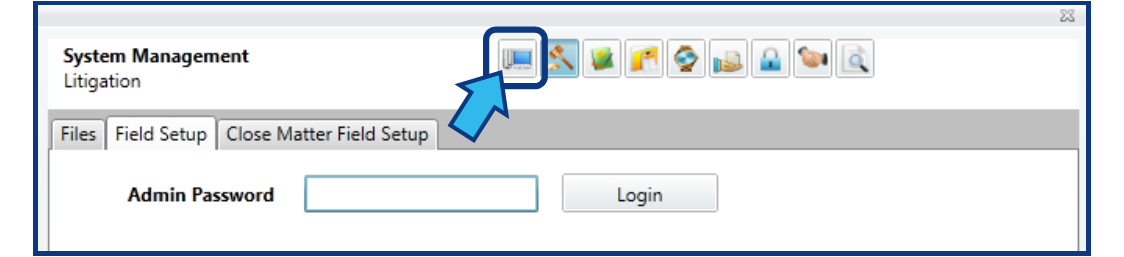
Begin by opening System Management by selecting the System Management icon from the Global Toolbar.

Step 2. Select Consolidate People.
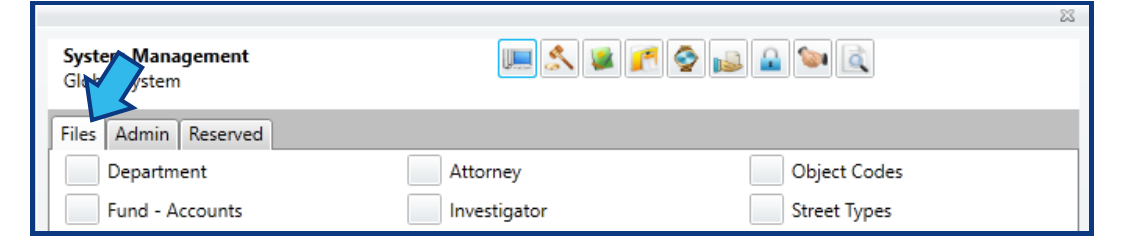
The Global System Files tab will be displayed by default. If it is not, navigate to it by selecting the Global System icon at the top and then selecting the Files tab.
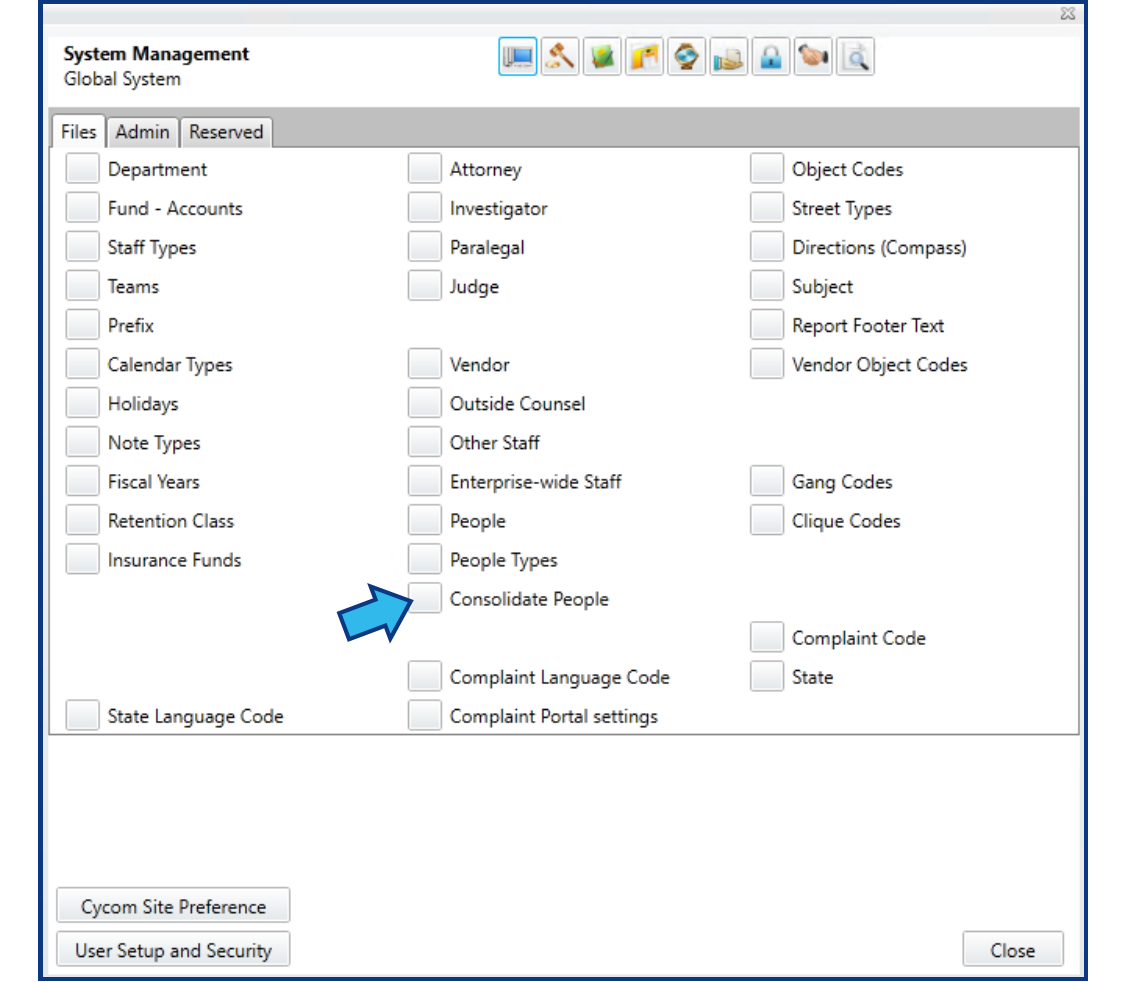
Select Consolidate People, located in the center column.
Step 3. Search for person to be consolidated.
Begin typing the name of the person to be consolidated.
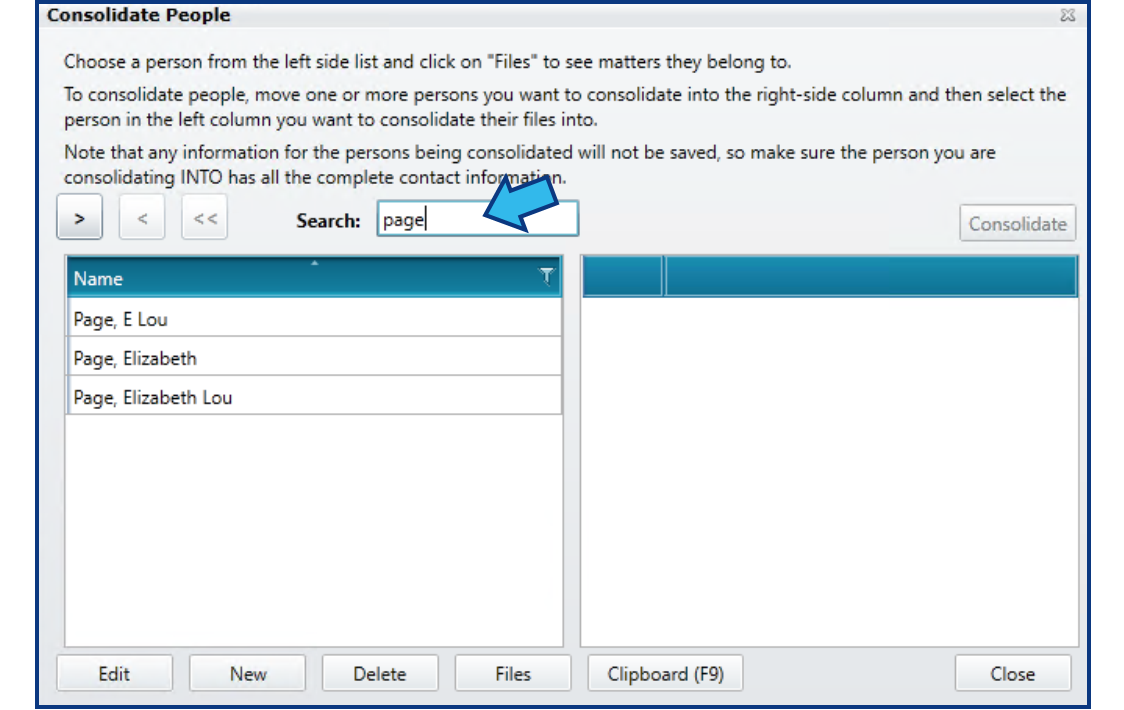
Once located, left-click on the person's name to select them. A selected person will be highlighted in blue. Note the instructions provided at the top of the Consolidate People window.
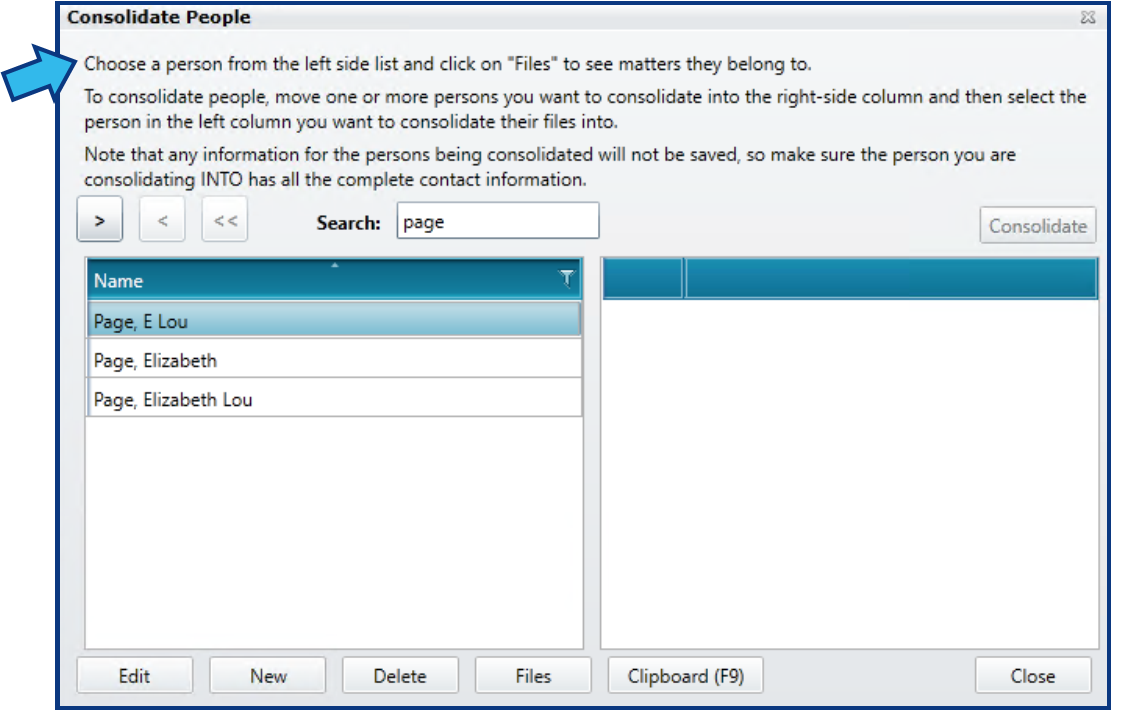
Step 4. Review contact record and files to be consolidated.
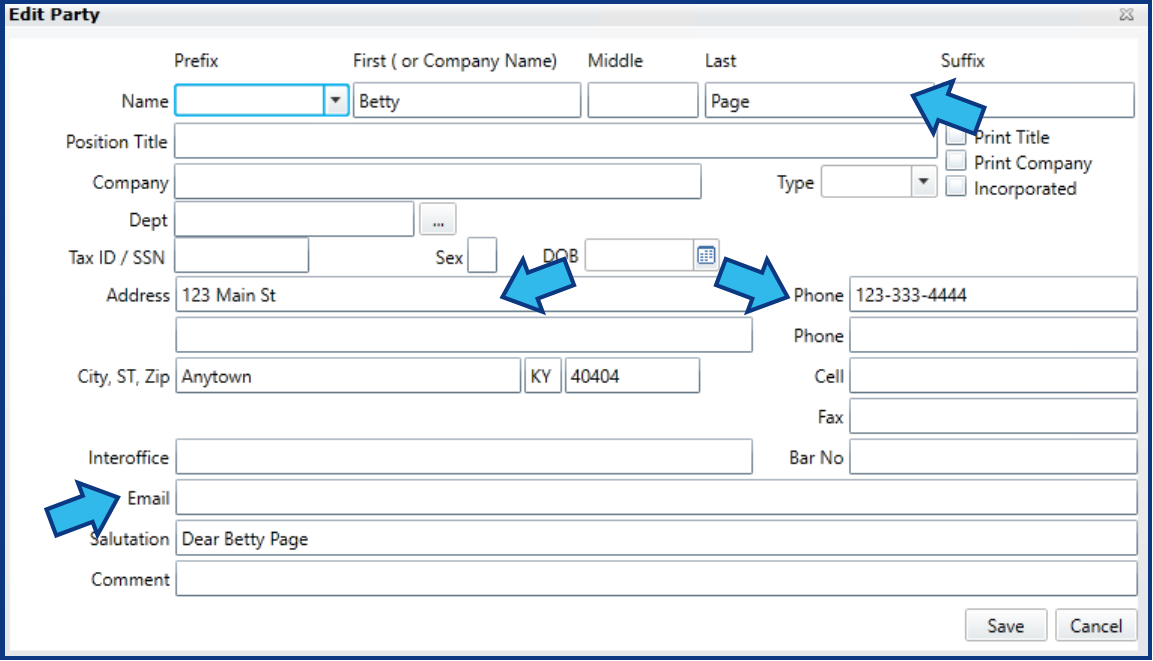
First, while the person is still in the left column, review the person's contact record by selecting Edit to open the Edit Party window. Once consolidated, all information in this record will be lost if it is not recorded elsewhere. Be sure to record this information to compare with the contact record of the final person to which this person will be consolidated. Once you have finished reviewing the contact record, press Cancel to return to the Consolidate People window.
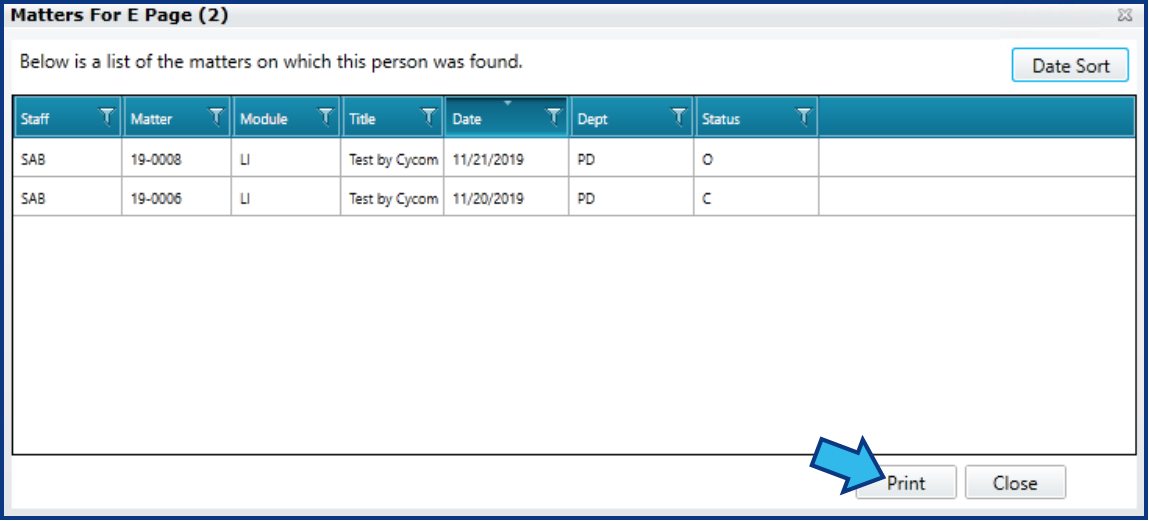
Next, review any files the person is associated with by selecting Files. The list that appears can be printed so you are able to review each file in more detail if necessary. No files will be removed or deleted during the consolidation process. Instead, any associations to persons being consolidated will be edited. Once you have finished reviewing the matters record, press Close to return to the Consolidate People window.
Step 5. Add person to be consolidated to Consolidate list.
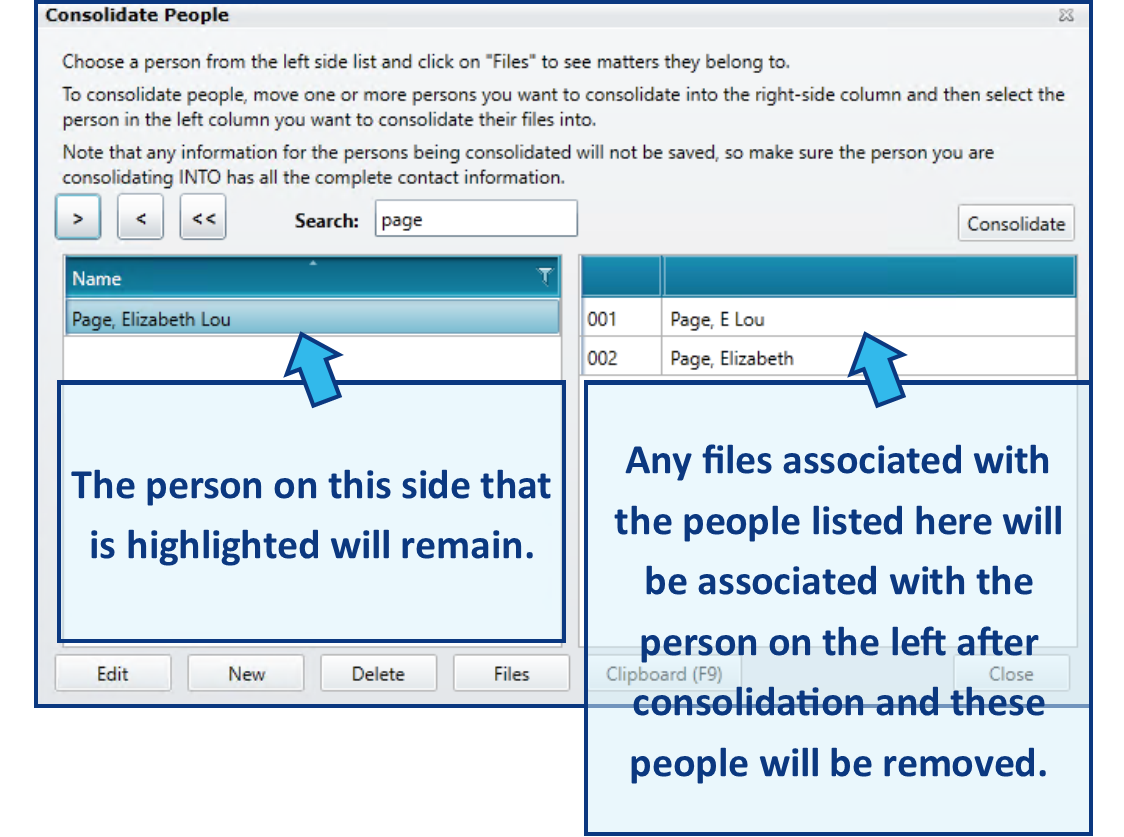
When satisfied the person you have selected should be consolidated with another person, move the person's name to the right column by selecting the right arrow above the left column. The name will disappear from the left column and appear in the right.

Continue Steps 3 through 5 until all persons to be consolidated are added on the right.
Step 6. Locate and select Person to which to consolidate.
The person to which the others will be consolidated should be chosen last. DO NOT move this person to the right column. Do left-click this person so that they are highlighted in blue.
Step 7. Confirm record has all updated contact information.
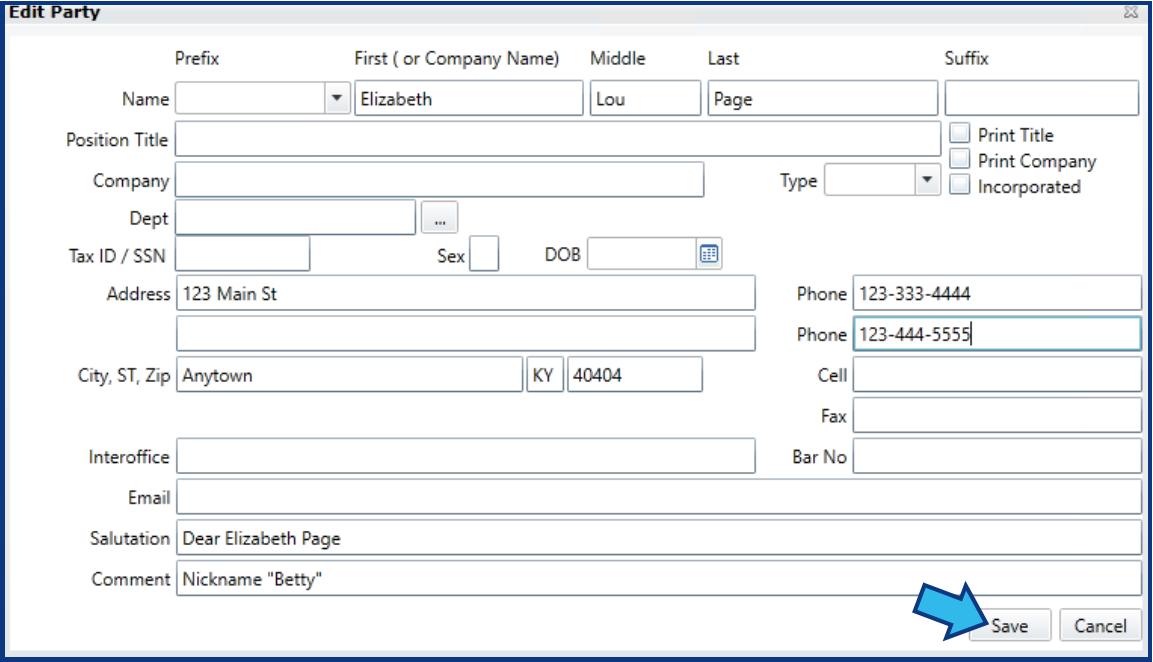
As with the others, with this person highlighted in the left column of the Consolidate People window, select Edit and make sure this contact record has all the correct contact information you wish to retain. If you make any changes, be sure to press Save at the bottom of the Edit Party window.
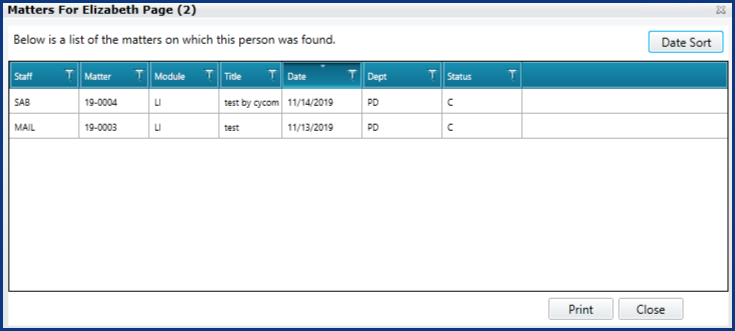
You may also wish to review any Files associated with this person to confirm this is the same individual, or to make note of the total files before consolidation. To do so, select Files in the Consolidate People window with this person highlighted in the left column.
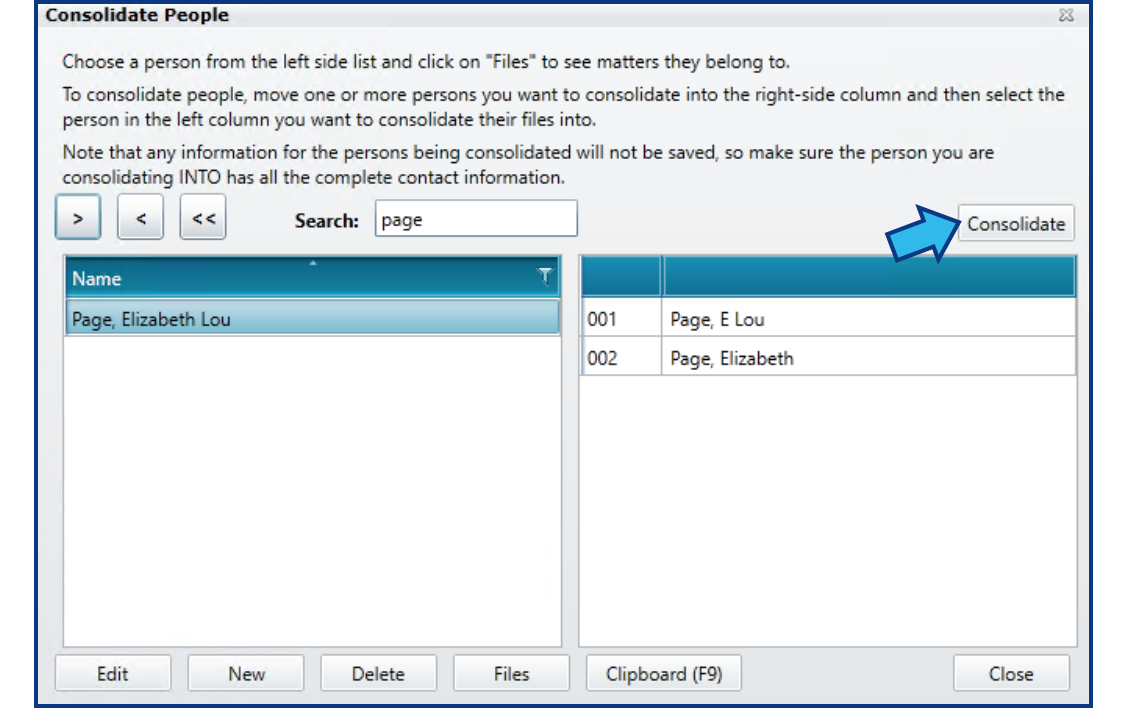
Step 8. Press Consolidate and confirm.
Once you are satisfied that the list of people in the right column should be consolidated into the person highlighted in the left column, press Consolidate above the right column.
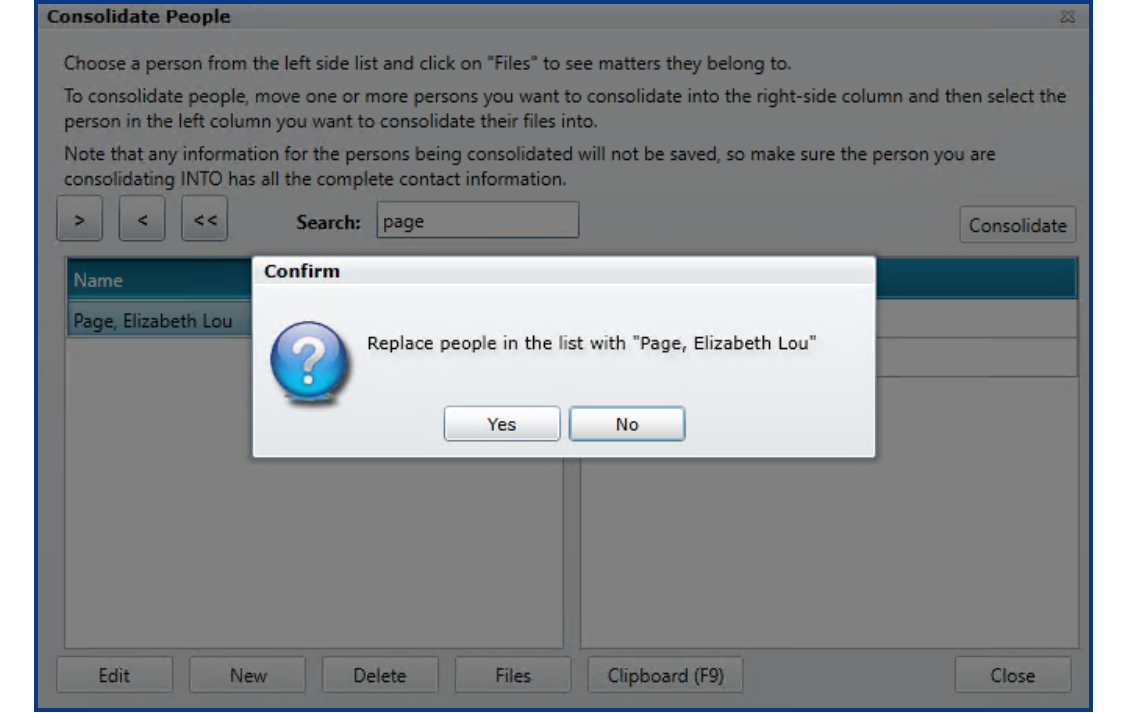
A confirmation window will appear. Select Yes to confirm you wish to continue with the consolidation.
Step 9. Close the Information box.
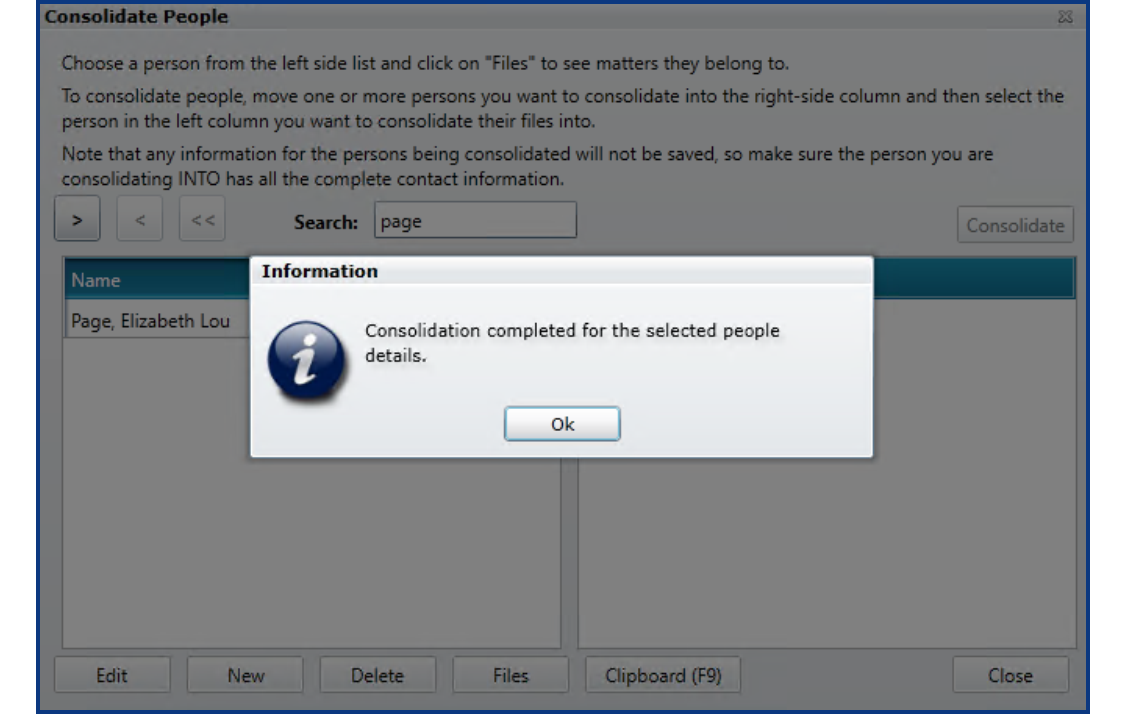
When the consolidation process is complete, you will be alerted with an Information window. Press Ok to return to the Consolidate People window.
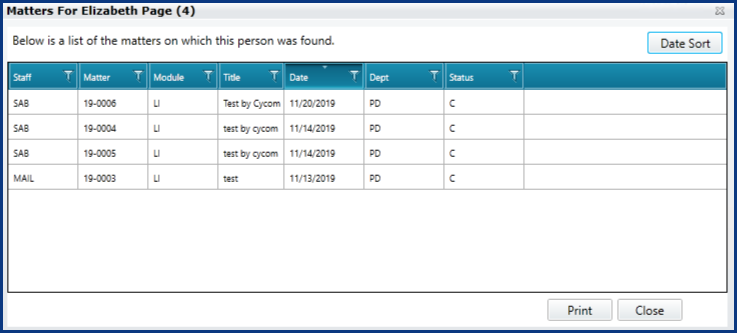
You can confirm the files were successfully associated with the person by selecting Files. Press Close to return to the Consolidate People window.
Step 10. Close Consolidate People.
After you have consolidated all the people you wish to consolidate, press Close to return to the System Management window.
Step 11. Close System Management.
Press Close to close System Management.
Comments
0 comments
Please sign in to leave a comment.