
Open the System Management  module.
The System Management window will appear.
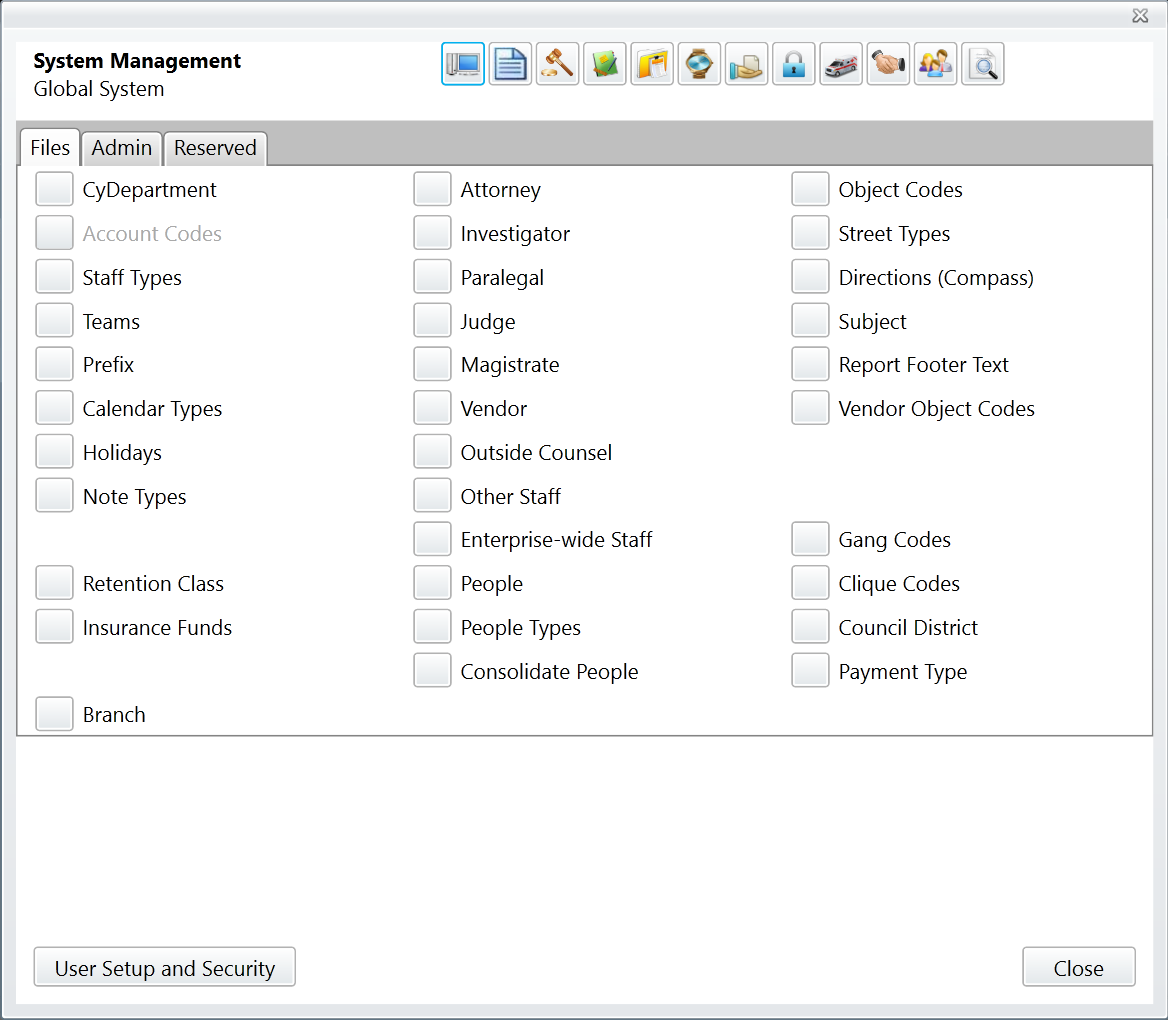
Modules whose codes and settings can be changed in System Management appear in the toolbar along the top of the window. Global System is selected by default. The codes and settings in the Global System section of System Management apply to CityLaw/CountyLaw as a whole.
The codes and settings which are visible to you in System Management depend on the configuration and security settings of your installation.
Viewing codes
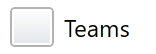
For our example, we'll select Teams to view and edit the Team codes.
The Team Maintenance window appears.
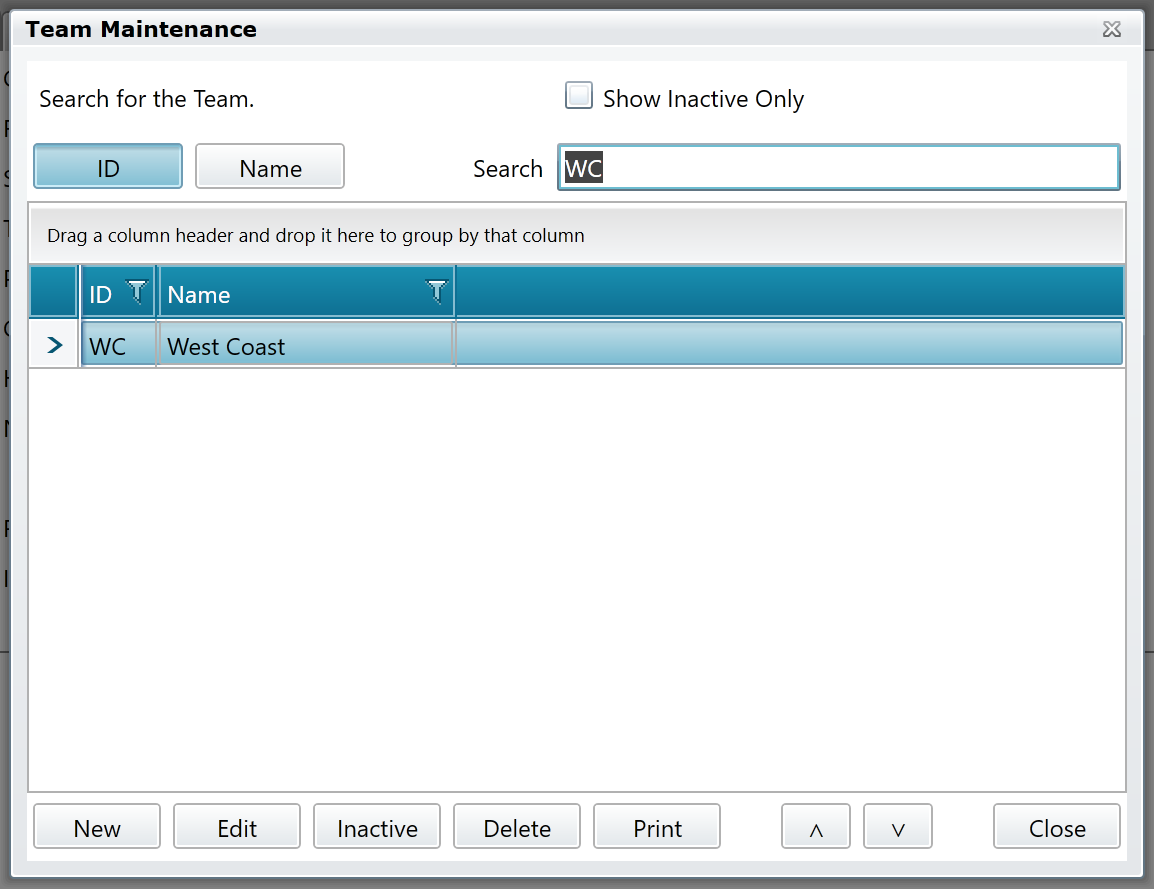
You can search for codes by ID and Name using the buttons and text box at the top of the window. Marking the Show Inactive Only checkbox will cause only inactive codes to be displayed.

Adding codes
To add a new code, press the New button at the bottom-left of the Team Maintenance window.
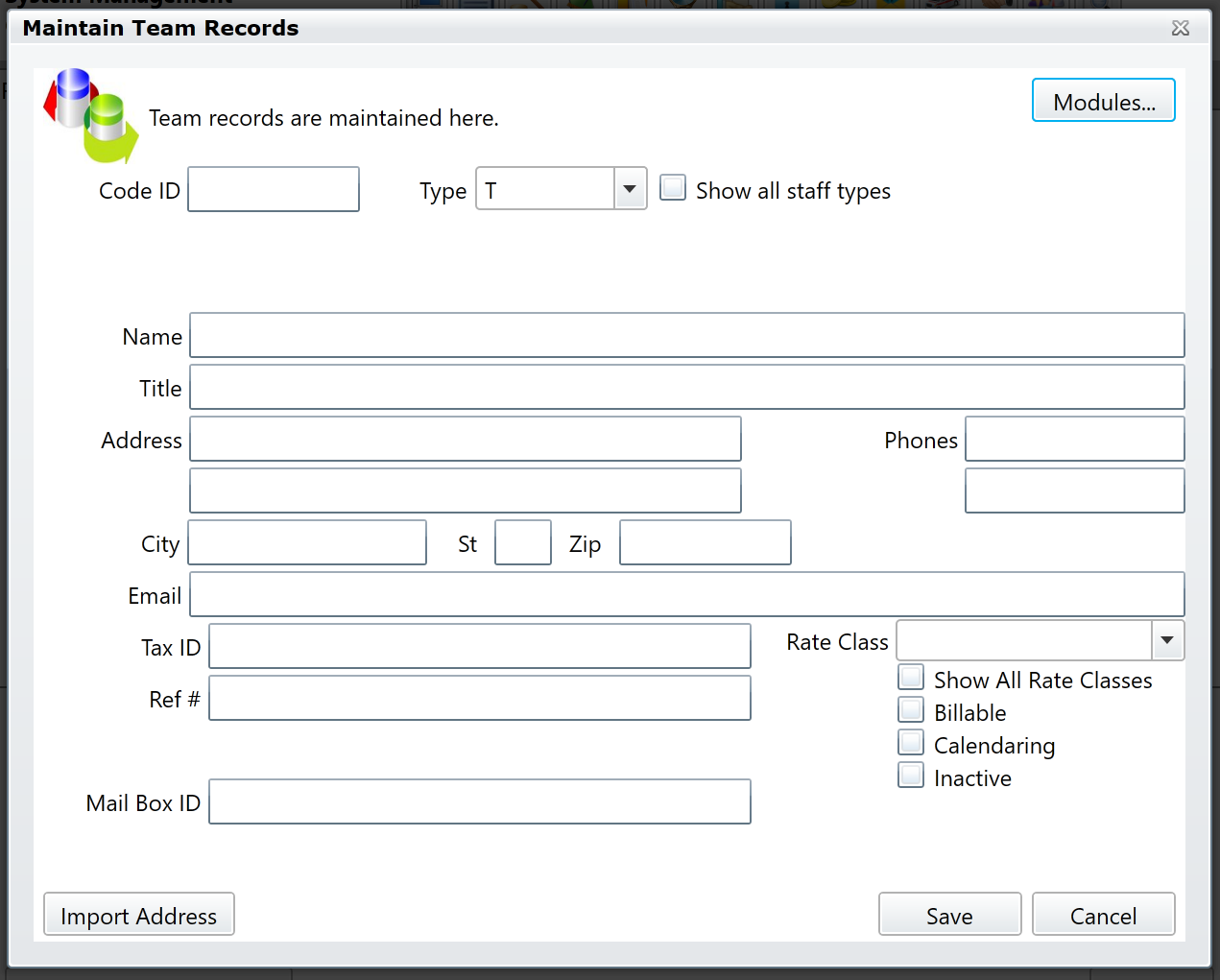
The Maintain Team Records window appears.
Required Fields
The Code ID and Name fields are required. Pressing the Save button while these fields are blank will do nothing. A red box will appear around these two fields, indicating they are required.
Specifying modules
Press the Modules button at the top-right of the Maintain Team Records window.
The Modules window will appear.
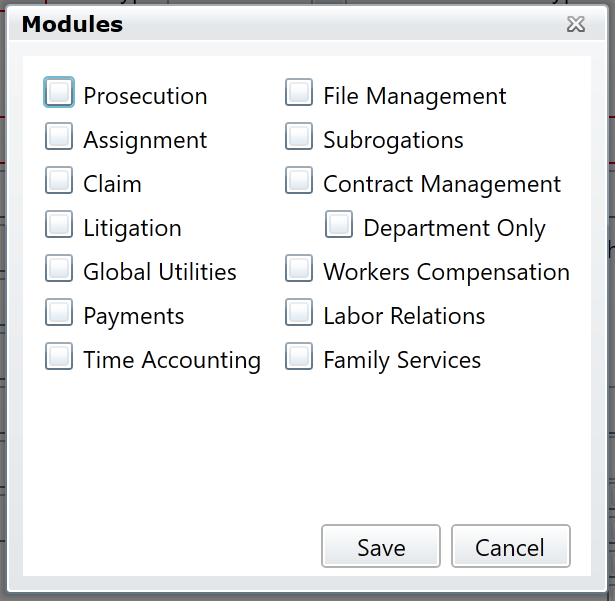
The Modules window allows you to specify the modules in which this code will be available.
Once you've made your selection, press the Save button to save your changes, close the Modules window, and return to the Maintain Team Records window.
Importing the system address
Press the Import Address button to replace the current address of the code with the System Address. This is your organization's address. You will receive a confirmation message before the change takes place.
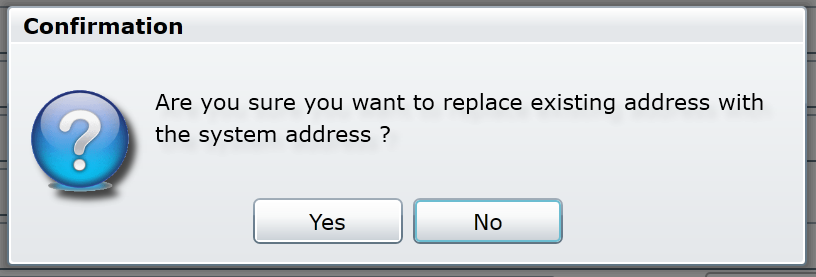
Use the Import Address button when creating many codes (such as Staff members) which require your organization's address.
Editing codes
In our example we'll use Team codes again. In the System Management window, in the Global System section (open by default), press the Teams button.
The Team Maintenance window appears. We'll type "WC" in the Search box to filter our list of codes down to the one we want.
With the "West Coast" code selected, press the Edit button, or simply double-click the code.
The Maintain Team Records window appears.
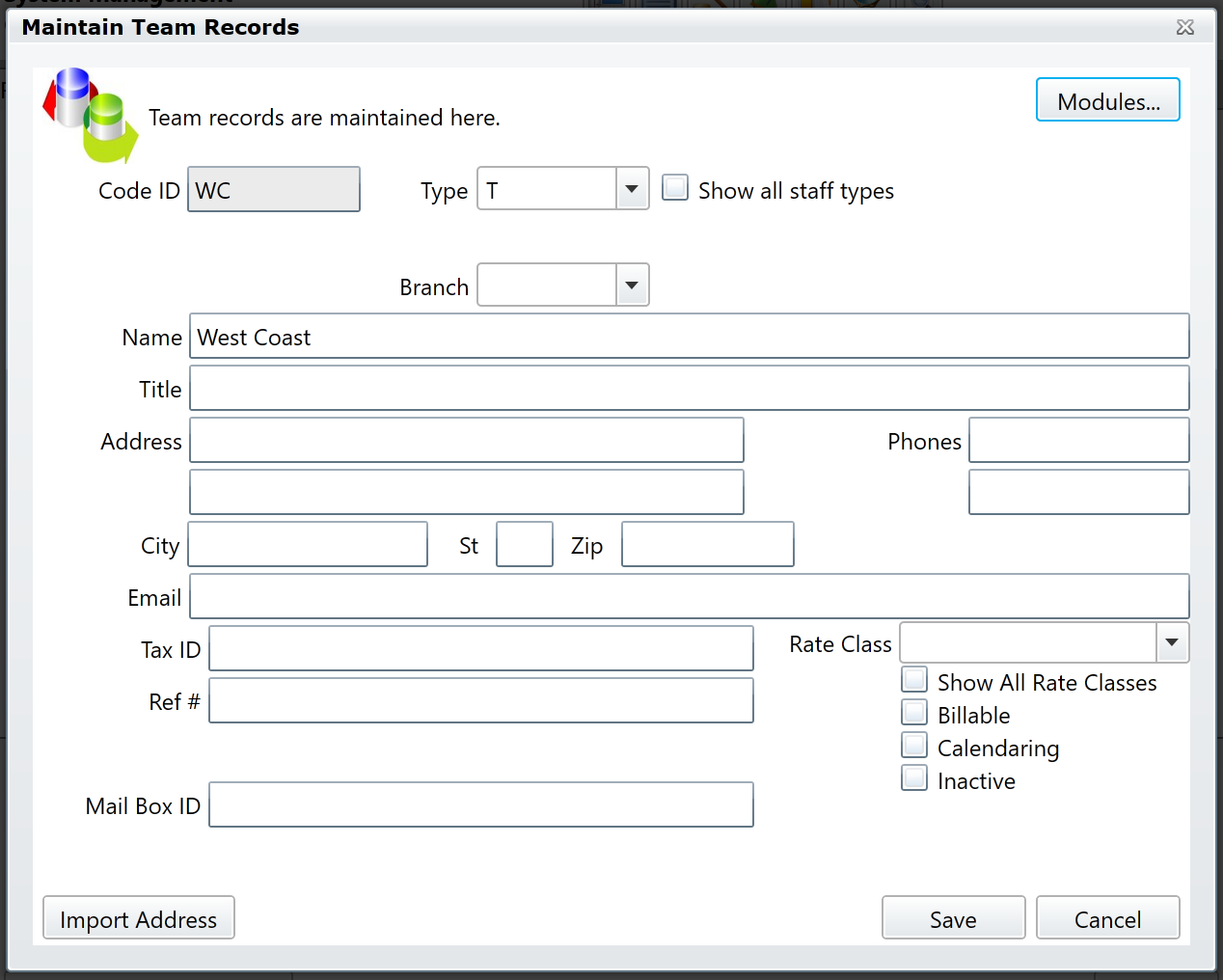
From here, changes can be made to all fields except the Code ID. When finished, press the Save button to save your changes, or press Cancel to revert back to the original field values.
Best practices
- Never delete codes. Codes are used by many reports. Deleting codes could produce unintended report results. Contact Cycom Support when considering deleting codes.
- Never delete people such as Attorneys, Staff, Vendors, Outside Counsel, etc. If a person leaves the organization, mark their contact code inactive. Deleting a contact code could have an unintended effect on reports and search results, such as the exclusion of their past work from a report.
- If possible, delegate code management to a single System Administrator. A consistent code system will produce consistent report and search results.
Comments
0 comments
Please sign in to leave a comment.