
Need a printable version of this article? Download the Article (PDF Version).
Need a reminder? Use the Quick Reference Guide.
Need more details? Check out the Standard Guide.
Quick Reference Guide
There are 2 steps to complete this task:
Standard Guide
Step 1. Reassign all open matters assigned to user.
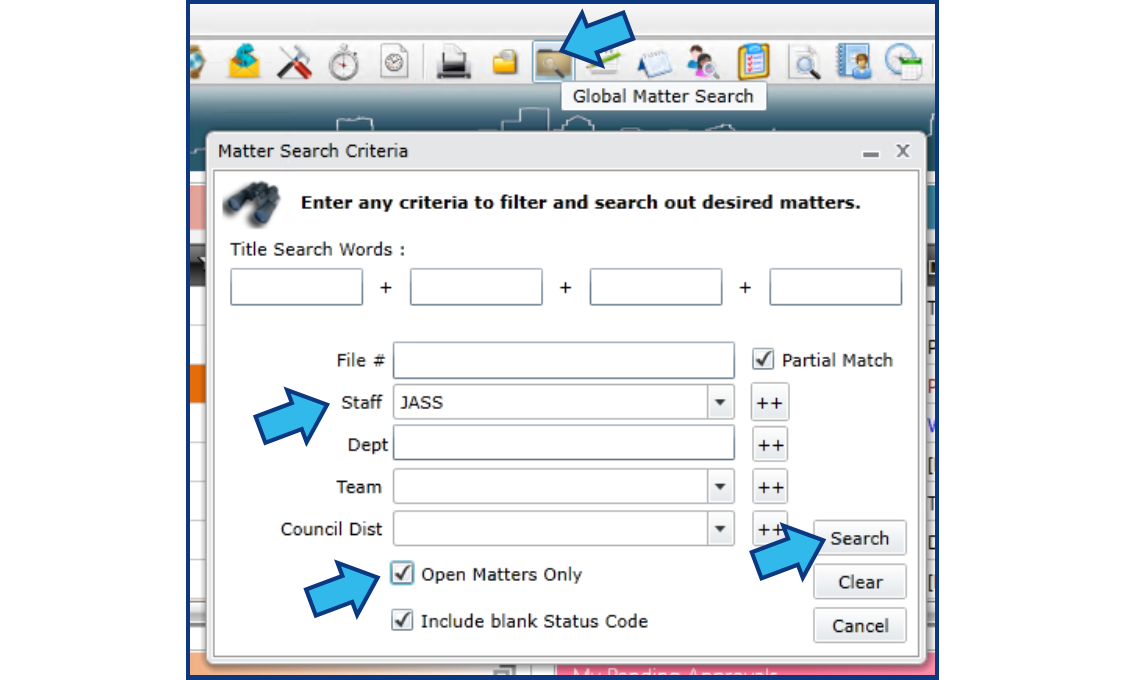
Before inactivating a user, perform a Global Matter Search for all open matters to which that user may still be assigned and reassign them to the appropriate staff member.
To do that, open Global Matter Search by pressing the Global Matter Search icon on the Global Toolbar. In the Matter Search Criteria window, select the user from the Staff field drop-down, check Open Matters Only, then press Search.
Step 2. Inactivate user's contact record.
Once a Global Matter Search returns no open matters for a user, you can safely inactivate a user.
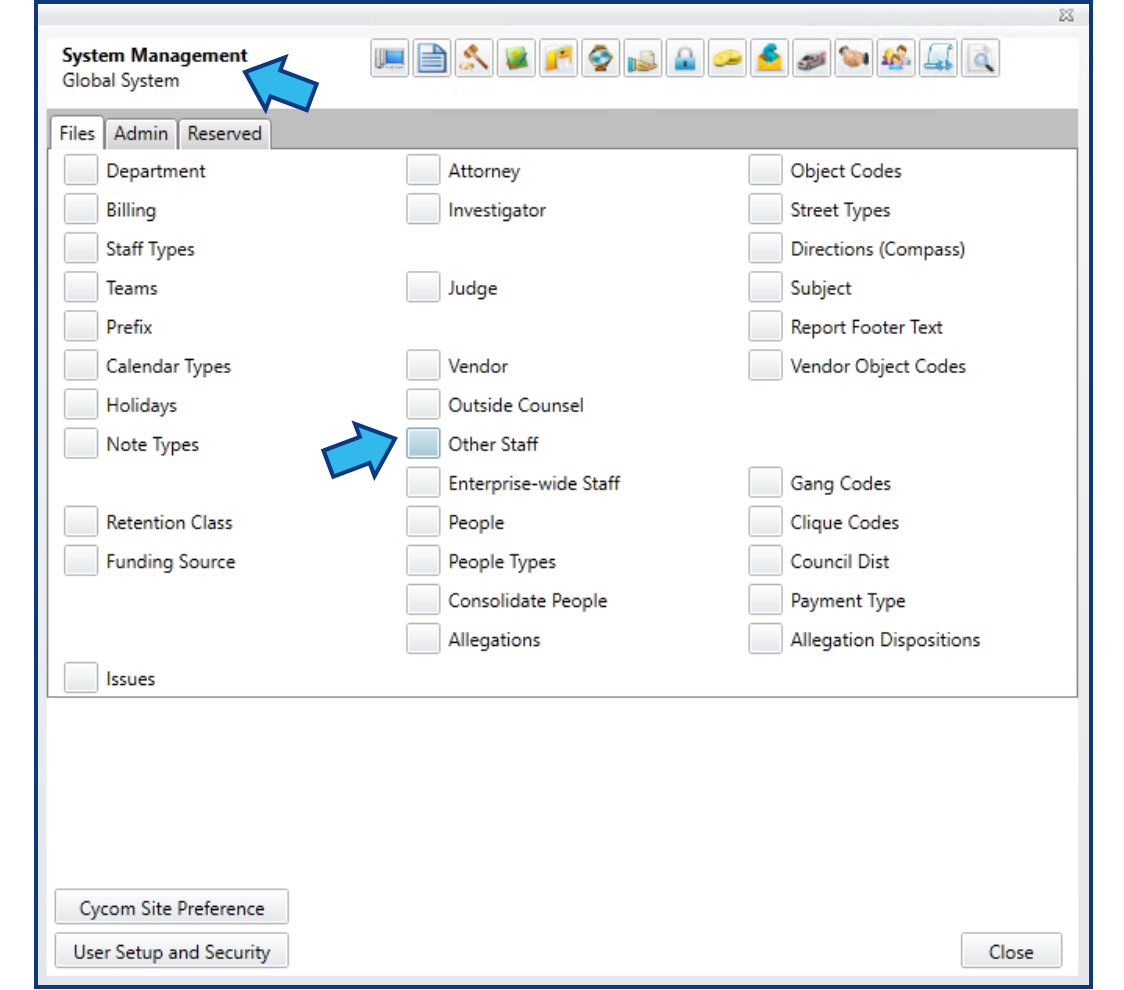
Open System Management by pressing the System Management icon on the Global Toolbar.

In the System Management: Global System Files tab, select the type of user you wish to inactivate. In this example, we will select Other Staff.
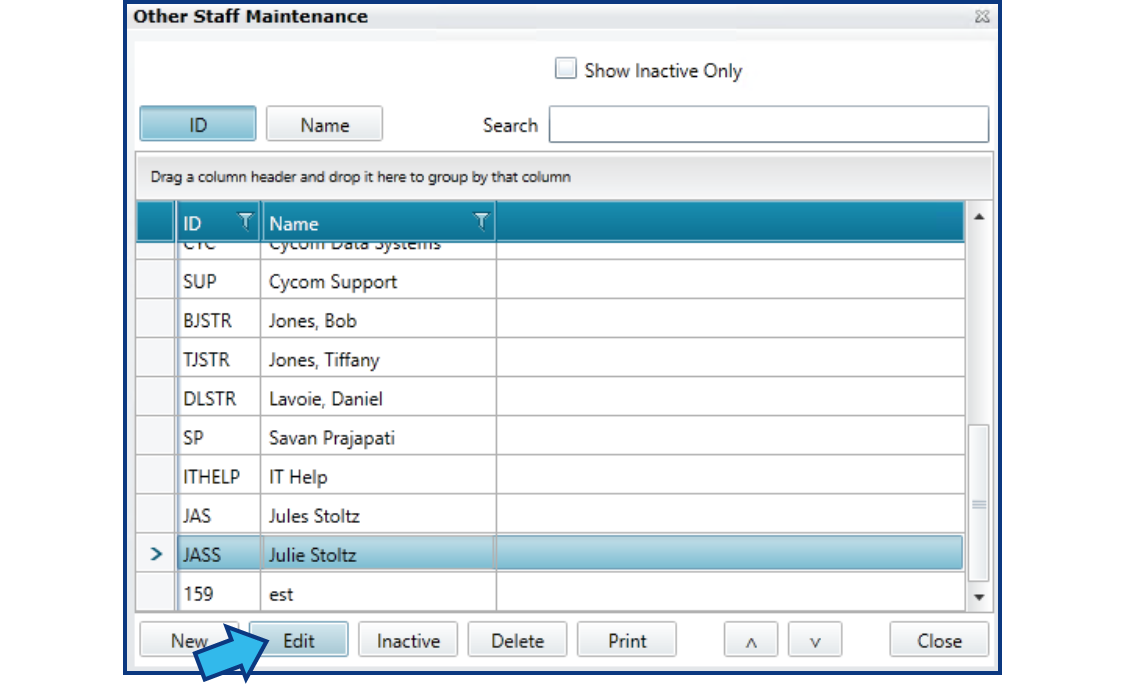
In the Maintenance window, select the user and press Edit.
In the Maintain Records window for the user, place a check in the box for Inactive and press Save.
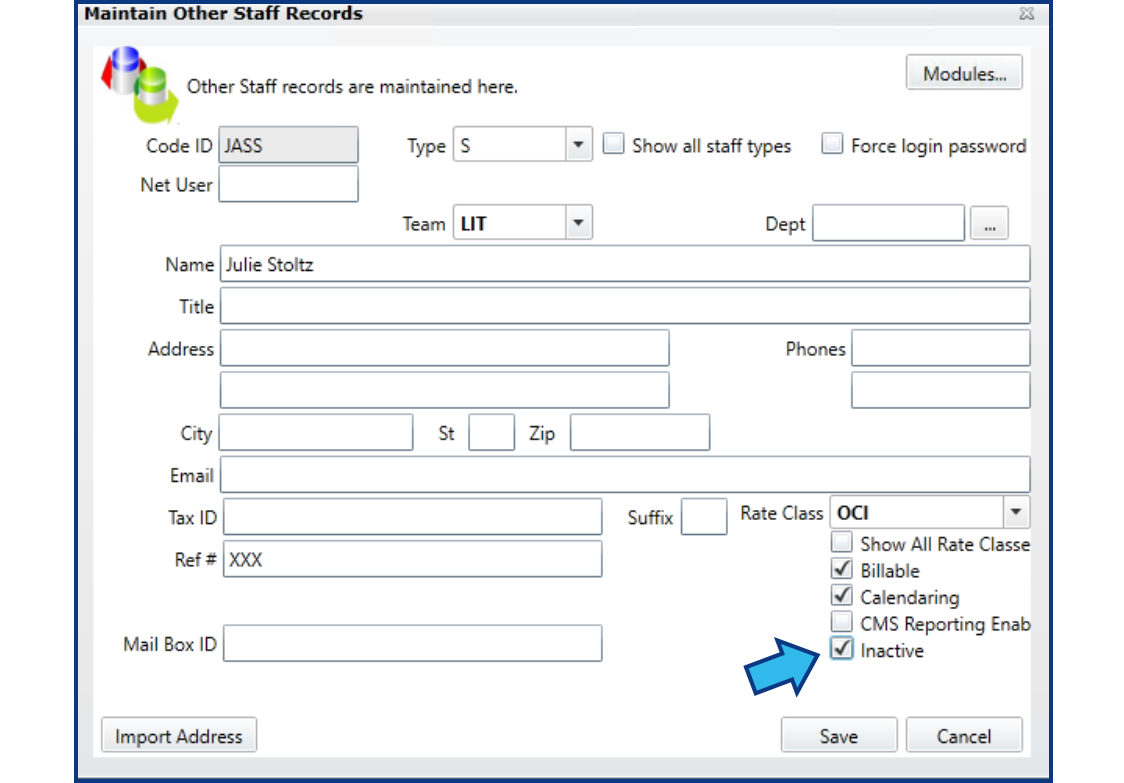
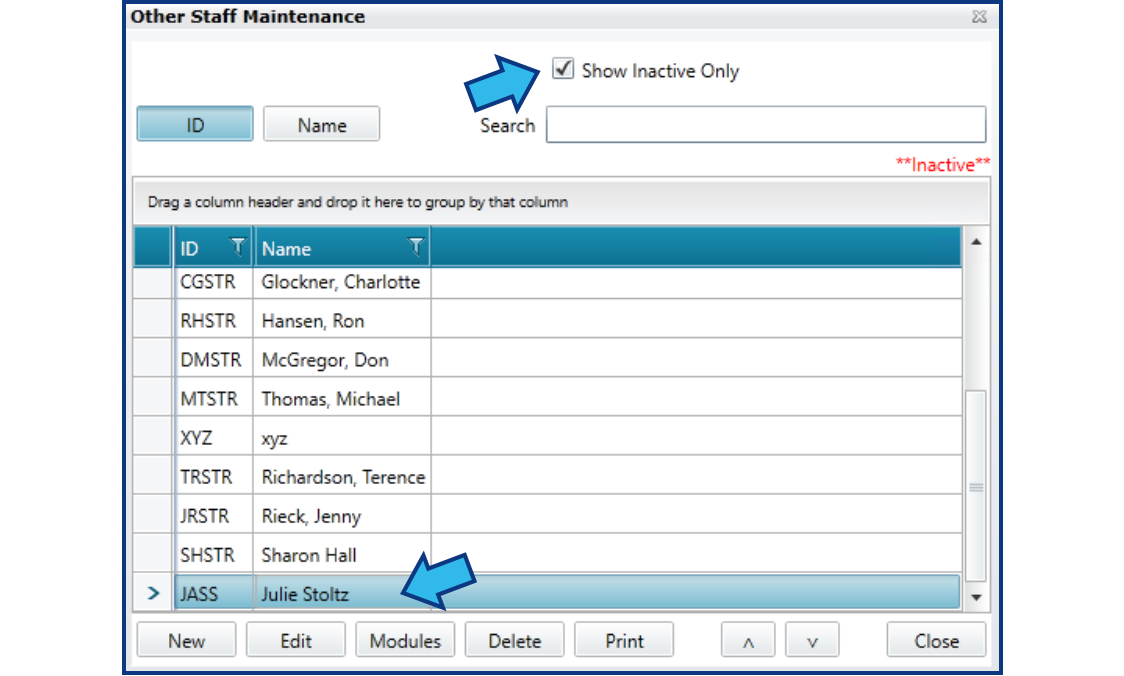
The user is now inactive and will no longer be able to log onto CLW. They will no longer be displayed by default in drop-down lists. They will remain discoverable for searches and reporting whenever an option to Show Inactive is selected, such as in the Maintenance window for users (see below).
Comments
0 comments
Please sign in to leave a comment.