
Need a printable version of this article? Download the Article (PDF Version).
Need a reminder? Use the Quick Reference Guide.
Need more details? Check out the Standard Guide.
Quick Reference Guide
There are 2 methods to complete this task:
-
From Skyline or Main St. View (if My Pending Approvals is configured to display).
-
From the Documents tab of the matter.
Standard Guide
Method 1. From Skyline or Main St. View.
In Skyline view, if My Pending Approvals has been configured to display, a list of pending approvals will be shown.

In Main St. view, the list of pending approvals displays differently.
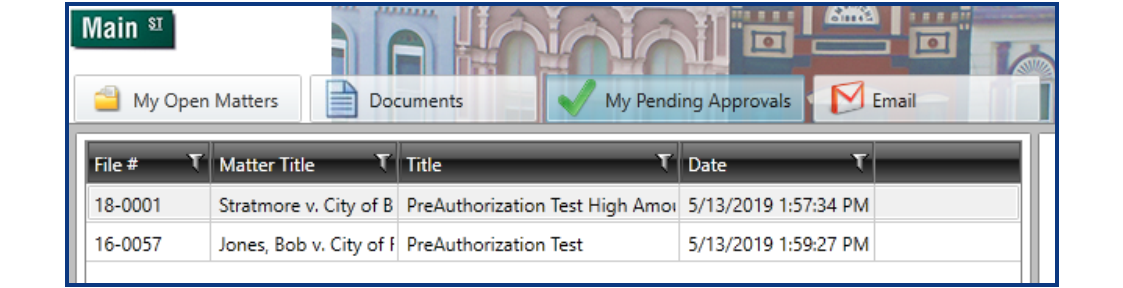
In either view, double-click a pending approval to open the Documents Approval window.
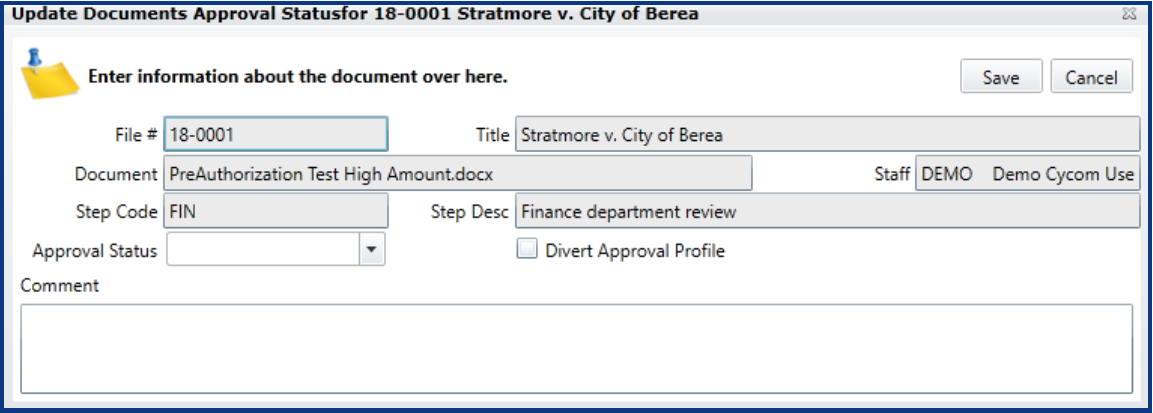
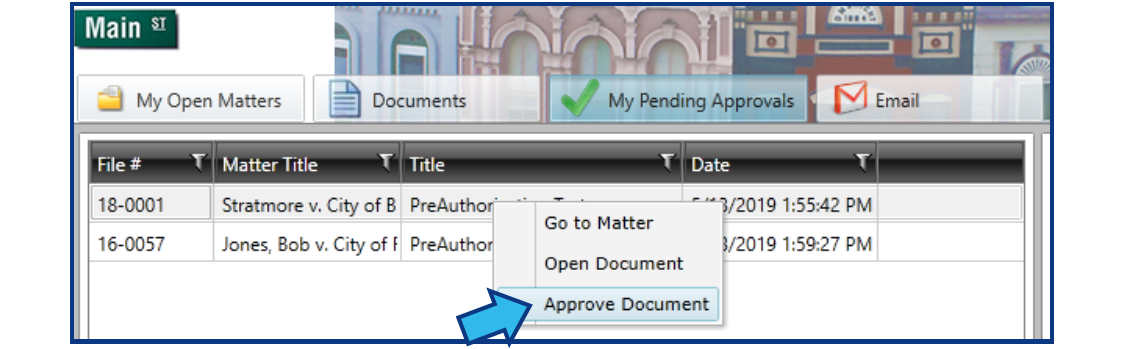
Alternatively, in either view, right-click a pending approval and select Approve Document.
In the Approval Status drop-down of the Documents Approval window, select Approved.
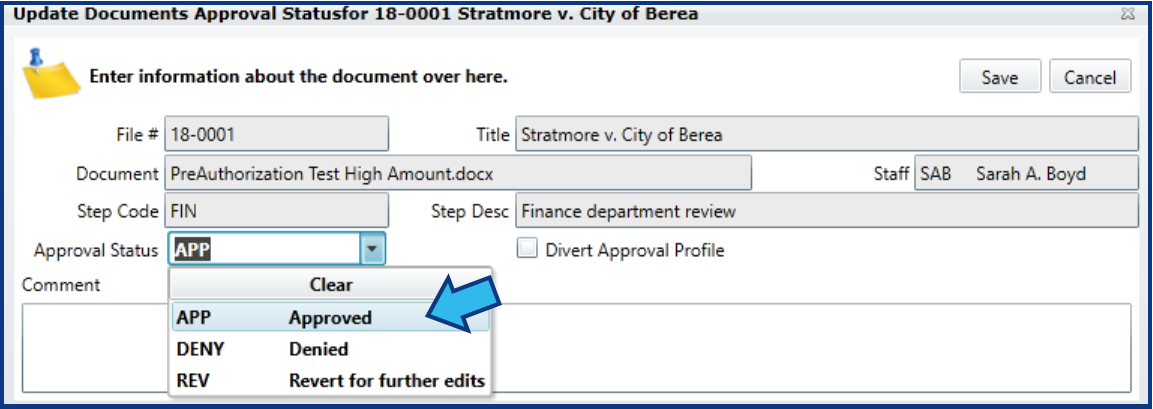
Press Save.
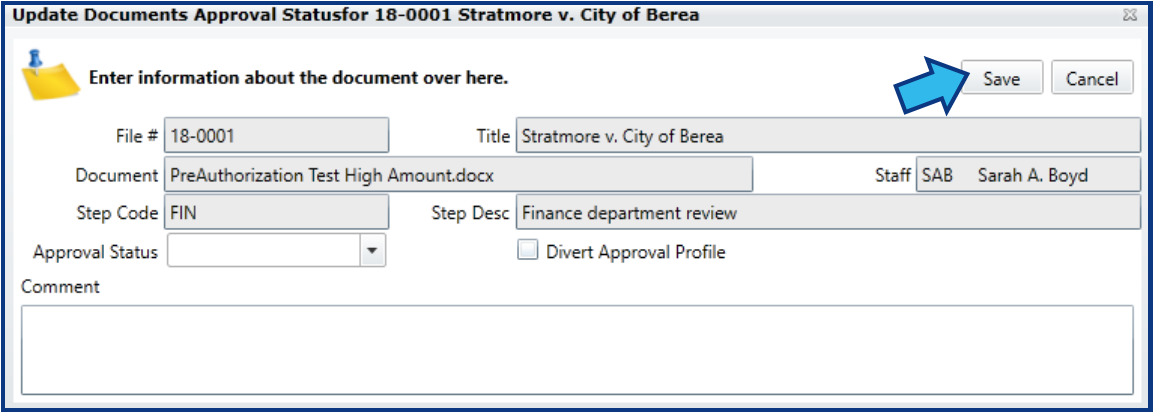
If the user approving the document is not the Staff listed in the pending approval, a prompt for an administrator password is given. Only System Administrators and the individual assigned the approval step can give approval.

Once the approval is saved, the next person in the step list will be notified by email that they have a pending approval. The email contains a link to open the document.
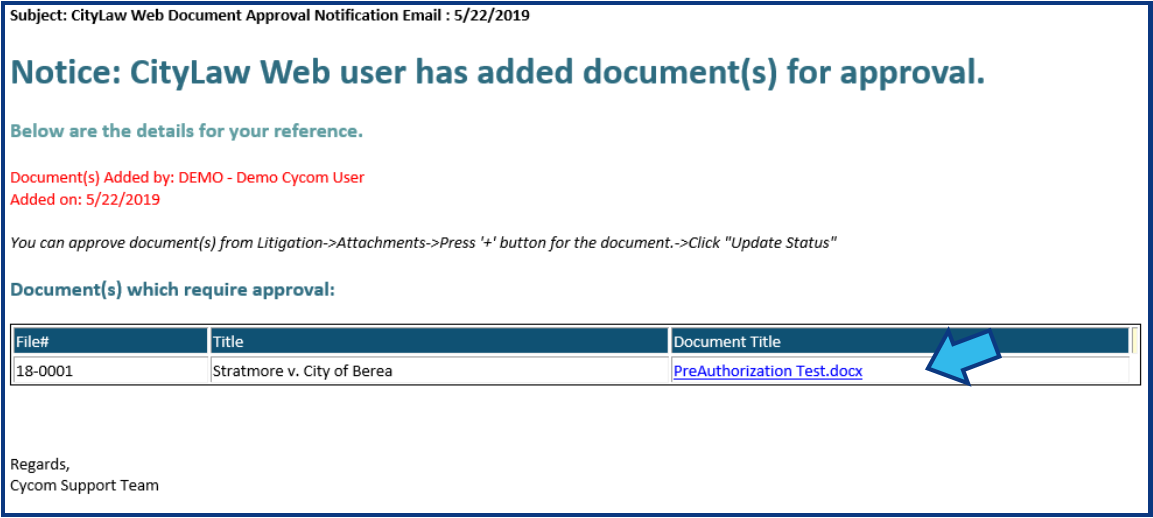
Method 2. From the Documents tab of the matter.
Documents with approval steps are in the Documents tab of the matter to which they are attached. They are distinguishable from other documents by the presence of a Plus box to the left of the document listing.
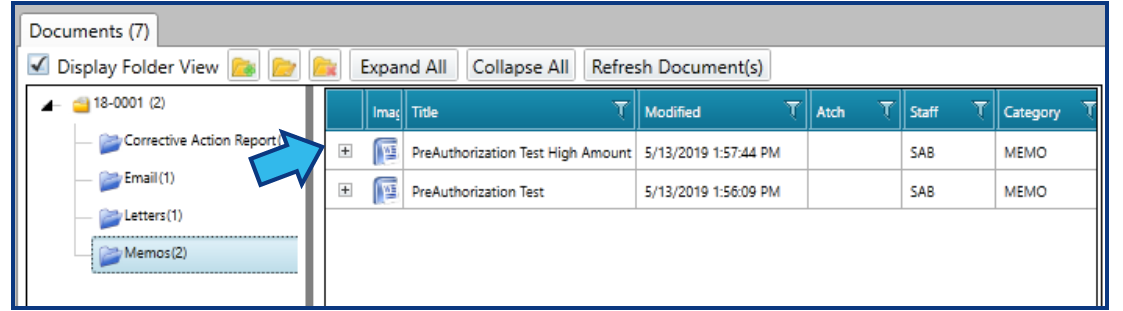
Press the Plus box to see a list of approval steps. Note that when the approval steps are display, the Plus box changes to a Minus box. Pressing the Minus box will hide the list of approval steps again.
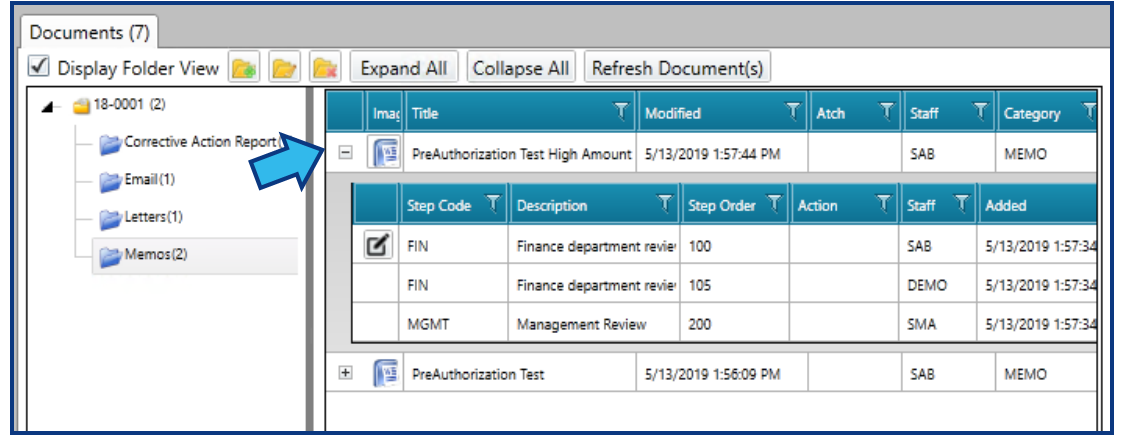
To approve the next step, press the Update Status icon to the left of the step listing.
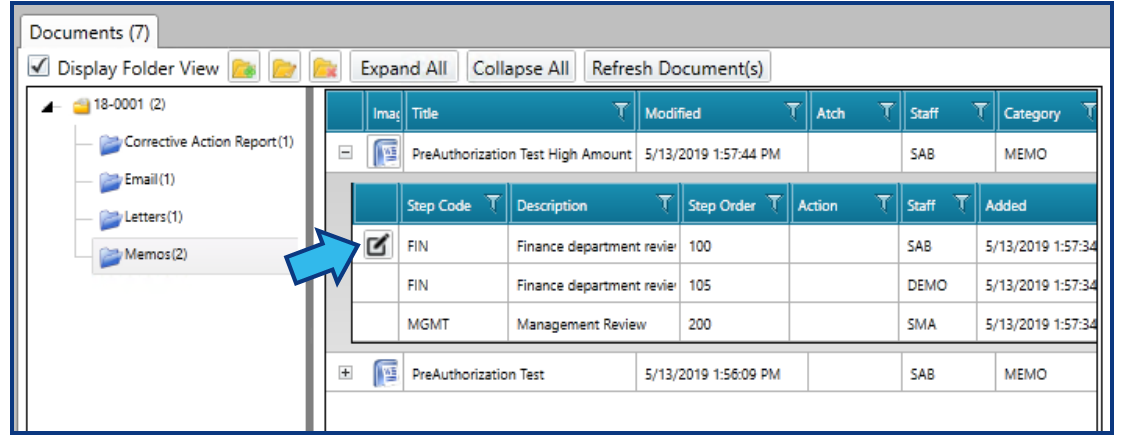
If the user approving the document is not the Staff listed in the pending approval, a prompt for an administrator password is given. Only System Administrators and the individual assigned the approval step can give approval.
A Documents Approval window appears allowing changes to the Approval Status.
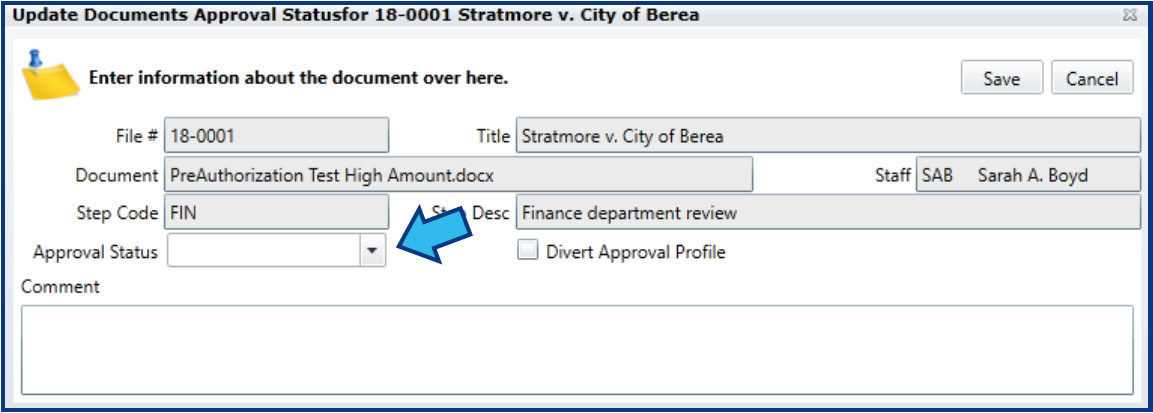
In the Approval Status drop-down, select Approved.
Press Save.
The Update Status icon will move to the next step in the list once a step is approved.

Once the approval is saved, the next person in the step list will be notified by email that they have a pending approval. The email contains a link to open the document.
Comments
0 comments
Please sign in to leave a comment.