
Need a printable version of this article? Download the Article (PDF Version).
Need a reminder? Use the Quick Reference Guide.
Need more details? Check out the Standard Guide.
Quick Reference Guide
There are 2 steps to complete this task:
Standard Guide
Step 1. Create a CyImportFile Shortcut
As part of the standard installation process, most users have the CyImportFile shortcut added to their desktop. This application allows you to be able to drag any file on your desktop onto the CyImportFile icon to import the file into CLW. The icon has a distinctive green arrow (see image below).

Do the following to create the CyImportFile desktop shortcut:
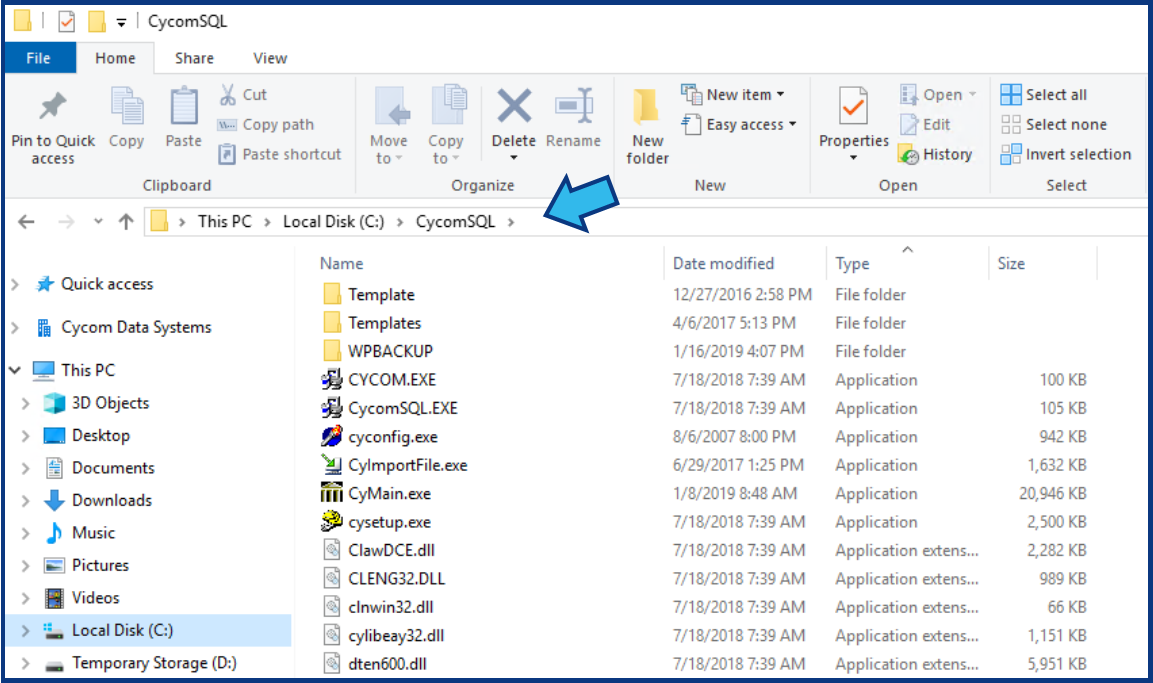
- Open File Explorer and navigate to C:\CycomSQL (The contents of your CycomSQL folder may be different than those shown below).
- Right-click on CyImportFile and select Send to and then Desktop (create shortcut).
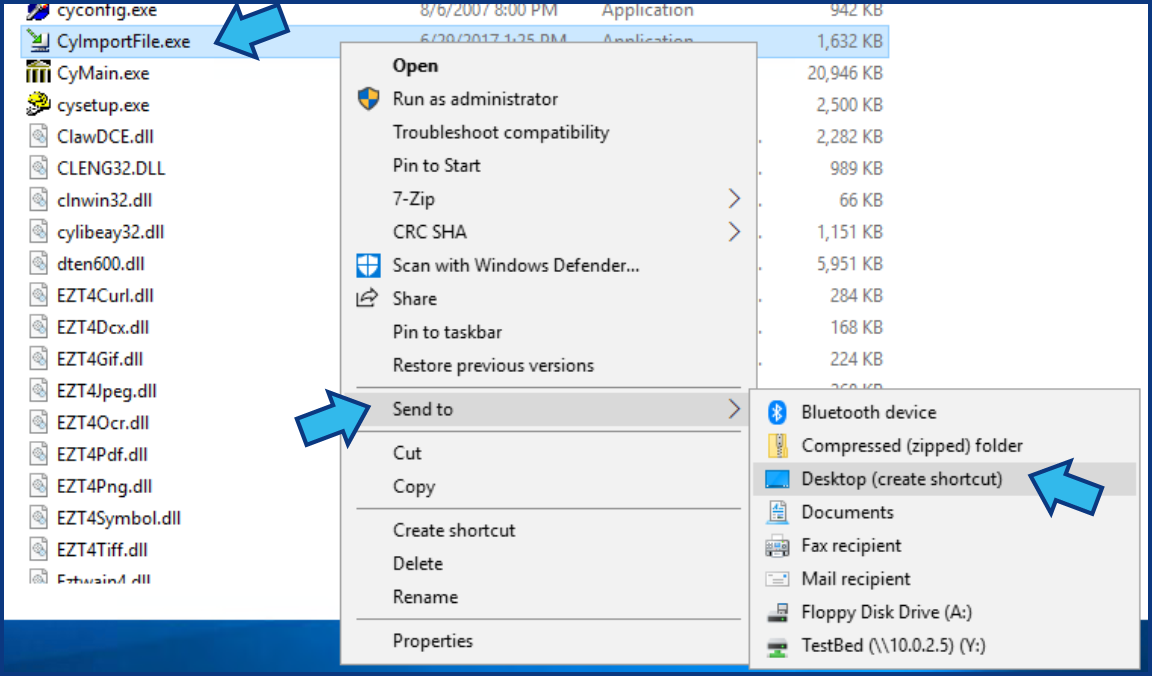
If CyImportFile is not available in the CycomSQL folder, contact Cycom Support for assistance.
Step 2. Rename the Shortcut (this step is optional)
For aesthetic reasons you may wish to rename the icon. Right-click on the CyImportFile desktop shortcut and select Rename.
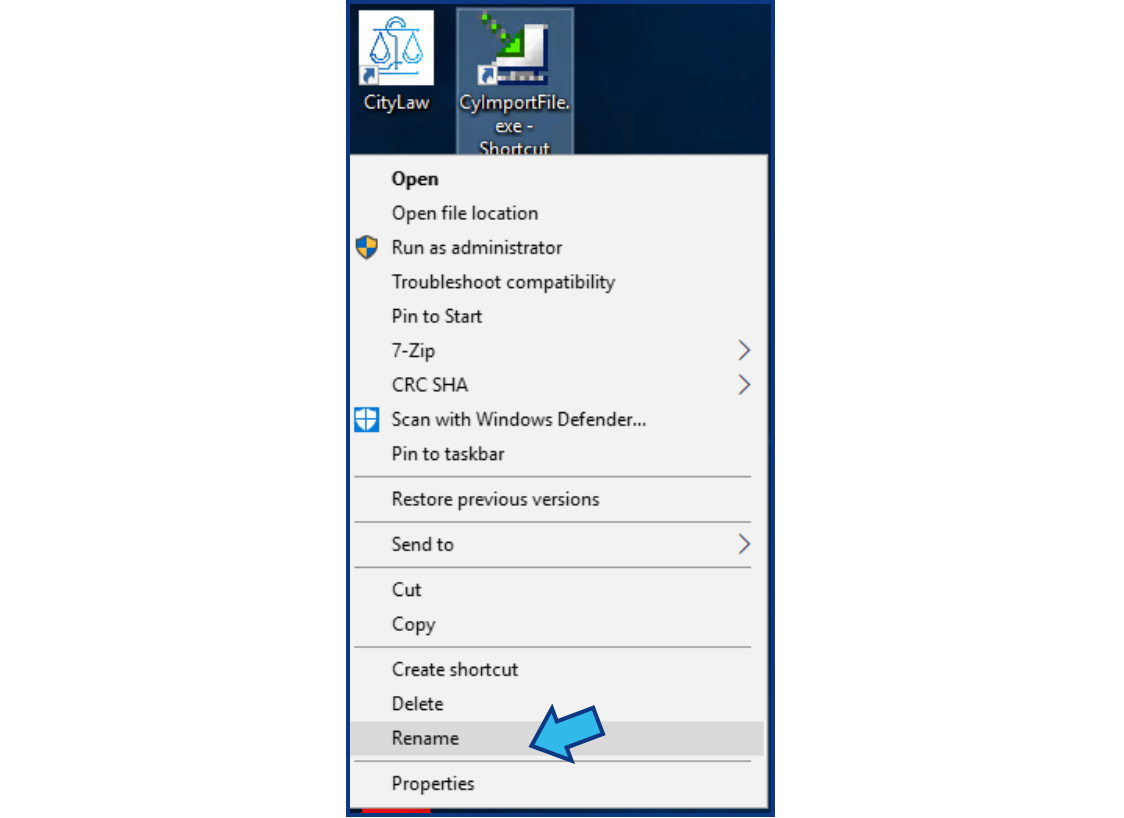
Do not name the CyImportFile shortcut the same as your CLW application shortcut. In this example, we have chosen to rename it CityLaw Import.

Comments
0 comments
Please sign in to leave a comment.