
Need a printable version of this article? Download the Article (PDF Version).
Need a reminder? Use the Quick Reference Guide.
Need more details? Check out the Standard Guide.
For optimal integration with Microsoft Word, the following Word Trust Center Settings are encouraged. Please note the use of these settings increases risk from malicious code only when you open documents from unvetted sources. It is good practice to NEVER open documents from unknown sources.
Quick Reference Guide
Open the Trust Center options window in Word:
There are 4 settings to configure:
-
Cycom is listed as a Trusted Publisher
-
Trusted Locations allowed on network
-
All macros are enabled
-
Protected View is disabled for Internet files
Standard Guide
Open Trust Center window
All of the Trust Center Settings can be configured by accessing the Trust Center window. Open Word directly and select a Blank document or open any Word document.

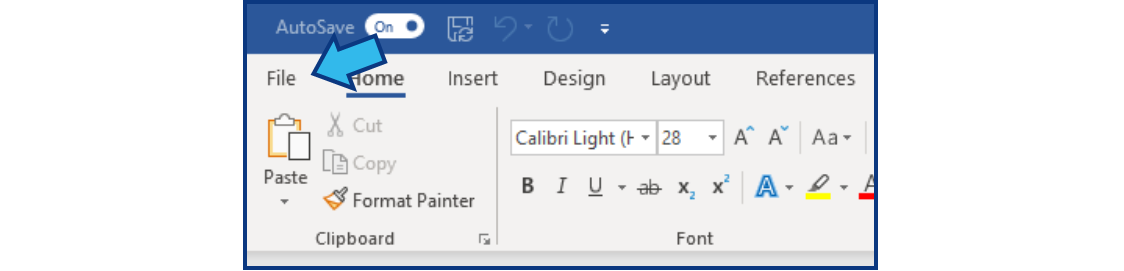
Select File from the Menu Bar at the top.
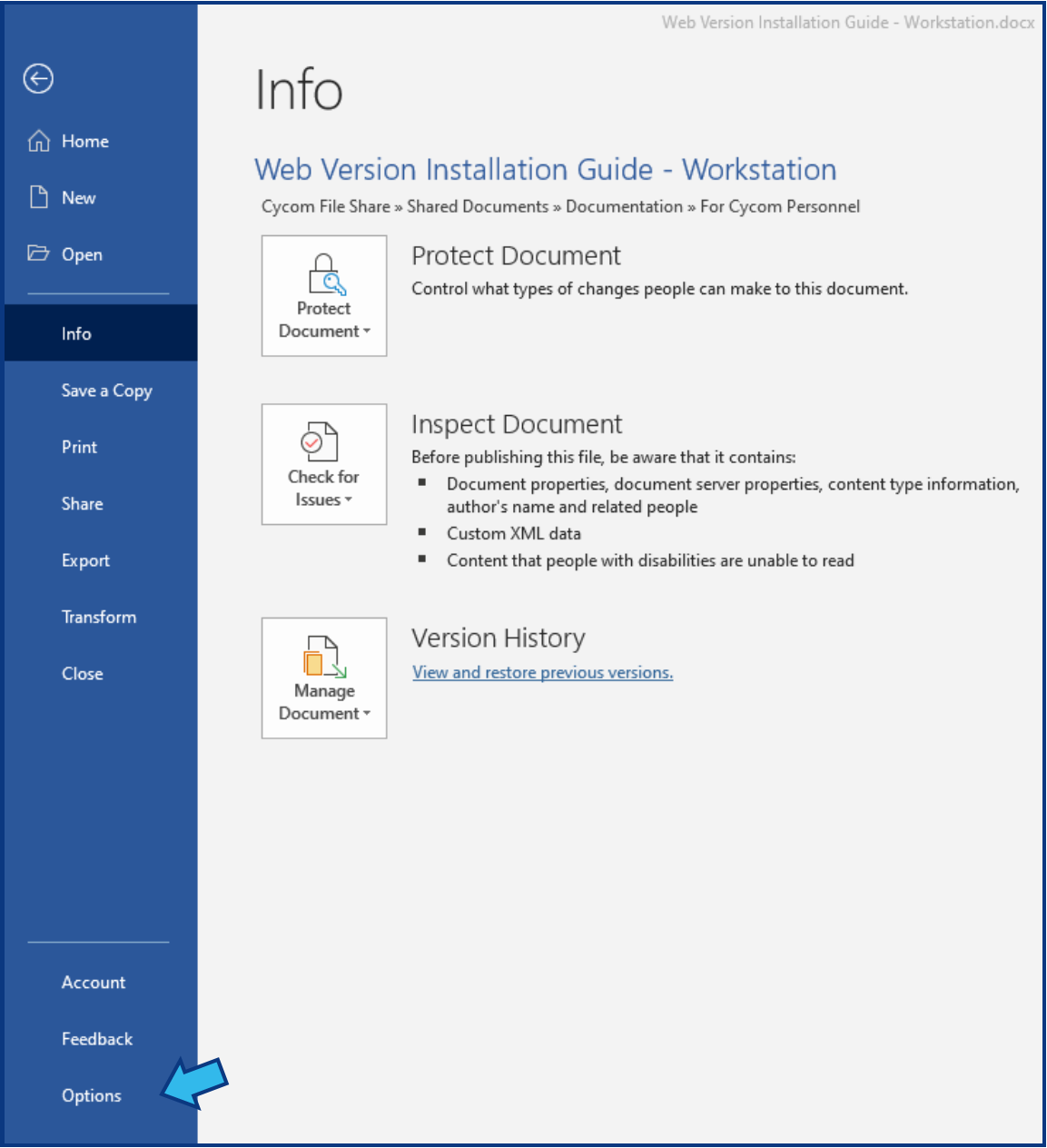
Select Options on the left pane at or near the bottom.
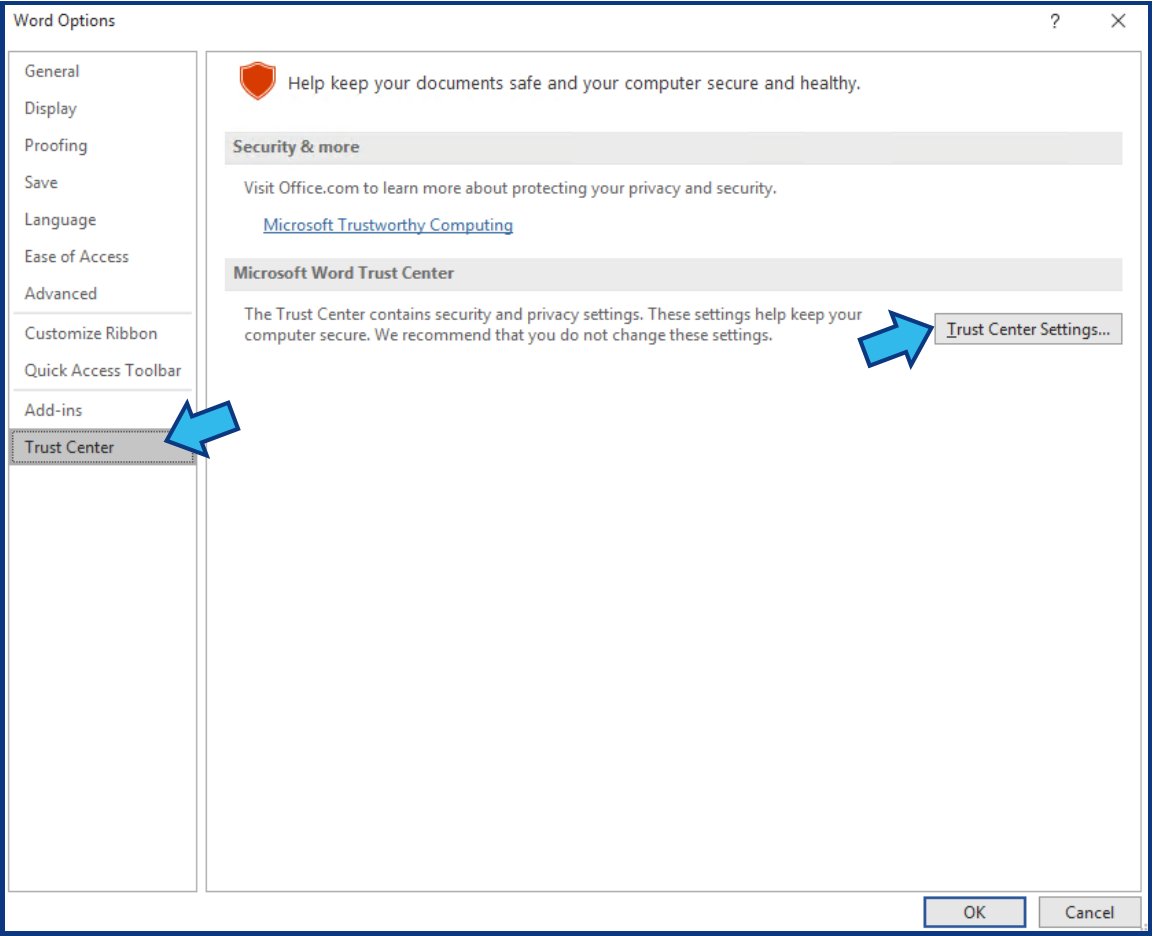
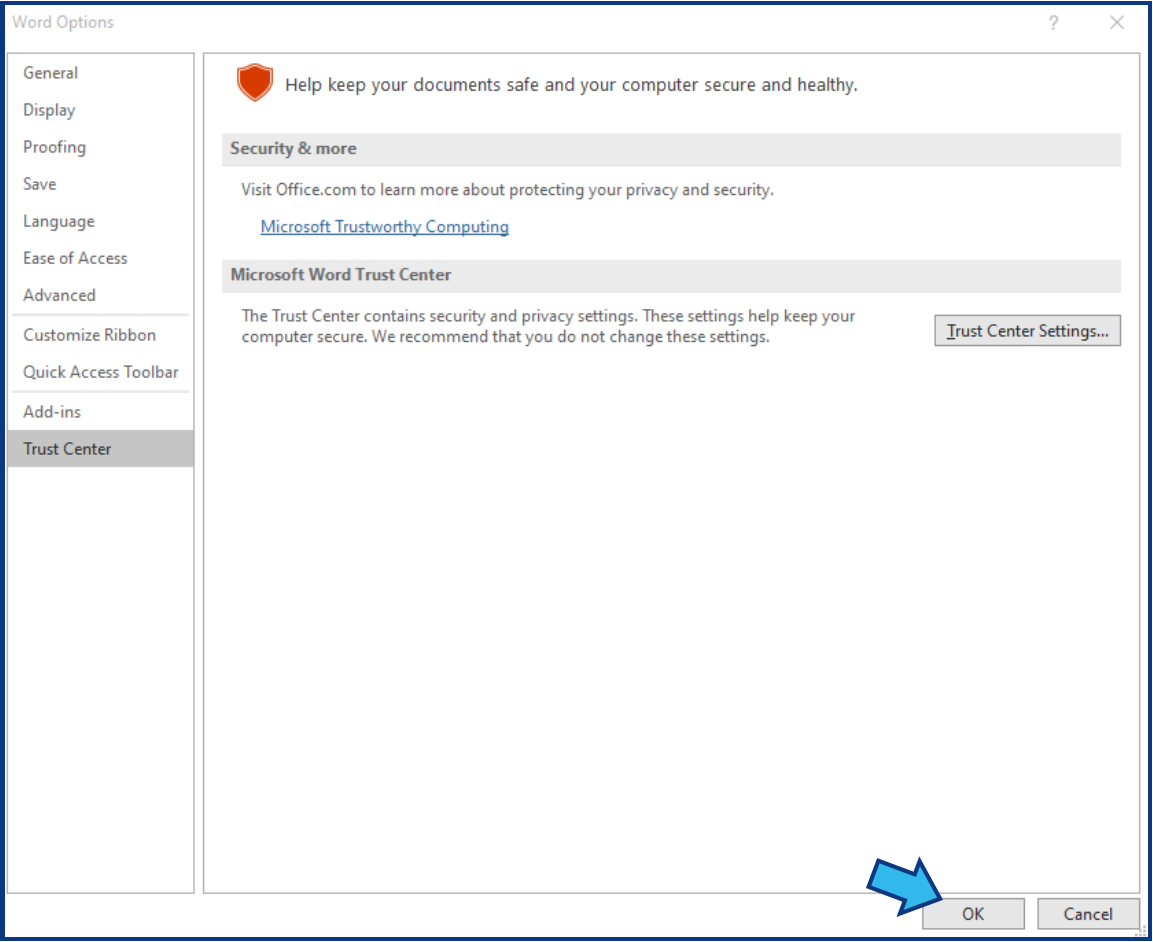
Select Trust Center on the left pane at the bottom. Press Trust Center Settings... on the right pane under the Microsoft Word Trust Center heading.
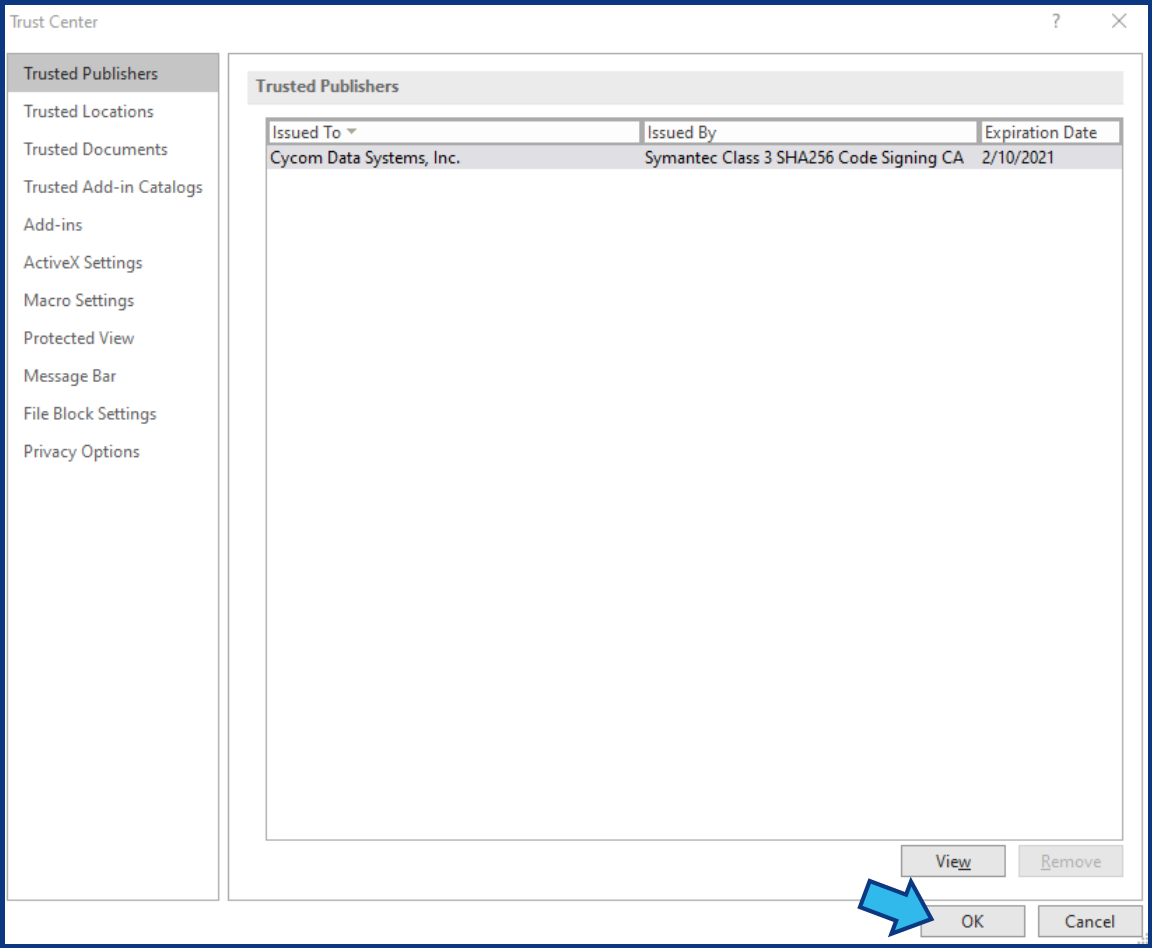
Setting 1. Cycom is listed as a Trusted Publisher
Select Trusted Publishers on the left pane at the top and confirm that Cycom Data Systems, Inc. is listed as a Trusted Publisher.
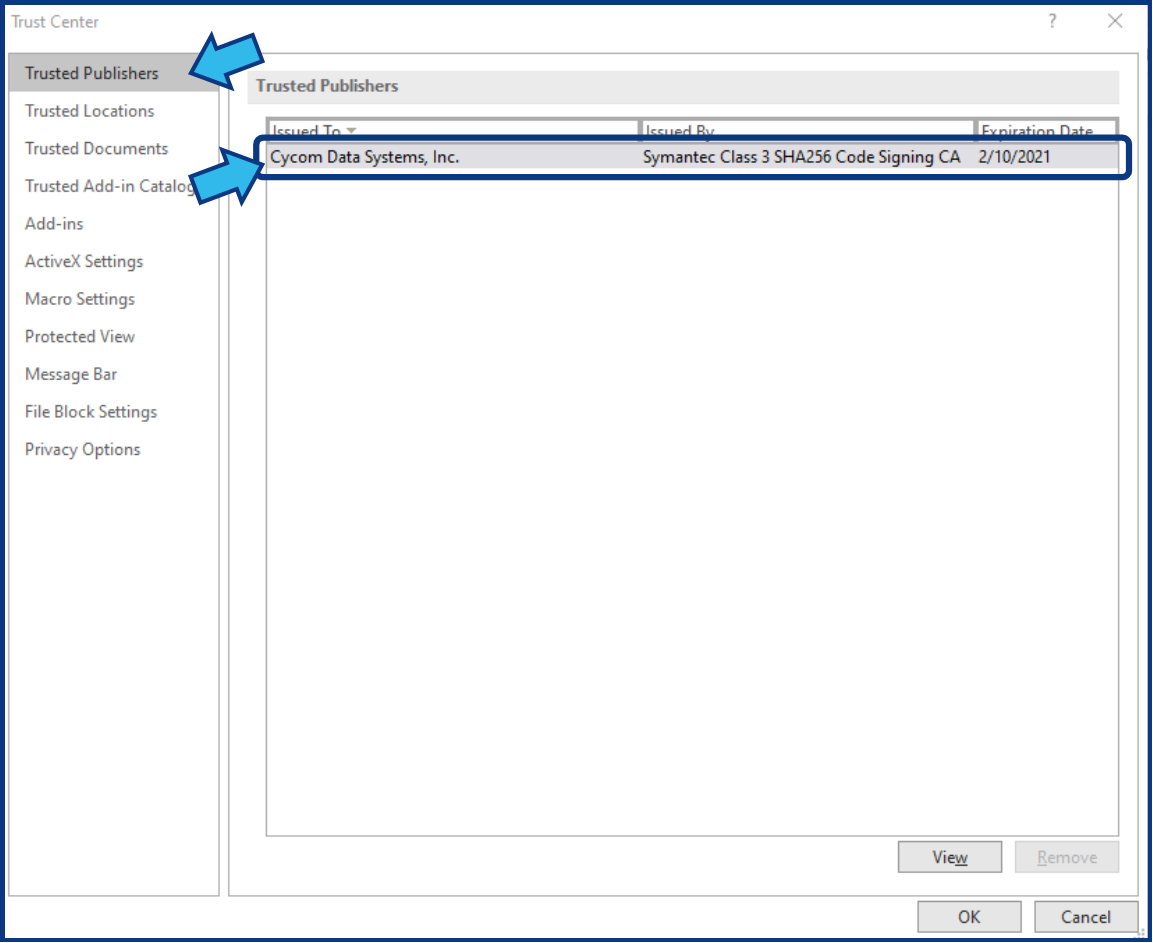
If Cycom Data Systems, Inc. is not listed as a Trusted Publisher, contact Cycom Support.
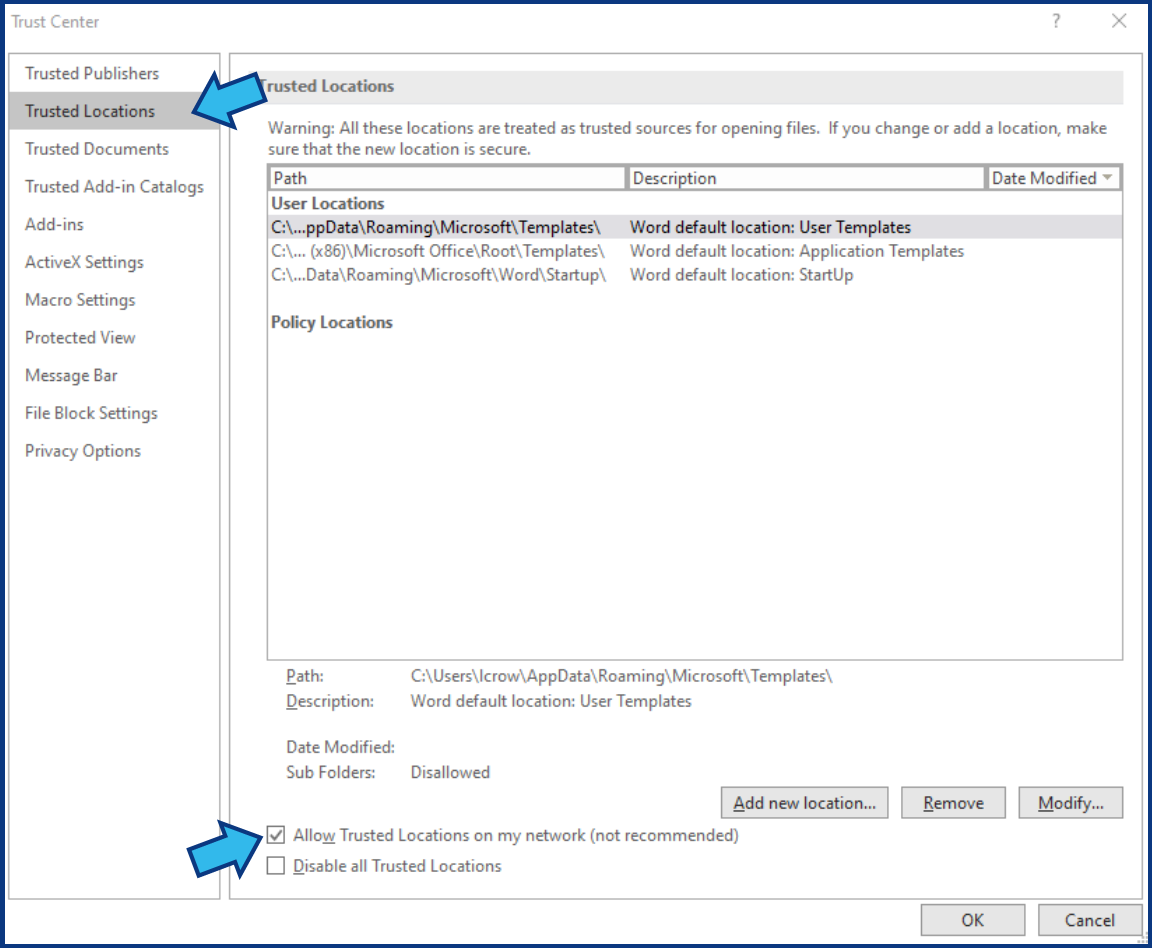
Setting 2. Trusted Locations allowed on network
Select Trusted Locations on the left pane and check the box beside Allow Trusted Locations on my network near the bottom.
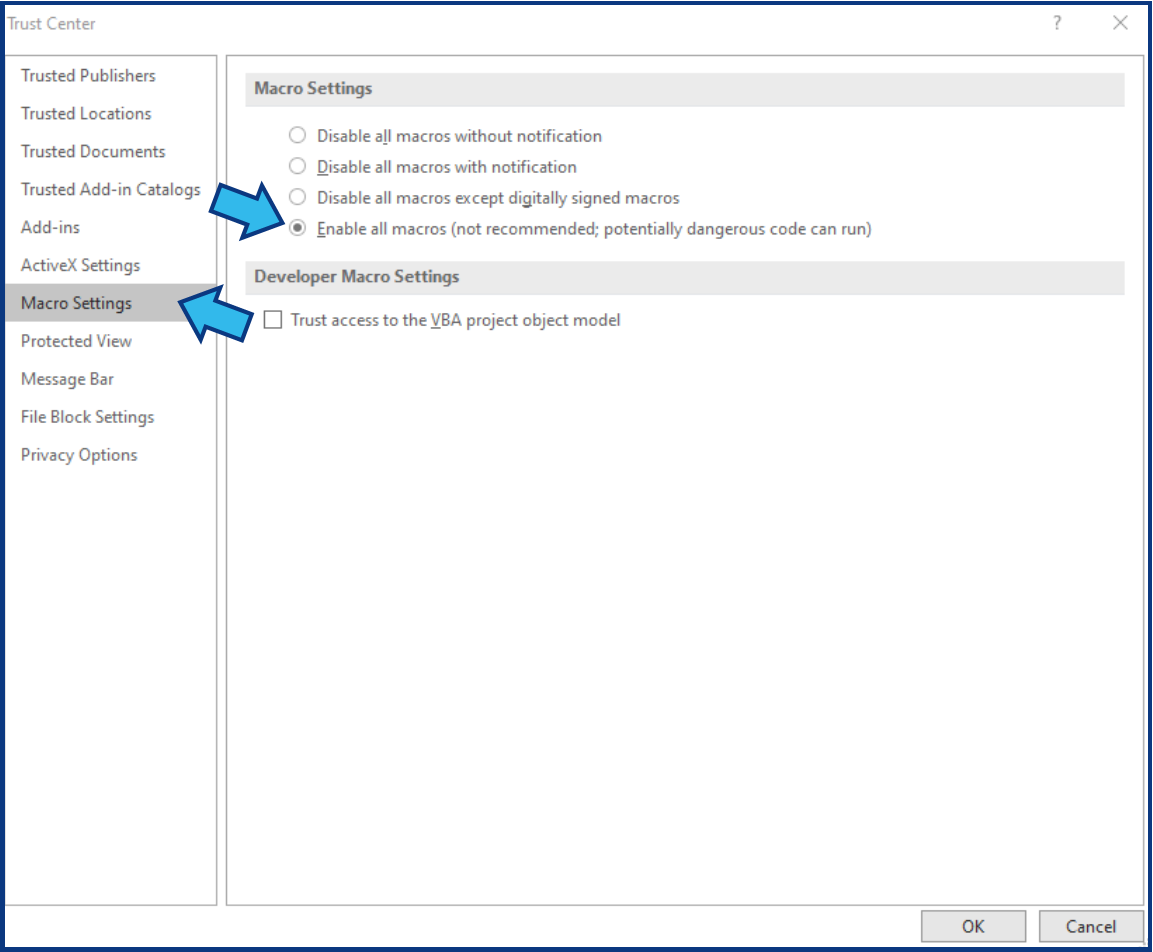
Setting 3. All macros are enabled
Select Macro Settings on the left pane and select the radio button beside Enable all macros near the top.
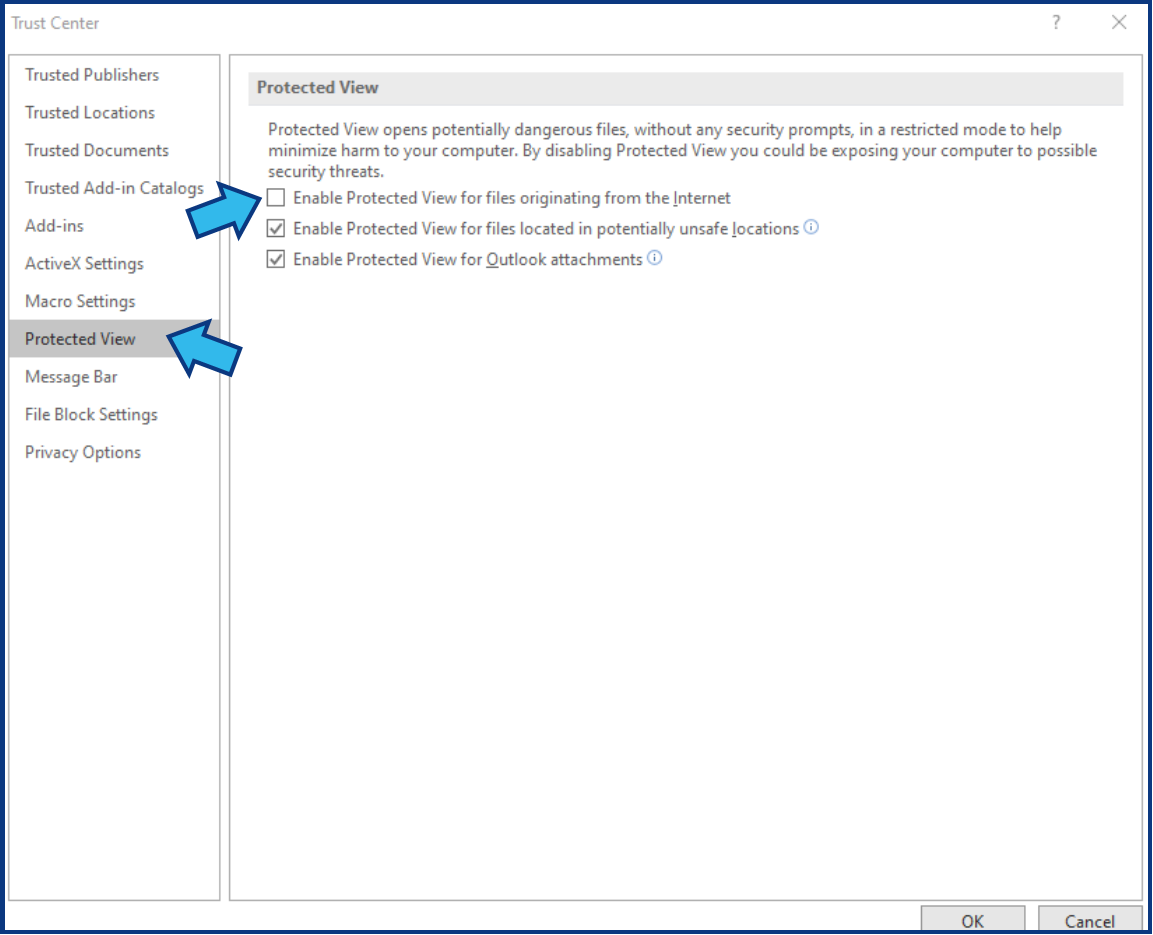
Setting 4. Protected View is disabled for Internet files
Select Protected View on the left pane and uncheck the box beside Enable Protected View for files originating from the Internet.
Press OK at the bottom of the Trust Center window and again at the bottom of the Word Options window.
Please remember these settings increase risk from malicious code when you open documents from unvetted sources. Exercise safe practices by only opening documents from sources you recognize.
Comments
0 comments
Please sign in to leave a comment.