
Need a printable version of this article? Download the Article (PDF Version).
Need a reminder? Use the Quick Reference Guide.
Need more details? Check out the Standard Guide.
Quick Reference Guide
There are 10 steps to complete this task:
-
Open CLW.
-
Press Tools icon.
-
Select Internet options.
-
Select the Security tab.
-
Select Trusted sites.
-
Press Sites.
-
Uncheck Require server verification.
-
Press Add.
-
Press Close.
-
Press OK.
Standard Guide
Step 1. Open CLW.
CLW should be configured to open in Internet Explorer. Open CLW by double-clicking on the desktop icon. NOTE: Your icon may look different.

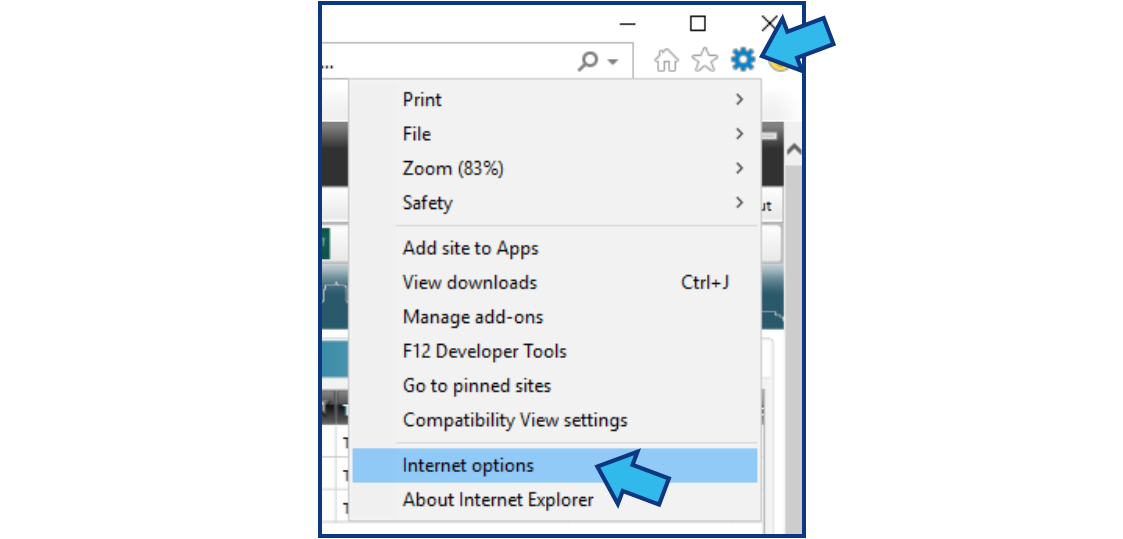
Step 2. Press Tools icon.
The web version of CLW opens in an Internet Explorer browser. On the top-right corner of the browser window, press the Tools icon that looks like a gear.

Step 3. Select Internet options.
Select Internet options near the bottom of the list of options.
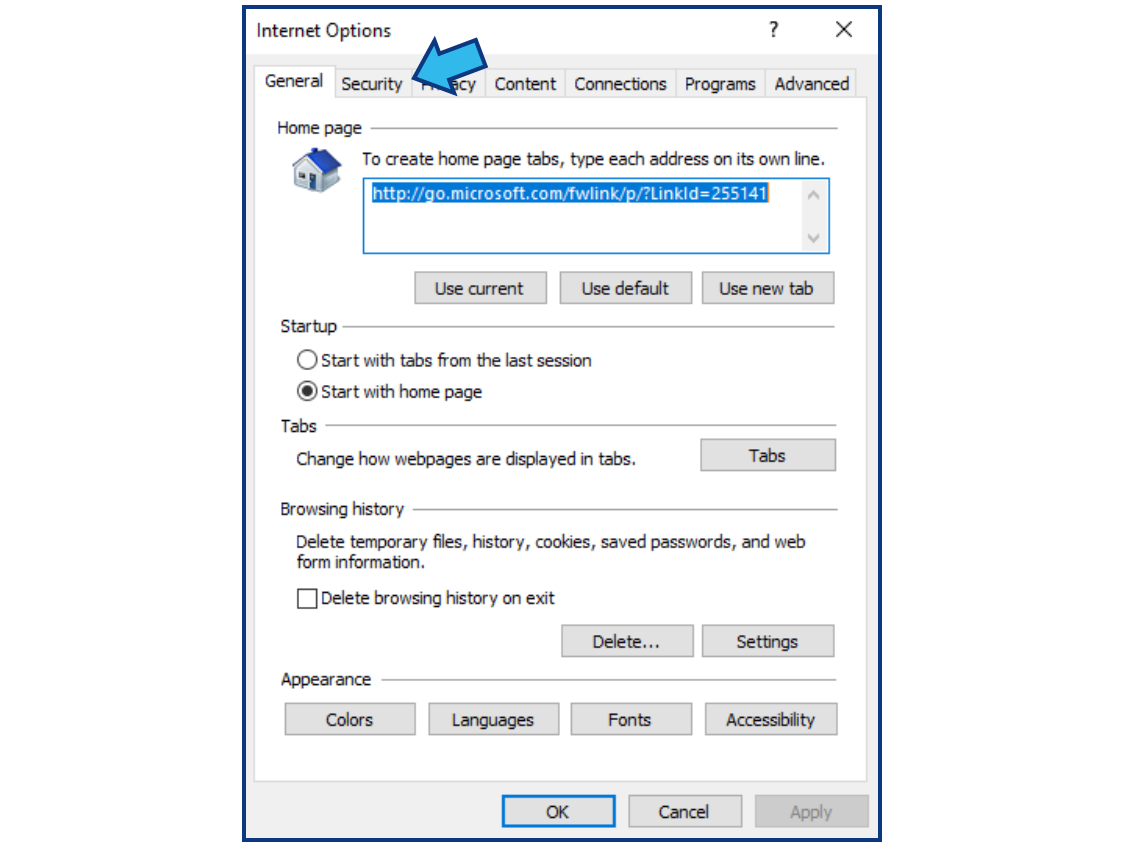
Step 4. Select the Security tab.
In the Internet Options window, select the Security tab.
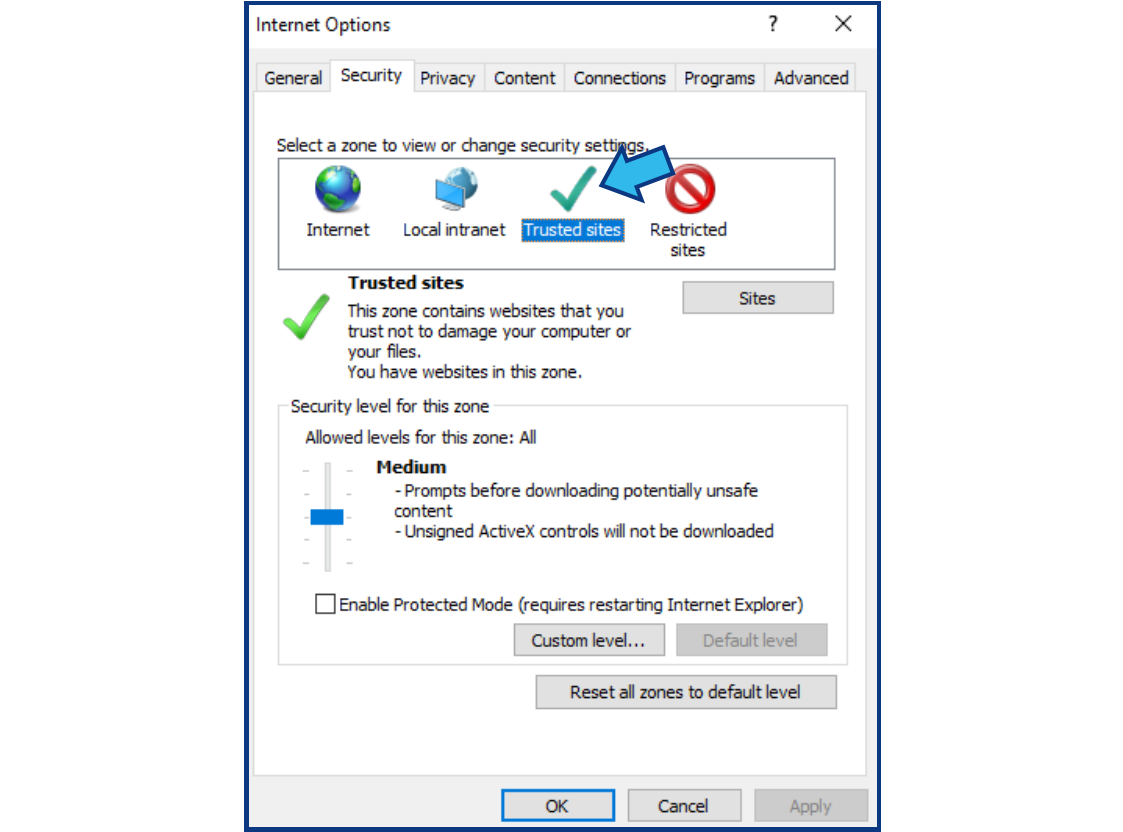
Step 5. Select Trusted sites.
Select Trusted sites in the zones box.
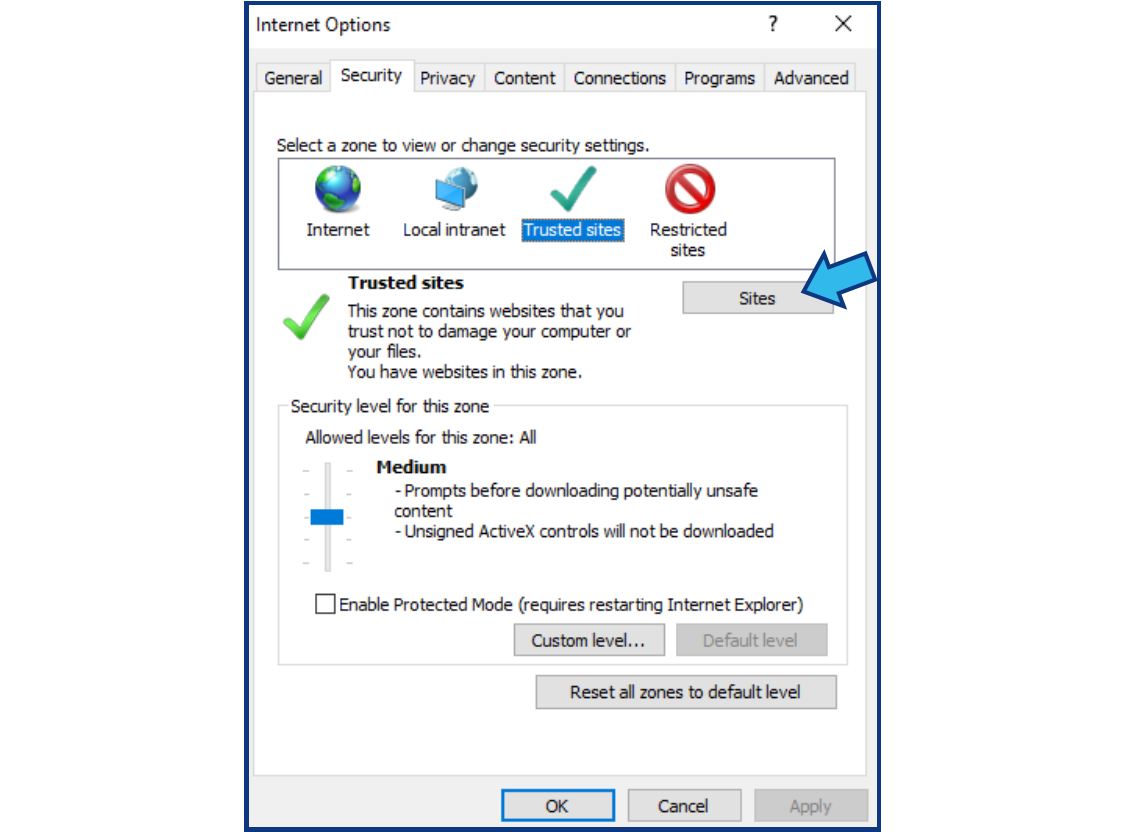
Step 6. Press Sites.
Press the Sites button.
Step 7. Uncheck Require server verification.
If there is a check in the box beside Require server verification (https:) for all sites in this zone, uncheck the box.
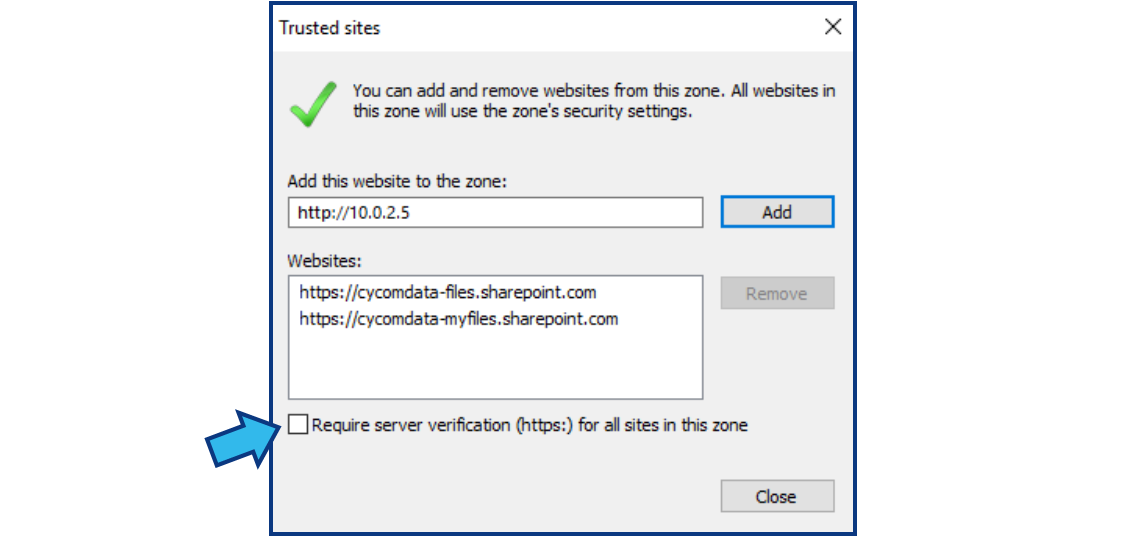
Step 8. Press Add.
Press the Add button.

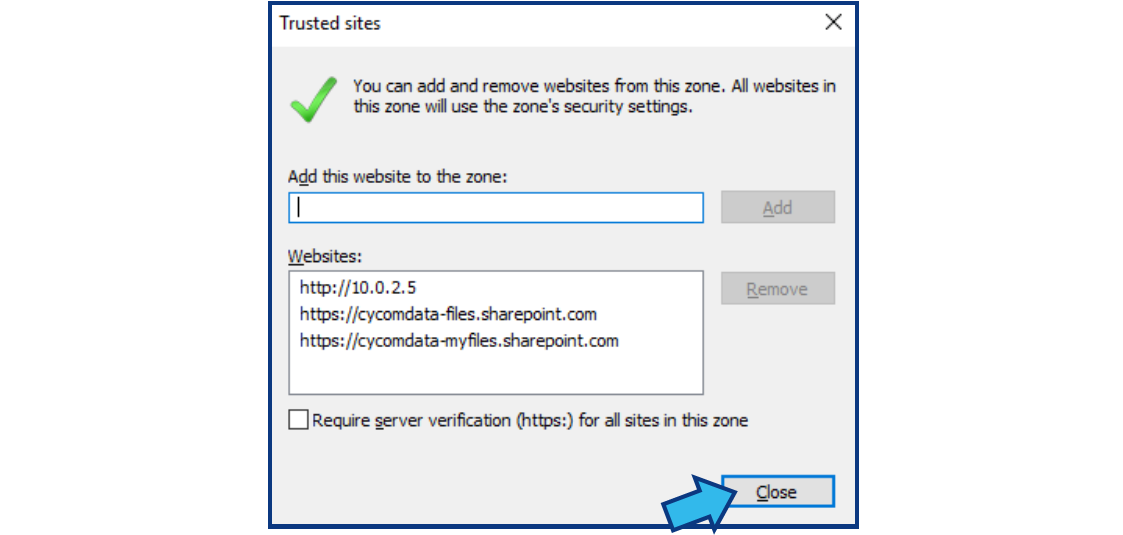
Step 9. Press Close.
Press the Close button at the bottom-right of the Trusted sites window.
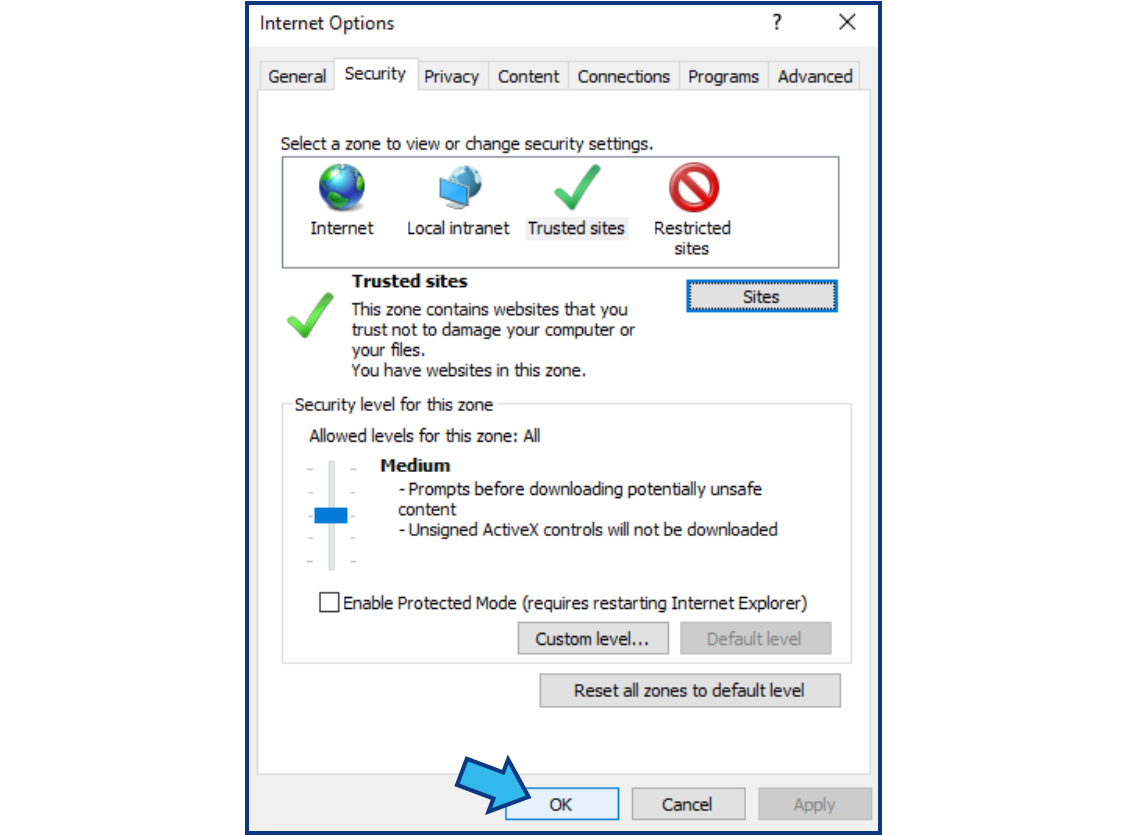
Step 10. Press OK.
Press the OK button at the bottom of the Internet Options window.
Comments
0 comments
Please sign in to leave a comment.