
There are several options available for importing scanned documents into CityLaw / CountyLaw. Each option is discussed below, along with any scanner recommendations for that option.
Option 1: Import directly from scanner.
Any scanner with ScanSnap or TWAIN driver support and Optical Character Recognition (OCR) can be configured to import directly to CityLaw / CountyLaw.
The best interface CityLaw / CountyLaw has is with Fujitsu ScanSnap scanners, so they are the preferred scanner.
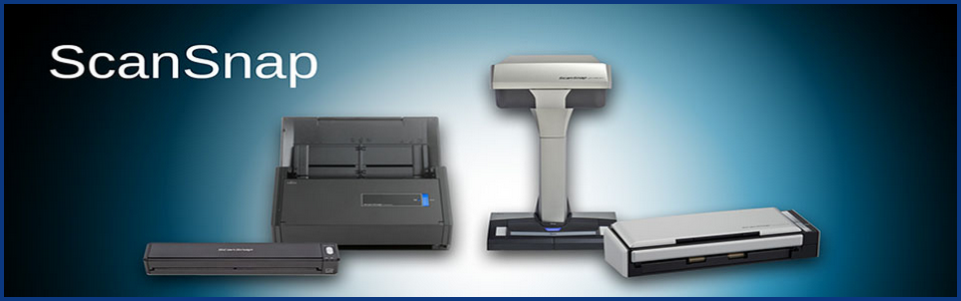
Recommended Models:
- iX100
- s1100i
- s1300i
- iX500
- fi-6130z
After installing a ScanSnap scanner it must be configured to save documents to CityLaw / CountyLaw. The following articles provide instructions:
Option 2: Scan and save document to desktop or folder.
If the scanner is not compatible with CityLaw / CountyLaw or is not configured, the scanned documents can be imported to CityLaw / CountyLaw using the CyImportFile application.
If the document is saved to the desktop, the file can be dragged on the CyImportFile icon, also located on the desktop.

If the document is saved to a folder, the CyImportFile application can be added to the Send To menu. This allows a user to right-click on the file and select CityLaw / CountyLaw from the available options under Send To.
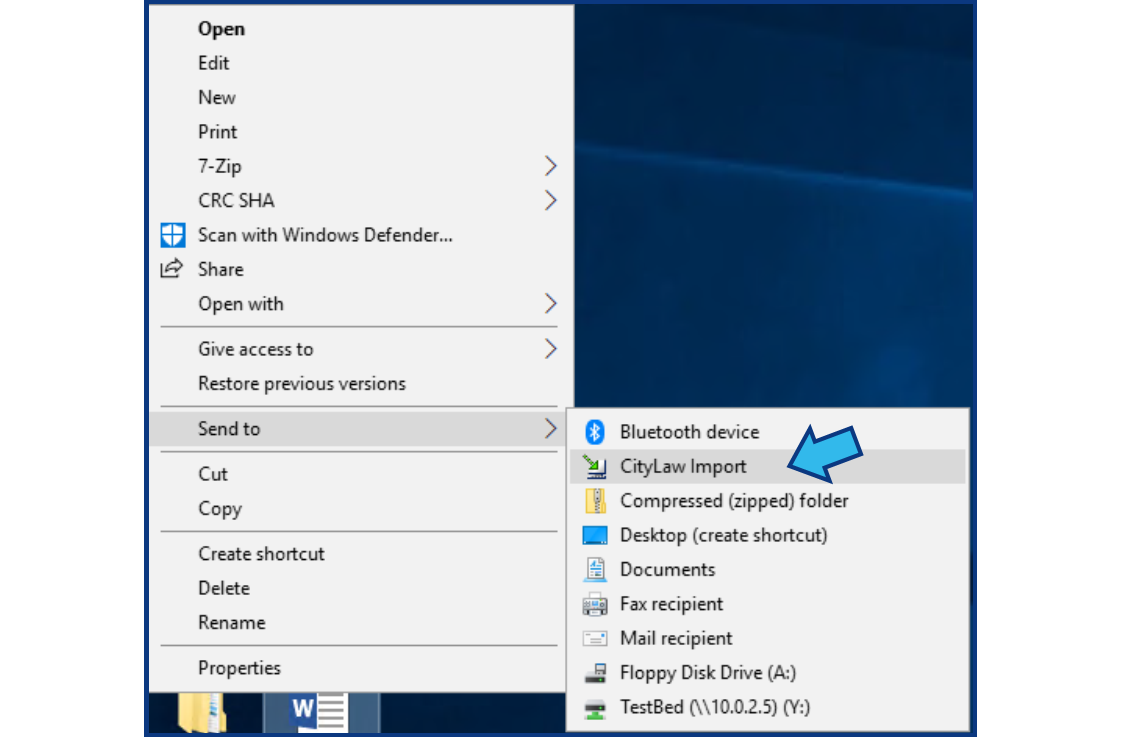
The following article provides instructions for adding the CityLaw / CountyLaw to the Send To menu. Step 1 in the article provides instructions for adding a CyImportFile shortcut to the desktop:
- Add CityLaw / CountyLaw to Send To Menu
- Add CityLaw / CountyLaw to Send To Menu - Step 1. Create a CyImportFile Shortcut
Option 3: Scan and save document to email.
If a group scanner is used, the scanned documents may be sent to the user via email. Documents can be imported directly to CityLaw / CountyLaw from Outlook with the Cycom Email Exporter Plus add-in.
The following articles provide instructions for using the Cycom Email Exporter Plus add-in in Outlook:
Comments
0 comments
Please sign in to leave a comment.